

Creating a Sales Order
Last updated:
Sales orders help in recording all the details of sales transactions, making it easier to track orders and analyze sales performance.
Creating a Sales Order
- Go to the Sales module.
- Open the "Sales Order" page.
- Choose the warehouse.
- Select the salesperson (if available).
- Click on "New".
- Enter the customer's name.
Note: If you need to modify the date while creating the document, ensure the user has permission to change the document date by enabling "Allow modifying date in new mode", and verify the user has the required permission to edit the date.
- Search for items.
- Click on the search icon “
 ” to look for stocked items.
Note: Enable the "Serial Number" setting if you want to search using the serial number.
- Click on 🎧 to search for services.
- Click on 🎁 to search for sales bundles.
- Enter quantities and prices.
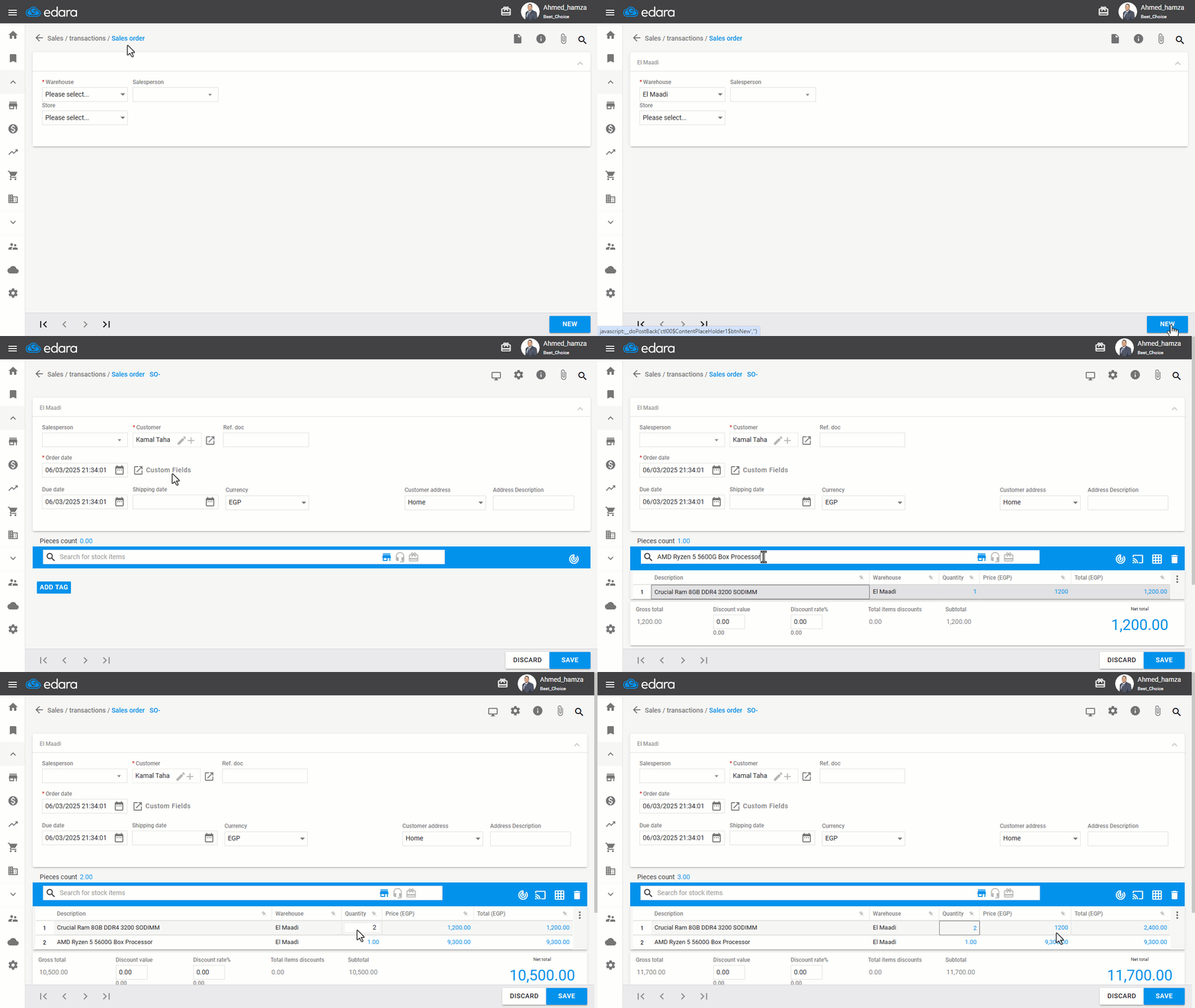
Note: If the currency used in the sales order is different from the system's default currency, be sure to change the currency before saving the order. Also, ensure that the customer is allowed to use that currency.
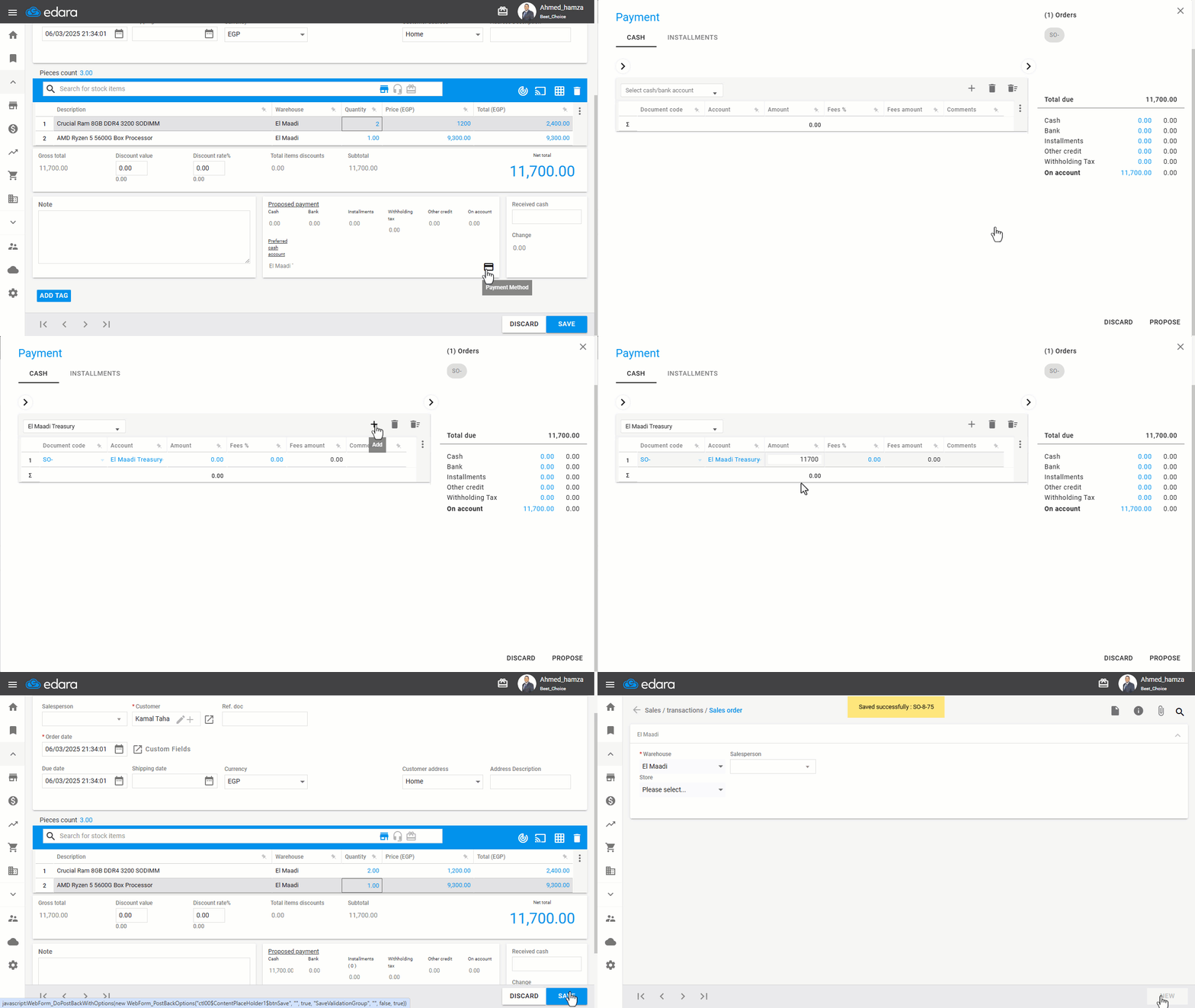
- Select the payment method by clicking on 💳.
Note: The available payment methods in "Edara" are:
- Cash, which requires permission for the relevant cash or bank account.
- Installments, which require permission for the NR account.
- Credit, which requires enabling the "Allow unpaid sales orders" setting in the sales settings.
Note: Ensure the customer accepts the selected payment method.
- Click on "Save".
Frequently asked questions
What payment methods are available in a sales order?
The available payment methods in "Edara" are: Cash, which requires permission for the relevant cash or bank account, Installments, which require permission for the NR account, Credit, which requires enabling the "Allow unpaid sales orders" setting in the sales settings.
Why can't I change the date while creating the order?
If you need to modify the date while creating the document, ensure the user has permission to change the document date by enabling "Allow modifying date in new mode", and verify the user has the required permission to edit the date.
Can I search for items by serial number?
Enable the "Serial Number" setting if you want to search using the serial number.
If you encounter any challenges or have questions during these processes, you can contact our technical support team, who are ready to assist you at any time.