

Printing the QR Code on a Sales Invoice
Last updated:
To ensure compliance with the legal requirements issued by the Zakat, Tax and Customs Authority (ZATCA), as well as the E-Receipt Portal requirements, “Edara” allows you to print a QR code on your sales invoice.
This QR code enables customers to access the E-Receipt portal when integrated with the E-Receipt portal (Egypt) and to directly view main details, such as the tax number, total amount, and invoice number, when integrated with ZATCA (Saudi Arabia).
Printing the QR Code on a Sales Invoice
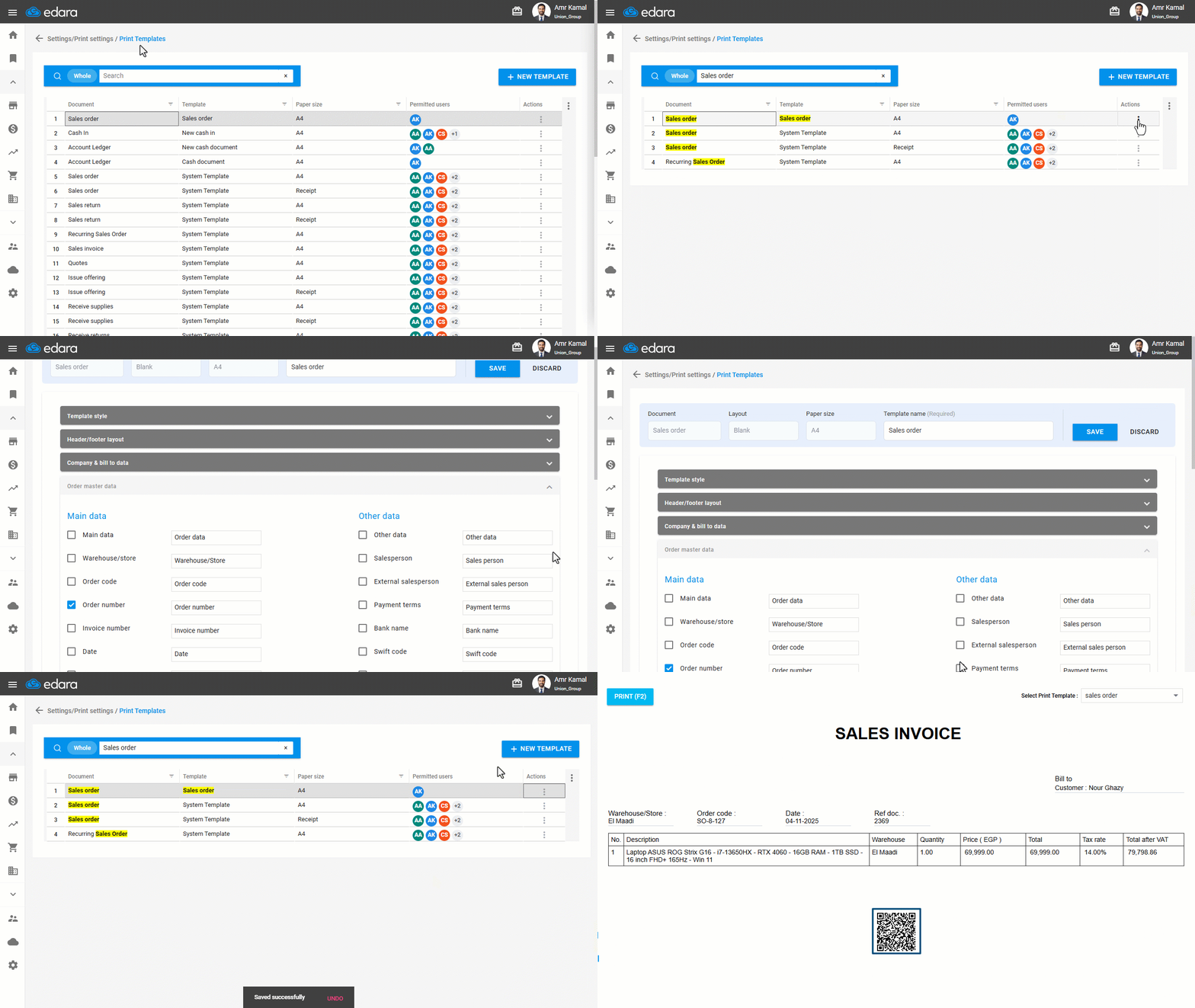
- Go to “Settings”.
- Open the “Print Templates” page.
- Search for the print template you want to edit, or create a new one.
- Click on the “⋮” icon in the “Actions” column next to the required print template.
- Click on “Edit”.
- Go to “Order Master Data”.
- Enable the “Show QR Code” option.
- Click on “Save”.
Notes:
- Make sure to enter the Tax registration ID in the company's Master data settings so that the QR code appears when printing the sales invoice.
- In Saudi Arabia, the QR code must be scanned using the E-Invoicing App only, not the camera. In Egypt, you can scan the code directly using your phone's camera.
Frequently asked questions
Why doesn’t the QR code appear when printing?
Make sure to enter the Tax registration ID in the company's Master data settings so that the QR code appears when printing the sales invoice.
If you encounter any challenges or have questions during these processes, you can contact our technical support team, who are ready to assist you at any time.