

Creating a Sales Order Number
Last updated:
Creating a unique number for each sales order in "Edara" helps streamline data management and improve coordination between teams. By configuring the sales order number settings, you can customize the format and range to align with your business operations, ultimately improving the sales management process.
For example, if you manage multiple branches or warehouses, you can configure the sales order number settings to number orders based on location or department, and specify how the numbering should reset over specific time periods (monthly or yearly).
Steps to Create a Sales Order Number
- Go to Settings.
- Select “Module Settings”.
- Open the “Sales” Module.
- Enable the setting “Create Sales Order Number”.
- Choose the components of the sales order number.
- Enter the prefix if the components include one. “Edara” will show a preview of your selections.
Note: The default setting for resetting the numbering is "Never," but it can be changed to "Monthly" or "Yearly" to reset at the end of the defined period, with a message showing the reset date.
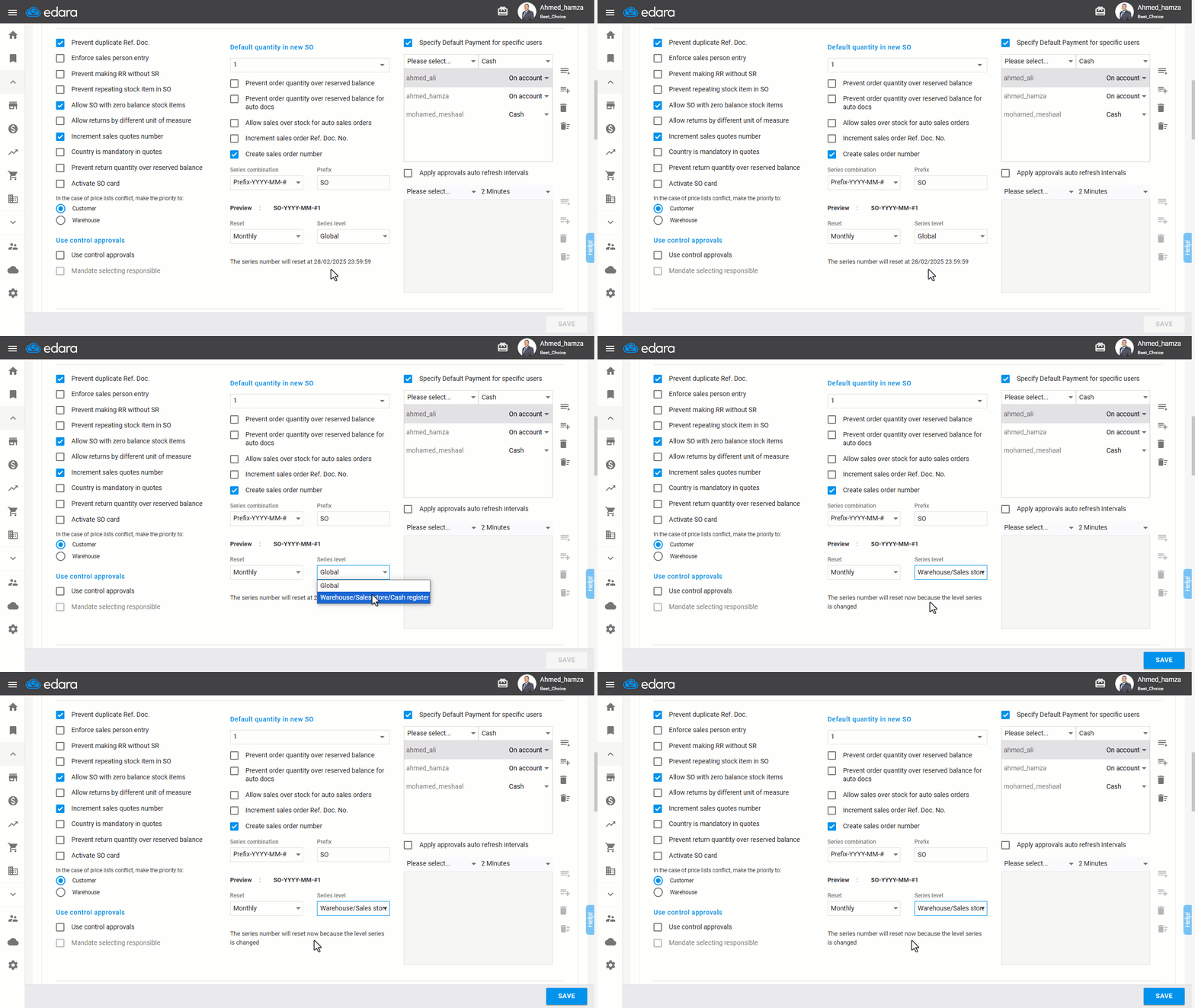
Note: Numbering range options: "Global" (across the entire company) or "Warehouse/Sales Store/Cash Register" (for each individual warehouse or Store).
- Click on “Save”.
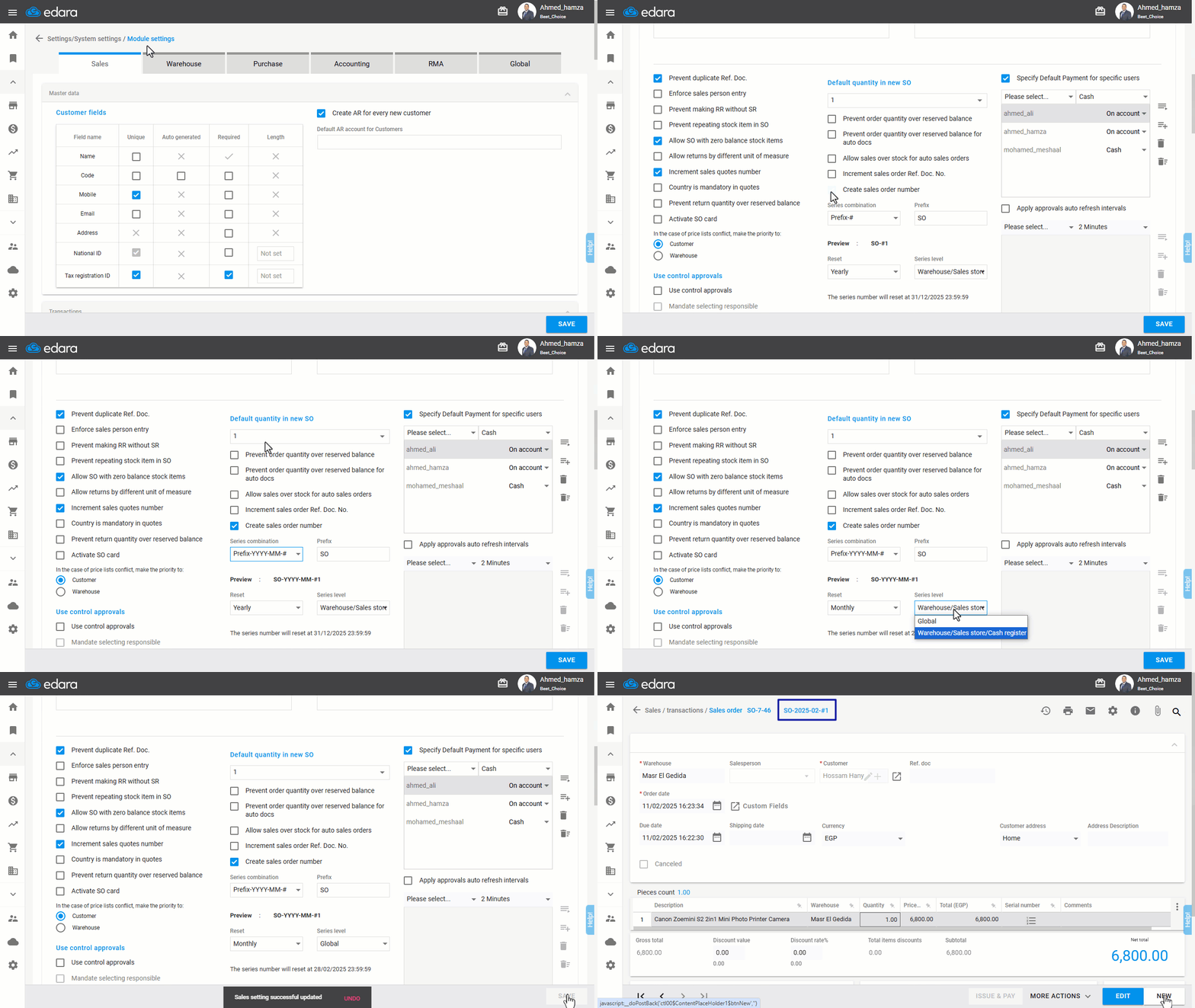
Note: When changing the numbering range, the re-numbering will occur immediately, with a confirmation message displayed.
If you encounter any challenges or have questions during these processes, you can contact our technical support team, who are ready to assist you at any time.