

Saving the Notes Receivable Related to a Sales Order
Last updated:
When creating a sales order for a customer without saving the related notes receivable immediately, it is advisable to link the associated notes later to ensure proper document sequence.
Saving the Notes Receivable Related to a Sales Order
Note: Ensure that approvals on the sales orders are completed first.
"Edara" offers two methods to save the notes receivable linked to sales orders:
1- From the Sales approvals Page
- Go to the Sales module.
- Open the "Sales Approvals".
- Click on the "NR" of the required sales order (You will be redirected to the Notes Receivable page).
- Click on "Save".
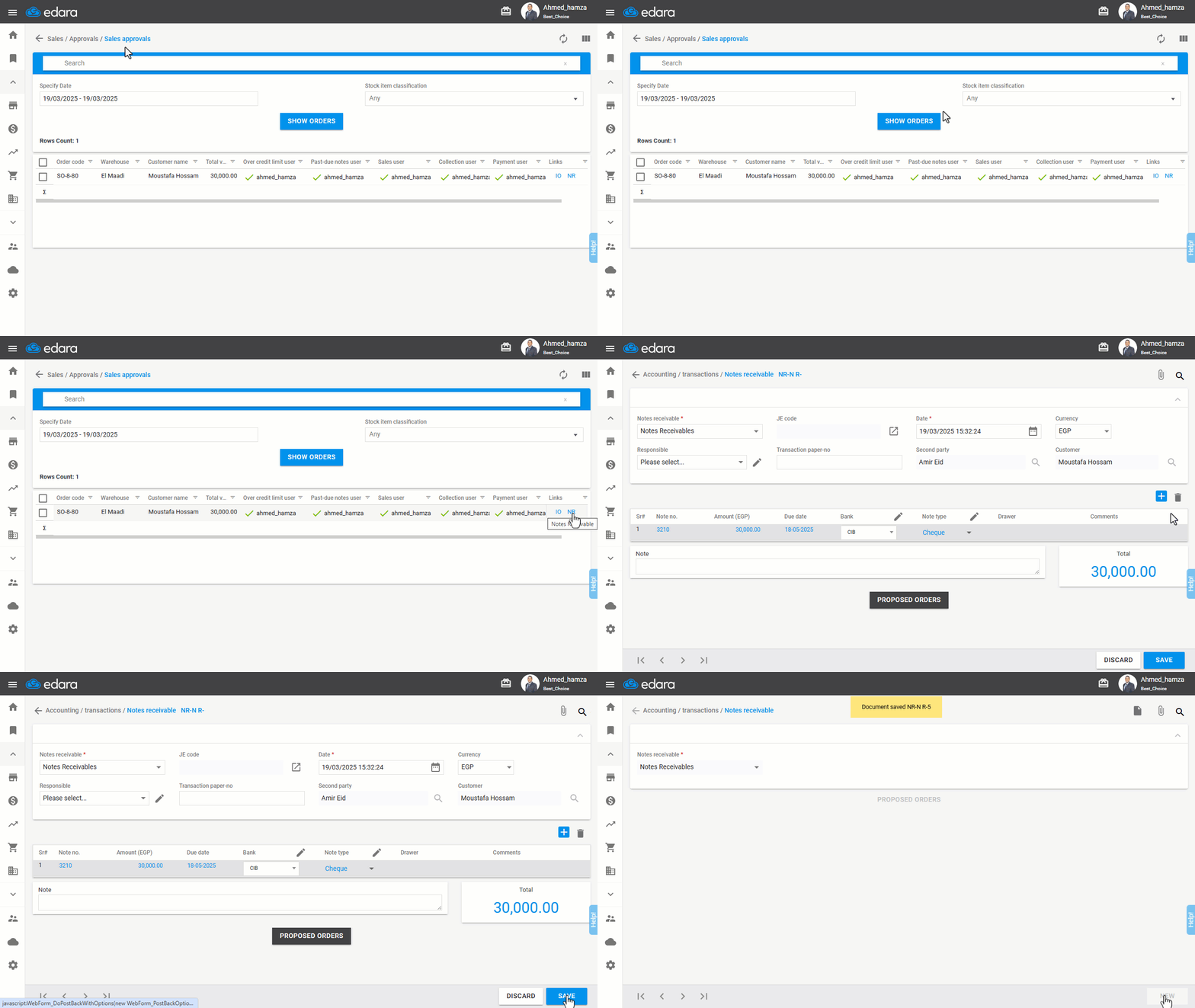
Note: If the issue offering linked to the sales order is saved, the sales order won't appear on the Sales approvals page, and you will need to follow Method 2.
2- From the Accounting Module
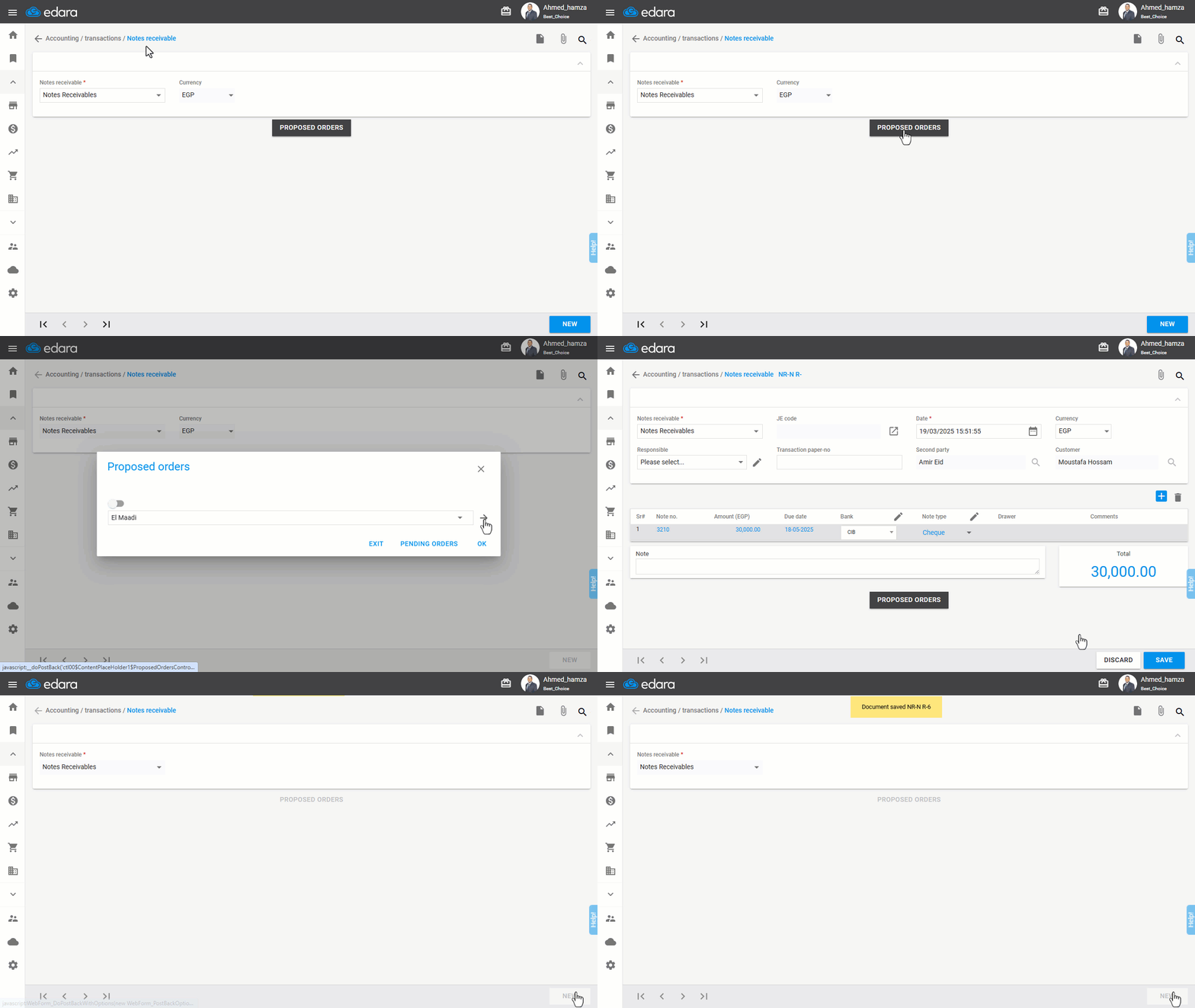
- Go to the Accounting module.
- Open the "Notes Receivable".
- Click on "Proposed Orders".
- Choose the warehouse and click on the arrow (→).
Note: Enable the relevant setting if the sales order was created from a sales store.
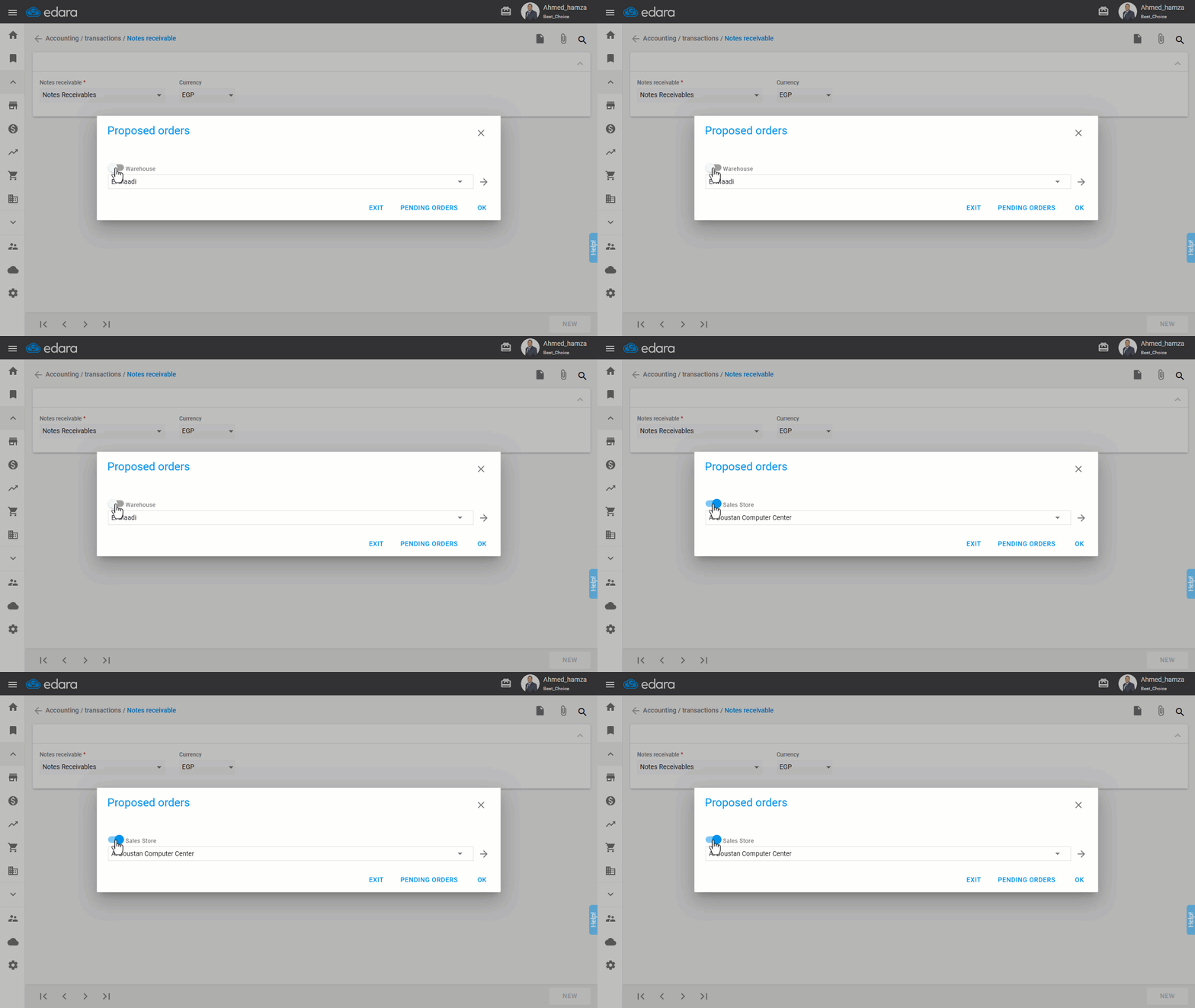
- Search for the sales order by its code, customer name, or date.
- Select the required sales order.
Note: You can change the Notes Receivable's date, and currency, and add a responsible.
- Click on "Save".
Frequently asked questions
Why doesn't the sales order appear on the Sales Approvals page?
If the issue offering linked to the sales order is saved, the sales order won't appear on the Sales approvals page, and you will need to follow Method 2.
Can I change the date and currency of the notes receivable linked to a sales order?
You can change the Notes Receivable's date, and currency, and add a responsible.
If you encounter any challenges or have questions during these processes, you can contact our technical support team, who are ready to assist you at any time.