

Saving a Work Order Linked to a Proposed Sales/Purchase Order
Last updated:
“Edara” allows you to create work orders linked to sales or purchase documents that have bypassed all approval stages.
Here’s how to save the work order step by step.
Saving a Work Order Linked to a Proposed Sales/Purchase Order
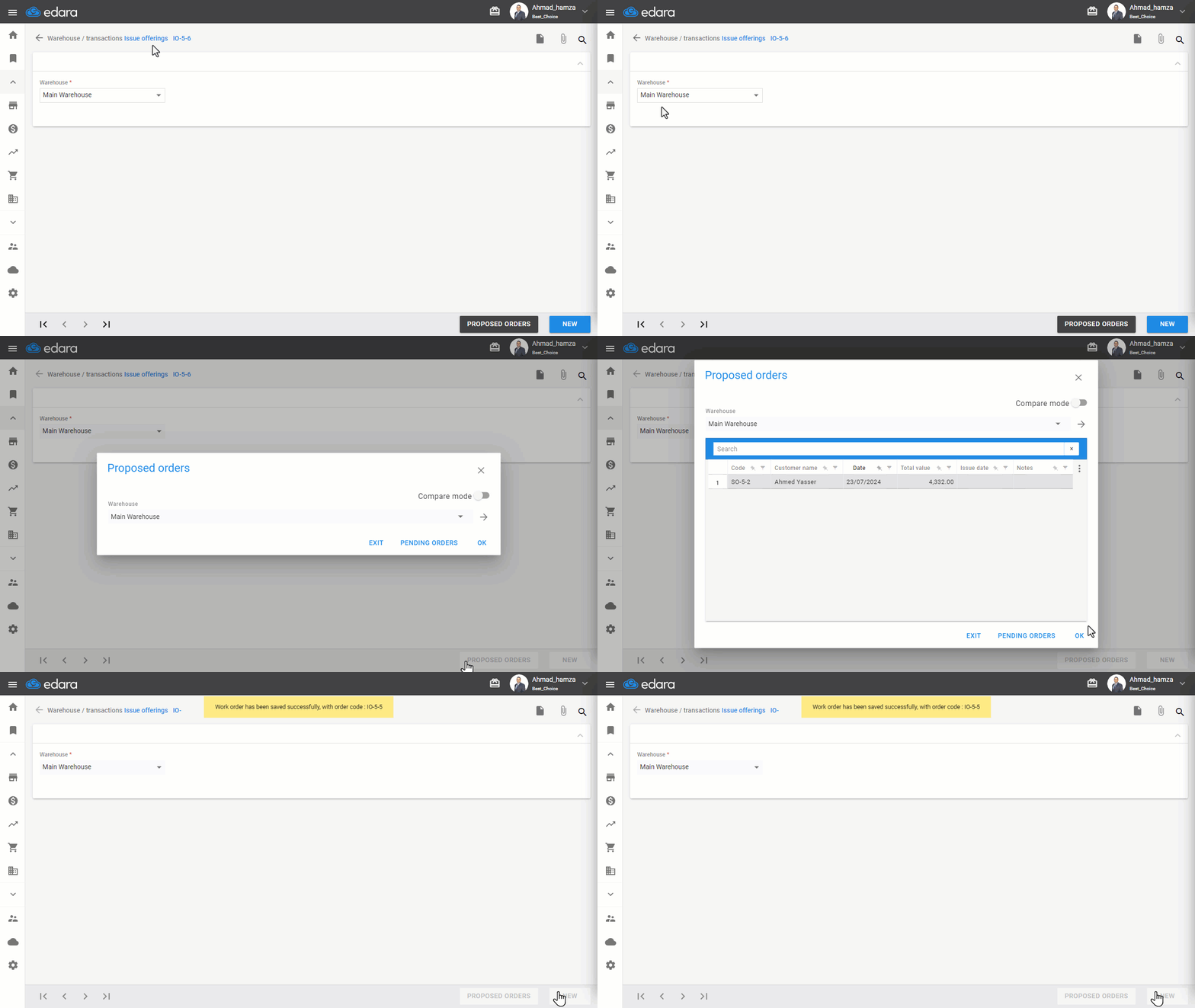
For example, the following steps demonstrate how to save an Issue Offering Document linked to a proposed Sales Order. These steps can be applied to any work order.
Here’s how to save it:
- Go to the Warehouse Module.
- Select the “Issue Offerings” page.
- Choose the “Warehouse”.
- Click on “Proposed Orders”.
- Click “→” to view sales orders that have passed approvals.
- Select the sales order to be issued.
- Click “OK”.
- Enter additional order details, if applicable.
- Click “Save”.
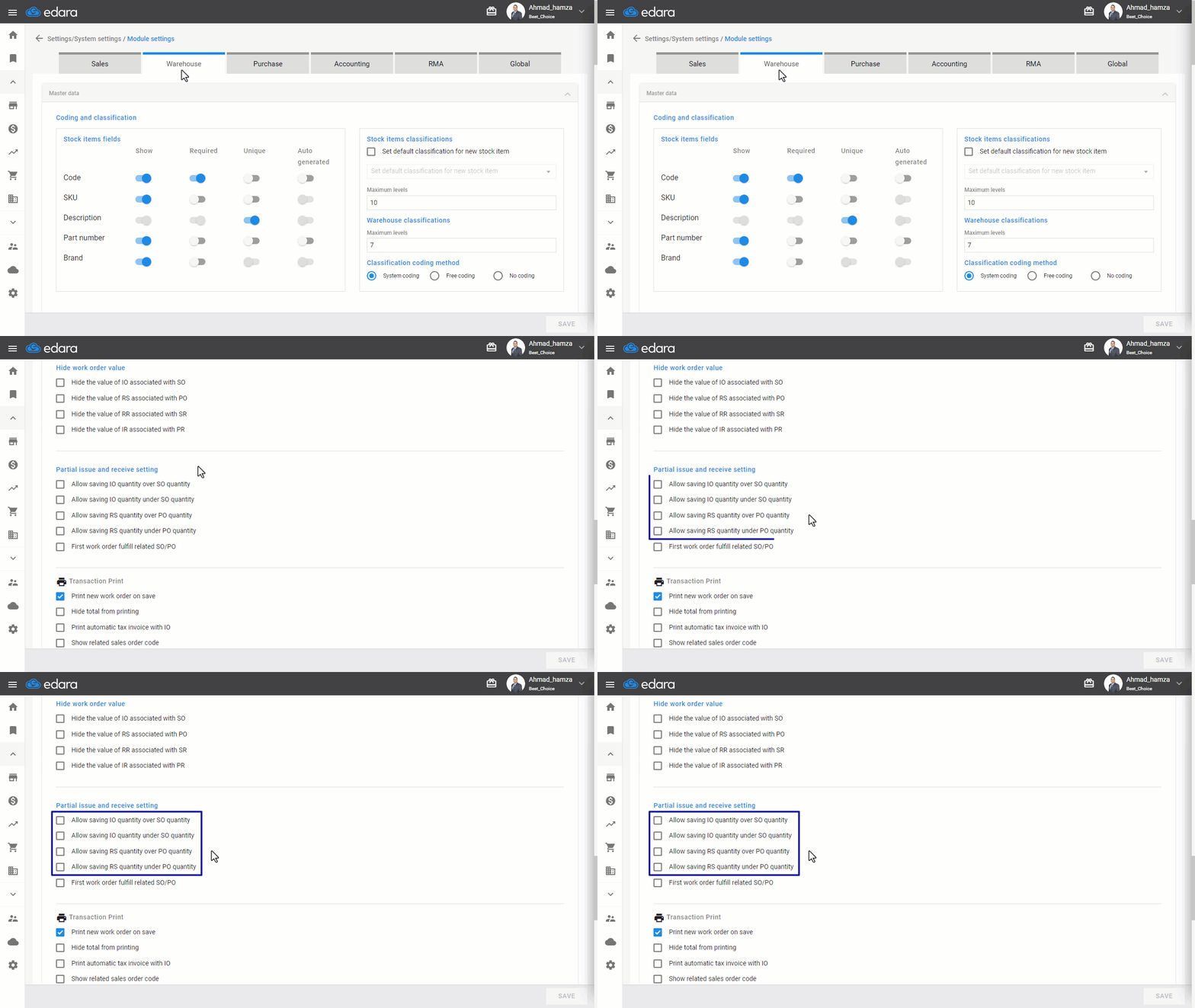
Note 1: “Edara” provides settings that allow non-matching quantities between certain Work orders and their linked sales/purchase orders if needed. Examples include:
- Allow saving IO quantity over SO quantity.
- Allow saving IO quantity under SO quantity.
- Allow saving RS quantity over PO quantity.
- Allow saving RS quantity under PO quantity.
For instance, if you need to issue a sales order in multiple installments, you should enable the "Allow saving IO quantity under SO quantity" setting. Similarly, if you receive supplies from a supplier in multiple deliveries, you need to enable the "Allow saving RS quantity under PO quantity" setting, and so on.
Note 2: "Edara" offers the option to compare some work orders with linked documents using a scanner. This ensures data accuracy and minimizes human errors.
Frequently asked questions
Can the work order quantity differ from the sales or purchase order?
“Edara” provides settings that allow non-matching quantities between certain Work orders and their linked sales/purchase orders if needed. Examples include: Allow saving IO quantity over SO quantity, Allow saving IO quantity under SO quantity, Allow saving RS quantity over PO quantity, Allow saving RS quantity under PO quantity. For instance, if you need to issue a sales order in multiple installments, you should enable the "Allow saving IO quantity under SO quantity" setting. Similarly, if you receive supplies from a supplier in multiple deliveries, you need to enable the "Allow saving RS quantity under PO quantity" setting, and so on.
If you encounter any challenges or have questions during these processes, you can contact our technical support team, who are ready to assist you at any time.