

Approving and Issuing Sales Orders from POS
Last updated:
When processing sales orders, you can complete both approval and issuance directly from the Point of Sale (POS) to complete orders without switching to “Edara 2.0”.
This also enables you to complete orders that were not finalized due to internet connection issues by approving and issuing them from the POS.
Approving and Issuing Sales Orders from POS

- Go to the “Point of Sale” module.
- Open the “Sales Orders” page.
- Click on the “︙” icon next to the sales order you want to approve and issue.
- Click on “Approve & Issue”.
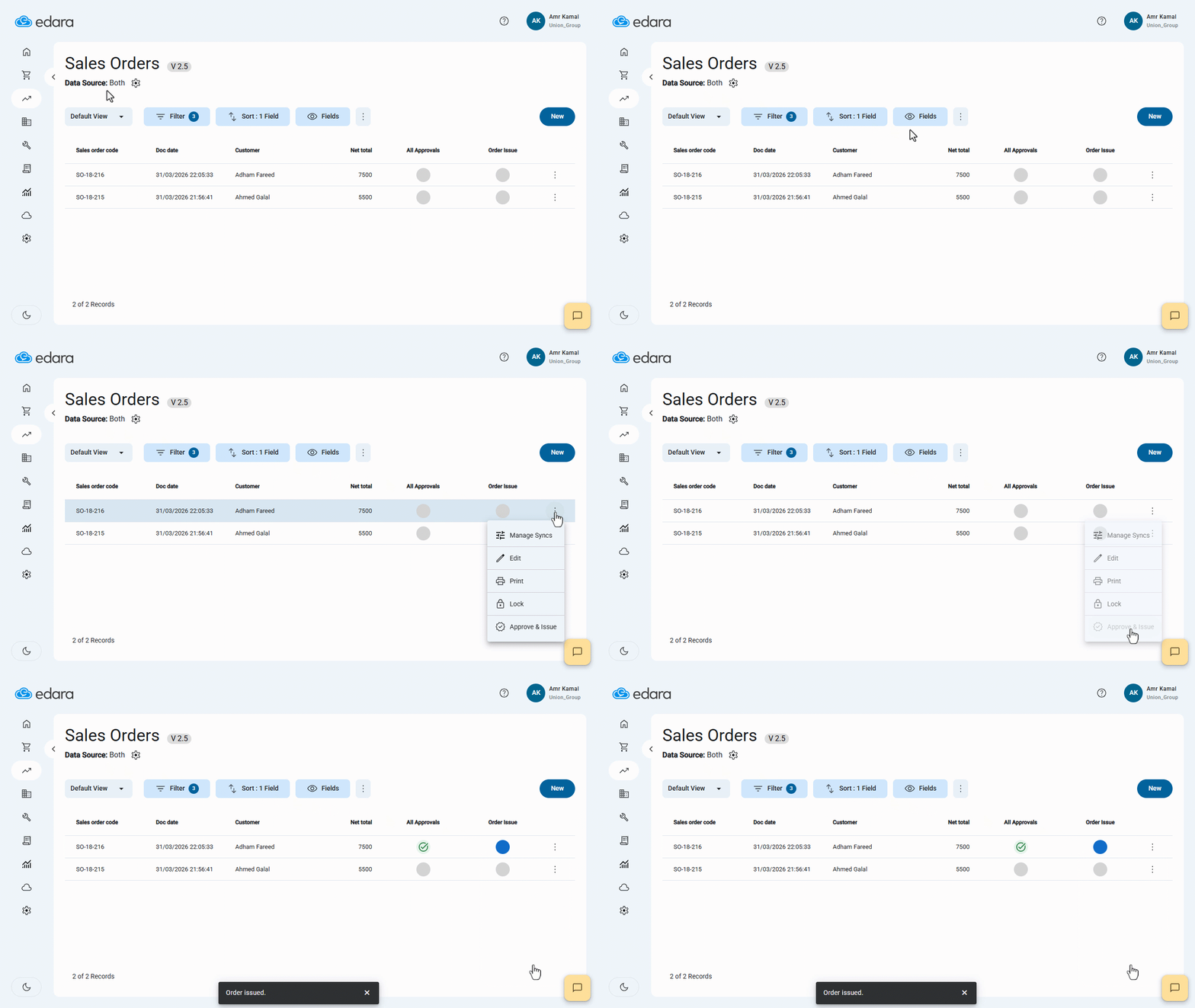
Notes:
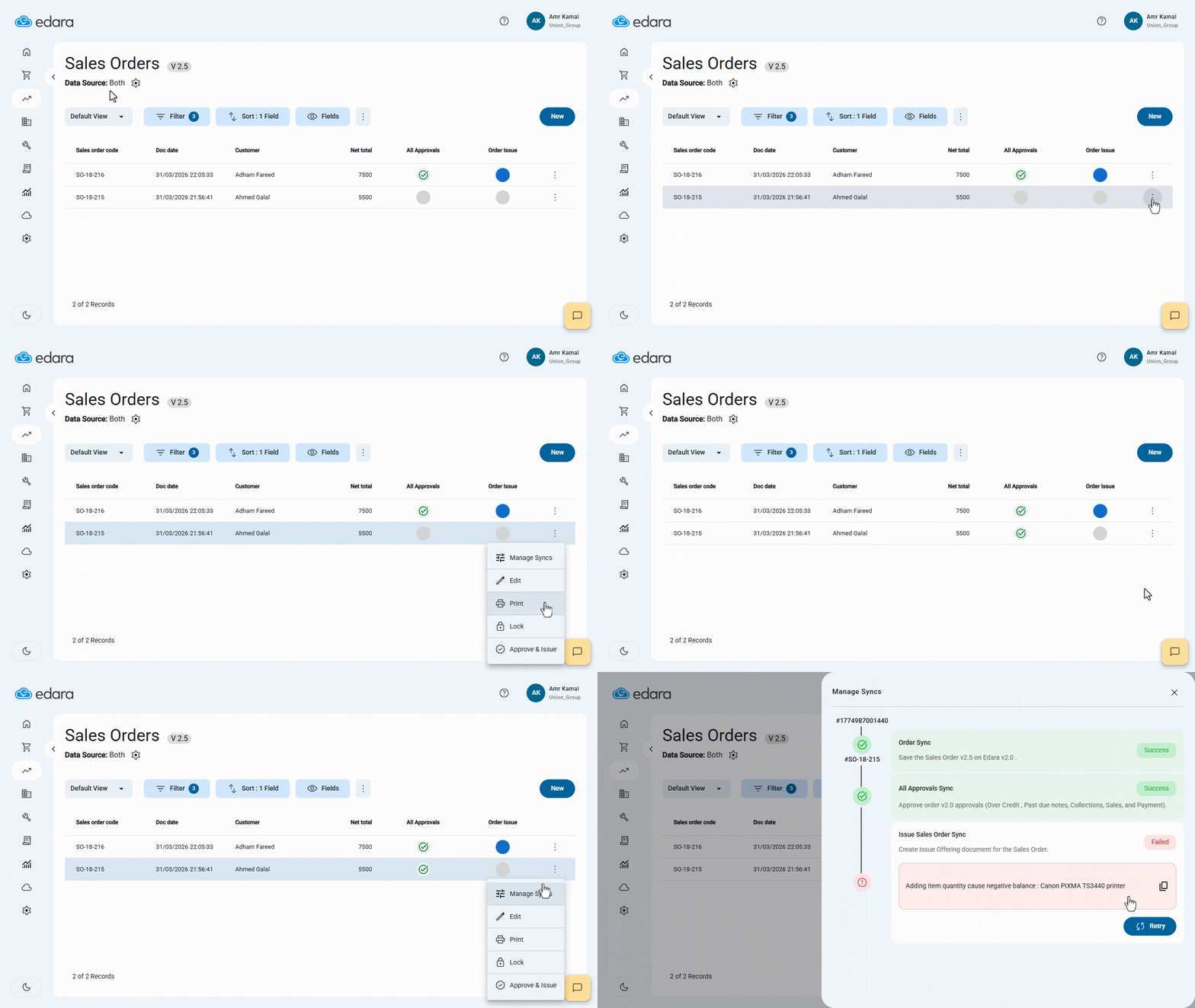
- If there is insufficient stock in the warehouse, the Issue process will not be completed, and a message will appear indicating that “Adding item quantity cause negative balance”.
- To view the reason why the process was not completed, you can click on “Manage Sync” to check the error details.
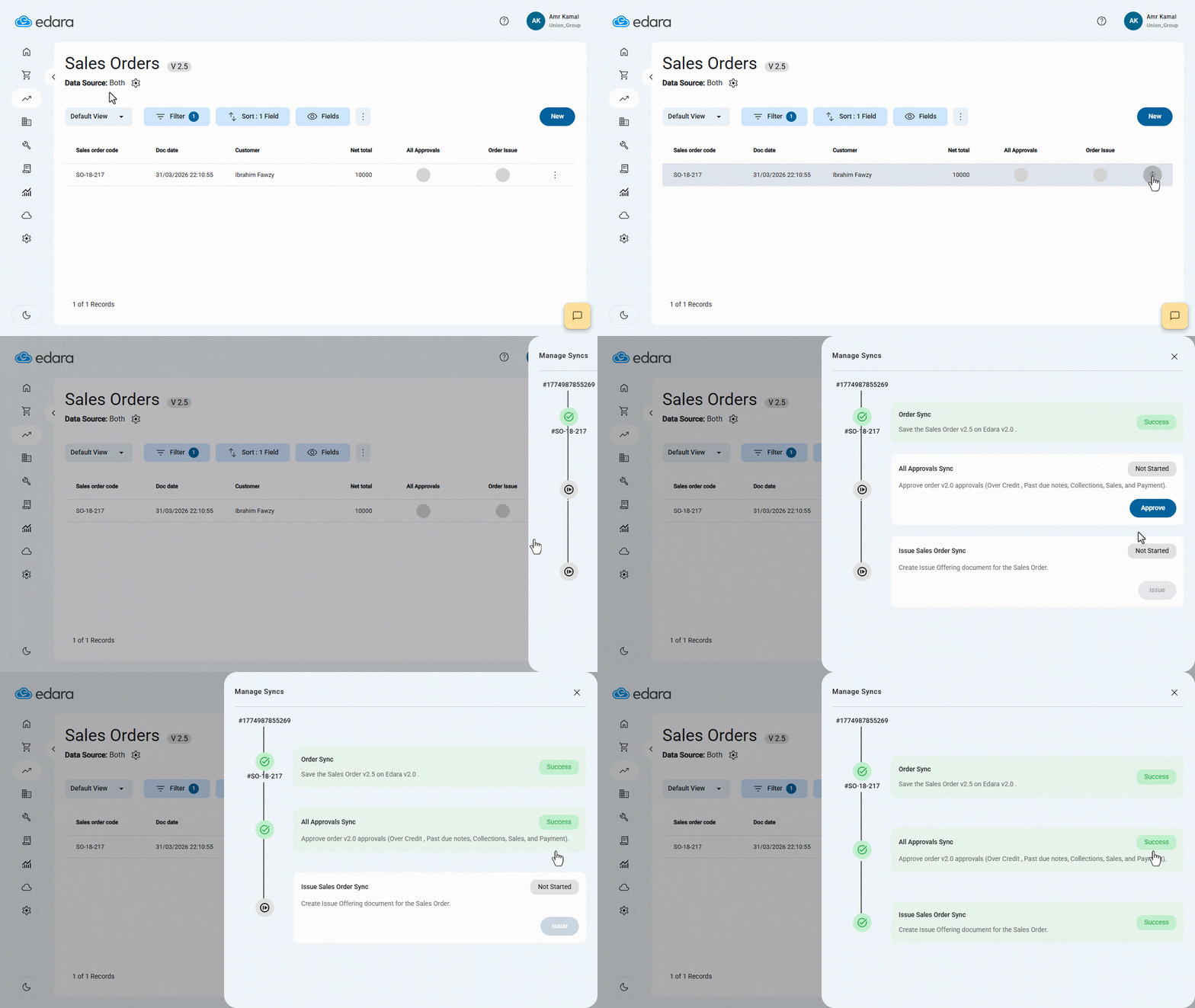
Note: You can also approve and issue the sales order by clicking on “Manage Sync”, then clicking on “Approve” to approve it, and complete the issuance.
Frequently asked questions
Why wasn’t the sales order issued?
If there is insufficient stock in the warehouse, the Issue process will not be completed, and a message will appear indicating that “Adding item quantity cause negative balance”.
If you encounter any challenges or have questions during these processes, you can contact our technical support team, who are ready to assist you at any time.