

Editing a Sales Order Linked to an Issue Offering
Last updated:
You may sometimes need to edit a Sales Order after it has been approved and an Issue Order has been created for it, whether to correct the document details or update the items or quantities.
Editing a Sales Order Linked to an Issue Offering
To edit a Sales Order linked to an Issue Order in the approval workflow, follow these steps:
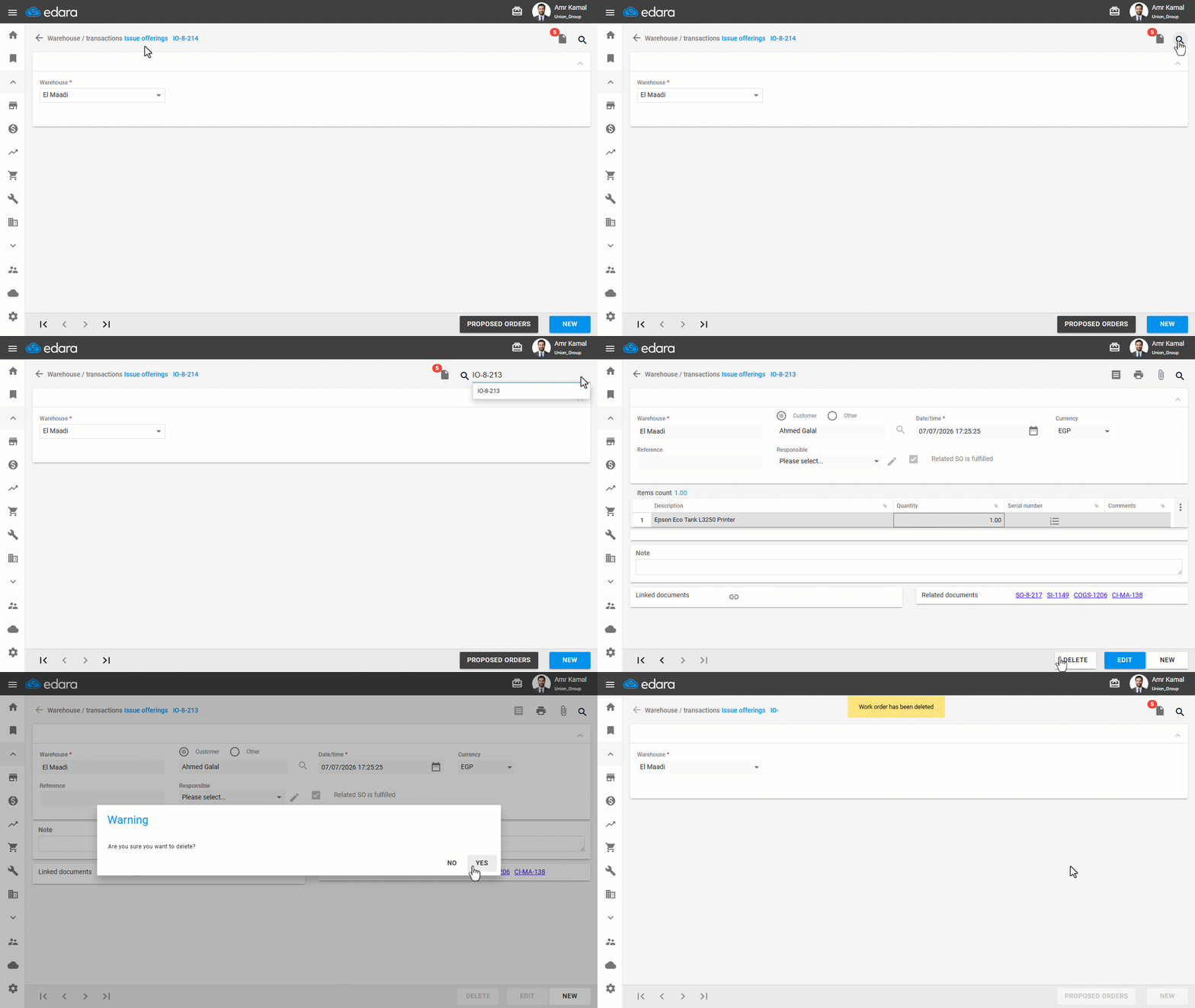
1- Deleting the Issue Order
- Go to the "Warehouse" Module.
- Open the "Issue Offerings" page.
- Search for the required Issue Order using the "🔍" icon or the navigation arrows at the bottom of the page.
- Click on "Delete".
- Click on "Yes" to confirm.
Note: You can access the Issue Order directly from the IO document in the Related Documents section within the Sales Order, provided you have permission to access the Sales Order.
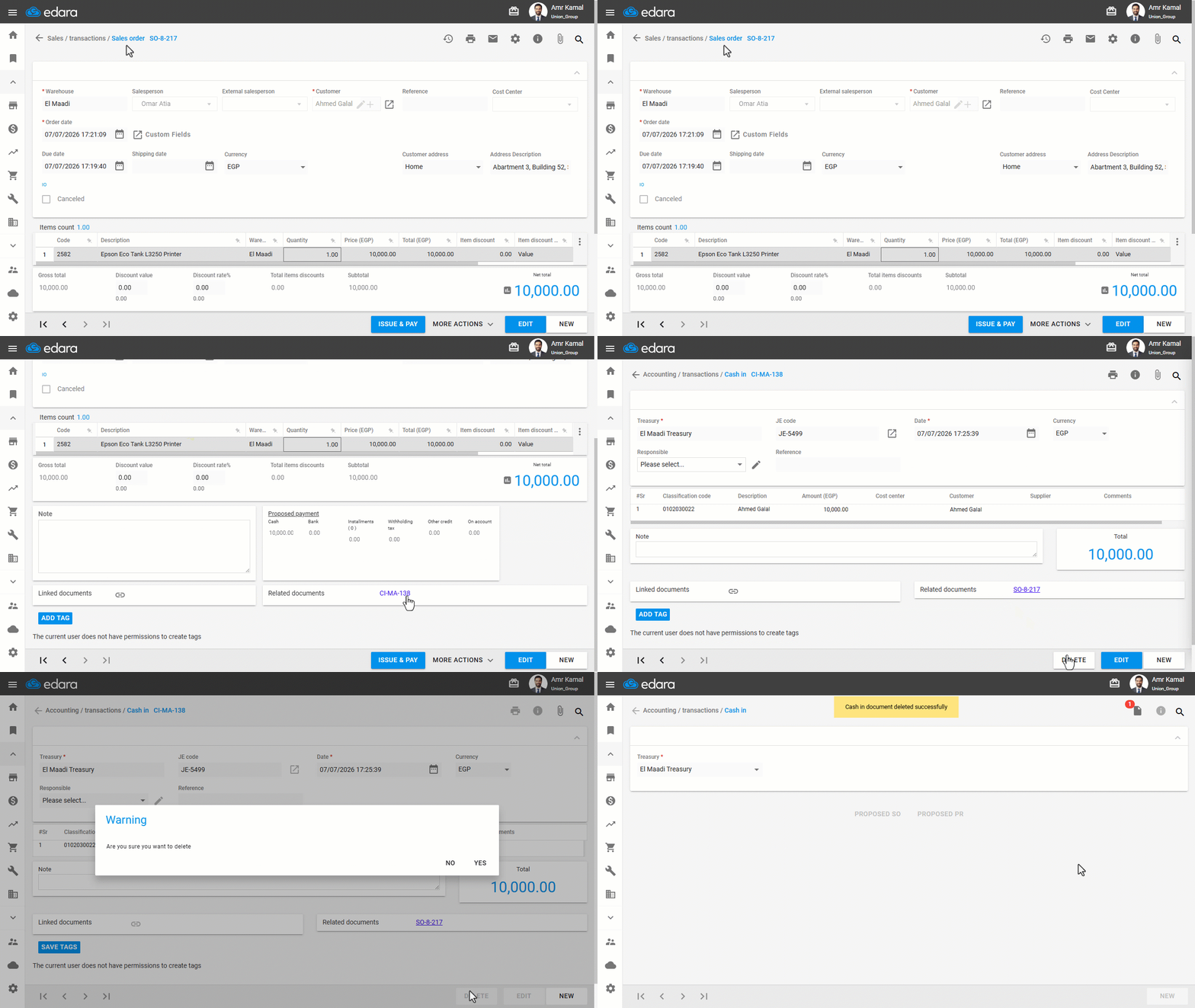
2- Deleting the Related Documents
Make sure to delete any documents linked to the sales order (e.g., Cash In, Notes Receivable, etc.).
3- Cancelling the Approval and Editing the Sales Order
- Go to the "Sales" Module.
- Open the "Sales Approvals" page.
- Click on the "✔️" icon to change it to "🚫" and cancel the approval.
- Hover over the Sales Order code, then click on the "
 " icon to open the Sales Order.
 - Click on "Edit".
- Make the required changes.
Notes:
- If you need to change the date, make sure you have the required permission.
- You can change the payment method (Cash - Installments - On Account) by clicking on “
 ” at the bottom of the Suggested Payment screen, selecting the required payment method, then clicking on "Propose".
- Click on "Update".
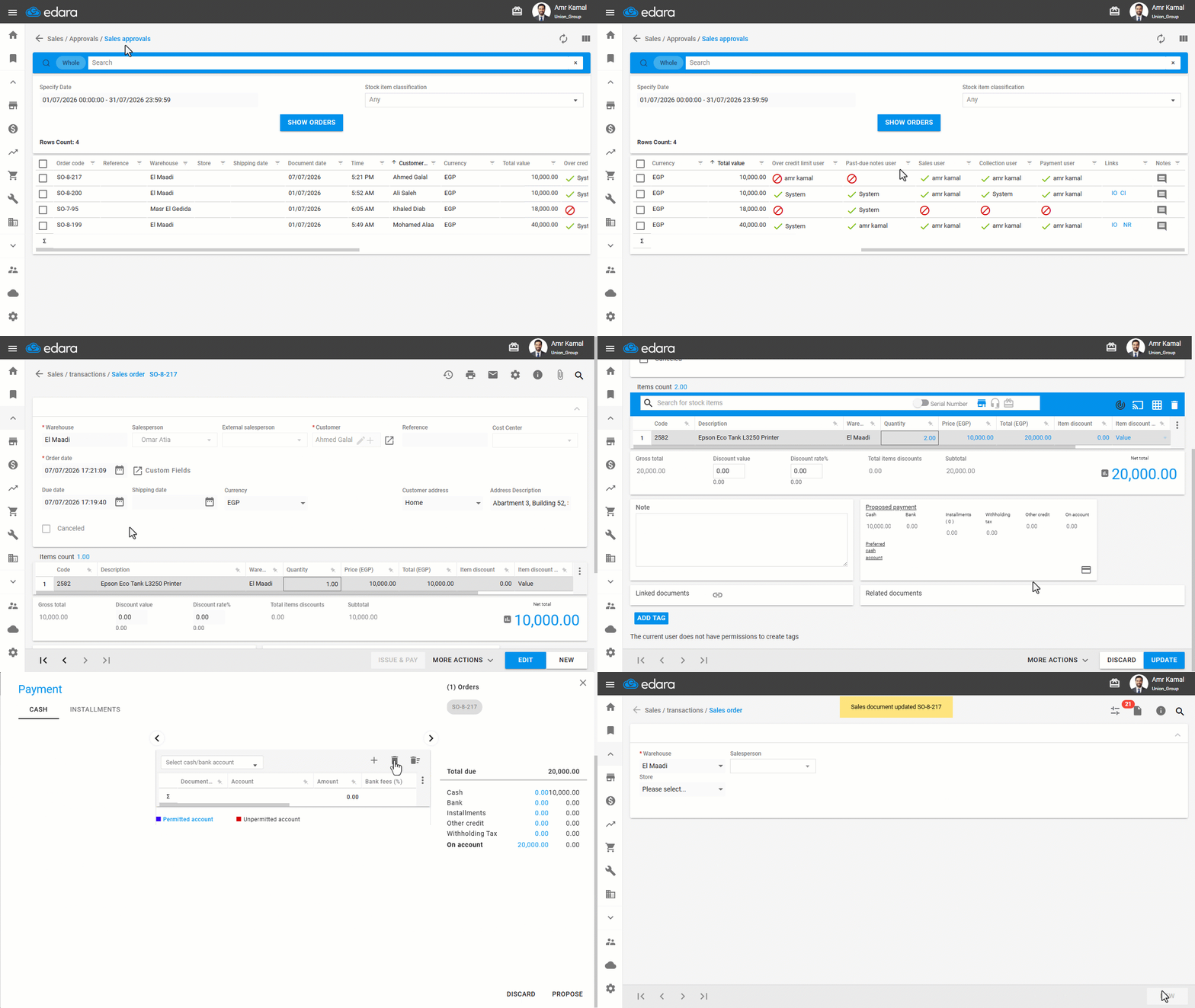
After completing the required changes, re-approve the Sales Order and save the documents related to it.
If you encounter any challenges or have questions during these processes, you can contact our technical support team, who are ready to assist you at any time.