

Displaying the Sales Order Number on Printed Documents
Last updated:
Edara allows you to display the Sales Order Number on printed documents. This is a sequential number that is separate from the Sales Order code in the system. It is useful if you already have your own numbering sequence from before using Edara and want to continue using it, making it easier to refer back to previous sales orders.
Displaying the Sales Order Number on Printed Documents
First, read the "Creating a Sales Order Number" article, then follow these steps:
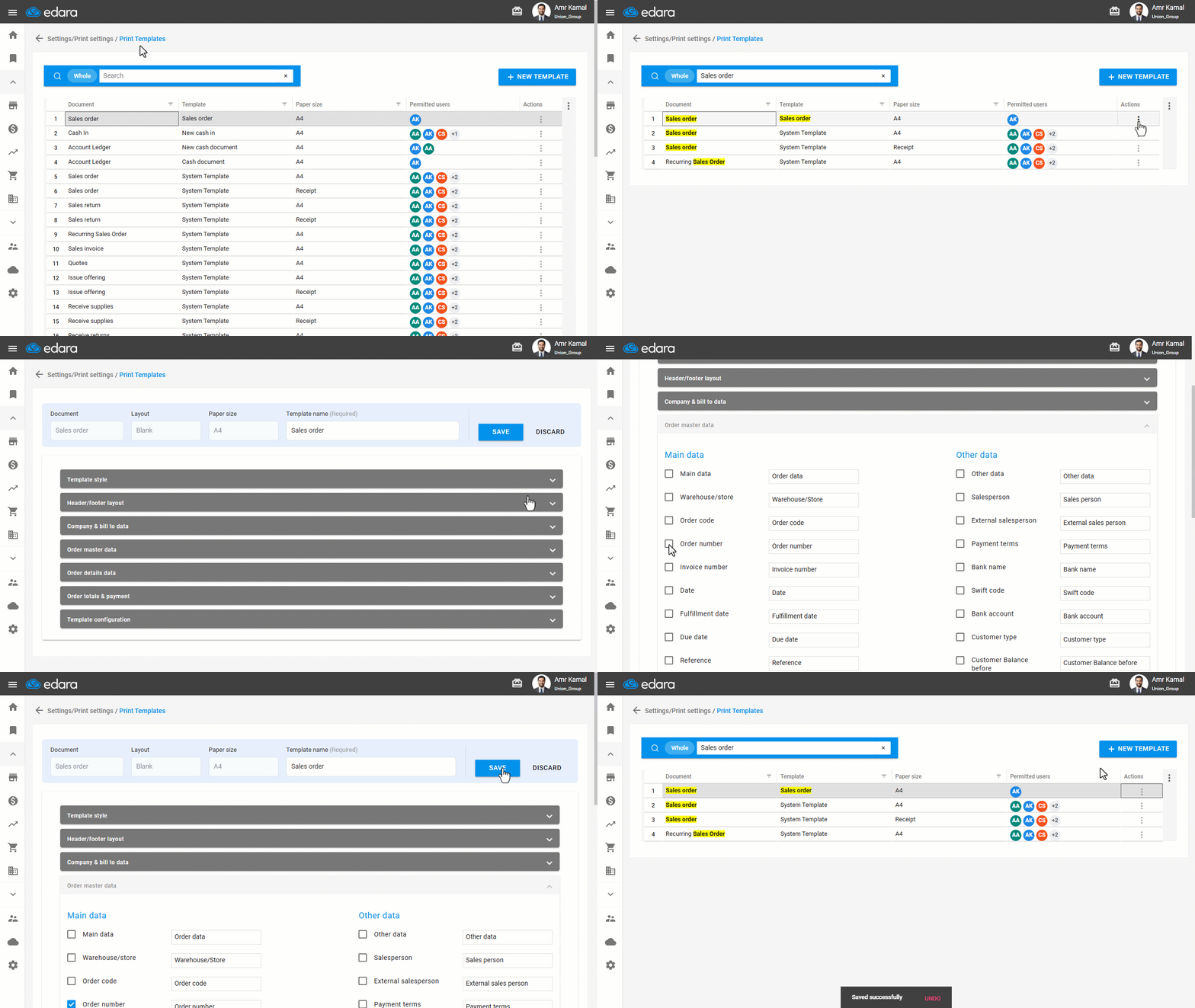
- Go to “Settings”.
- Open the “Print Templates” page.
- Search for the print template you want to edit.
- Click on the “⋮” icon in the “Actions” column next to the required print template.
- Click on “Edit”.
- Go to “Order Master Data”.
- Enable the “Order Number” option.
- Click on “Save”.
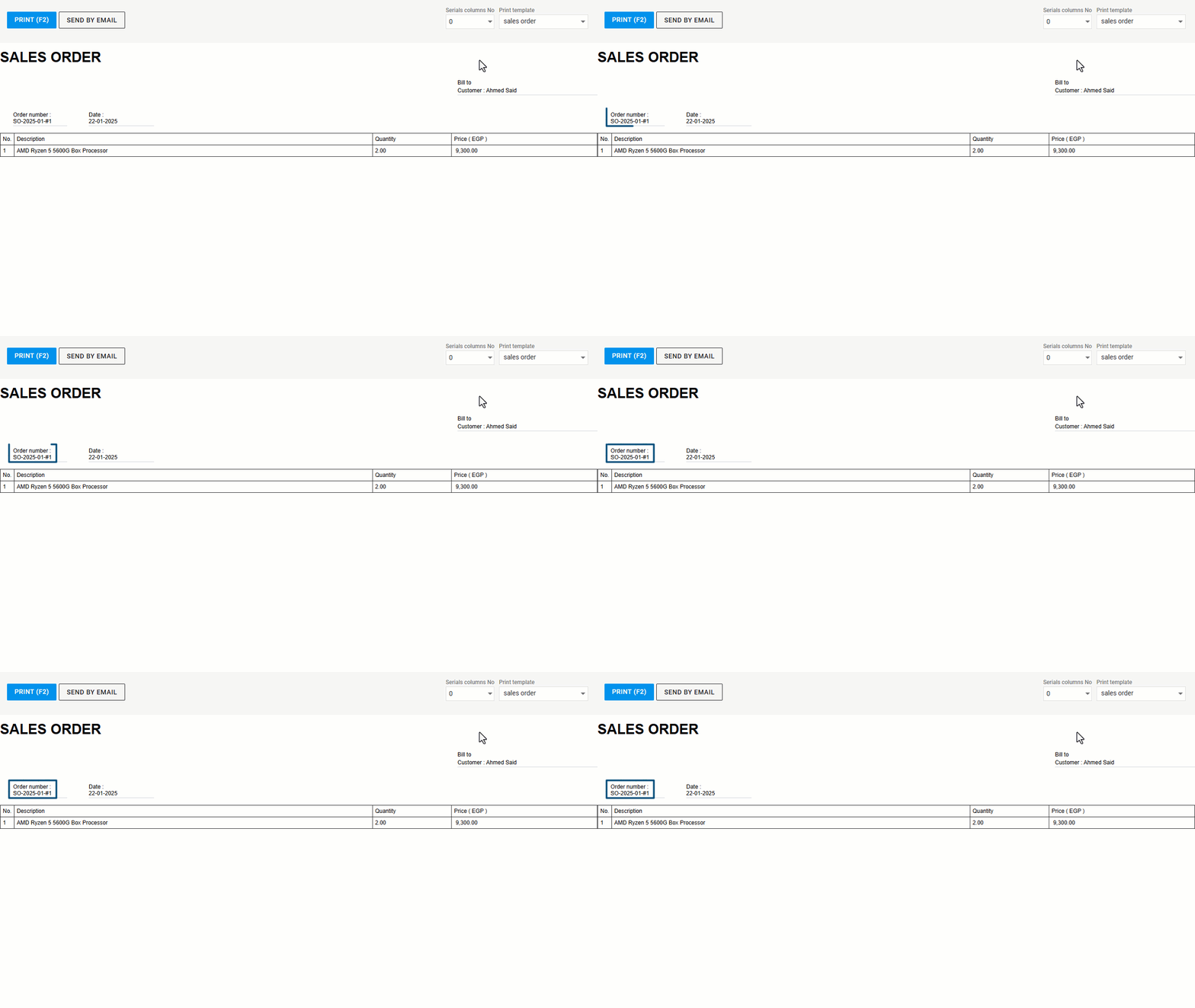
The printed Sales Order will then appear as follows:
If you encounter any challenges or have questions during these processes, you can contact our technical support team, who are ready to assist you at any time.
Did this answer your question?