

Displaying the recent prices for a specific customer
Last updated:
When selling to distributors or traders, the salesperson needs to check the last selling price of the item for that specific customer.
This feature allows you to instantly view the last five prices at which the item was sold to the customer. It helps ensure consistent and accurate pricing, build trust, and avoid potential disputes, especially in B2B transactions.
This feature provides an instant display of the most recent five prices at which the item was sold to the customer, helping maintain accurate and consistent pricing, build trust with the client, and avoid potential disputes, especially in business-to-business (B2B) transactions.
Displaying the recent prices for a specific customer
You can do this in two main steps:
First: Ensure Permission for the “Recent Prices” Icon
- Go to “Users”.
- Open the “Page Permissions” page.
- Select the user or user group you want to grant permission to.
- Click on “+” next to “Sales”, then “Transactions”, then “Sales order details”.
- Make the “Icon recent prices” enabled by checking the box "◻".
- Click on “Save”.
Note: When a page is added to a user’s permissions, all associated controls within that page are automatically accessible. So, once a user is granted access to “Sales Order Details,” they’ll also gain access to all its controls including this new icon.
Second: Displaying the “Recent Prices” Icon
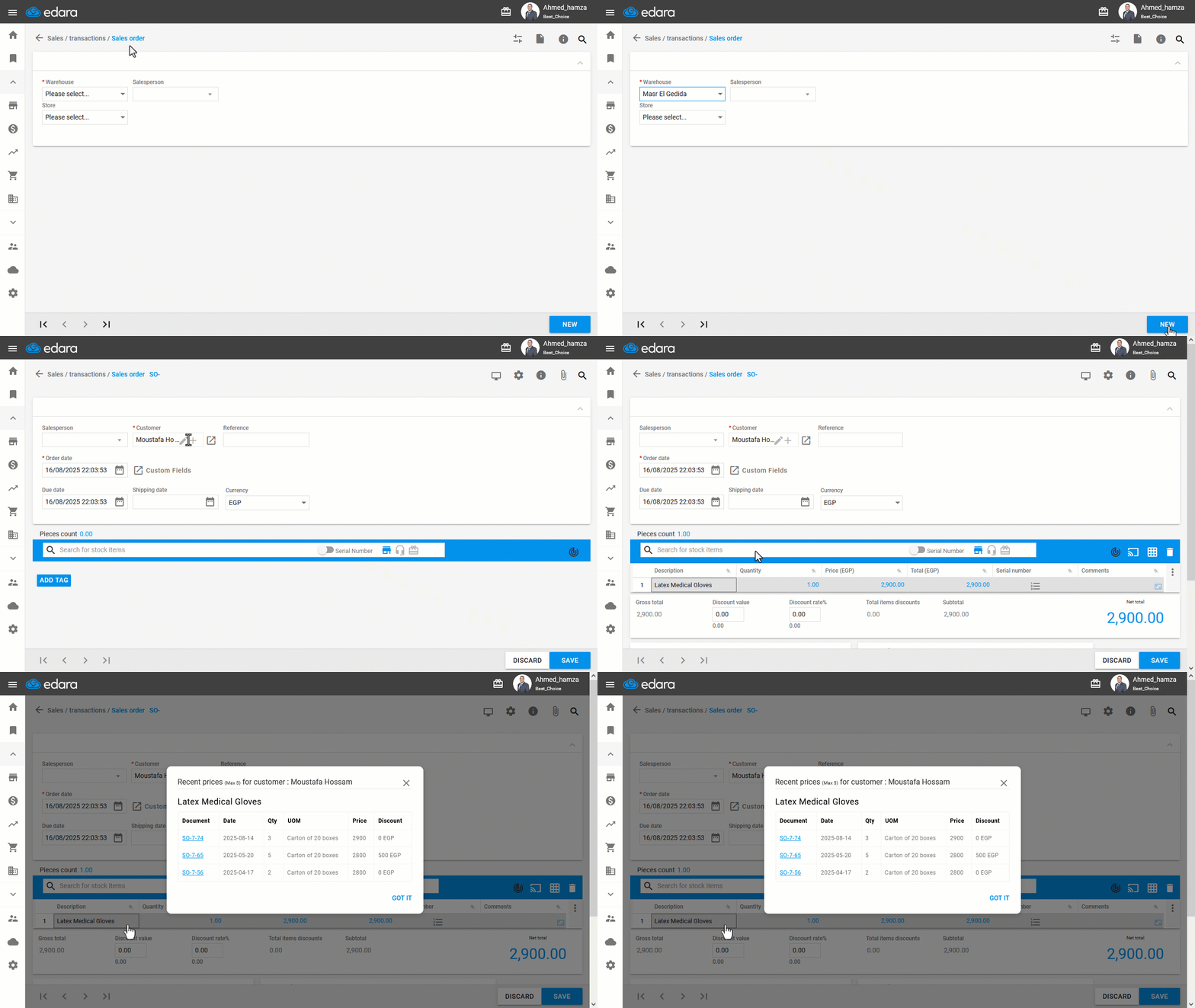
- Go to the “Sales” module.
- Open the “Sales Order” page.
- Select the “Warehouse”.
- Click on “New”.
- Enter the customer’s name.
- Add the required items.
- Hover over the item you want to check the Recent prices for
- Click on "
 " to view the "Recent Prices"
A window will appear showing up to the last five prices for the selected item with this customer, including:
- Document code
- Date
- Quantity
- Unit of measure (for service items, this field will be empty)
- Price
- Discount (if exists, either as a percentage or a fixed amount)
Additional Notes:
- You can click on any document to open it in a new window and view more details.
- The icon also appears in either View or Edit mode of the sales order, and in this case, the same order may appear among the recent documents created.
- This feature shows only the prices specific to the selected customer in the sales order. If no customer is selected, a message saying "Customer is not selected yet" will appear.
- If you don’t have the required permission, a "Permission Required" message will appear to notify you that it needs to be enabled.
Frequently asked questions
Why does the message “Customer is not selected yet” appear?
This feature shows only the prices specific to the selected customer in the sales order. If no customer is selected, a message saying "Customer is not selected yet" will appear.
Why does the message “Permission Required” appear?
If you don’t have the required permission, a "Permission Required" message will appear to notify you that it needs to be enabled.
If you encounter any challenges or have questions during these processes, you can contact our technical support team, who are ready to assist you at any time.