

Creating a Taxable Sales Order
Last updated:
To process taxable sales efficiently and stay compliant with local regulations, it’s essential to create accurate taxable sales orders that reflect the details of taxable items and services.
Creating a Taxable Sales Order
First, make sure the tax is entered for the stock item or the service item, then follow these steps:
- Go to the “Sales” module.
- Open the “Sales Order” Page.
- Choose the “Warehouse”.
- Select the “Salesperson”.
- Click on “New”.
- Enter the Customer name.
- Search for the “Stock Item”, “Service Item”, or “Sales Bundle”.
- Enter the “Quantity” and “Price”.
- Click the “⚙️” icon.
- Select the “Tax liable” Option.
- Choose the Payment Method by clicking on the “💳” icon.
- Click on “Save”.
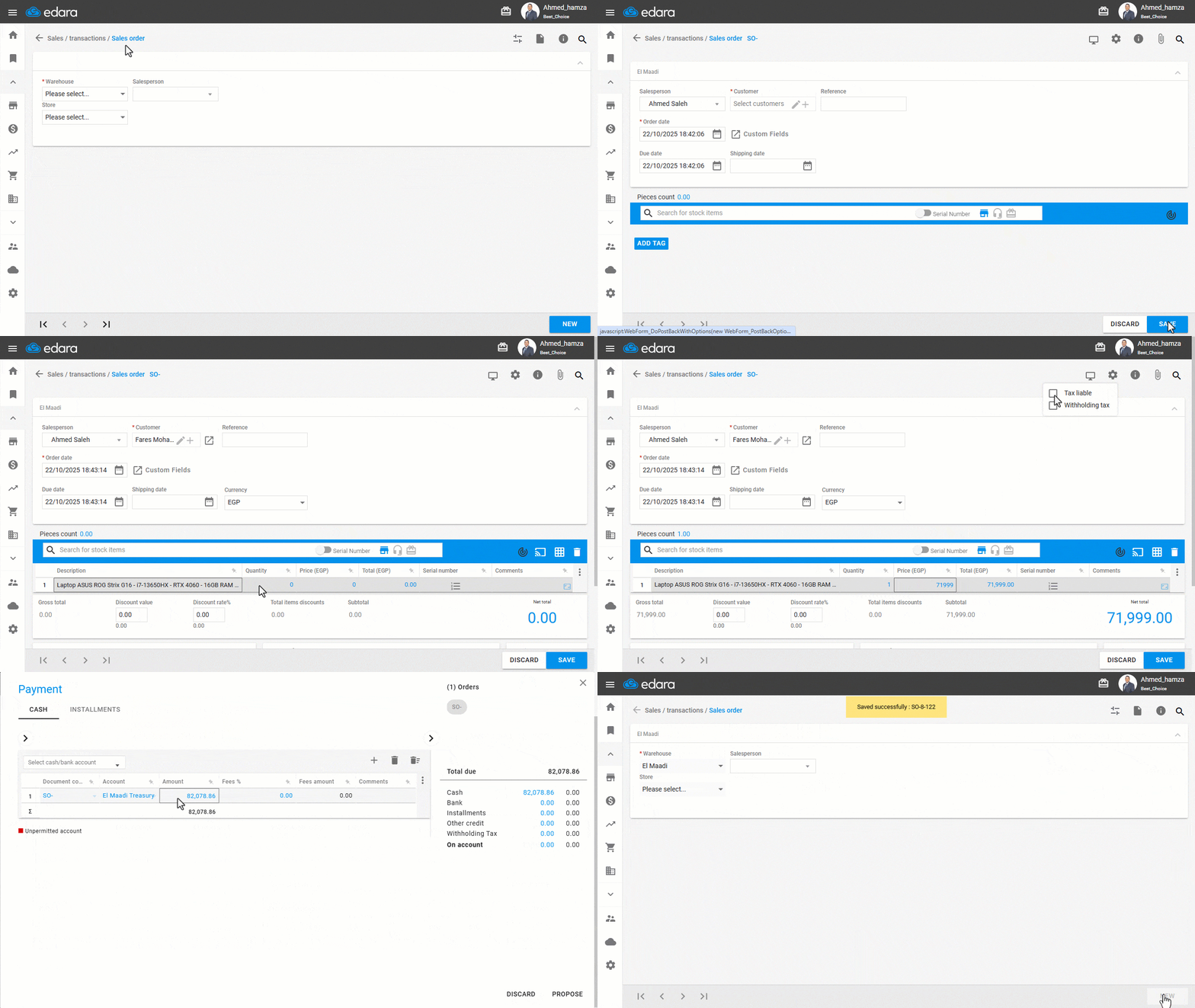
Note: If the tax rate was not entered for the item before creating the taxable sales order, you can click on the “⚙️” icon and select “Tax liable”.
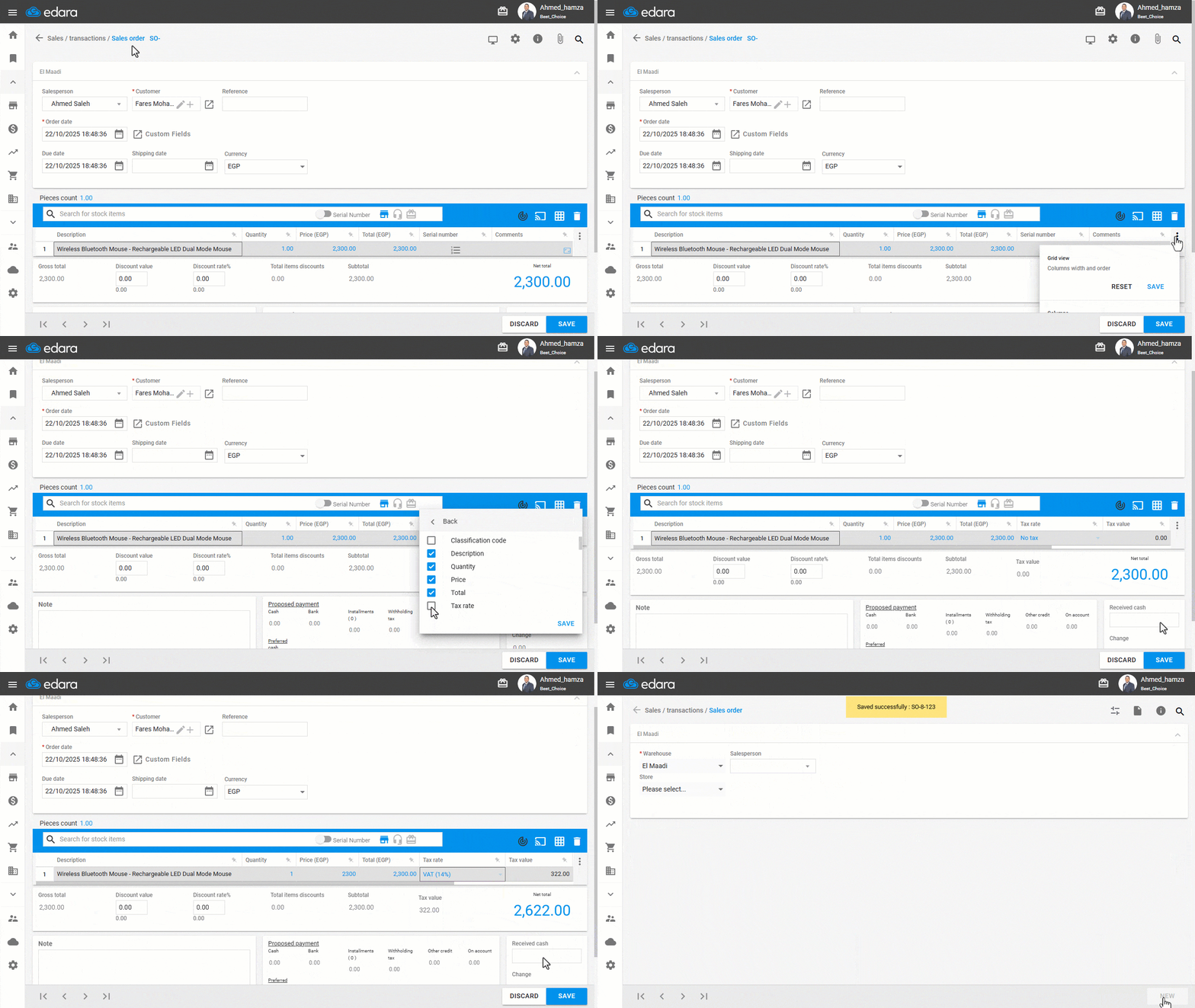
If the item is non-taxable but you want to apply a tax for a specific sales order, click on “Edit”, then select “VAT Rate” in the “Tax Rate” column.
If the Tax Rate column isn’t visible, click on the “⋮” icon, then “Columns”, and enable the column to display it.
Frequently asked questions
What if I didn't enter the tax rate for the item before creating the order?
If the tax rate was not entered for the item before creating the taxable sales order, you can click on the “⚙️” icon and select “Tax liable”.
If you encounter any challenges or have questions during these processes, you can contact our technical support team, who are ready to assist you at any time.