

Enabling and Using the Sales Order Card
Last updated:
The sales order card consolidates a customer's purchases into a single sales order as the customer moves between departments. This is done by linking the order to a card that can be scanned, rather than creating multiple sales orders, ensuring the customer's data is not entered repeatedly and that all payment transactions are linked to a single invoice upon checkout.
Enabling and Using the Sales Order Card
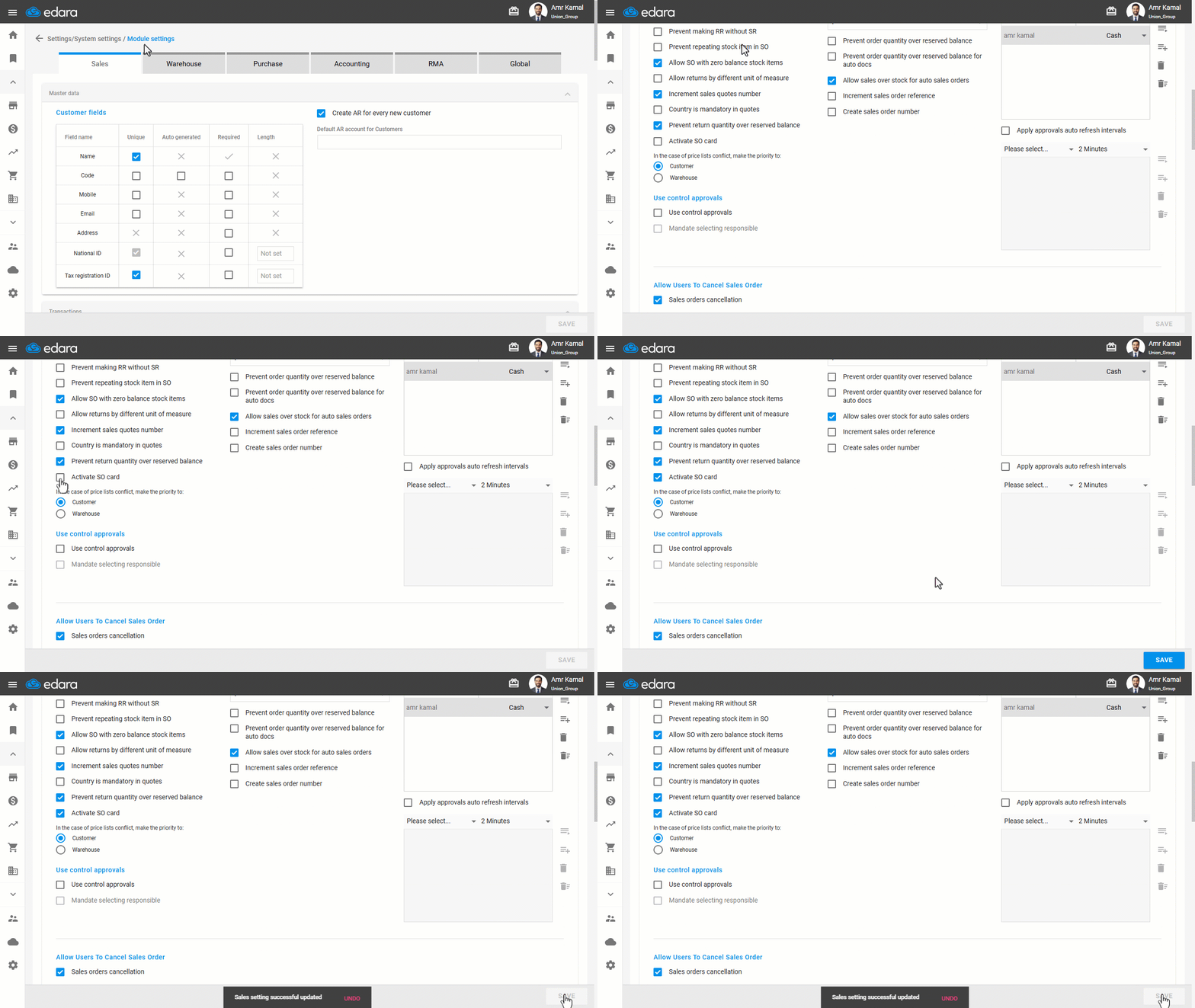
- Go to “Settings”.
- Open the “Module Settings” page.
The default tab here is the “Sales” tab.
- Enable the “Activate SO card” option.
- Click on “Save”.
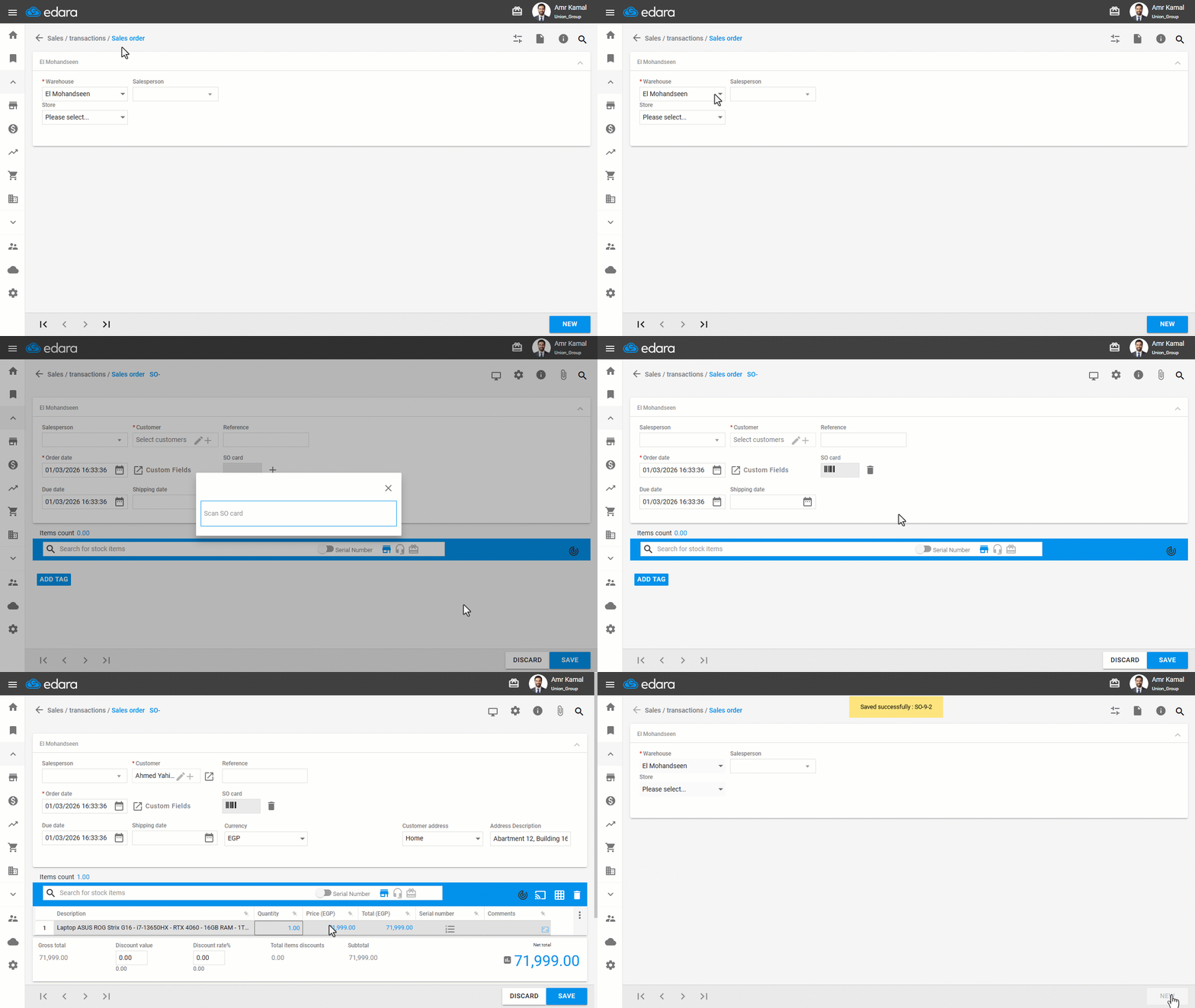
- Go to the “Sales” module.
- Open the “Sales Order” page.
- Select the warehouse.
- Click on “New”.
A pop-up window for the “Sales Order Card” will appear before starting the order.
- Receive the Sales Order Card from the customer.
- Scan the card using a scanner.
- Enter the sales order details.
- Click on “Save”.
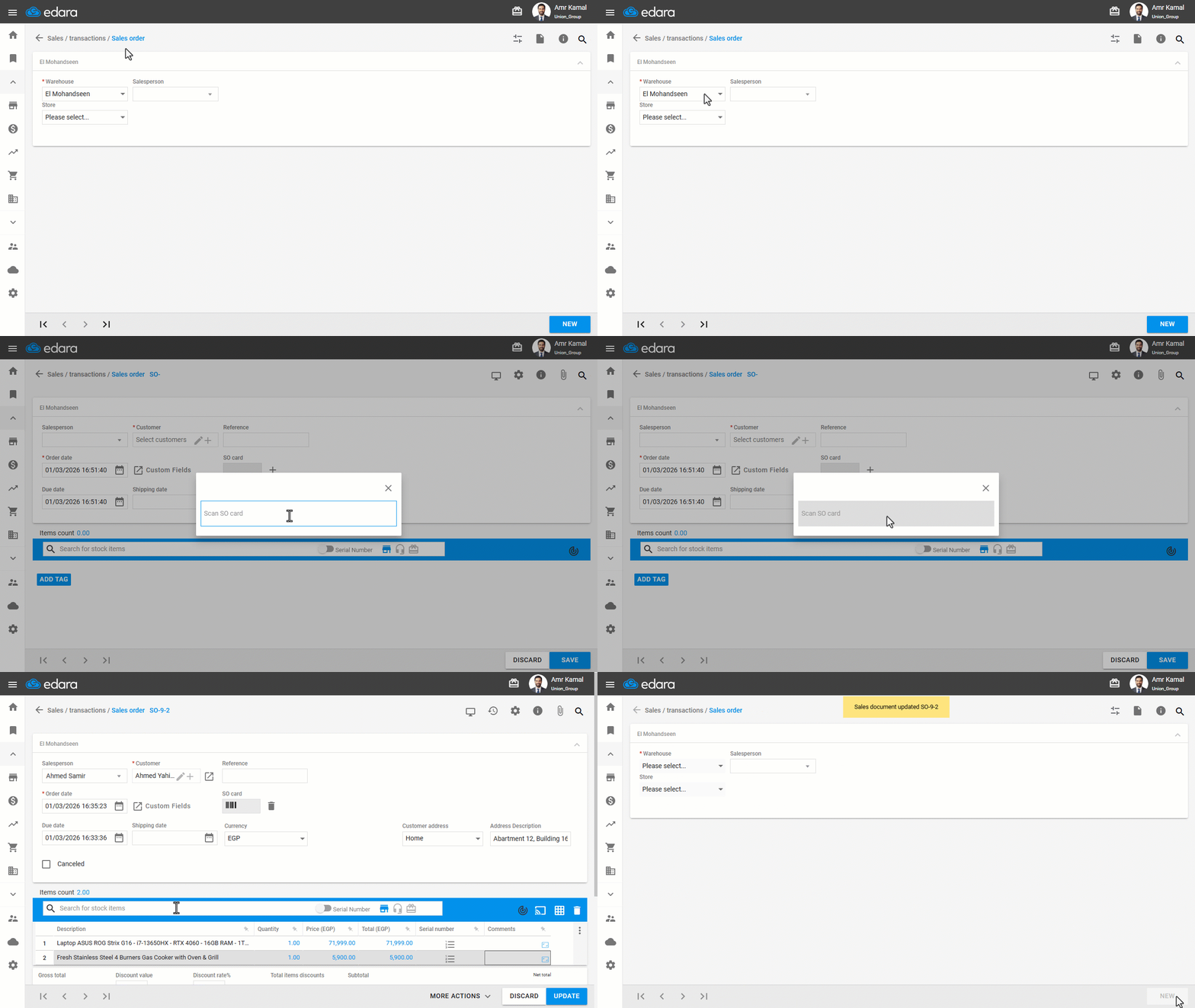
For previously saved sales orders, add the new items, then click on “Update”.
Notes:
- If scanning fails or the card has an issue, you can skip the scanning window by clicking on “X” and completing the sales order without using a card.
- You can replace the card linked to a sales order by removing it and adding another card by clicking on “+” next to the Sales Order Card.
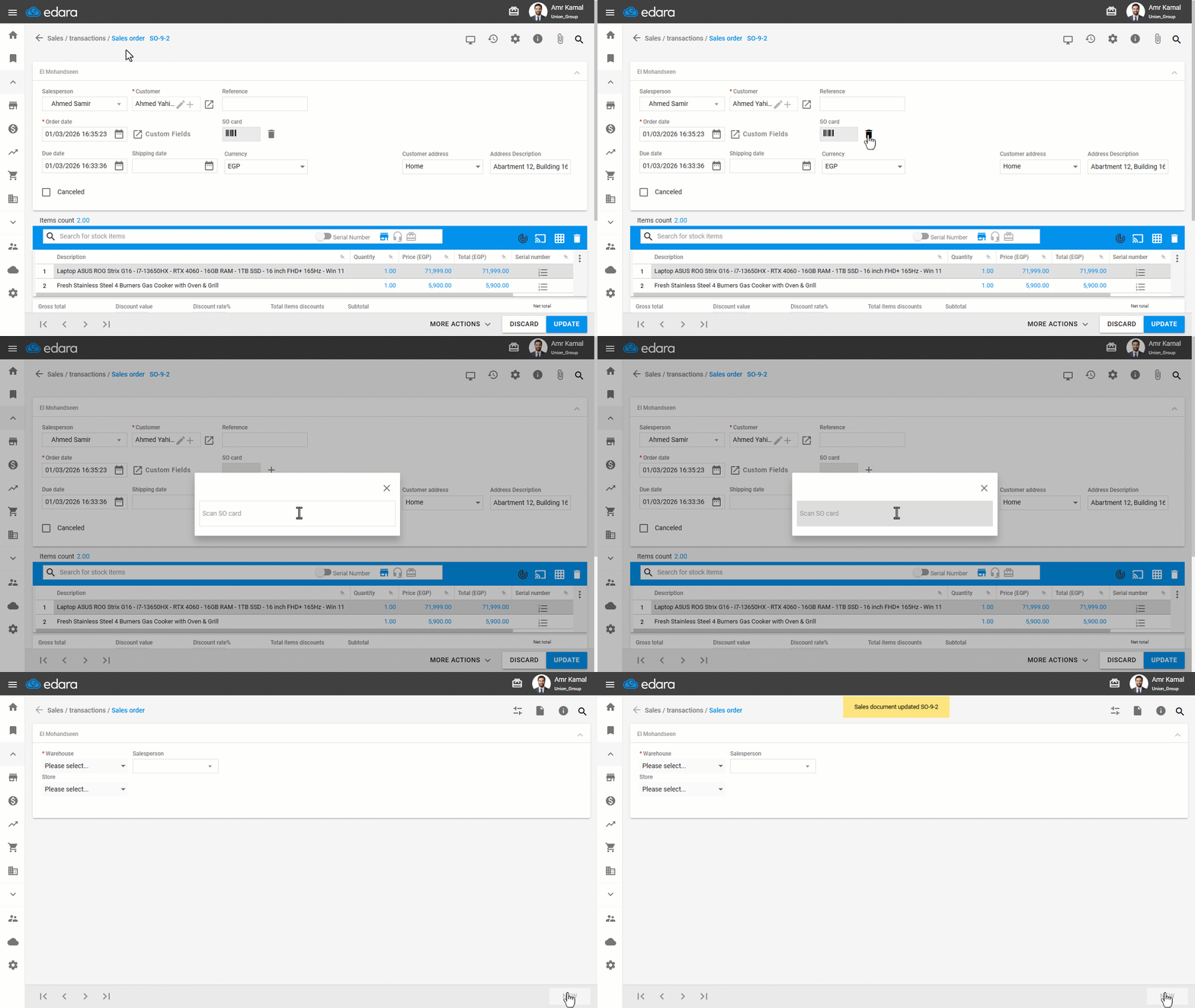
- On the payment page, you can search using the sales order card by scanning it.
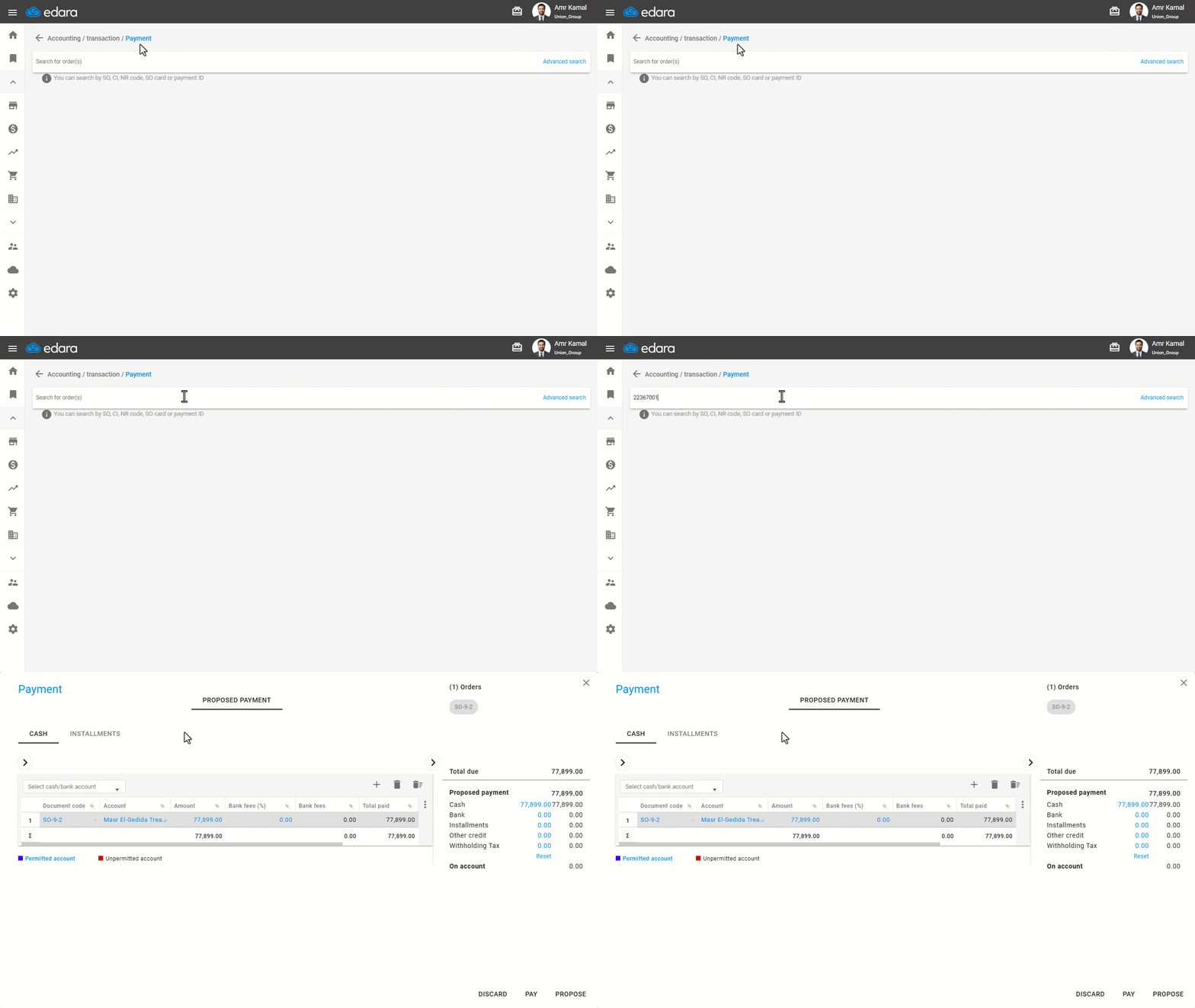
- The Sales Order Card data is automatically deleted when:
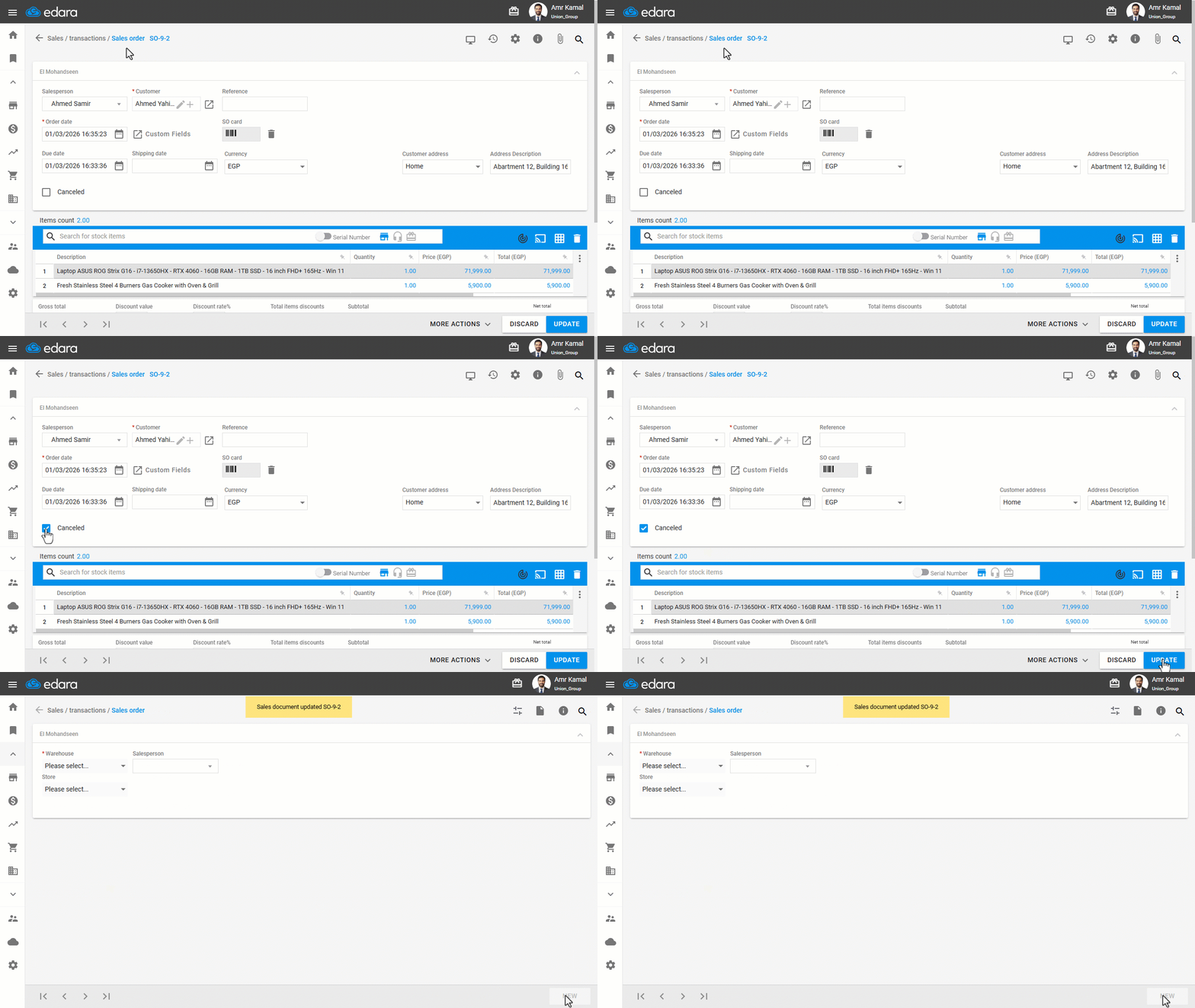
If a customer returns the Sales Order Card without paying for the order, make sure of the following before handing it to another customer:
- The card is not linked to a sales order
- If the card is linked to a sales order, the order must be canceled first by clicking on “🔲” next to Canceled, then clicking on “Update”.
Frequently asked questions
What should I do if the card can’t be scanned?
If scanning fails or the card has an issue, you can skip the scanning window by clicking on “X” and completing the sales order without using a card.
If you encounter any challenges or have questions during these processes, you can contact our technical support team, who are ready to assist you at any time.