

Enabling SMS for Sales Orders
Last updated:
SMS messages are an effective way to quickly communicate with customers and keep them informed about their sales orders. You can send an SMS to a customer after a purchase, including the item name and price, to confirm order details and ensure accuracy.
Enabling SMS for Sales Orders
Step 1: Checking SMS Creation Permission
First, ensure you have the permission to create messages from the “User and group” page.
Step 2: Enabling SMS
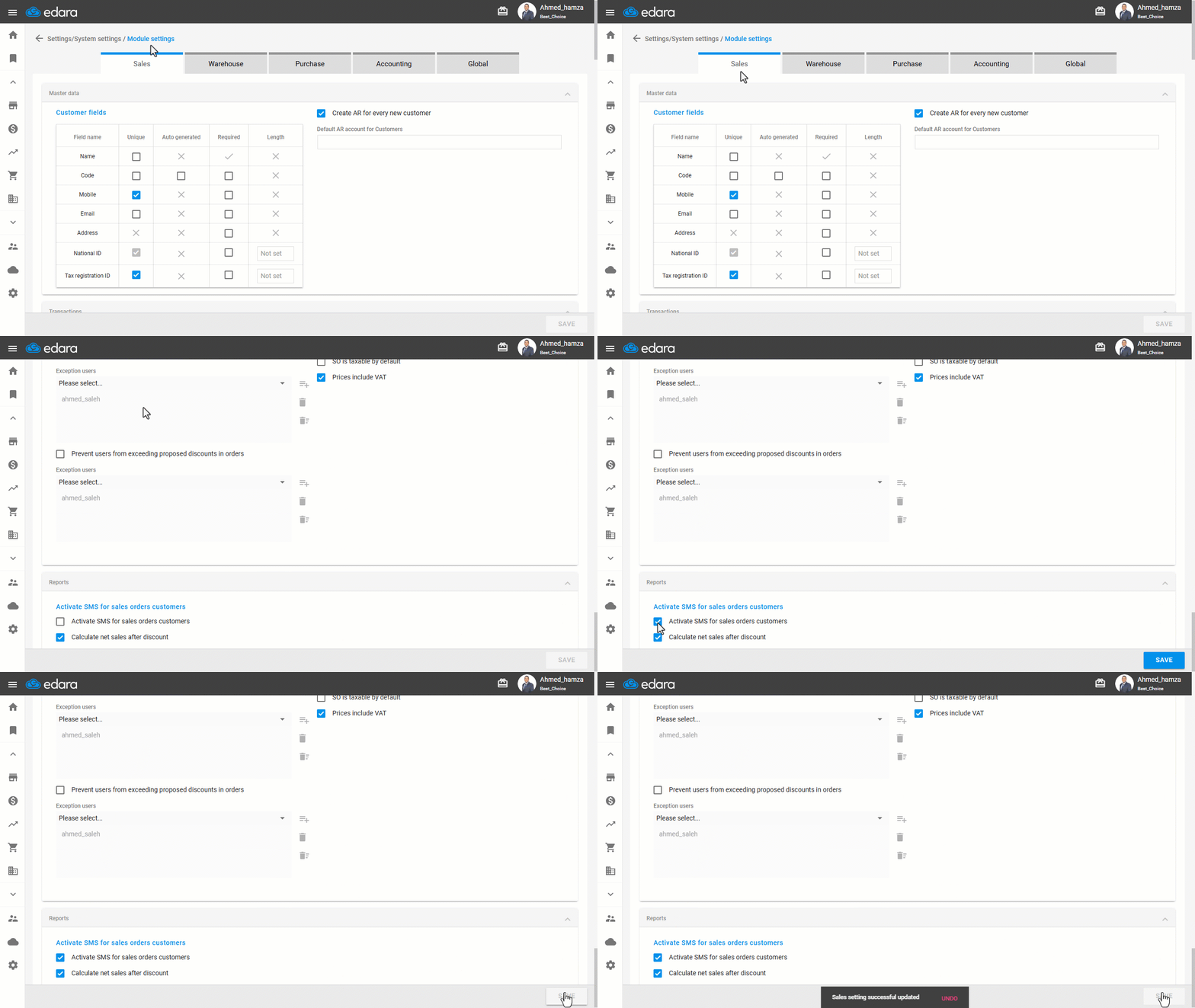
- Go to “Settings”.
- Open the “Modules Settings” page.
The default Module is the Sales Settings.
- Enable “Activate SMS for Sales Orders Customers” under the “Reports” section.
- Click on “Save”.
Step 3: Allowing SMS via Stock items bulk edit
Ensure that the items in the sales order are allowed to send SMS notifications by enabling the option in the “Stock items bulk edit” page, as follows:
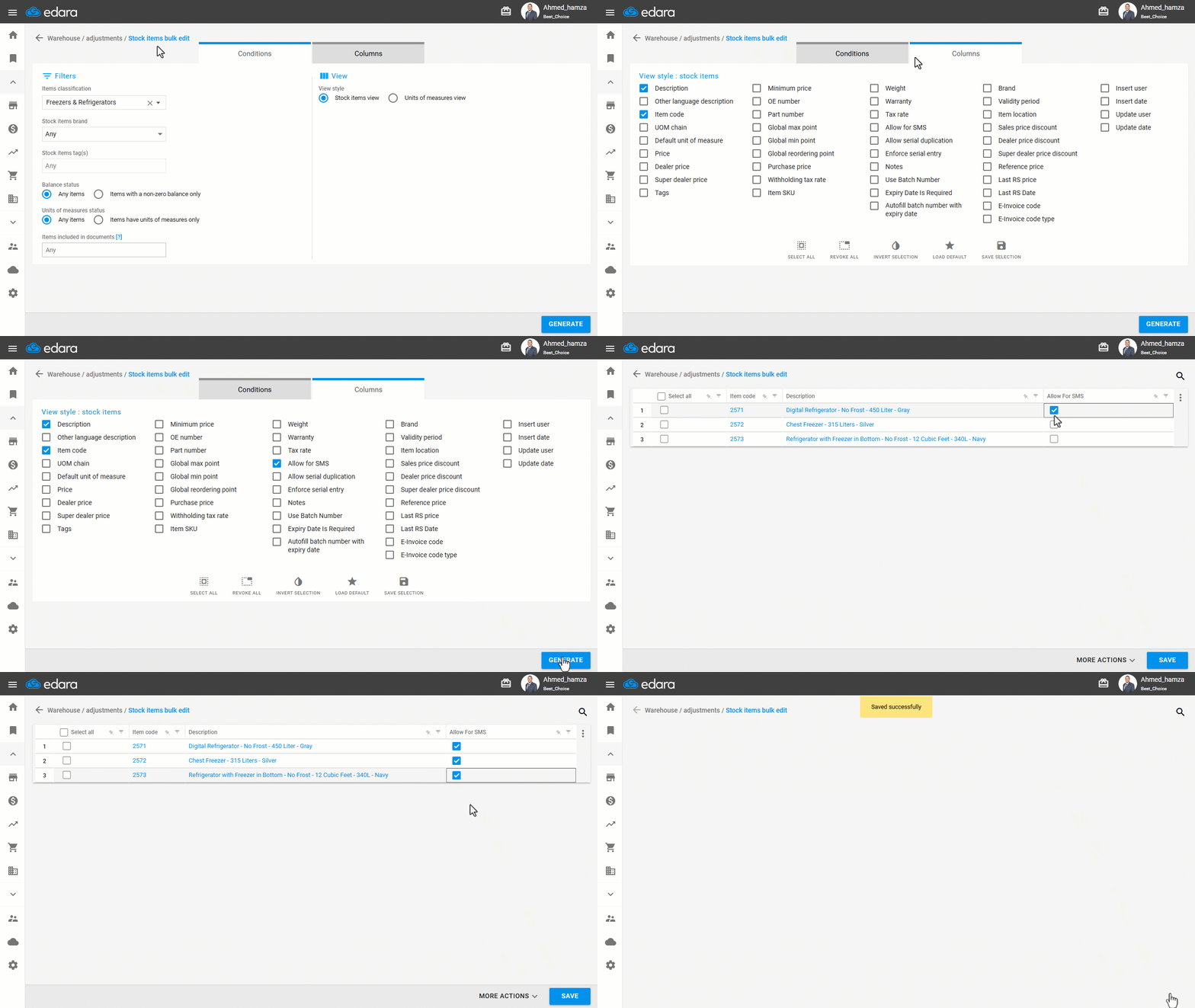
- Go to the “Warehouse” module.
- Open the “Stock Items Bulk Edit” page.
- Go to the “Columns” tab.
- Enable the “Allow for SMS” option.
- Click on “Generate”.
- Activate SMS for sales order customers by checking the “Allow For SMS” checkbox “◻” for the items you want to enable.
- Click on “Save”.
For more details on bulk item editing, see the article “Stock Items Bulk Editing”.
Step 4: Enabling SMS for Specific Warehouses
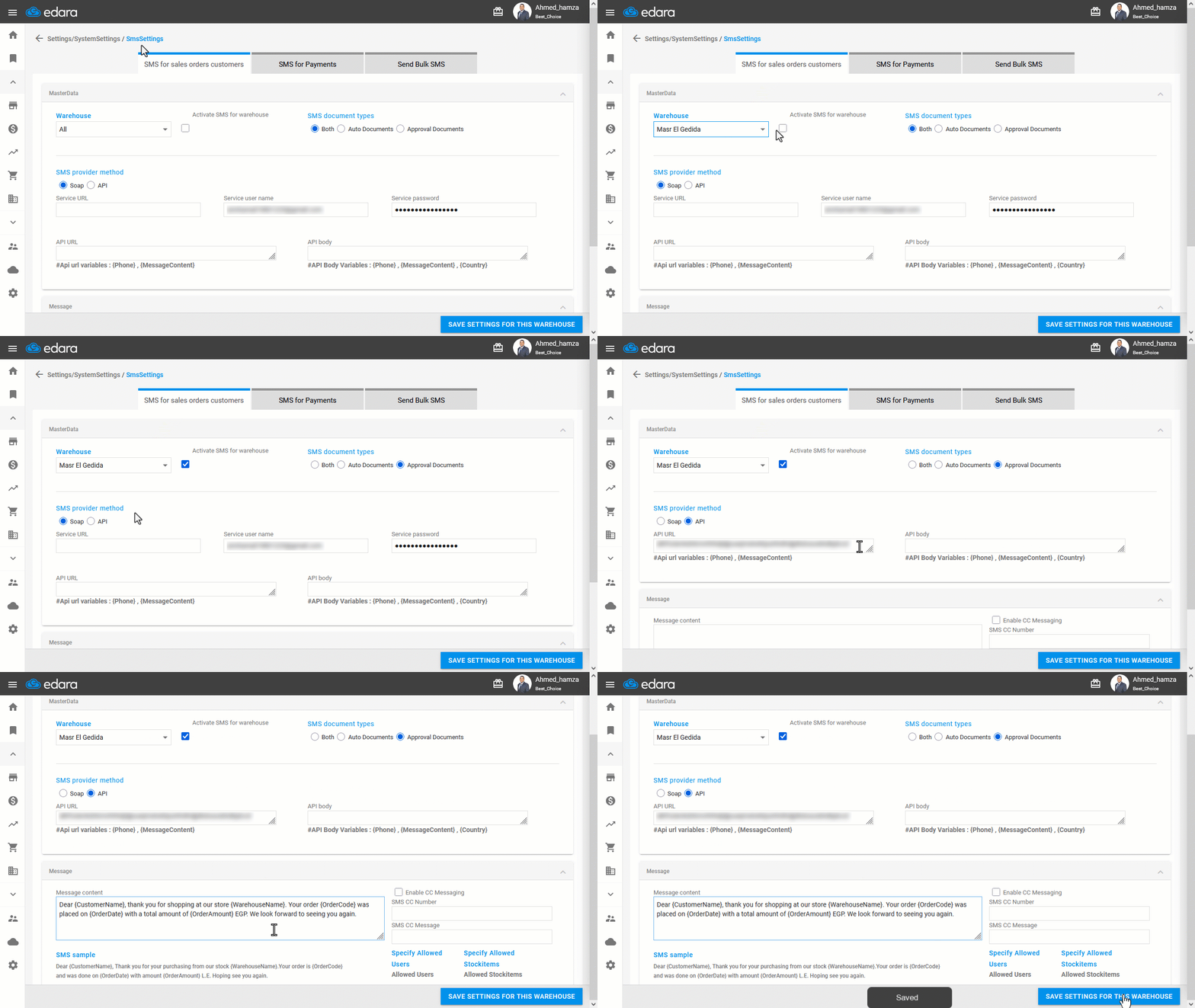
- Go to “Settings”.
- Open the “SMS Settings” page.
The default tab is the “SMS for sales orders customers”.
- Select the warehouse you want to configure.
- Enable the “Activate SMS for warehouse” option.
Note: This setting must be enabled separately for each warehouse.
- Select the SMS document types.
- Set the SMS provider method to (API).
- Enter the API link provided by your SMS service provider in “API URL” (e.g., SMS Misr API).
Note: The example API above is for demonstration only and can’t be used.
- Keep the “API body” as the default.
- Write the message content you want to send.
Note: Variables must be placed inside { }. Static text should not include brackets.
- Click on “Save Settings for this Warehouse”.
Frequently asked questions
Is SMS enabled for all warehouses at once?
This setting must be enabled separately for each warehouse.
Can I use the API link shown in the example?
The example API above is for demonstration only and can’t be used.
If you encounter any challenges or have questions during these processes, you can contact our technical support team, who are ready to assist you at any time.