

Enabling and Adding a Line Discount in a Sales Order
Last updated:
A salesperson may sometimes need to apply a discount to a specific stock item within the invoice, rather than to the total amount, to improve customer satisfaction. In this case, the stock item discount setting in the sales order must be enabled.
Enabling and Adding a Line Discount in a Sales Order
Enabling the Stock Item Discount in Sales Orders
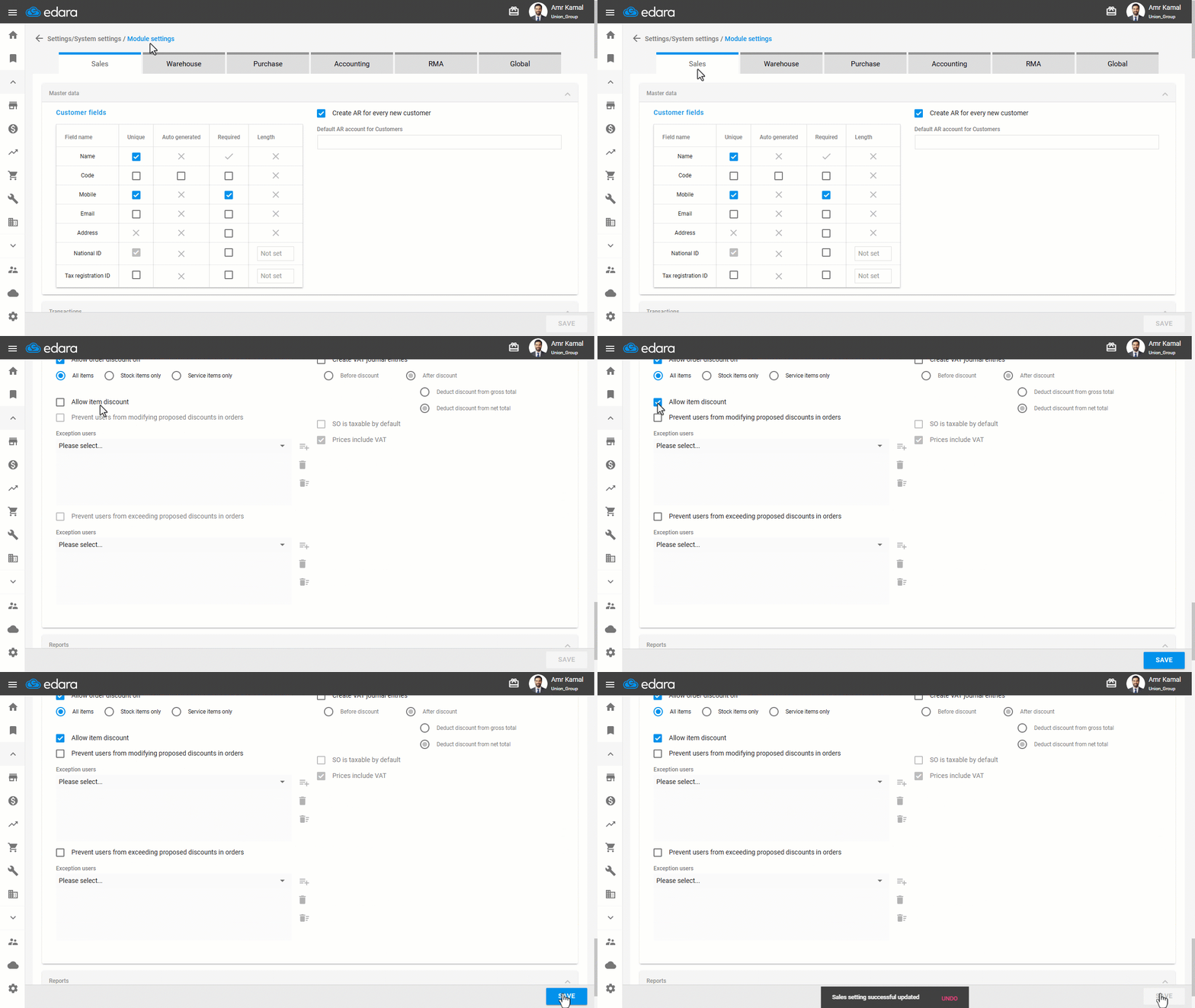
- Go to Settings.
- Open the "Modules Settings" page.
The default tab here is "Sales".
- Enable the "Allow item discount" setting.
- Click on "Save".
Adding a Line Discount in the Sales Order
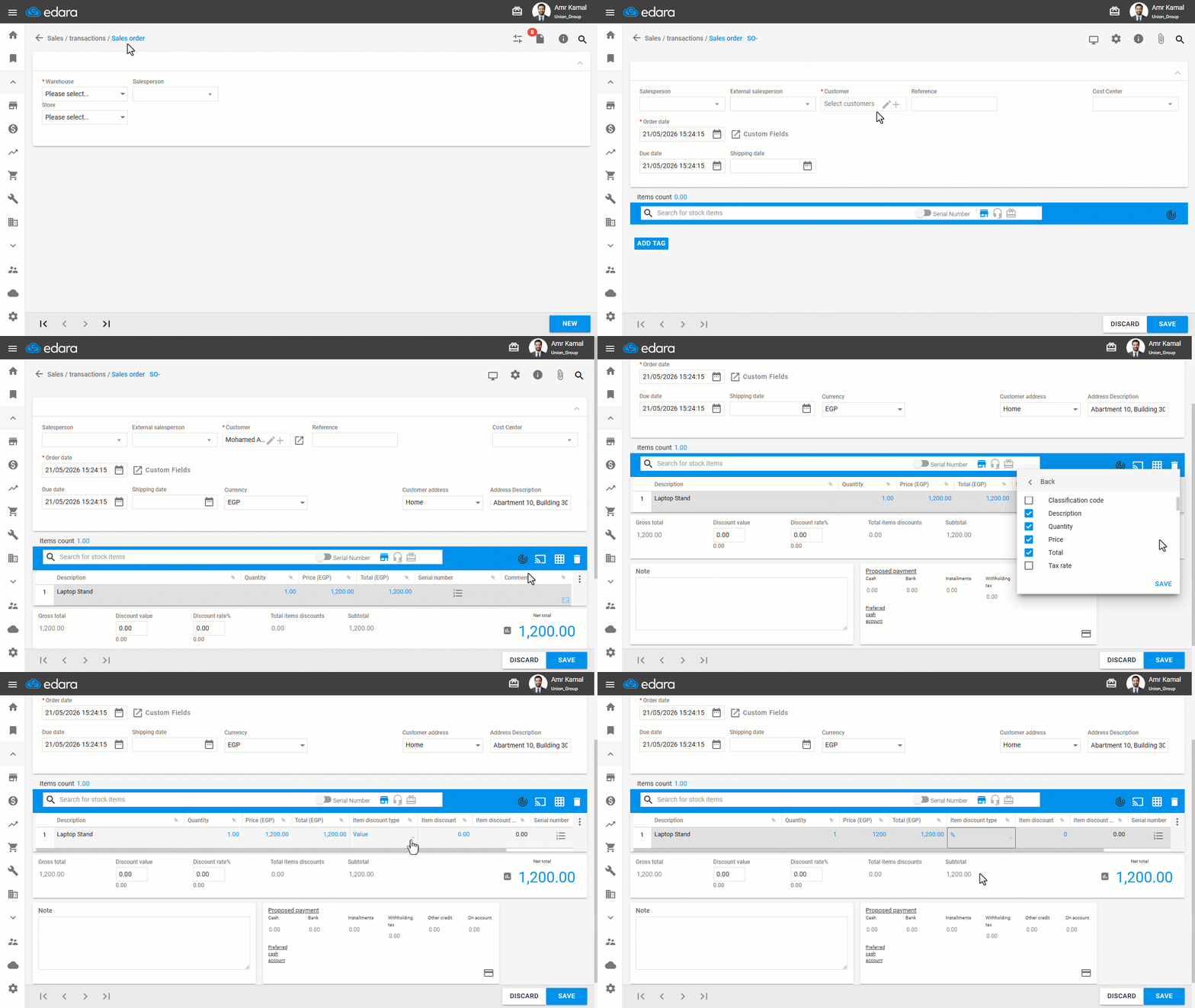
- Go to the "Sales" module.
- Open the "Sales Order" page.
- Select the warehouse.
- Click on "New".
- Enter the customer name.
- Search for stock items.
- Click on the More Details icon “⋮” at the far right of the screen in the sales order.
- Click on "▶" next to "Columns".
- Enable "Item Discount".
- Click on "Save".
Once enabled, a dedicated column will appear to specify the discount type (value or percentage) and the discount itself.
Note: You can control the discount—whether as a fixed value or a percentage—through the “ Item Discount” column. Additionally, you can manage the default discount by adjusting the discount for a specific item.
Frequently asked questions
Can I control the default discount of an item?
You can control the discount—whether as a fixed value or a percentage—through the “ Item Discount” column. Additionally, you can manage the default discount by adjusting the discount for a specific item.
If you encounter any challenges or have questions during these processes, you can contact our technical support team, who are ready to assist you at any time.