

Enabling and Adding Order Discount on Sales
Last updated:
When adding discounts to sales, you can specify the targeted stock items — all stock items or a specific type — and choose to apply the discount to the entire order or to a specific stock item only, making discount management accurate and efficient.
Enabling and Adding Order Discount on Sales
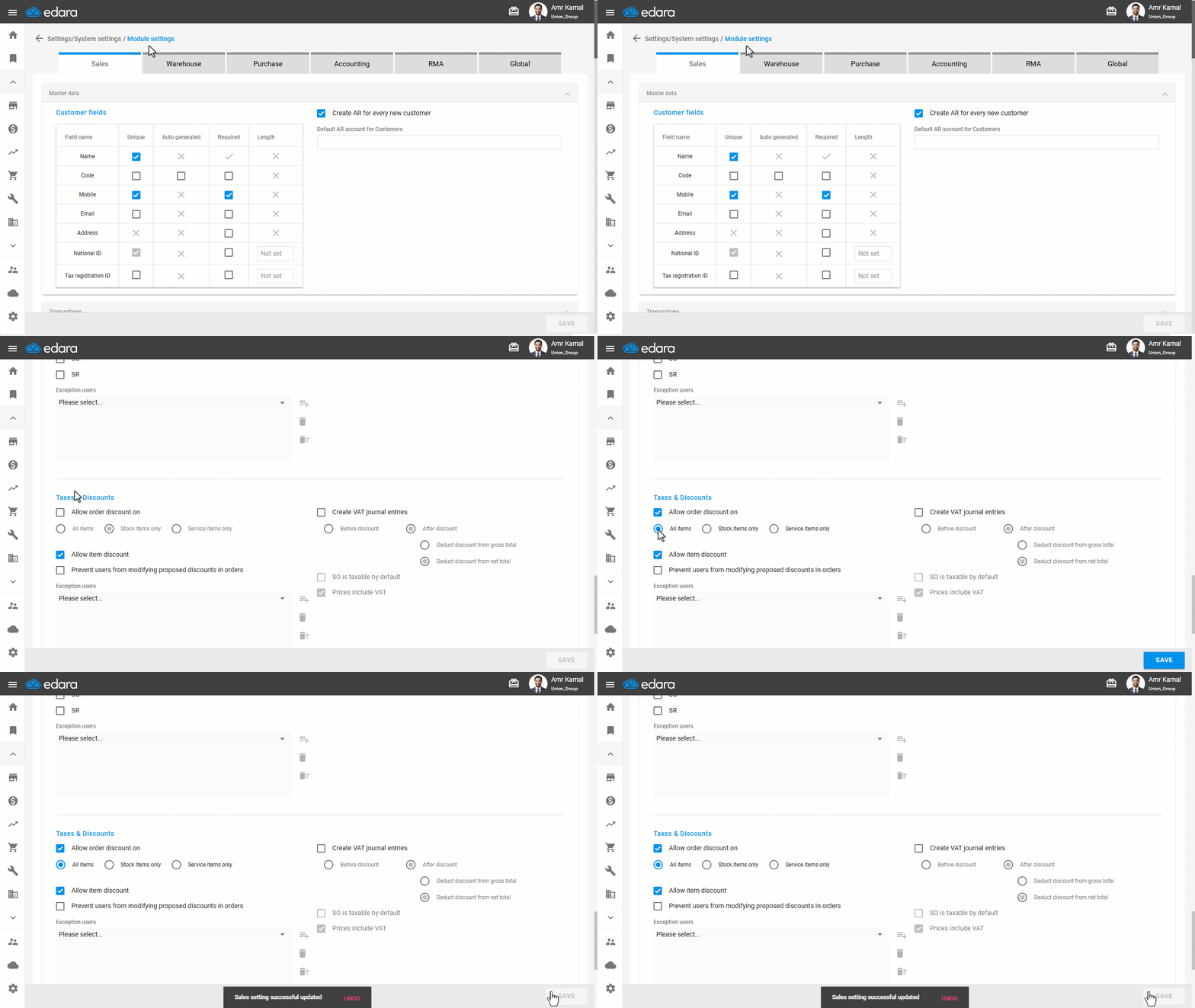
Allow order discount on Sales Order.
- Go to “Settings”.
- Open the “Modules settings” page.
The default tab here is “Sales”.
- Enable the “Allow order discount on” option.
- Choose the stock items you want the discount to apply to (All Items – Stock Items Only – Service Items Only).
- Click on “Save”.
Adding a Discount to a Sales Order
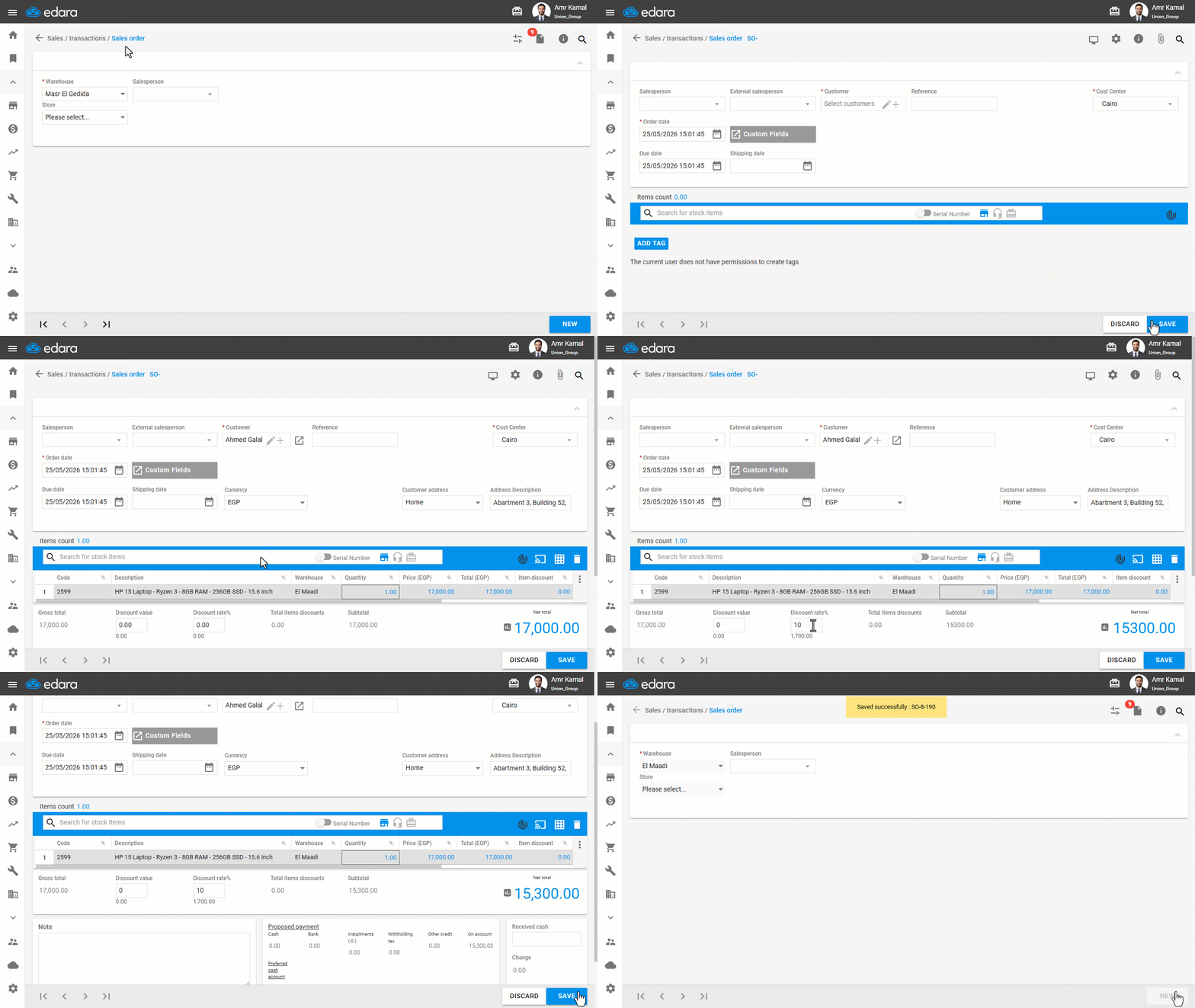
- Go to the "Sales" module.
- Open the "Sales Order" page.
- Select the warehouse.
- Click on "New".
- Enter the customer name.
- Search for stock items.
- Enter "Discount Value" or "Discount rate %".
- Select the payment method by clicking on "💳".
- Click on "Save".
Note: When you enable the “Allow item discount” option, you can apply the discount to a specific stock item or line within the order, rather than using it for the entire order.
Frequently asked questions
Can I apply the discount to a specific item instead of the whole order?
When you enable the “Allow item discount” option, you can apply the discount to a specific stock item or line within the order, rather than using it for the entire order.
If you encounter any challenges or have questions during these processes, you can contact our technical support team, who are ready to assist you at any time.