

Creating Custom Fields in the Sales Order
Last updated:
Custom fields in a sales order are used to add data that is not available by default in the system, such as specific details about the order or the customer. This helps organize the data and customize sales orders according to business needs and operational requirements.
Creating Custom Fields in the Sales Order

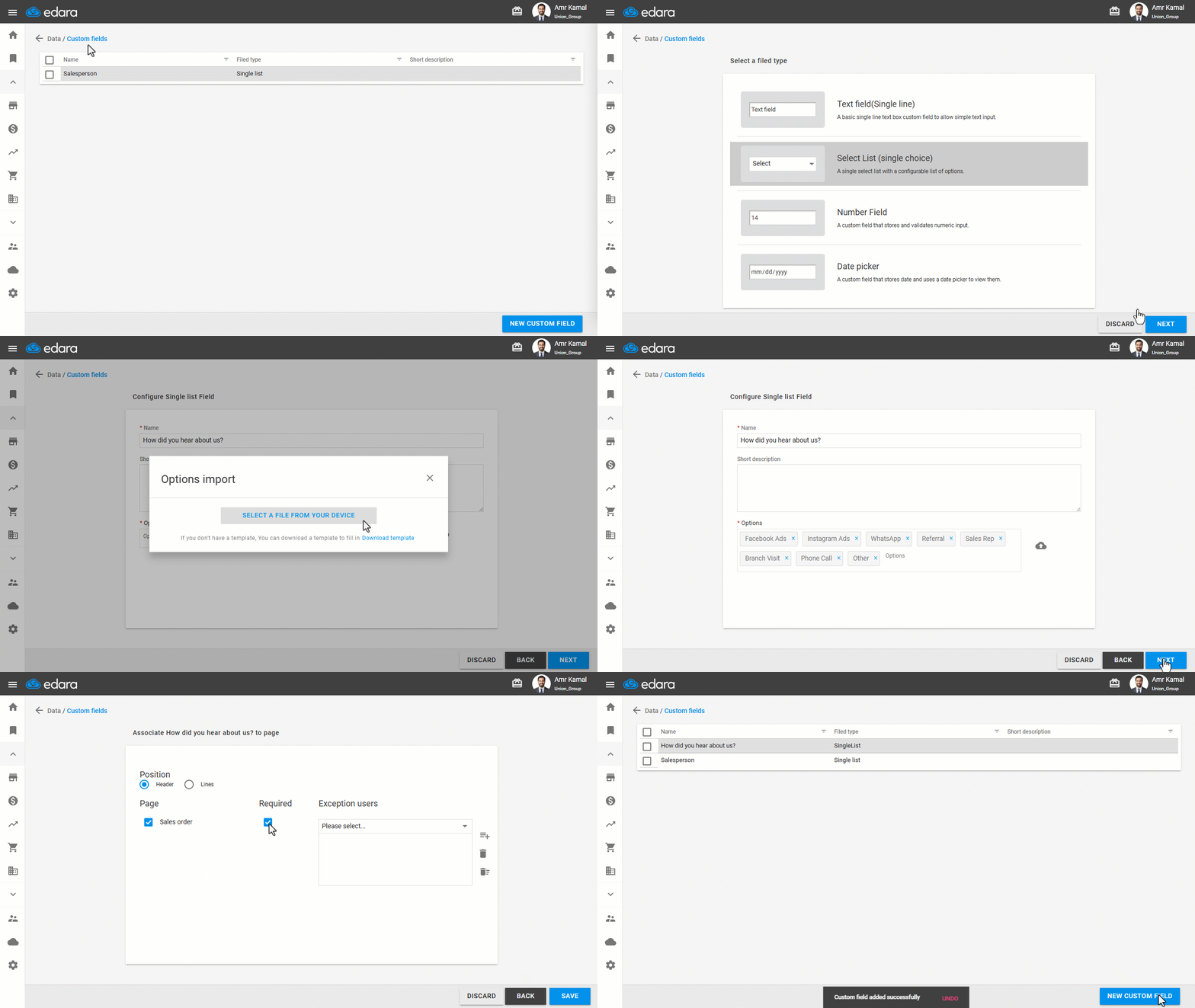
- Go to “Data”.
- Open the "Custom Fields" page.
- Click on "New Custom Field".
- Choose the field type. You can choose from four options:
- Text field: For entering short text information such as names or addresses.
- Select List: To select a single option from a predefined list.
- Number field: A custom field that stores and validates numeric input.
- Date picker: To enter a specific date, such as a delivery date or a service completion date.
- Click on "Next".
- Enter the field name and its options.
Note: If you select the “Select List” field type, you can import the dropdown options from an Excel file by clicking on “ ”.
”.
- Click on "Next".
- Select "Header" for the position.
Note: You can hide the field in the sales order by clicking on “☑” next to “Sales Order” to change it to “▢”.
- Choose whether the field is mandatory from the "Required" box.
When the “Required” option is enabled, you can exclude specific users from enforcing custom field entry.
- Click on "Save".
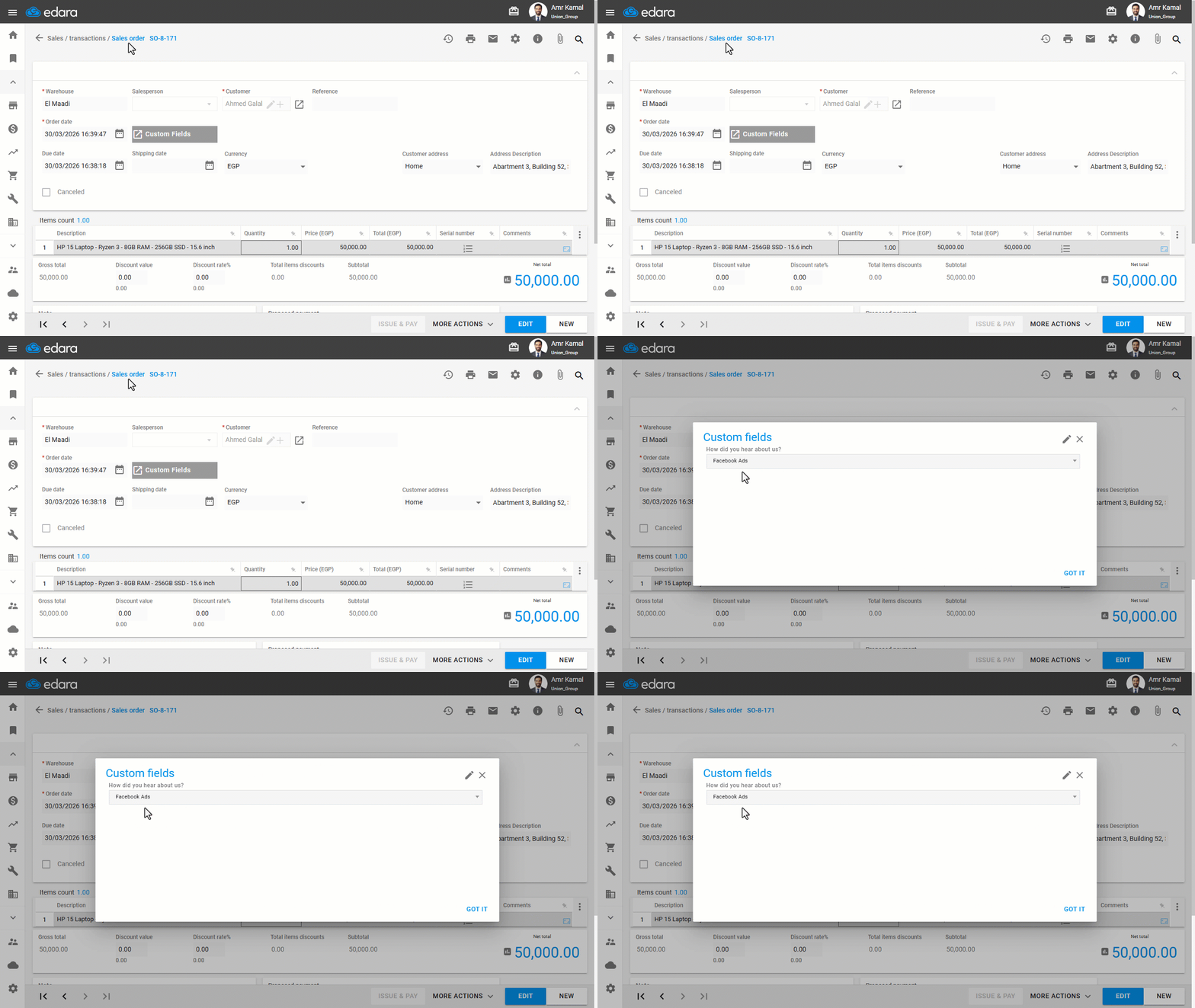
Note: You can view the details of custom fields when reviewing sales orders by clicking on “Custom Fields”, which will display all recorded data as shown in the image below.
Note: You can manage custom fields by hiding unused fields or editing their data at any time.
If you encounter any challenges or have questions during these processes, you can contact our technical support team, who are ready to assist you at any time.