

Creating a Quote
Last updated:
The quote helps you prepare details of stock items, quantities, prices, and discounts before approving the sales transaction. You can update the quote at any time or convert it directly into a Sales Order within the system.
Creating a Quote
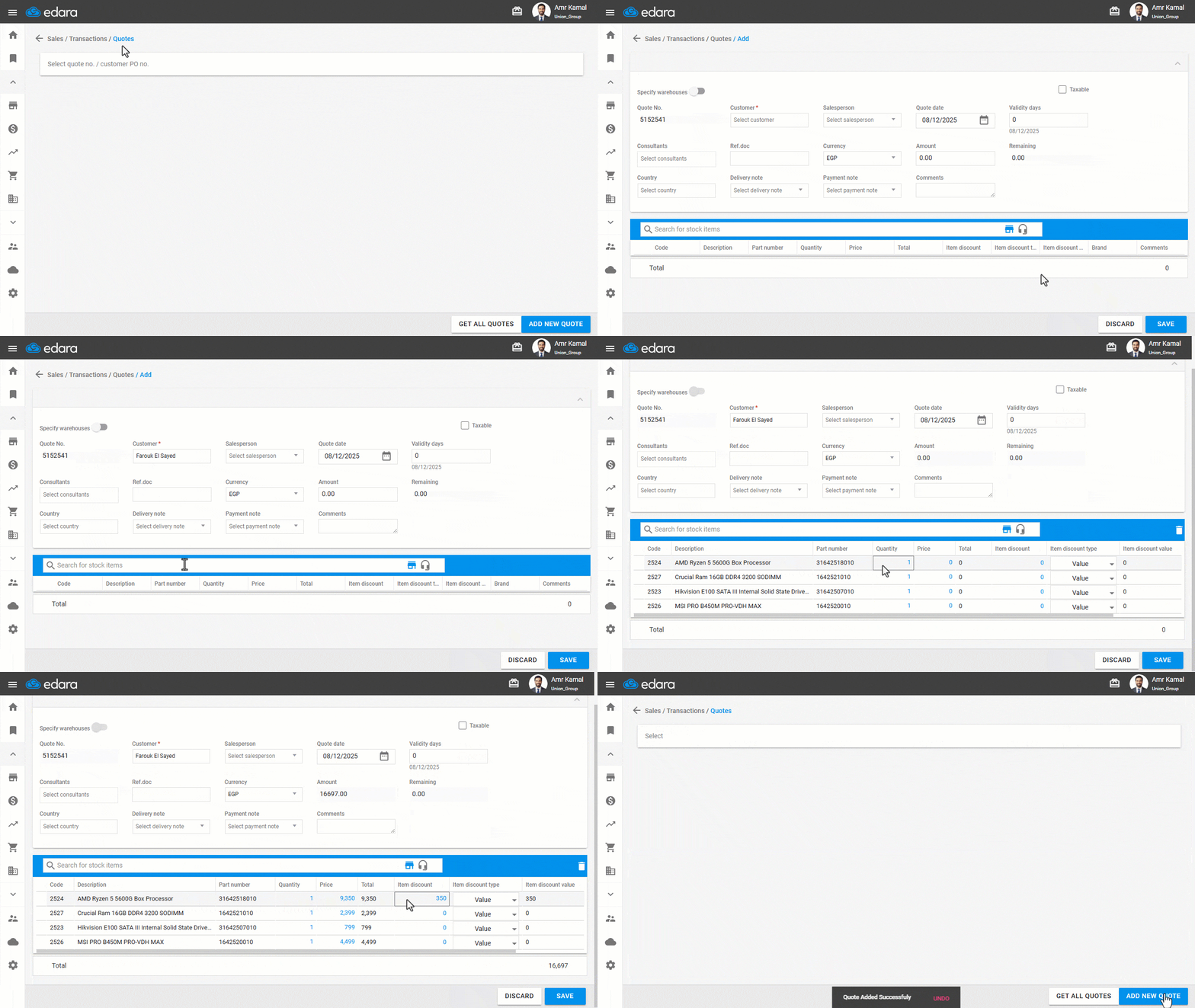
- Go to the “Sales” module.
- Open the “Quotes” page.
- Click on “Add New Quote”.
- Enter the quotation number.
Note: If the “Increment sales quotes number” setting is enabled, the system will automatically generate the quotation number. Provided that there are previously saved quote numbers and that they contain only numbers, without letters or symbols.
- Enter the customer name.
- Search for the required stock items.
- Enter the quantity and price.
- Add an item discount if applicable, and the system will calculate the quotation total automatically.
- Click on “Save”.
Editing and Printing the Quote
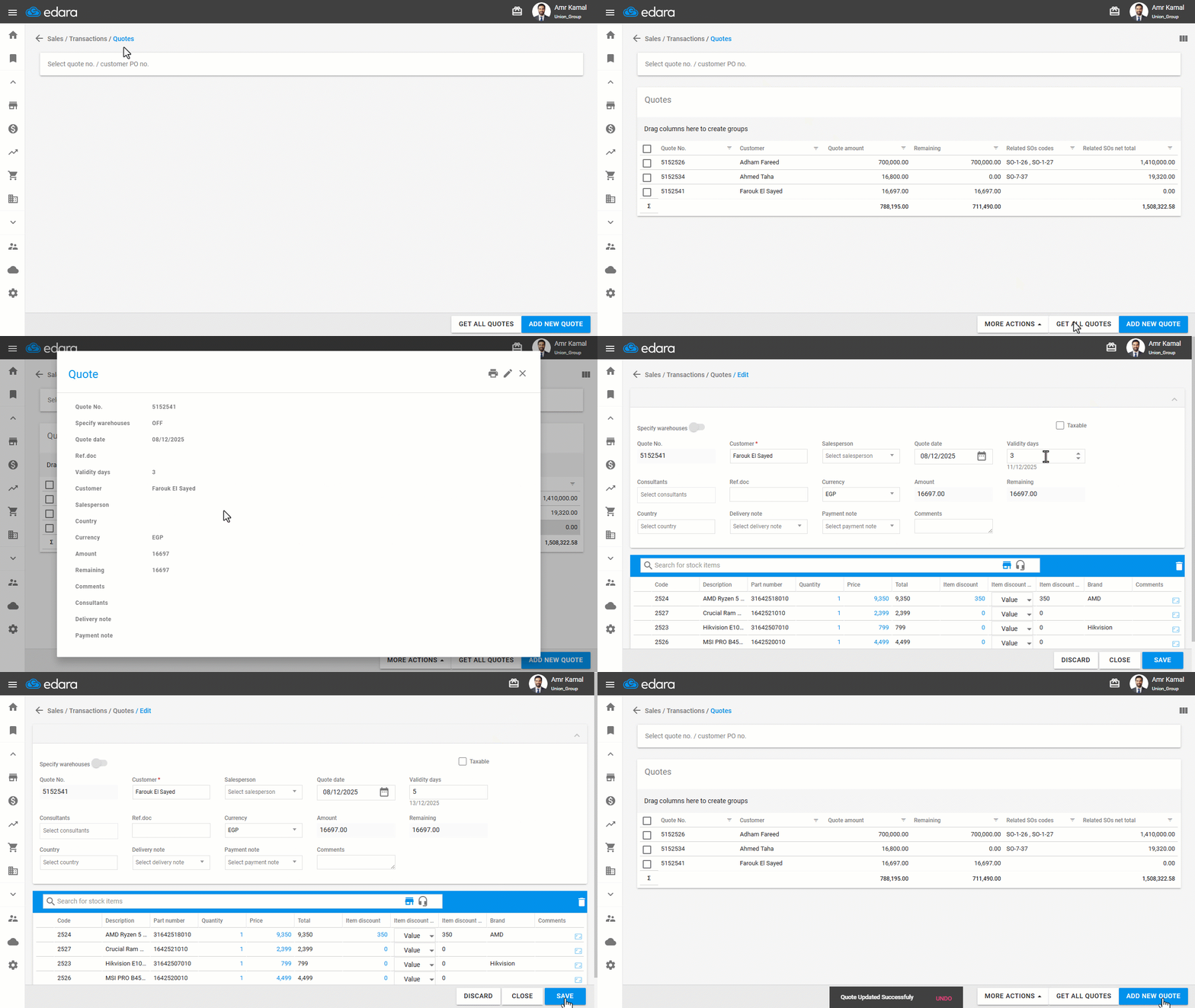
- Go to the “Sales” module.
- Open the “Quotes” page.
- Click on “Get All Quotes”.
- Click on the quote you want to edit or print.
The options for editing and printing will appear.
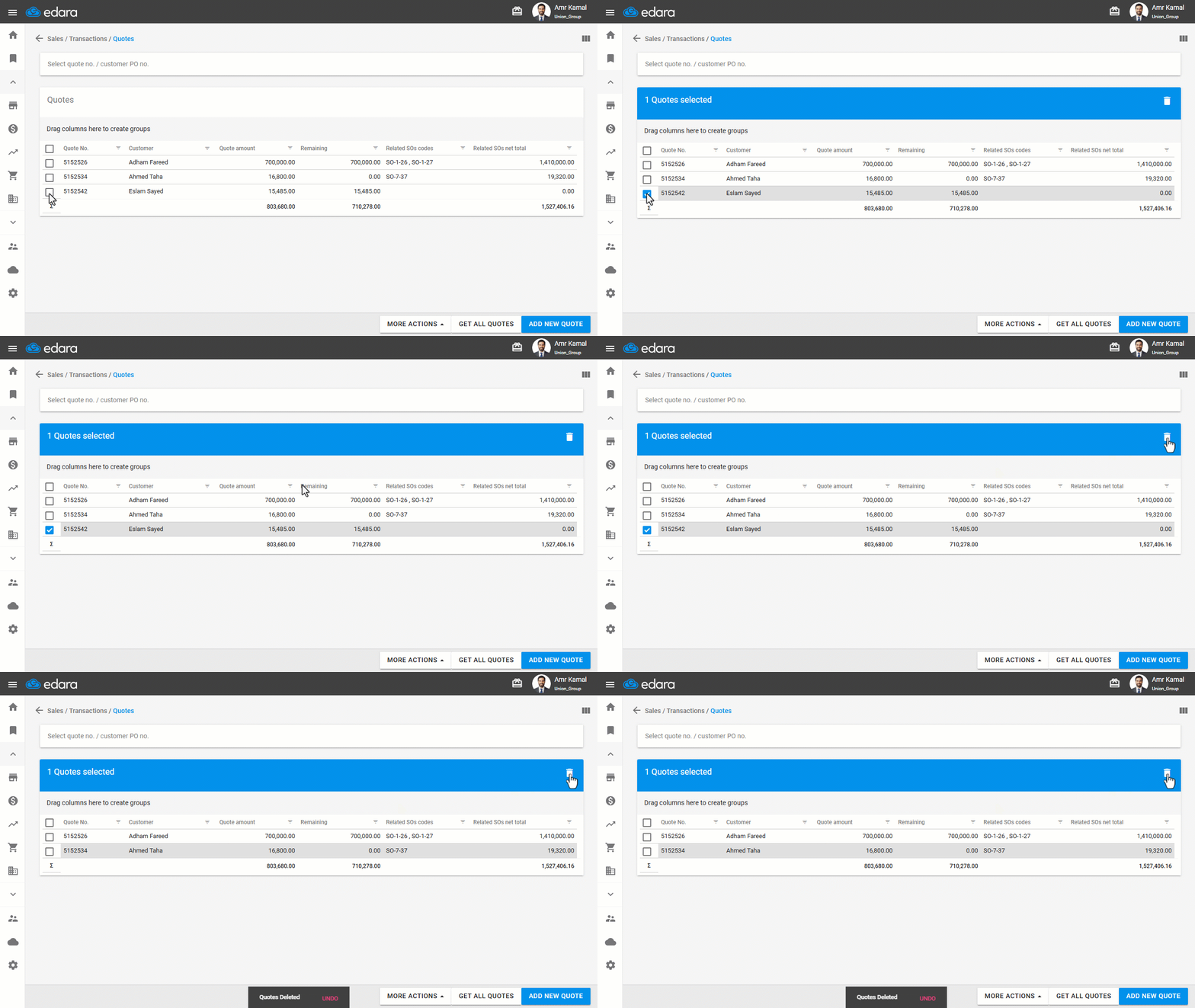
Note: You can delete a quote by selecting it and clicking on the Delete icon “ ”.
”.
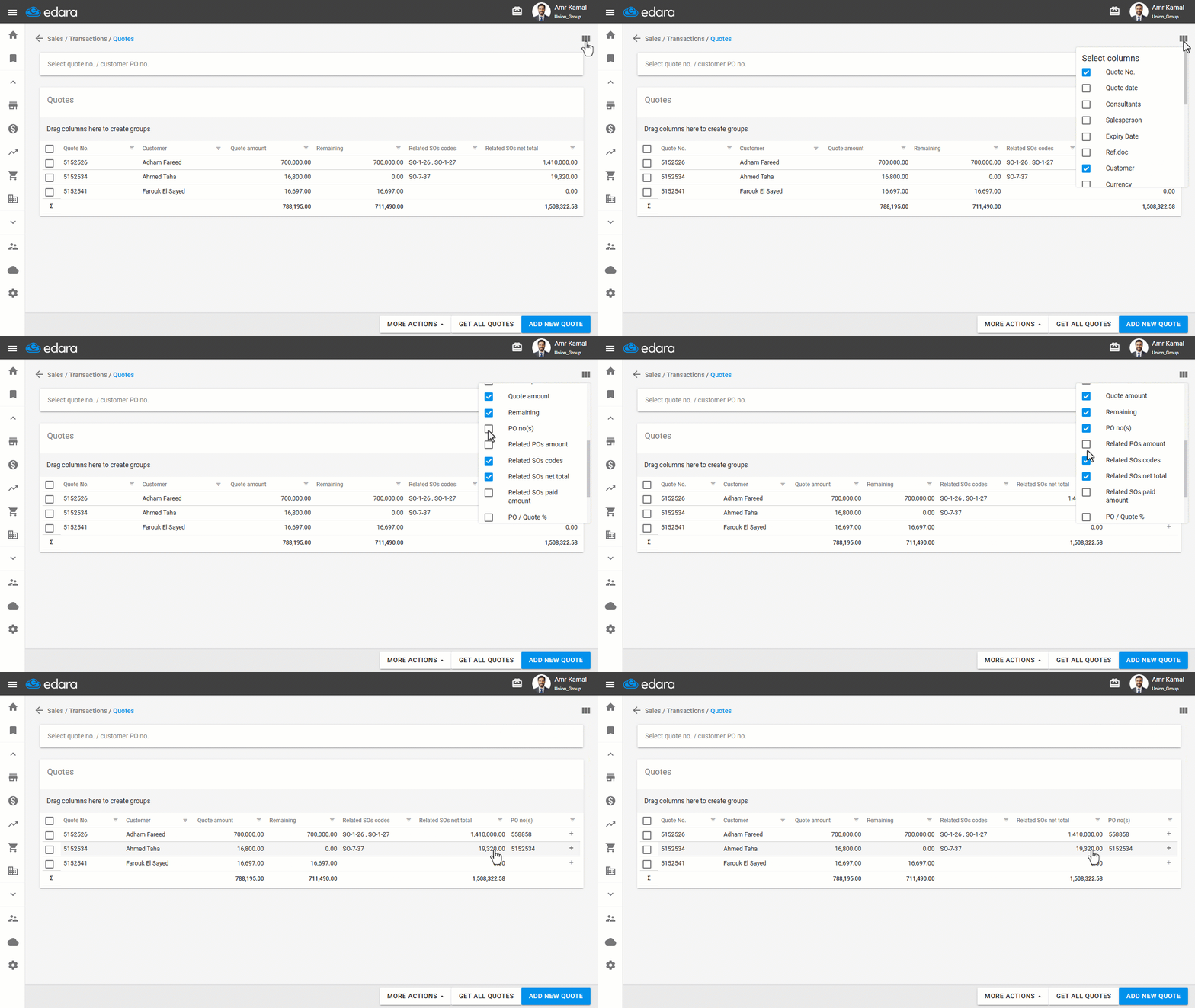
Note: You can manage the visible columns by clicking “ ” and enabling the fields you want to display, then clicking on “Save sort”.
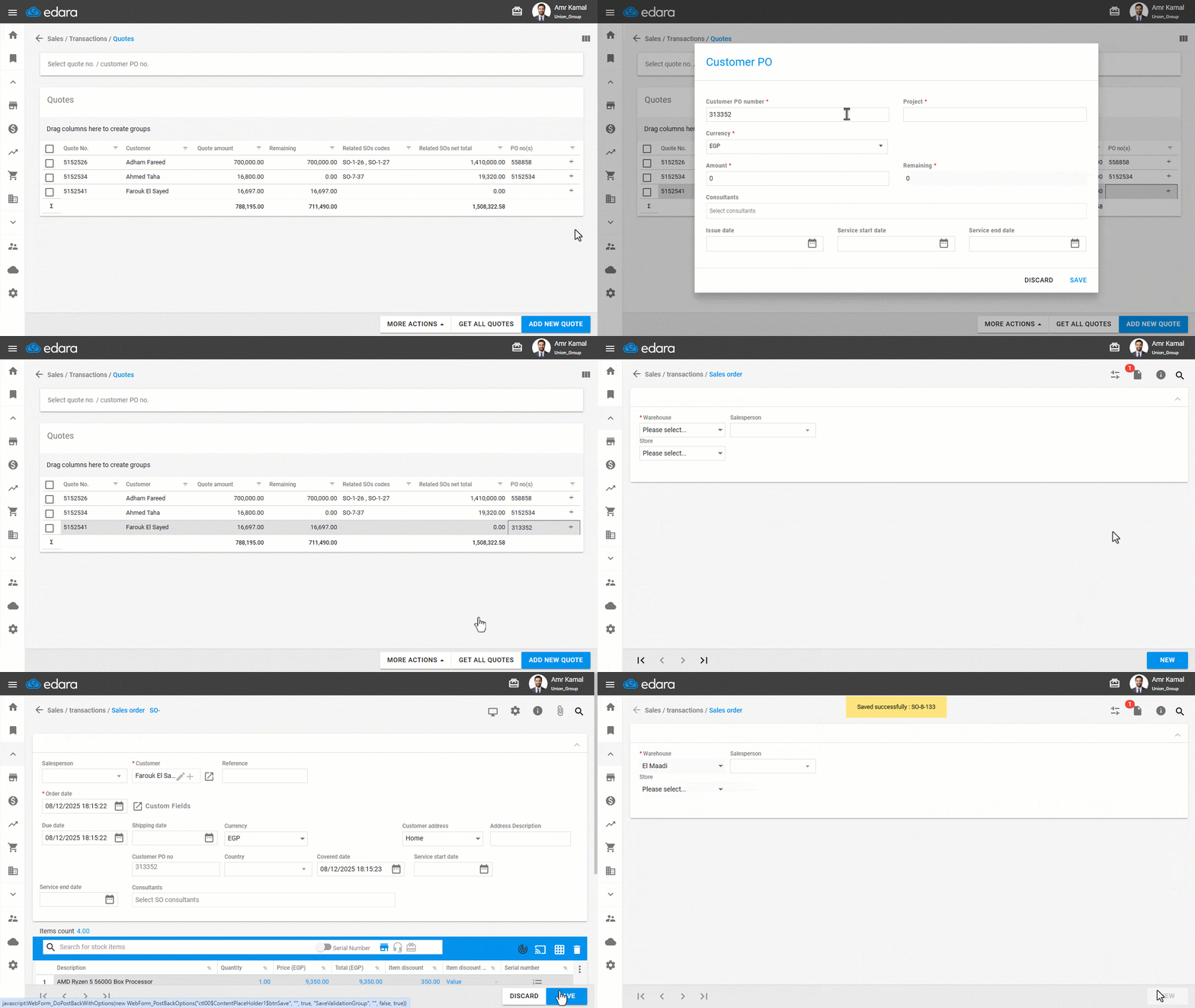
Execute a Quote and Convert It into a Sales Order
- Click on the “+” icon inside the quote in the “PO no(s)” column.
- Enter the Customer PO details.
- Click on “Save”.
- Click on “

 ” next to the customer purchase order number to open the Sales Order page.
 - Select the warehouse.
- Click on “New”.
- Click on “Save”.
The stock items will be added automatically with the same quantities, prices, and discounts from the quote.
Frequently asked questions
When does the system generate the quote number automatically?
If the “Increment sales quotes number” setting is enabled, the system will automatically generate the quotation number. Provided that there are previously saved quote numbers and that they contain only numbers, without letters or symbols.
Can I delete a quote?
You can delete a quote by selecting it and clicking on the Delete icon “”.
How do I control the columns shown in the quote?
You can manage the visible columns by clicking “” and enabling the fields you want to display, then clicking on “Save sort”.
If you encounter any challenges or have questions during these processes, you can contact our technical support team, who are ready to assist you at any time.