

Approving a Sales Order and Saving the Related Documents
Last updated:
To complete the document flow for sales orders, you can approve the sales order and save the related documents, as well as process the issue offerings from the Approval page in the “Sales” module.
Approving a Sales Order
- Go to the “Sales” module.
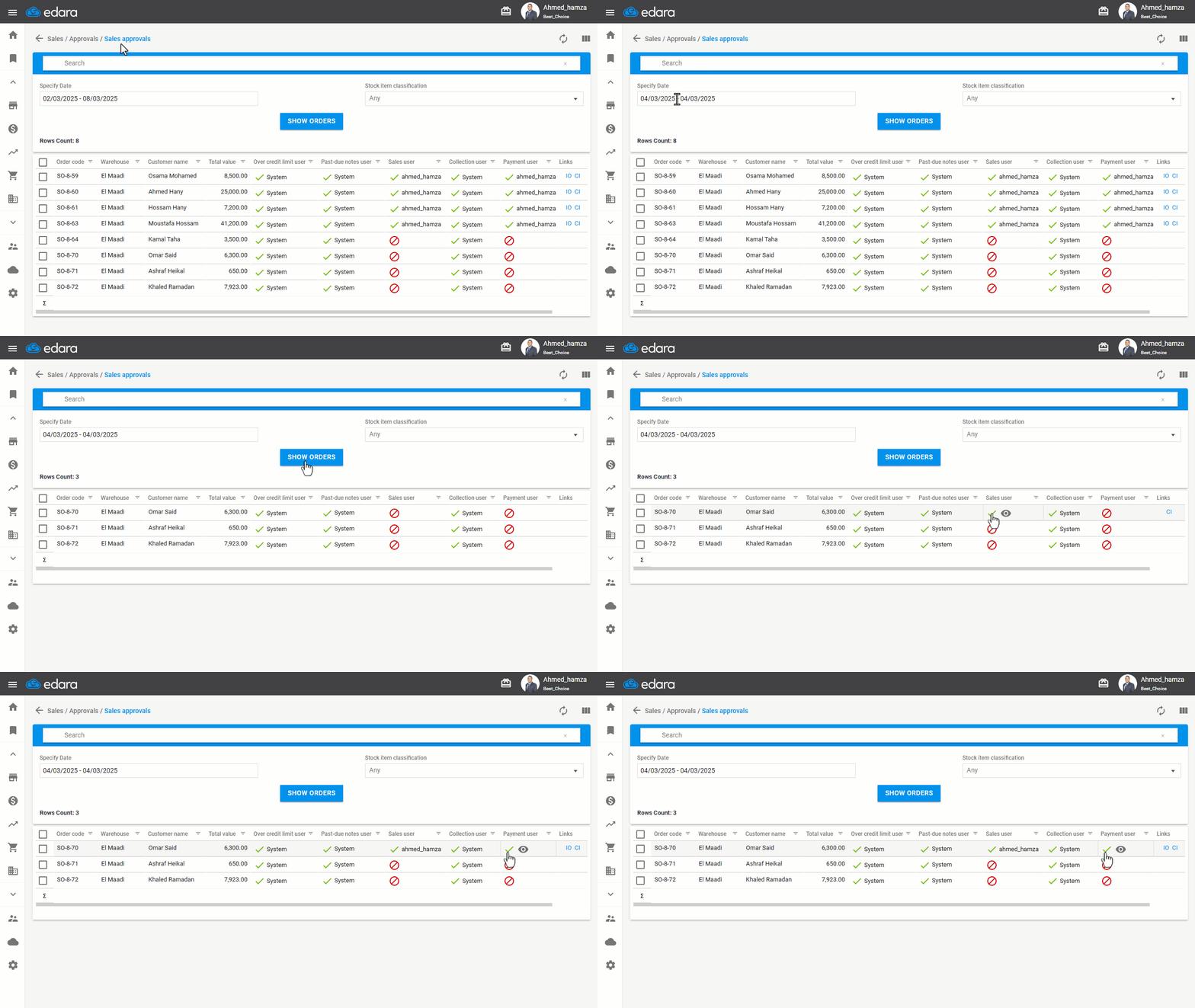
- Open the “Sales Approvals” page.
- Specify the required date.
- Click on “Show Orders".
- Click on “🚫” to change it to ✔️ to approve the order (after ensuring the necessary permissions are granted).
Notes:
- After bypassing all the permissions, you will see links to the documents related to the sales order, such as: (Issue Offerings Document (IO) - Cash In Document (CI) – if the sales order is cash-based).
- You can see the row count displayed above the sales orders.
Saving the Documents Related to the Sales Order
To save the documents, follow these steps:
Saving Cash-in Documents
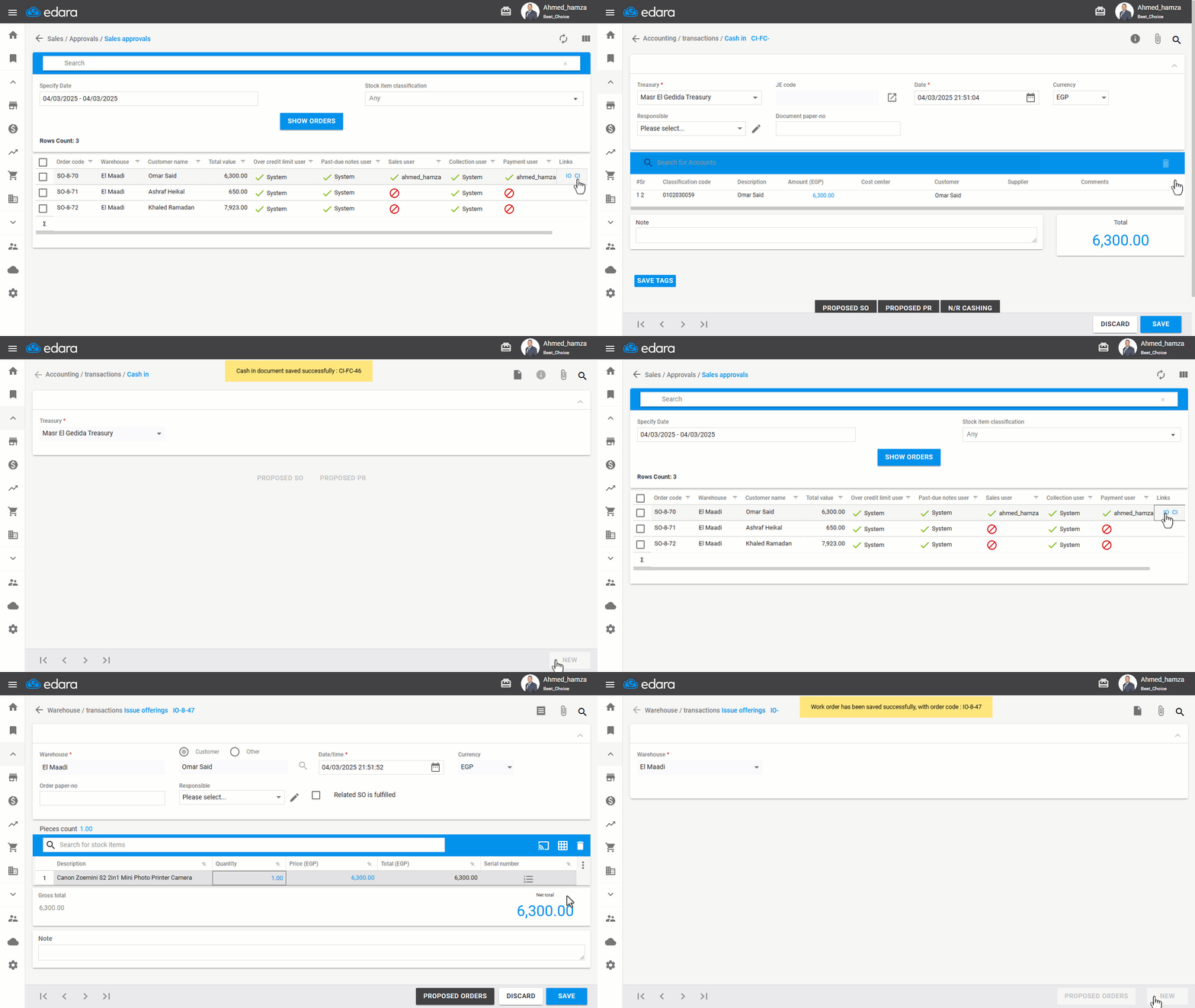
- Click on the “CI document link” to open the Cash-in page in a new tab.
- Ensure the "Treasury" is selected.
- Click on "Save".
Saving Issue Offerings Document
- Click on the “IO document link” to open the Issue offerings page in a new tab.
- Click on "Save".
Note: After completing the issue offerings process, the sales order will disappear from the Approvals page.
Frequently asked questions
When does the sales order disappear from the Approvals page?
After completing the issue offerings process, the sales order will disappear from the Approvals page.
If you encounter any challenges or have questions during these processes, you can contact our technical support team, who are ready to assist you at any time.
Did this answer your question?