

Displaying Estimated Profit in the Sales Approvals Page
Last updated:
You can't know the profit value until after the actual issuance of the items, but you can calculate the cost and profit in an estimated manner, so “Edara” provides an icon to view the estimated profit to help you make a decision.
Due to the sensitivity of the information, only those with permission can use it.
Displaying Estimated Profit in the Sales Approvals Page

This process involves two main steps:
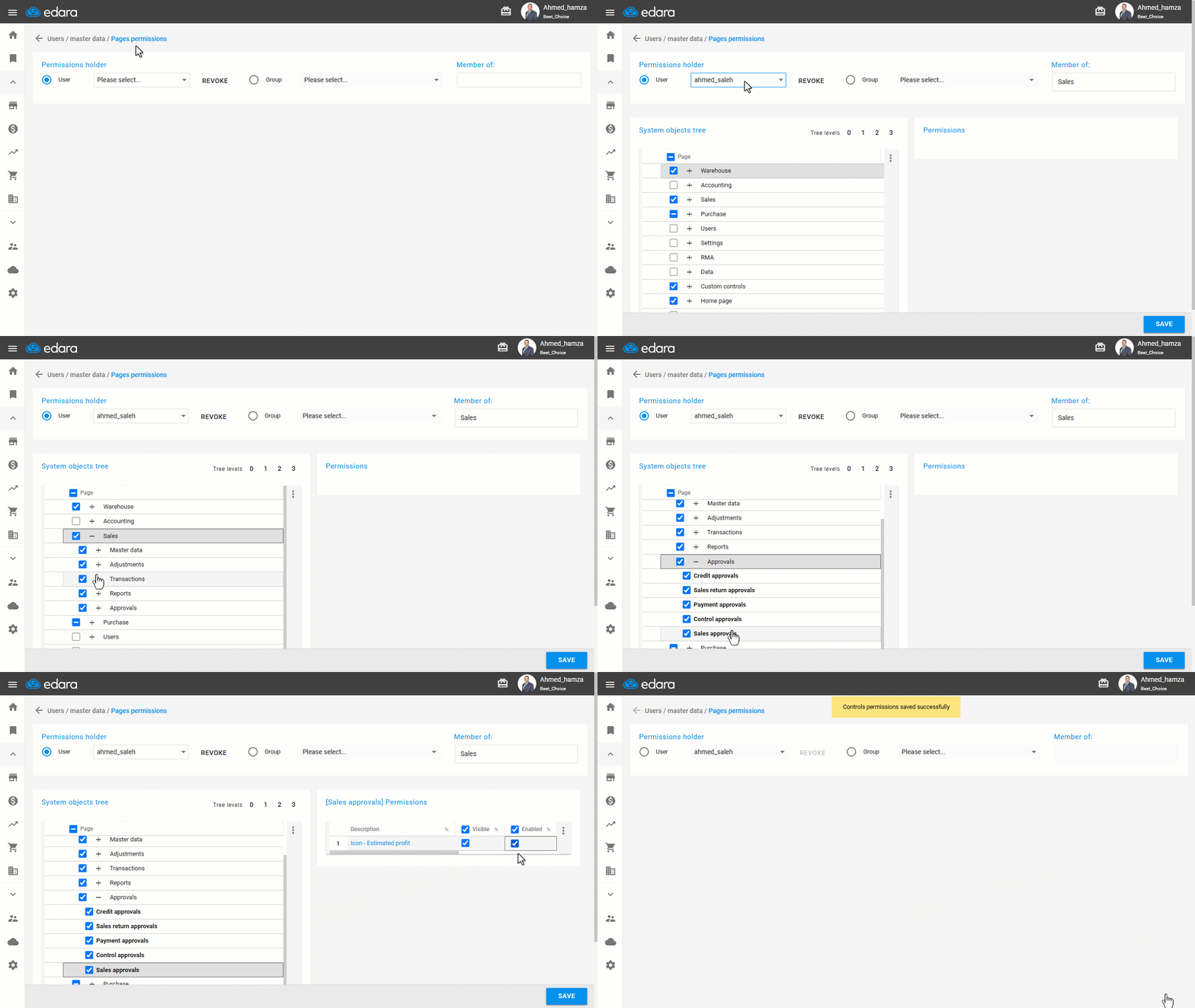
1. Granting the User the Required Permission
- Go to Users.
- Open the “Page Permissions” page.
- Select the user or group of users to grant permission.
- Click “+” next to “Sales”, then “Approvals”.
- Click the “Sales Approvals” page to reveal its tools.
- Enable the “Estimated Profit” icon (The icon is visible by default, you just have to enable it).
- Click on “Save”.
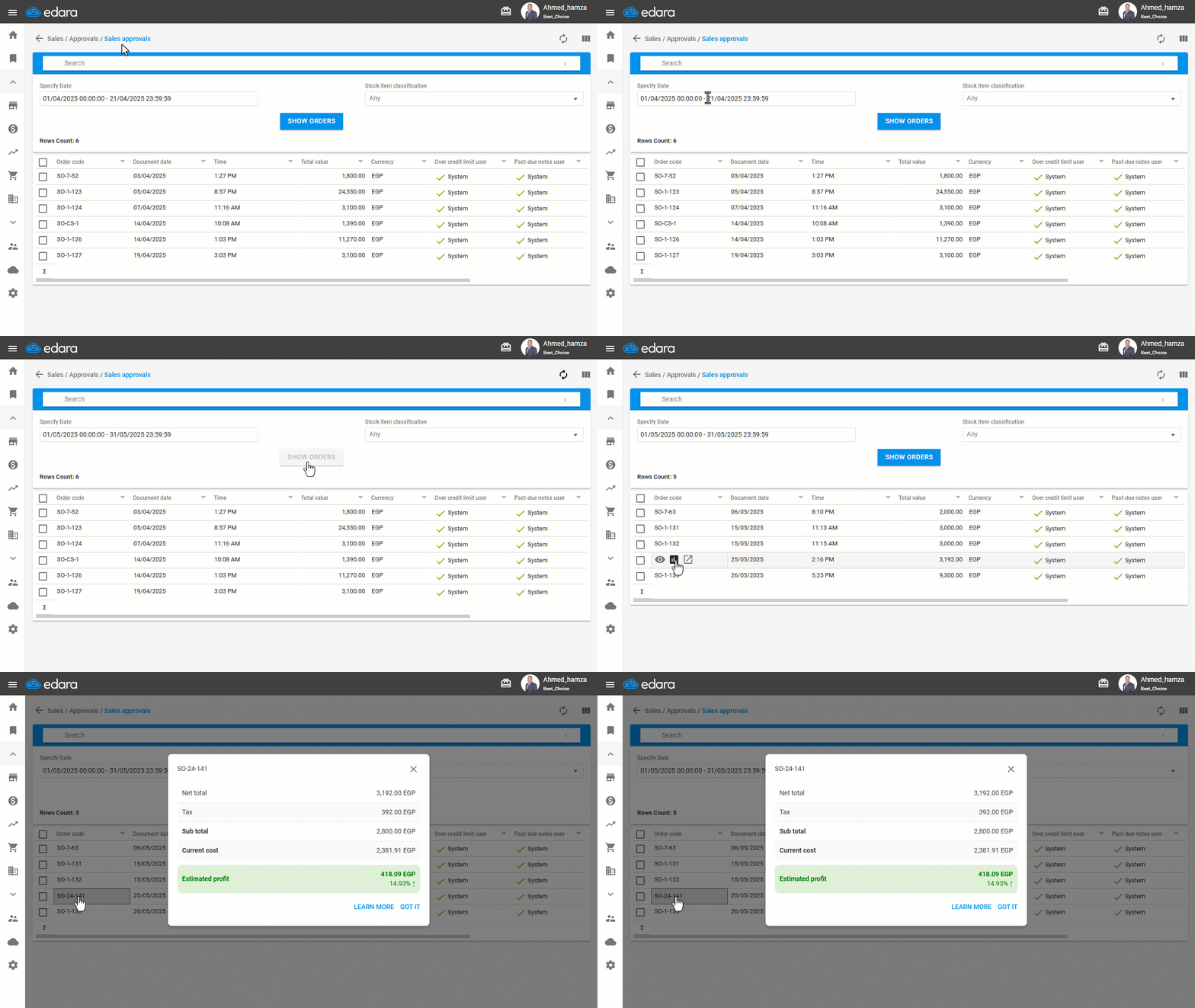
2. Using the Estimated Profit Icon
- Go to the Sales module.
- Open the “Sales Approvals” page.
- Select the desired date.
- Click on “Show Orders”.
- Hover over the order code you want to approve.
- Click on “
 ”.
”.
Important notes:
- After performing these steps, a window will appear with some information such as: (Net total - Sub total - Current cost), from which the estimated profit is calculated.
- All values are in the document's currency, and if the documents are in a foreign currency, divide by the document's exchange rate to find out the current cost in the document's currency.
- Sub total = Net total - Tax.
- Estimated Profit = Sub total - Current Cost.
- Estimated Profit Ratio = Estimated Profit Value/Sub total.
- You can click on “Learn More” to go to the current article for more information.
The following image is an example:
Note: If the order shows a loss, the estimated profit will appear in red with a downward arrow, unlike the example shown in the previous image.
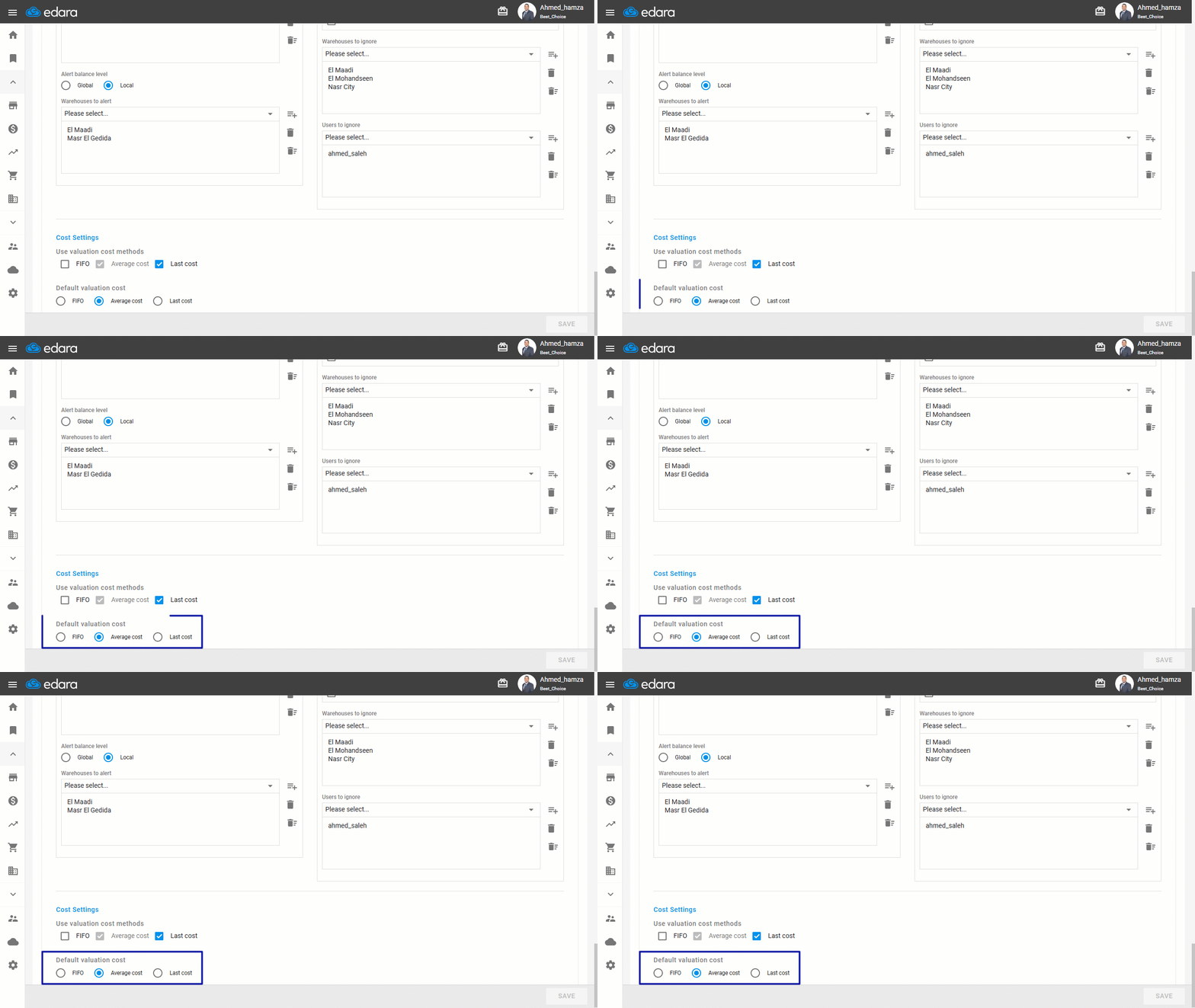
Note: The current cost is calculated by the default valuation cost method defined in the Warehouse Settings, which is specific to stock items only, and is the same value that appears in the Stock Cost Report, subject to the ratio for items that use multiple units of measure.
Read also: Displaying the Estimated Profit in the Sales Order.
Frequently asked questions
Why does the estimated profit appear in red?
If the order shows a loss, the estimated profit will appear in red with a downward arrow, unlike the example shown in the previous image.
How is the current cost calculated?
The current cost is calculated by the default valuation cost method defined in the Warehouse Settings, which is specific to stock items only, and is the same value that appears in the Stock Cost Report, subject to the ratio for items that use multiple units of measure.
If you encounter any challenges or have questions during these processes, you can contact our technical support team, who are ready to assist you at any time.