

Displaying the Gross Profit Report for Each Stock Item
Last updated:
If you want to analyze the profit of each stock item in detail, you can view the "Gross Profit" report in the Sales module. This report consolidates data based on stock items, factoring in returns and discounts to provide the net profit.
Displaying the Gross Profit Report for Each Stock Item

- Go to the Sales module.
- Open the “Gross Profit Report” page.
- Select Group By “Stock Item”.
- Select stock items classification.
- Specify date.
- Select "Yes" for Deduct Returns.
- Specify the Valuation method.
- Go to “Custom View”.
- Enable the columns you want to include in the report, such as “Gross Sales”, “Gross Profit,” “Image,” etc.
- Click on "Save Selection" after enabling the columns.
- Click on "Generate".
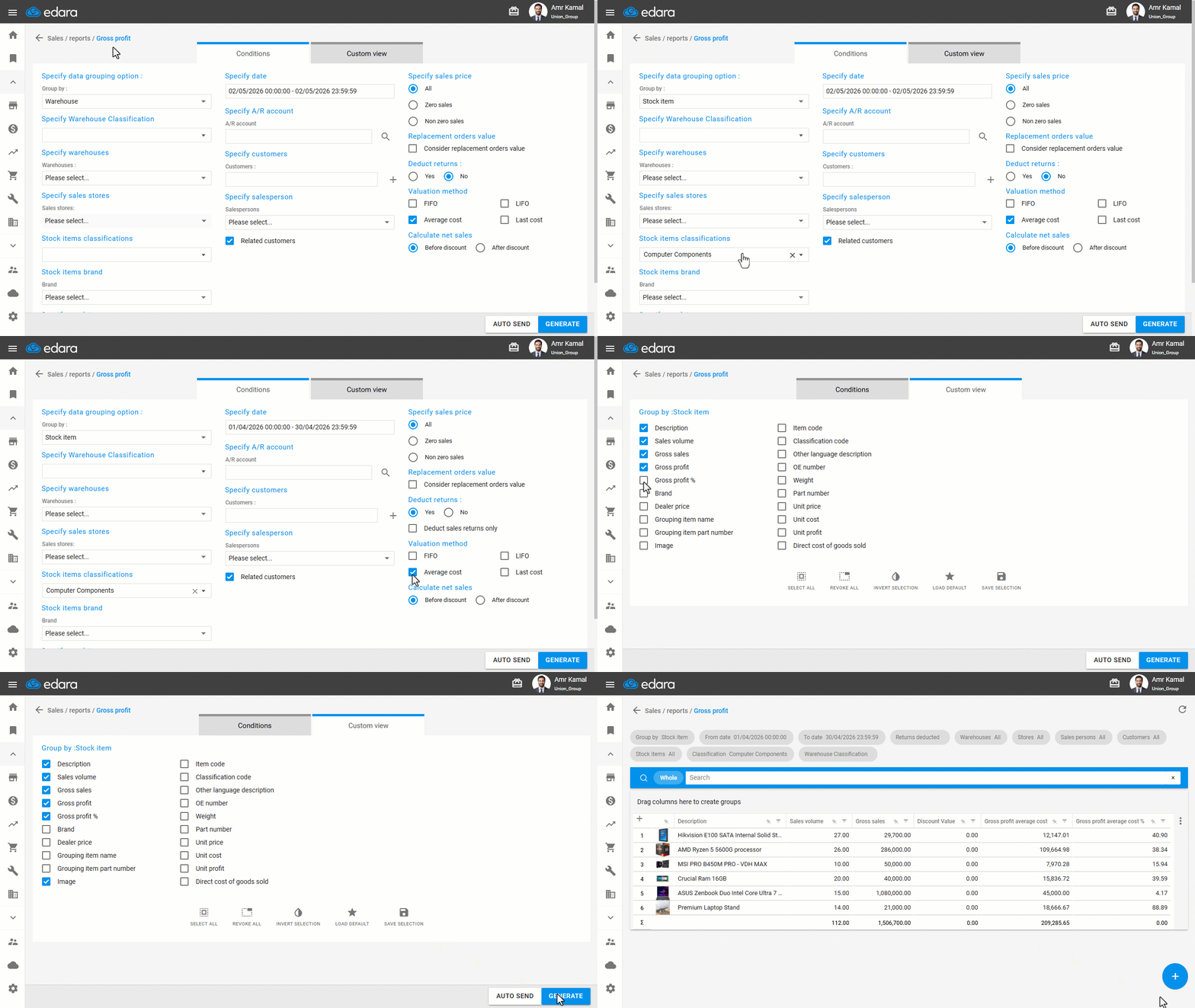
Note: The total sales of the stock item are calculated, and the returns and discounts are deducted to obtain the net sales. The cost of goods sold (COGS) is then subtracted to calculate the item's profit.
If you encounter any challenges or have questions during these processes, you can contact our technical support team, who are ready to assist you at any time.
Did this answer your question?