

Displaying Stock Items Sold Below Cost
Last updated:
While reviewing the Gross Profit report (by Stock Item), you might notice that some items show a negative gross profit. This indicates that these items were sold below their average cost.
“Edara” allows you to drill down into these items' issue offerings to see the actual selling price and compare it against the average cost.
Displaying Stock Items Sold Below Cost
The following image shows an example of the Gross Profit report (by Stock Item) for a specific date range, where certain items have negative gross profit values:
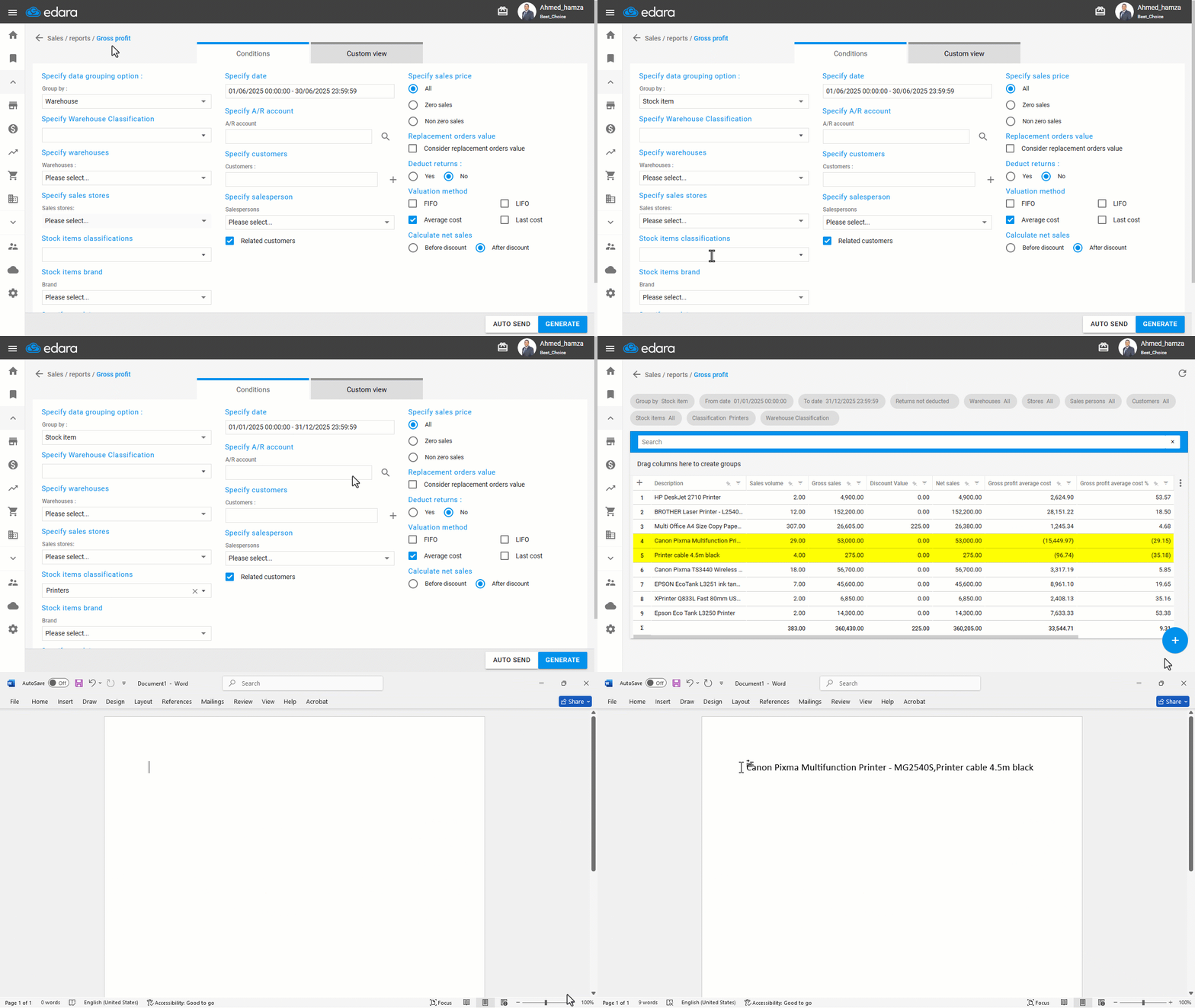
Take note of the affected item names, then follow these steps:
- Go to the Sales module.
- Open the “Gross Profit Report” page.
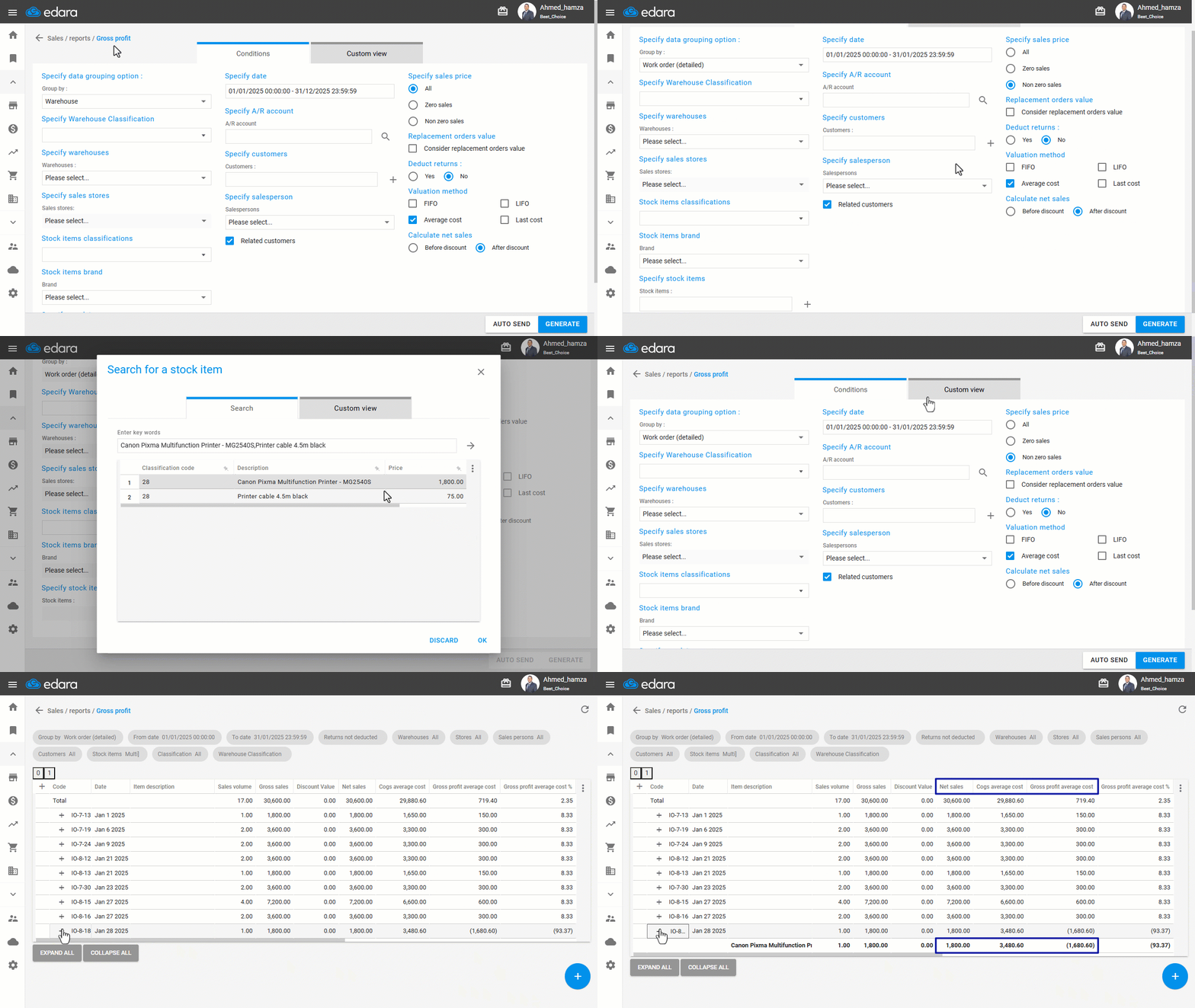
- Specify the data grouping option to be: "Work Order (Detailed)".
- Use the same date range as in the previous report.
- Specify sales price as: "Non-zero sales".
- Filter by the same item names noted from the previous report.
- Click on "Custom View".
- Make sure to include the column: "Direct cost of goods sold".
- Click on "Generate".
You’ll now be able to compare the gross sales value of each stock item with its average cost, helping you identify exactly which items were sold below cost and by how much.
If you encounter any challenges or have questions during these processes, you can contact our technical support team, who are ready to assist you at any time.