

Displaying Related Suppliers in the Stock Cost Report
Last updated:
Edara allows you to display the suppliers linked to each item — as defined earlier in the item coding page — directly within the Stock Cost Report, adding a higher level of accuracy and clarity when tracking items and their related suppliers.
Displaying Related Suppliers in the Stock Cost Report

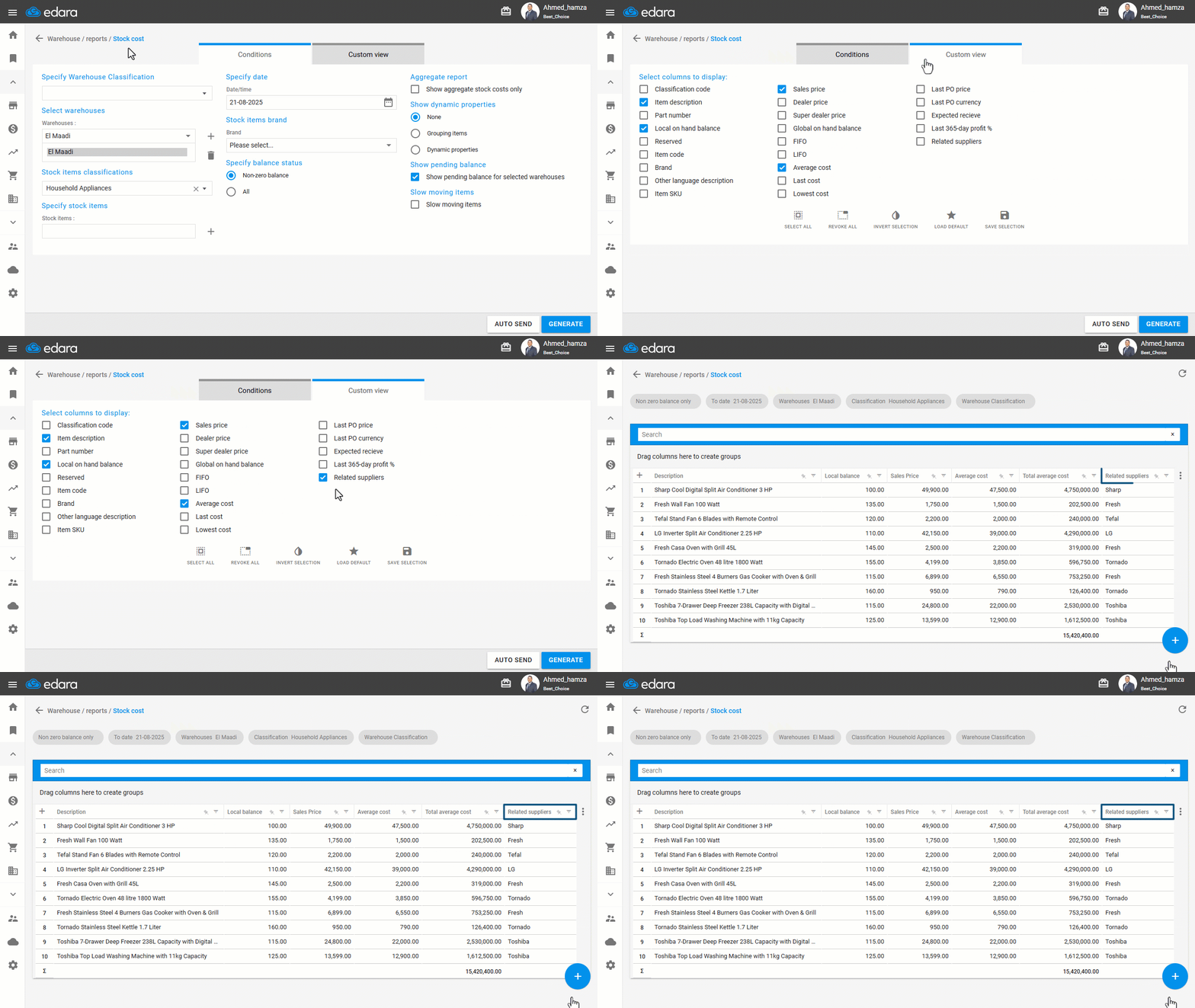
- Go to the Warehouse Module.
- Select Stock Cost Report.
- Click on “Custom View”.
- Choose to display Related Suppliers.
- Click on “Generate”.
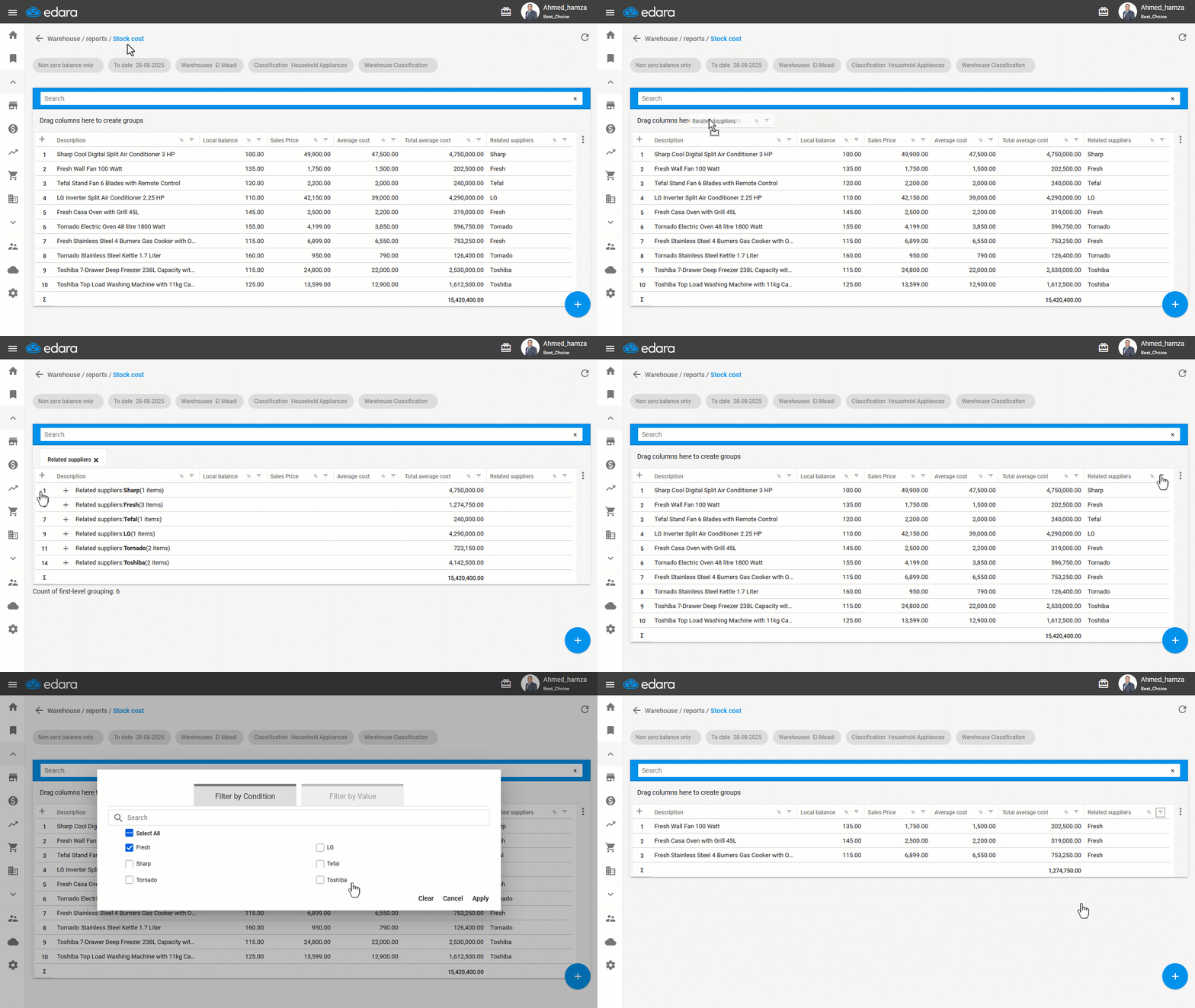
From the results page, use the filter or grouping options to view the total stock value for the selected supplier accurately.
Notes:
- You can export the report to Excel, Google Sheets, or print it by clicking on the "+" icon.
- If an item is purchased from more than one supplier, you can view Stock Aging by Supplier (per stock item) from the Stock Aging Report.
Frequently asked questions
How do I view stock aging by supplier when an item is bought from more than one supplier?
If an item is purchased from more than one supplier, you can view Stock Aging by Supplier (per stock item) from the Stock Aging Report.
If you encounter any challenges or have questions during these processes, you can contact our technical support team, who are ready to assist you at any time.
Did this answer your question?