

Displaying the Stock Aging Report
Last updated:
Business owners need to track how long products remain in storage from the moment they’re received. This is essential for gaining a clear overview of stock status—and that’s where the Stock Aging Report comes in.
Displaying the Stock Aging Report

This report displays all item quantities across all warehouses, including pending quantities. To access it, make sure you have permission to view the Stock Aging page, then follow these steps:
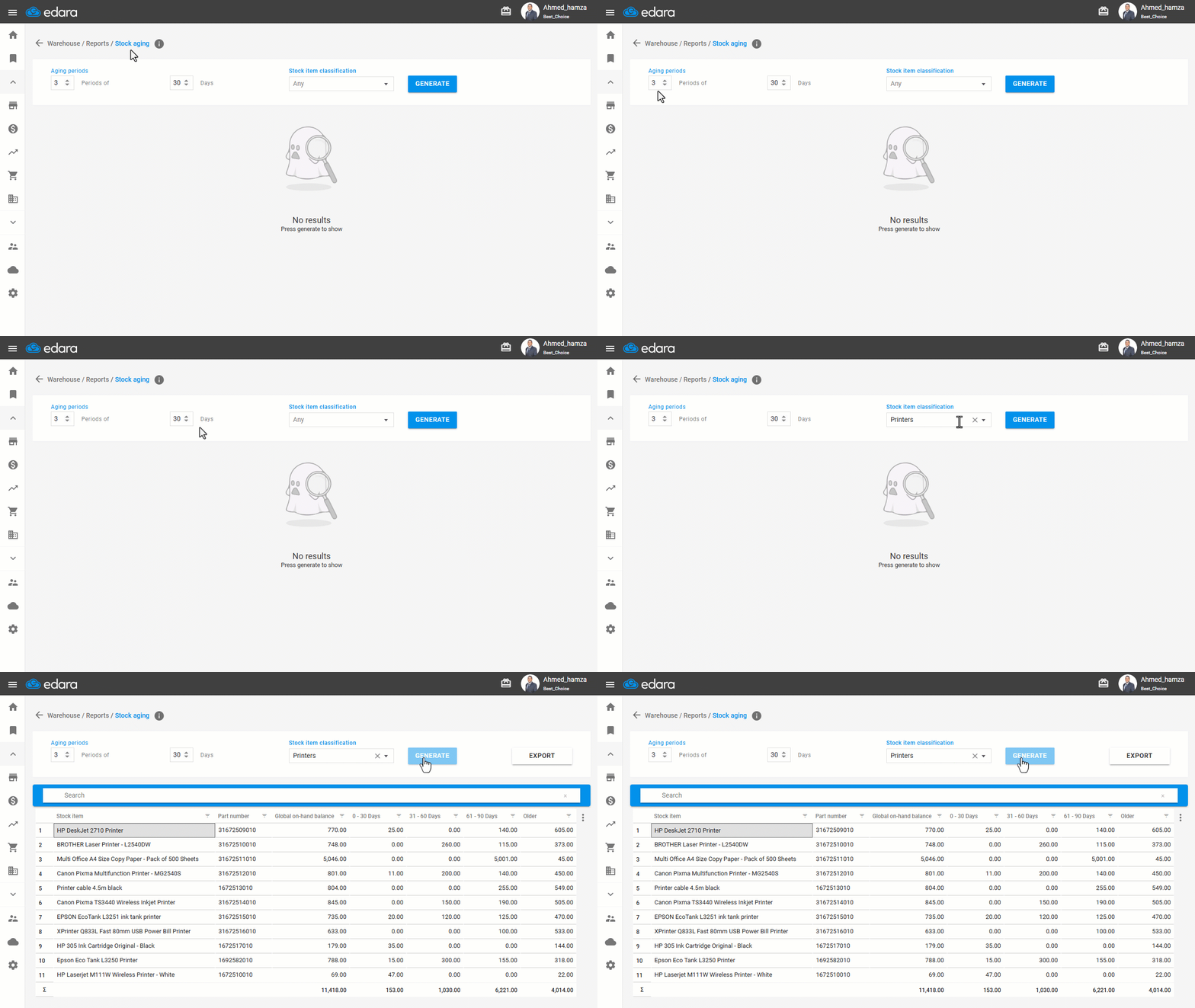
- Go to the Warehouse module.
- Open the “Stock Aging” Report.
- Set the number of aging periods and days per period (maximum: 5 periods of 180 days each).
- Choose a product classification from the "Stock Item Classification" dropdown (default is "All").
- Click on “Generate”.
Important Notes:
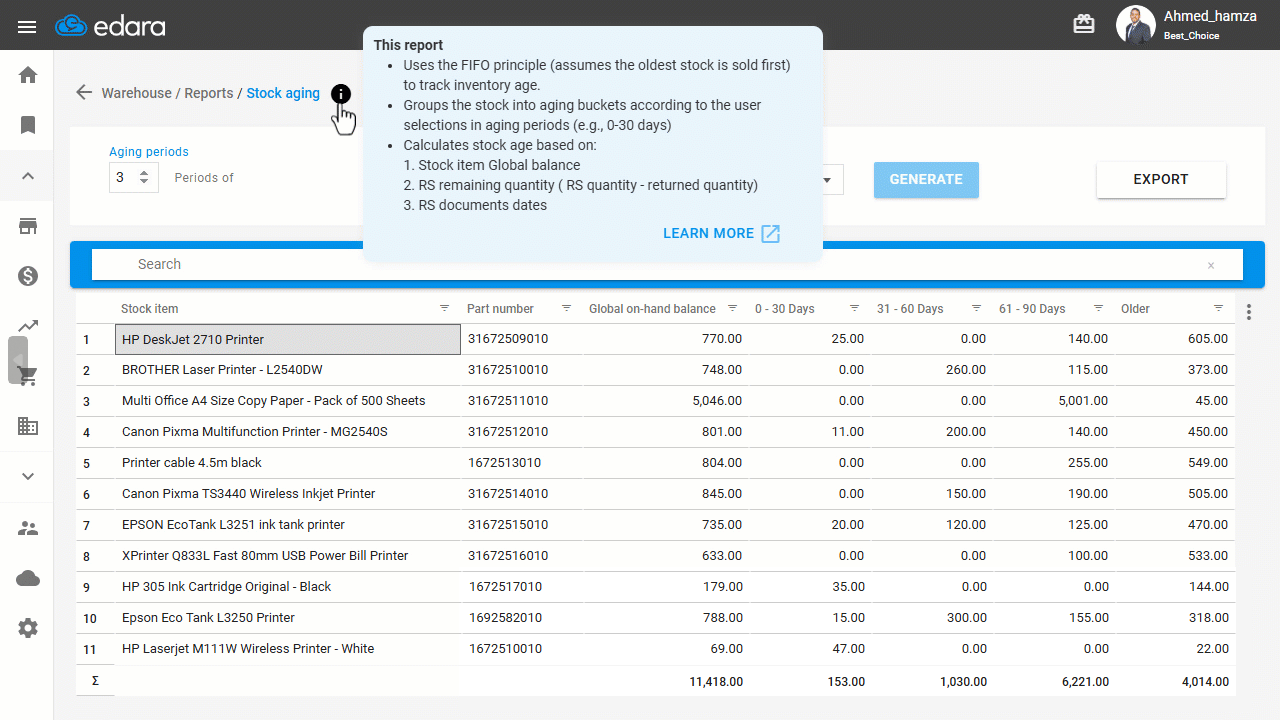
- This report uses the FIFO principle (assumes the oldest stock is sold first) to track inventory age.
- The report groups the stock into aging buckets according to the user selections in aging periods (e.g., 0-30 days).
- RS documents with the counterparty type set to “Other” are excluded from the stock aging calculation. The calculation uses only RS documents with the counterparty type set to “Supplier”.
- Calculates stock age based on:
- Stock item Global balance.
- RS remaining quantity (RS quantity - returned quantity).
- RS documents dates.
Example: If the global on-hand balance for a stock item is 13 units, and the latest RS document (RS1) contains 5 units but its party type is set to “Other”, this document is excluded from the stock aging calculation.
The system then checks the latest RS document linked to a supplier (RS2). If it contains 10 units, of which 8 units were returned, only 2 units are counted toward the global on-hand balance.
Next, the system checks the previous RS document linked to a supplier (RS3), which contains 12 units with no returns. 11 units are counted to complete the global on-hand balance.
The 13 units are therefore allocated across the two documents: 2 units from RS2 and 11 units from RS3. The age of each quantity is calculated based on the date of its corresponding RS document.
If the global on-hand balance is higher, the system continues through older RS documents linked to suppliers, from newest to oldest, until the full balance is accounted for.
Note: You can view Stock Aging by Supplier (per stock item) by selecting the item and clicking the details icon " ".
".
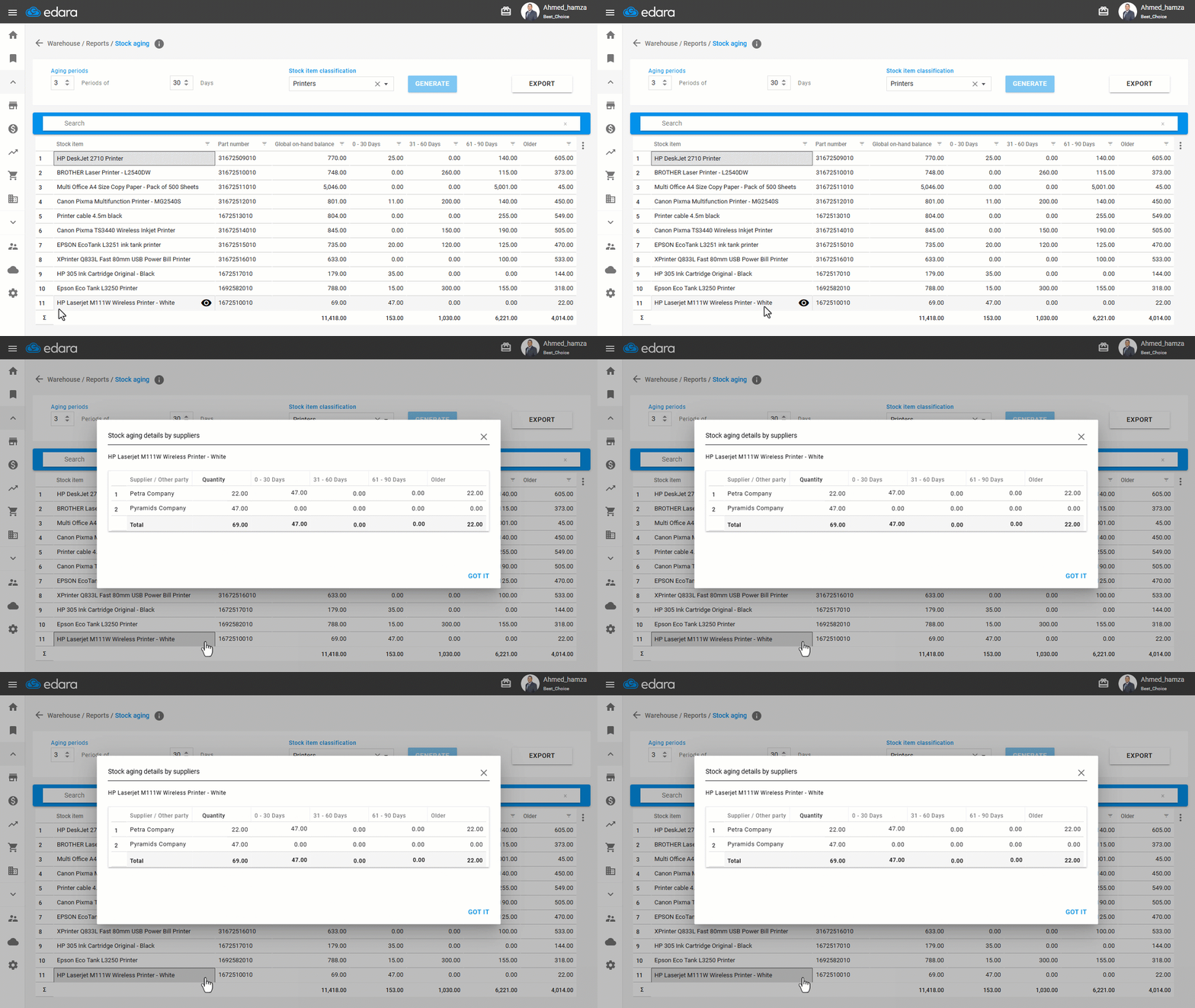
Note: To export the report to Excel, click on “Export”.
Frequently asked questions
What principle does the Stock Aging report use?
This report uses the FIFO principle (assumes the oldest stock is sold first) to track inventory age.
If you encounter any challenges or have questions during these processes, you can contact our technical support team, who are ready to assist you at any time.