

Displaying the Stock Item Card Report
Last updated:
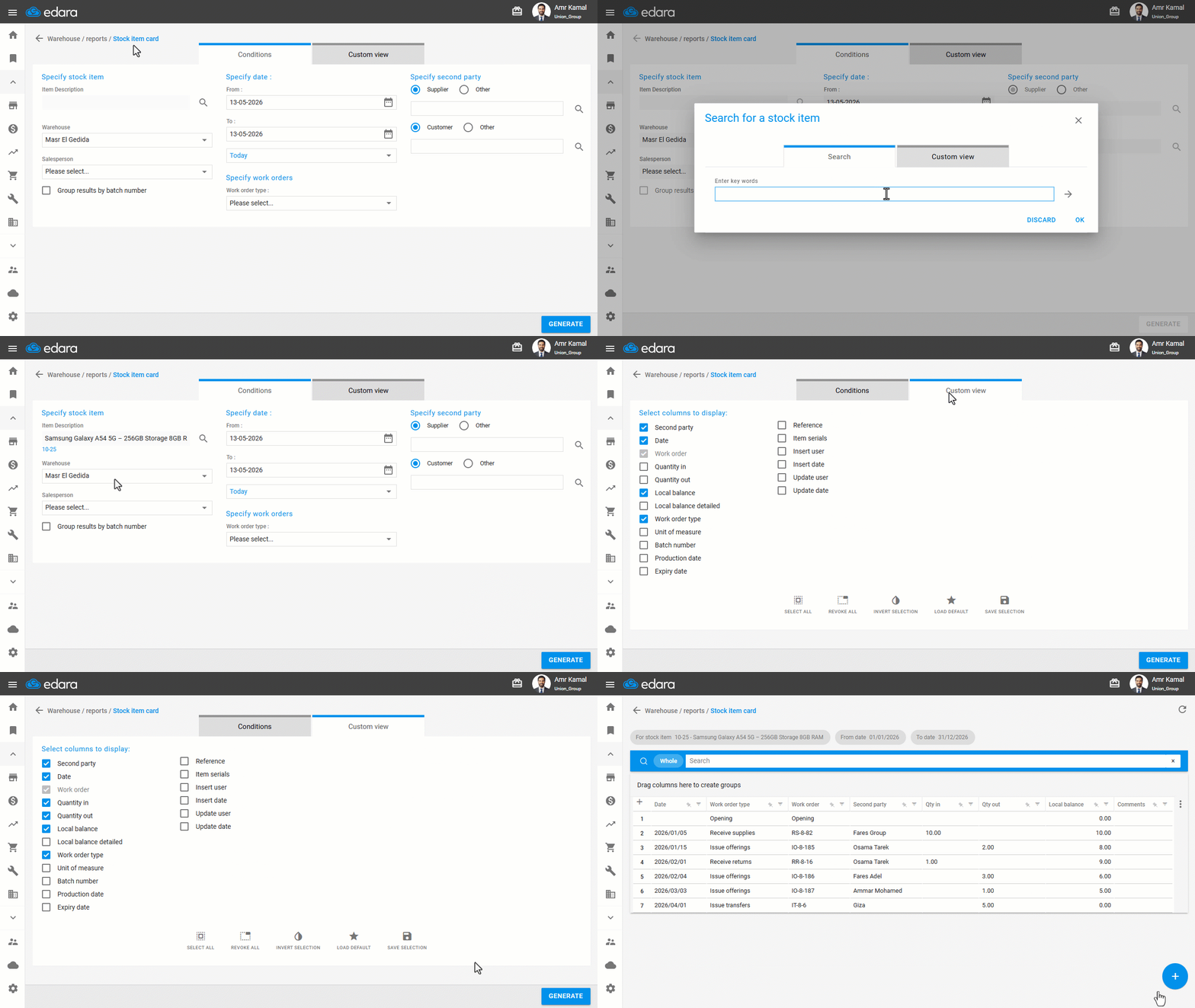
To track the movement of a stock item over a specific period since it was first added to the warehouse, you need to display its stock item card.
Displaying the Stock Item Card Report
- Go to the “Warehouse” module.
- Open the “Stock item card” page.
- Search for the stock item name by clicking on the “🔍” icon.
- Select the Warehouse.
- Select the date range.
- Go to “Custom view”.
- Enable the columns you want to display in the stock item card.
- Click on “Generate”.
Notes:
- The balance in this report may differ when compared to other reports, such as “Stock Sell-out Summary”, as it displays all detailed transactions, including pending or incomplete ones. Therefore, you can use it when reviewing stock item transactions and tracking balance differences between reports.
- You can export the report to Excel, Google Sheets, or print it by clicking on “+”.
Frequently asked questions
Why does the balance in the Stock Item Card differ from other reports such as “Stock Sell-out Summary”?
The balance in this report may differ when compared to other reports, such as “Stock Sell-out Summary”, as it displays all detailed transactions, including pending or incomplete ones. Therefore, you can use it when reviewing stock item transactions and tracking balance differences between reports.
If you encounter any challenges or have questions during these processes, you can contact our technical support team, who are ready to assist you at any time.
Did this answer your question?