

Displaying the Reserved Balance Details from the Warehouse Stocks Report
Last updated:
When a sales order hasn’t been issued, or when a transfer request hasn’t yet been linked to an issue transfer, quantities of stock items may get held — this is referred to as reserved balance.
“Edara” allows you to view details of reserved balance through the Warehouse Stocks Report, so you can identify which documents are holding the stock and take appropriate action when needed (e.g., issue the order or complete the transfer).
Displaying the Reserved Balance Details from the Warehouse Stocks Report

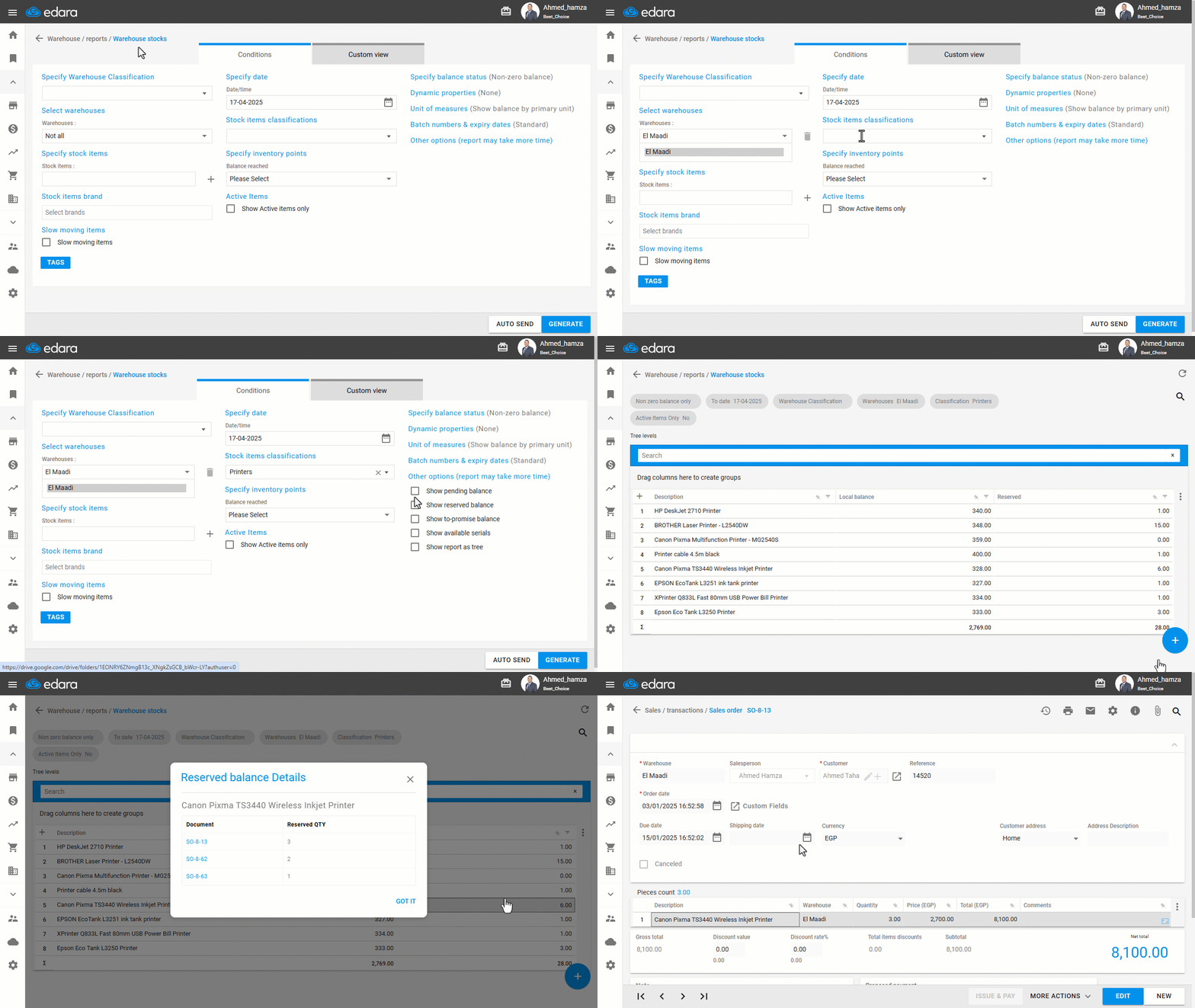
- Go to the Warehouse module.
- Open the “Warehouse Stocks” Report.
- Select the warehouse(s) whose balances you want to view.
- Set the report conditions.
- Click on “Other Options”.
- Enable the “Show Reserved Balance” option.
- Click on “Generate”.
- Hover over the stock item you want to inspect.
- Click on “
 ” to view the reserved balance details.
Once you've completed these steps, a list of documents that include reserved quantities of the item will appear (with each document line showing the reserved quantity for that specific stock item). You can click on any of these documents to view their details in a separate tab.
If you encounter any challenges or have questions during these processes, you can contact our technical support team, who are ready to assist you at any time.