

Displaying Slow-Moving Items
Last updated:
Tracking slow-moving items helps you identify the least active items over a specific period, enabling you to evaluate inventory performance and take appropriate actions, such as offering discounts, promotions, or giveaways.
Displaying Slow-Moving Items
- Go to the “Warehouse” Module.
- Select "Warehouse Stocks” Page.
- Choose the warehouse(s) you want.
- Enable the "Slow-moving Items" option.
- Set the “Slow-moving from date”.
- Specify the latest receipt date using “Received before date”.
- Enter the Slow-moving quantity.
- Click on "Generate".
Note: When a specific warehouse is selected, the report displays results for that warehouse only. However, the slow-moving conditions, such as the Received Before date and Slow-Moving Quantity, are evaluated across all warehouses up to the current date and are not affected by the selected warehouse or the report date.
Stock items whose issued quantity is less than or equal to the specified Slow-Moving Quantity during the selected period, and that were received before the Received Before date, will be displayed.
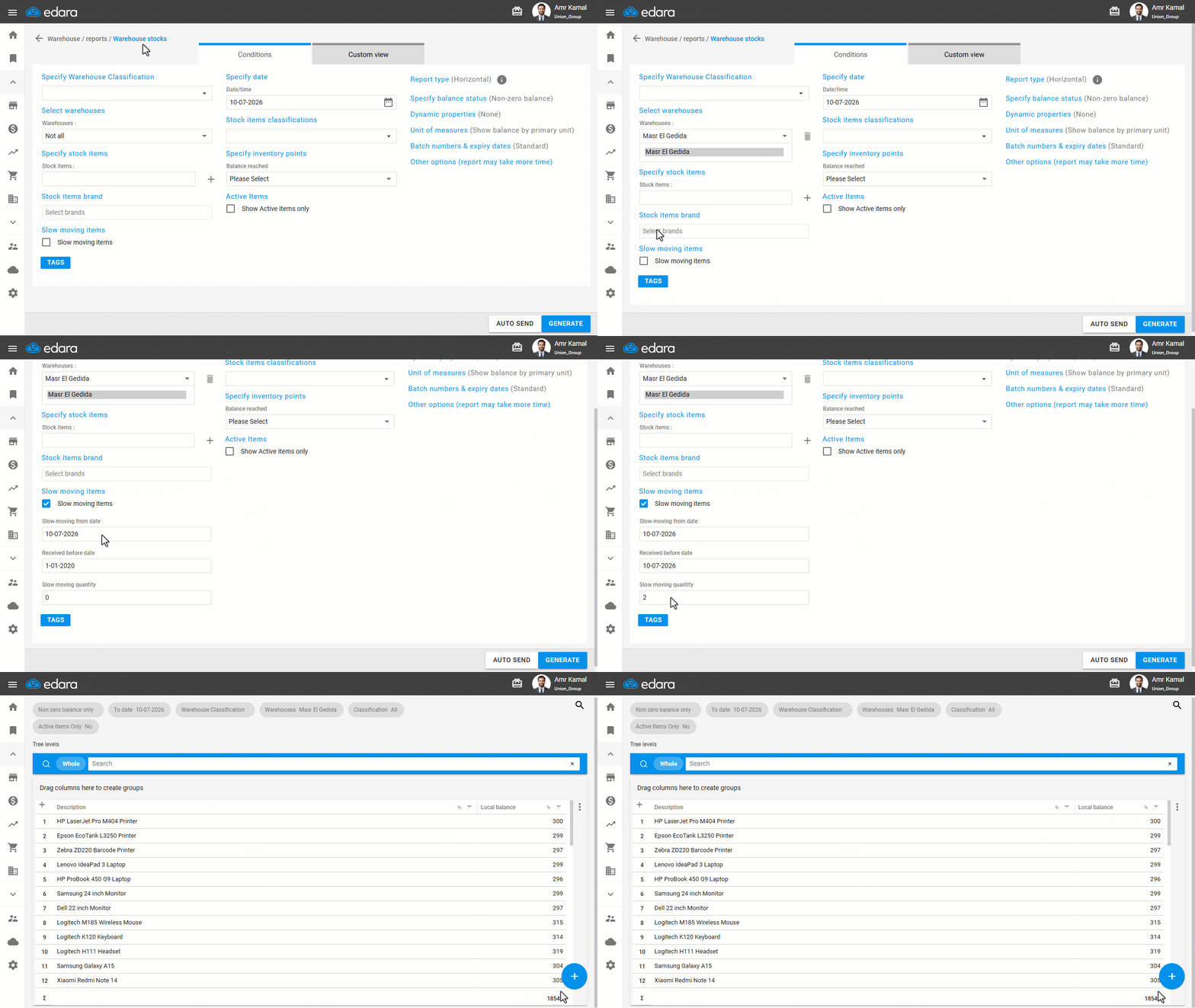
Notes:
- You can exclude recently received stock items from the report by selecting an appropriate “Received Before date”.
- You can export the report to Google Sheets, Excel, or print it by hovering over the “➕” icon to display the available options.
- If you need a more detailed analysis of slow-moving items, you can use the stock aging report.
Frequently asked questions
Are the slow-moving conditions affected by the selected warehouse or report date?
When a specific warehouse is selected, the report displays results for that warehouse only. However, the slow-moving conditions, such as the Received Before date and Slow-Moving Quantity, are evaluated across all warehouses up to the current date and are not affected by the selected warehouse or the report date.
If you encounter any challenges or have questions during these processes, you can contact our technical support team, who are ready to assist you at any time.