

Displaying Images in the Warehouse Stocks Report
Last updated:
In some industries, item names can be very similar. In such cases, users rely on item images to distinguish between them.
For example, if you're in the computer supplies business, and you want to view the Warehouse Stocks Report to check available quantities in each warehouse, you can differentiate between similar items using their images.
Displaying Images in the Warehouse Stocks Report

- Go to the Warehouse module.
- Open the “Warehouse Stocks Report” page.
- Set the report filters based on your needs (e.g., warehouse, specific date, stock items...).
- Enable the “Image” column from the “Custom View” menu.
- Click on “Generate”.
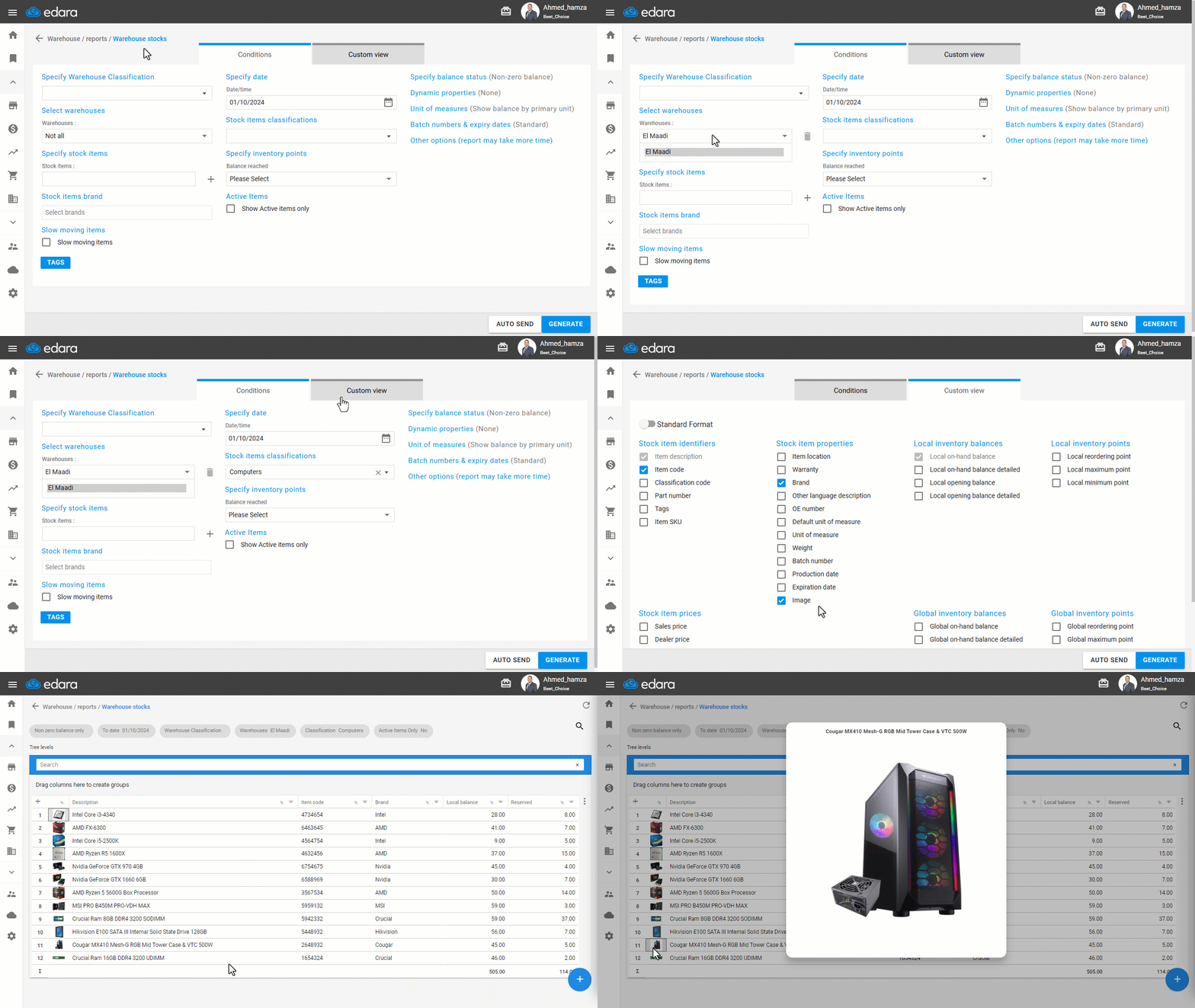
Note: If a stock item has an image, it will appear in the designated column. If no image is assigned, a placeholder “ ” will appear instead. And you can add images by following the steps in the article: "Adding an Image to a Stock Item".
If you encounter any challenges or have questions during these processes, you can contact our technical support team, who are ready to assist you at any time.
Did this answer your question?