

Selecting the Warehouse Stocks Report Type
Last updated:
The way stock data is presented directly affects how efficiently it can be analyzed. That’s why Edara allows you to choose the Warehouse Stocks Report Type, giving you the flexibility to display data in the type that best suits your needs.
Selecting the Warehouse Stocks Report Type

- Go to the “Warehouse” module.
- Open the “Warehouse Stocks Report” page.
- Select the warehouses you want to include in the report.
- Select the “Stock Items Classification” if needed.
- Choose the report type — Horizontal, Vertical, or Tree.
- Click on “Generate”.
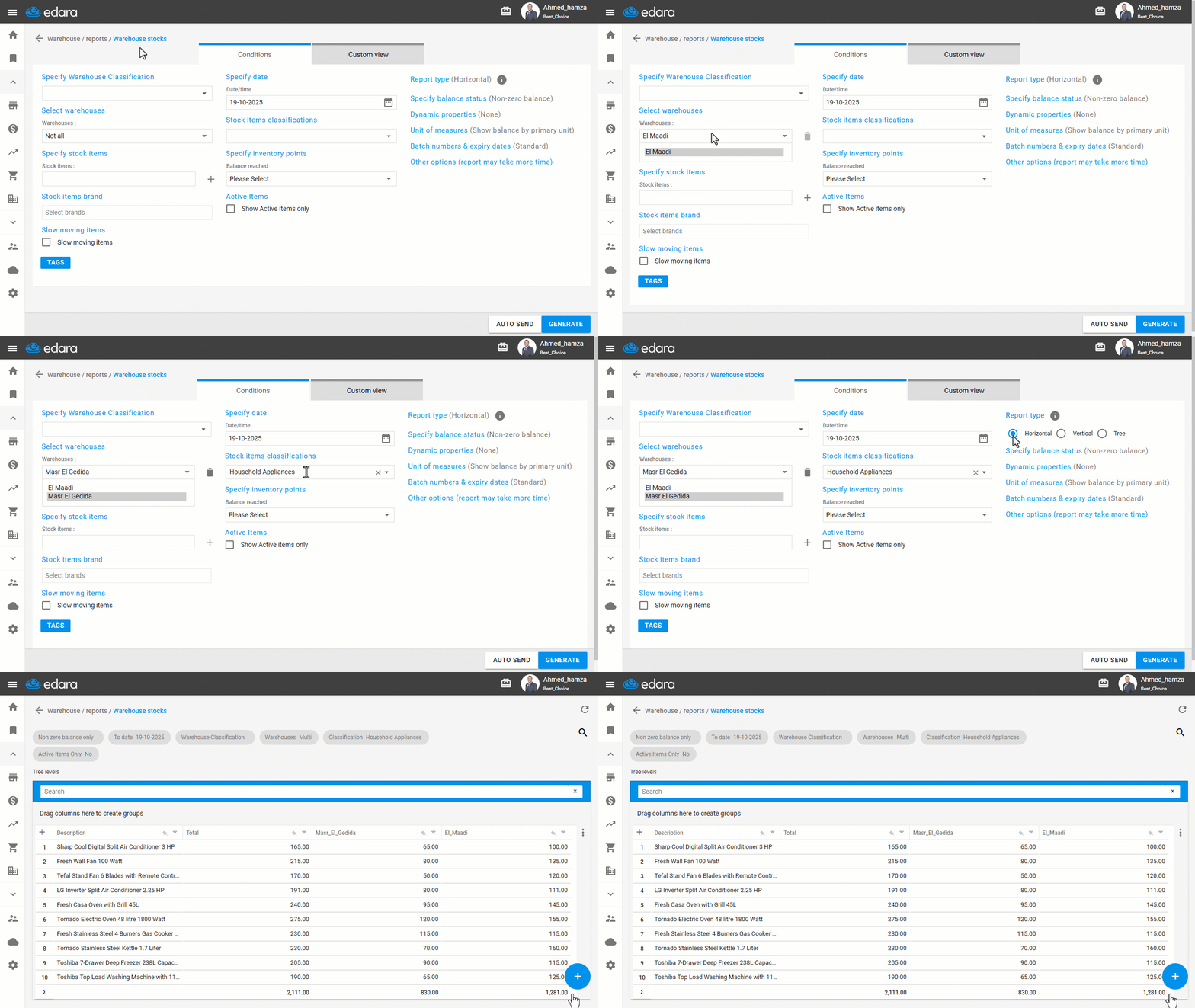
In the case of selecting the Horizontal report type (the default option):
When selecting multiple warehouses to display their balances:
- Warehouses are displayed as columns, allowing you to easily compare stock balances across different warehouses at a glance.
- The “Detailed” option under the “Batch Numbers & Expiry Dates” section is automatically disabled, as it conflicts with this layout.
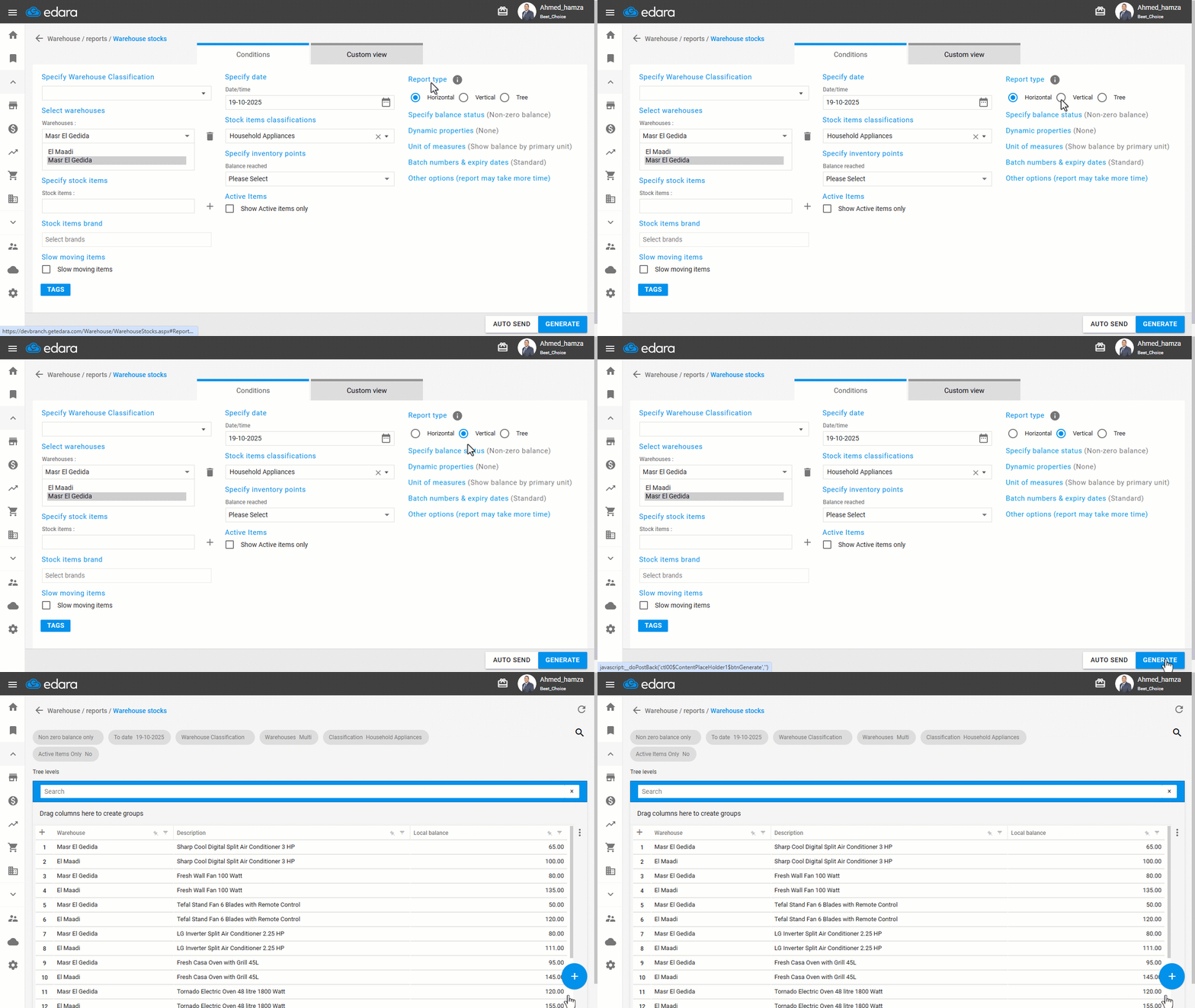
In the case of selecting the Vertical report type:
- The “Warehouse” column appears automatically as the first column in the report and cannot be hidden from “Custom View”.
- Each item’s balance in every warehouse is displayed on a separate row.
- The ”All” option in the “Specify balance status” section is disabled, as it is not compatible with this layout.
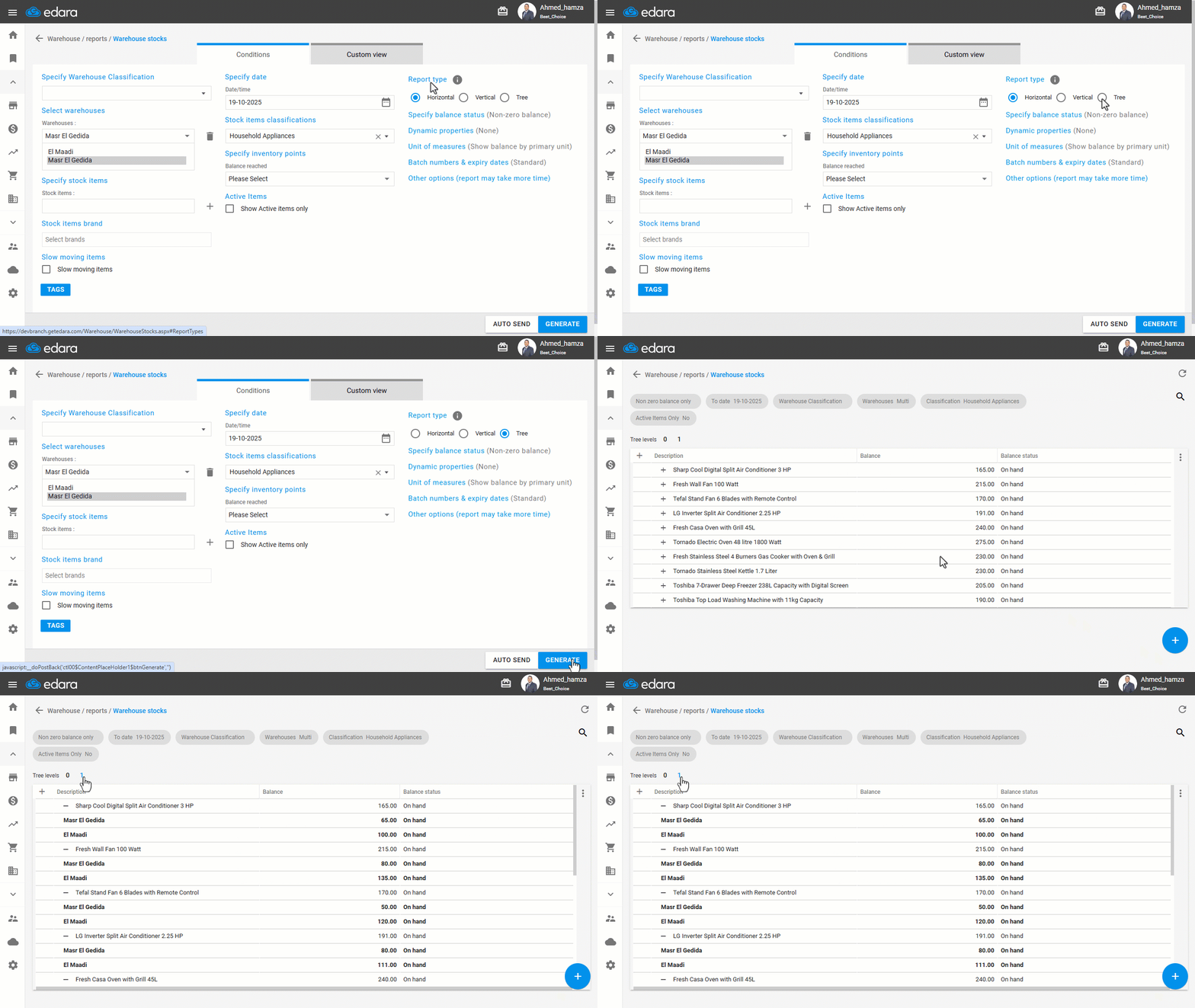
In the case of selecting the Tree report type:
- The data is grouped by item, and the warehouse name is displayed within the same column.
If you encounter any challenges or have questions during these processes, you can contact our technical support team, who are ready to assist you at any time.
Did this answer your question?