

Displaying the Warehouse Stocks Report
Last updated:
You can use the Warehouse Stocks Report to review stock item balances in warehouses and easily view the available quantities.
Displaying the Warehouse Stocks Report
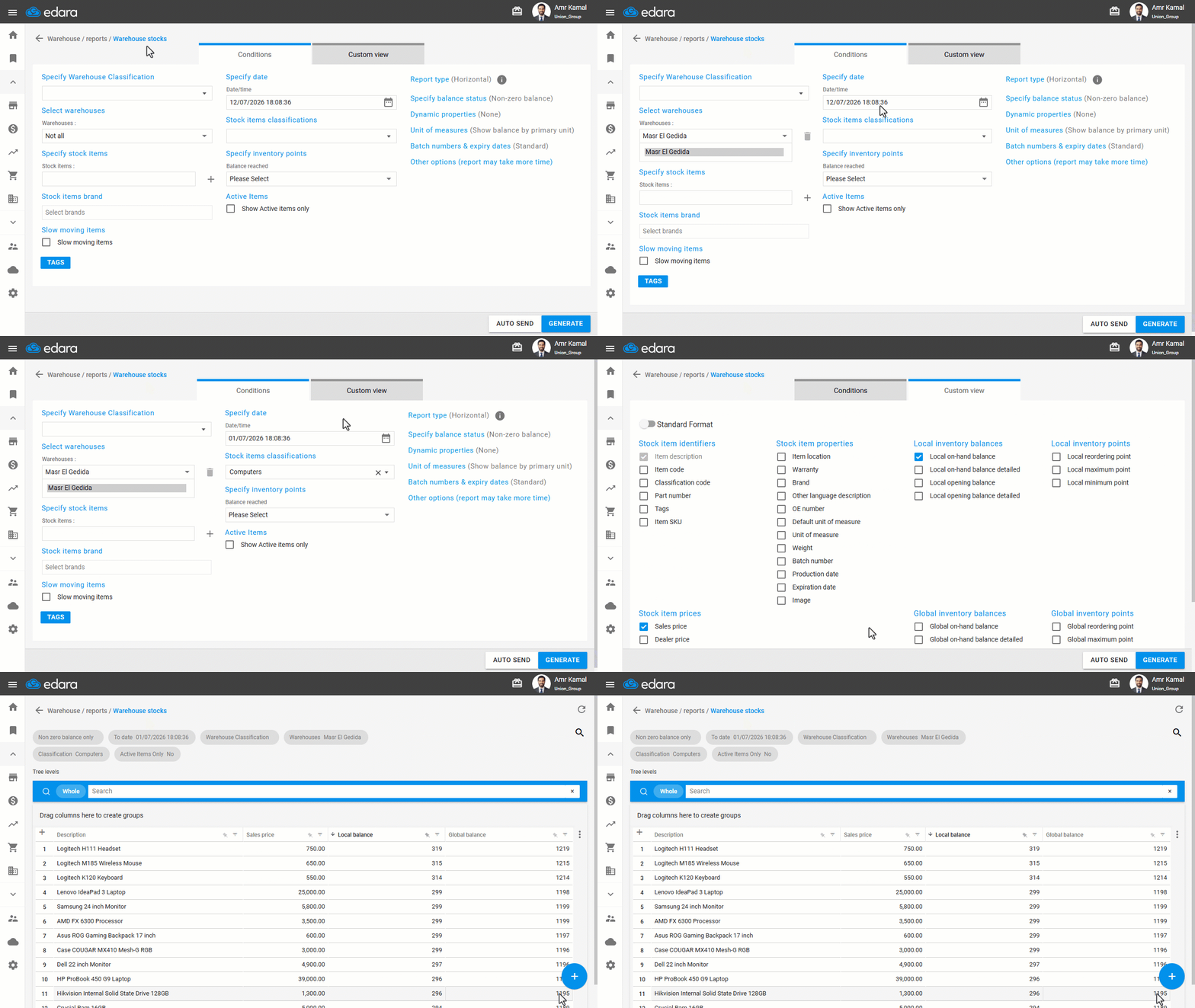
- Go to the "Warehouse" Module.
- Open the "Warehouse Stocks" page.
- Set the report conditions as needed.
- Go to “Custom view”.
- Enable the columns you want to display.
- Click on "Generate".
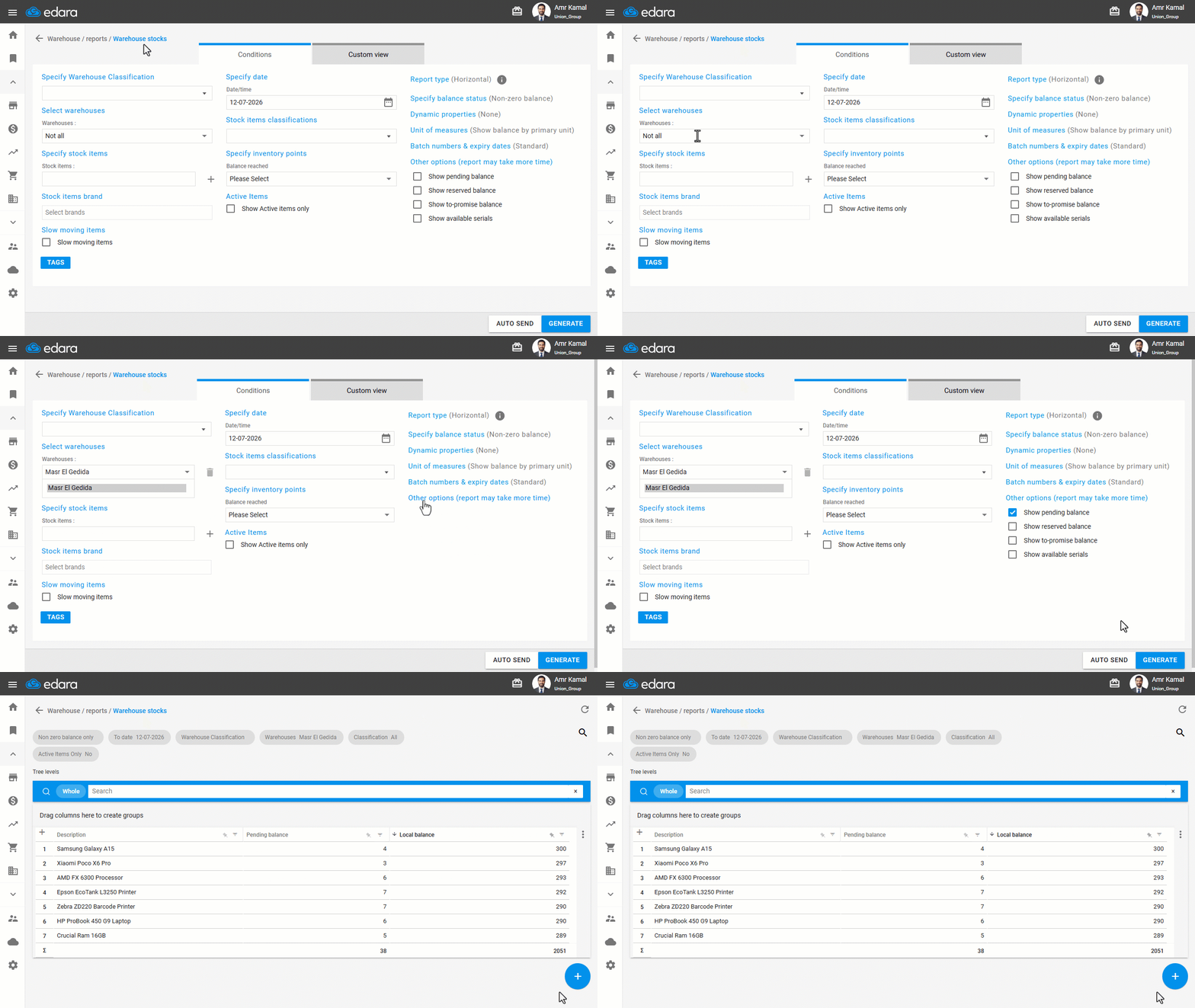
The report also allows you to enable additional options from "Other options", including:
1- Show pending balance: Displays the quantities of stock items that have been transferred from one warehouse to another but have not yet been received in the destination warehouse.
2- Show Reserved Balance: Displays the quantities of stock items reserved for Sales Orders or Transfer Requests that have not yet been fulfilled. These quantities remain included in the warehouse's actual balance until they are issued.
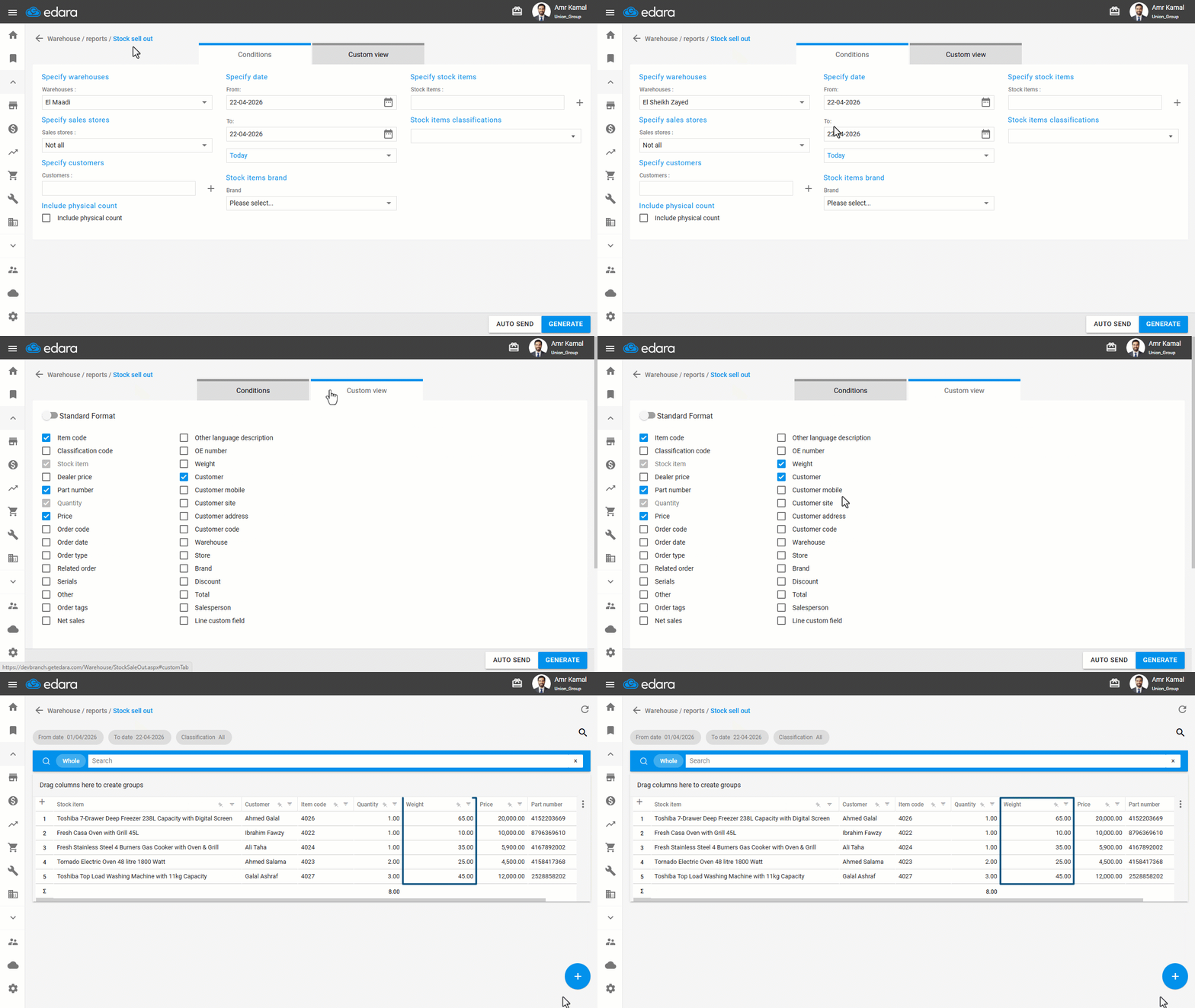
3- Show to-promise balance: Displays the expected stock balance after applying pending inventory transactions, helping you estimate the available balance once those transactions are completed.
4- Show available serials: Displays the available serial numbers for each stock item in the report, making it easier to review and track them.
If you encounter any challenges or have questions during these processes, you can contact our technical support team, who are ready to assist you at any time.