

Show Available-to-Promise Balance in Warehouse Stocks Report
Last updated:
Suppose you have a sales opportunity for an item in a larger quantity than is currently available, In that case, you’ll need to view the expected stock to be received in the coming period to decide whether you can fulfill this order or reject it.
Show Available-to-Promise Balance in Warehouse Stocks Report
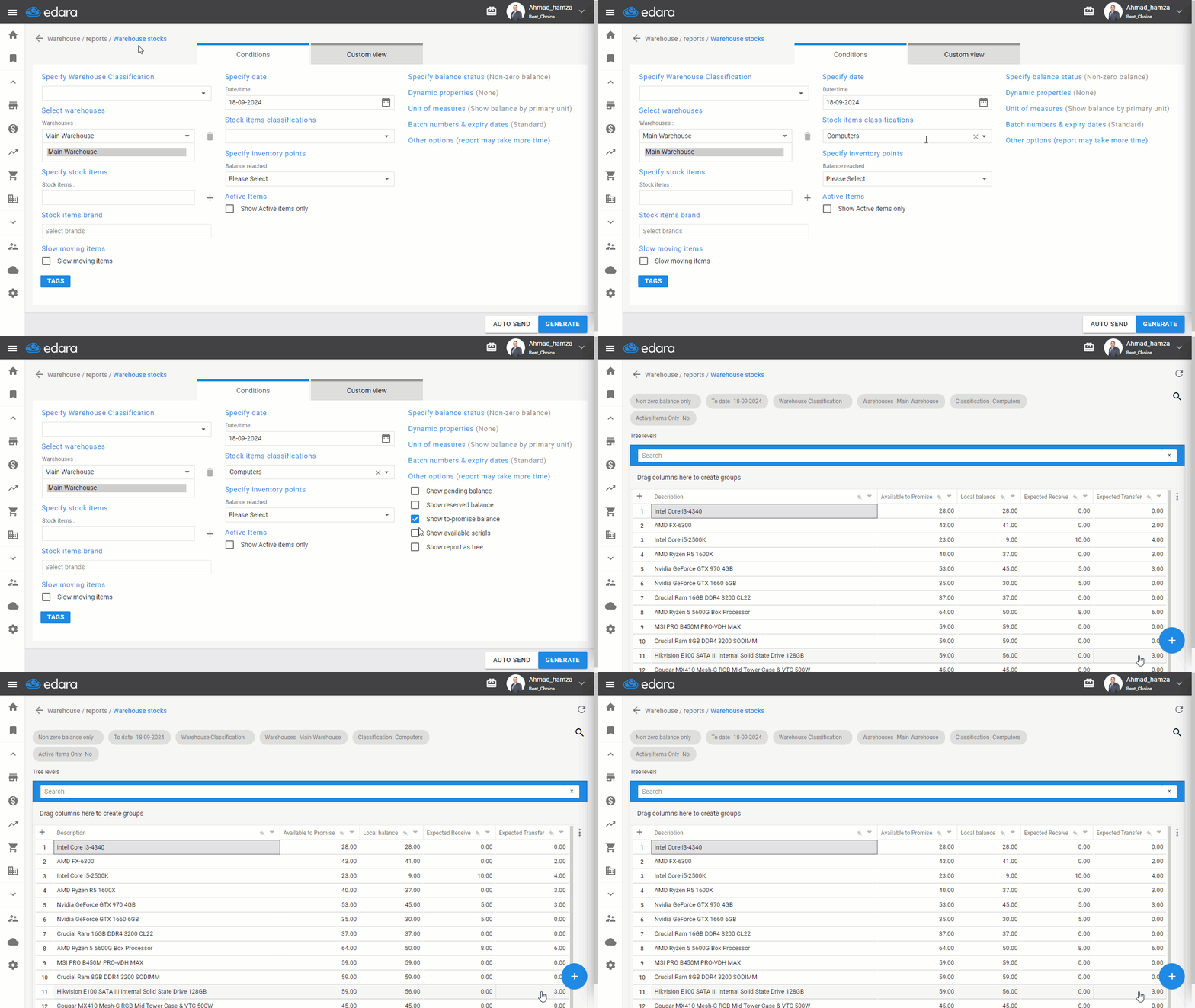
Available-to-Promise balance (Expected balance) = Total (selected warehouses balances) + Expected to be received (quantity expected to be received to complete pending purchase orders) + Expected to be transferred (quantity expected to be received to complete pending issue transfers).
Steps to display it:
- Go to the Warehouse Module.
- Click on "Warehouse Stocks Report".
- Select Warehouse or more.
- Click on "Other Options".
- Activate the option "Show to-promise balance".
- Click "Generate".
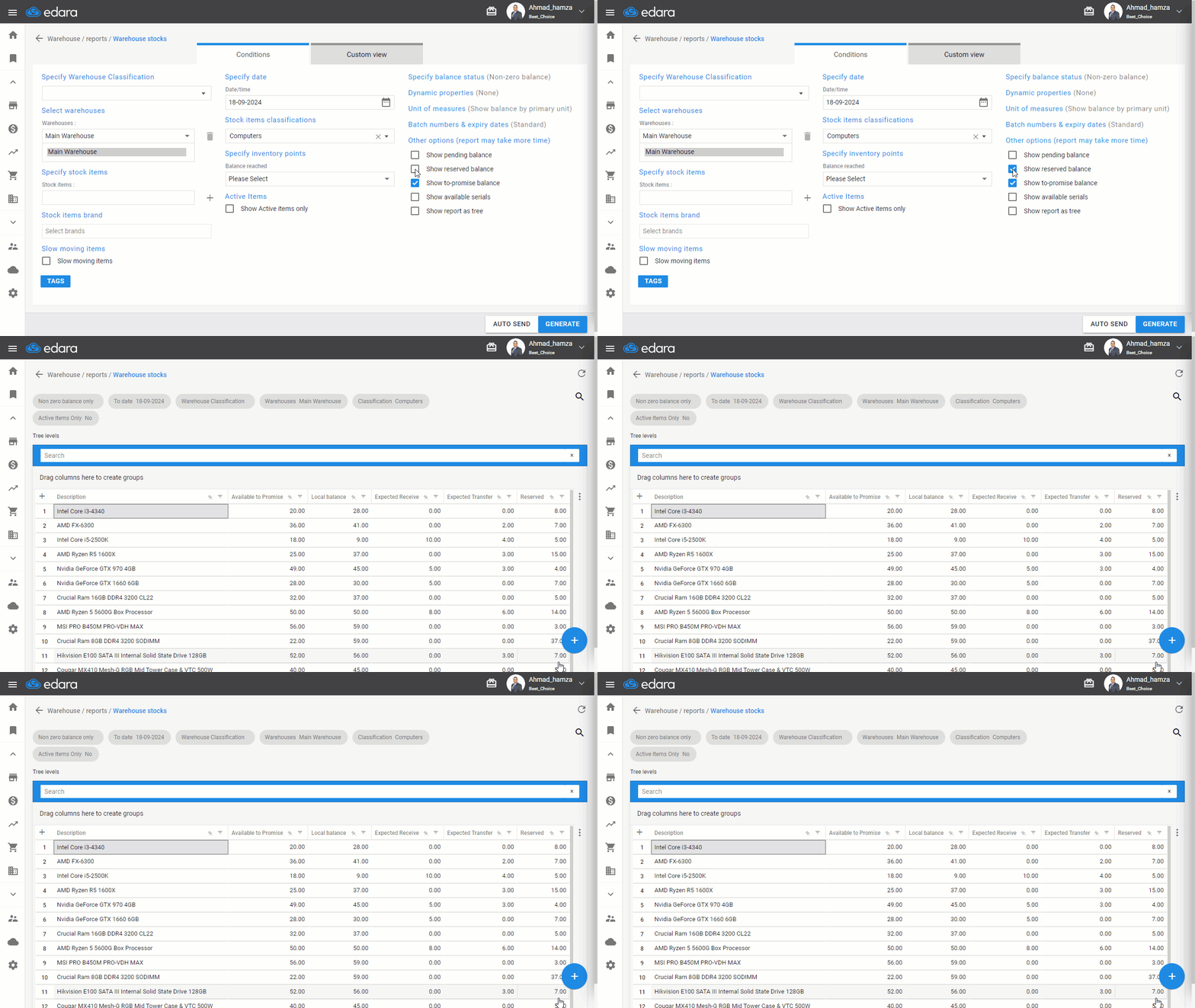
Note: If the "Show reserved balance" option is activated along with the “Show to-promise balance” option, the reserved stock column will appear on the results page, and the formula will be as follows: Available-to-promise balance (Expect balance) = Total (Selected warehouses balances) + Expected to be received (quantity expected to be received to complete pending purchase orders) + Expected to be transferred (quantity expected to be received to complete pending store transfers) - reserved (quantity reserved to complete pending sales orders).
Frequently asked questions
How is the to-promise balance calculated when “Show reserved balance” is also enabled?
If the "Show reserved balance" option is activated along with the “Show to-promise balance” option, the reserved stock column will appear on the results page, and the formula will be as follows: Available-to-promise balance (Expect balance) = Total (Selected warehouses balances) + Expected to be received (quantity expected to be received to complete pending purchase orders) + Expected to be transferred (quantity expected to be received to complete pending store transfers) - reserved (quantity reserved to complete pending sales orders).
If you encounter any challenges or have questions during these processes, you can contact our technical support team, who are ready to assist you at any time.