

Displaying Issued, Remaining, and Available Quantities for Stock Items in Bulk
Last updated:
Ensuring proper warehouse management involves comparing the remaining quantities of stock items in the system's sales orders with the available stock in warehouses. If the stock is equal to or greater than the remaining quantity, the order can be issued. However, if the stock is insufficient, you should review the receiving documents (supplies or transfers) to cover the deficit before issuing.
Additionally, partial issuing of sales orders may occur, requiring an understanding of the issued quantities and remaining quantities to manage the warehouse accurately and avoid potential errors.
"Edara" lets you collectively view issued quantities, remaining quantities, and available balance via the new sales order page.
Displaying Issued, Remaining, and Available Quantities for Stock Items in Bulk
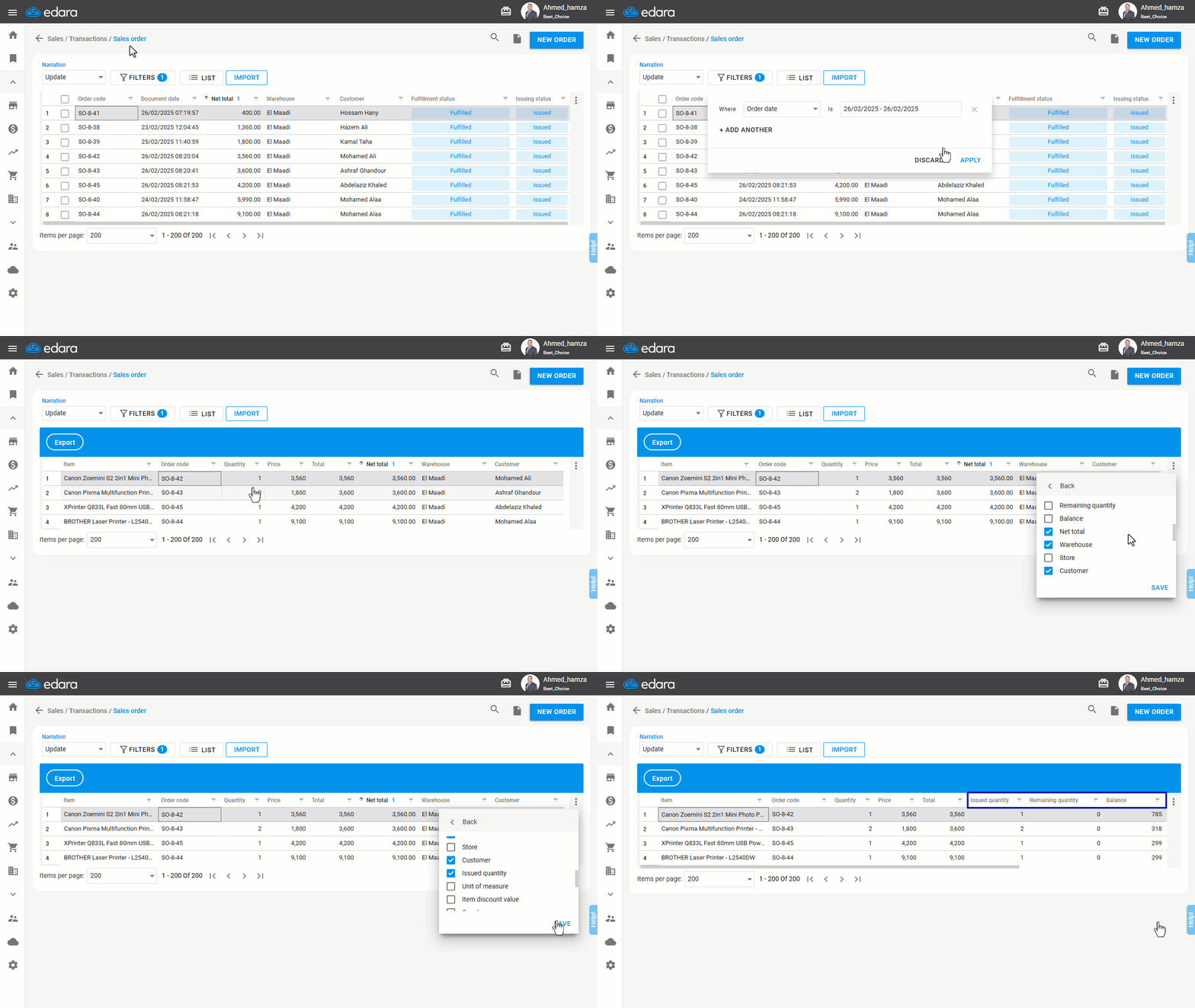
Activate the new sales order page by following the article: “Viewing Sales Orders in a List”, Then:
- Go to the Sales module.
- Open the “Sales Order” page.
- Click “Filters” and specify the desired period.
- Click on “Apply”.
- Click on “List”.
- Select “Line Items”.
- Click on “Apply”.
- Click “⁝” in the top-right corner.
- Open the “Columns” list.
- Enable the following columns: (Issued quantity - Remaining quantity - Balance).
- Click on “Save”.
If you encounter any challenges or have questions during these processes, you can contact our technical support team, who are ready to assist you at any time.