

Adding and Removing Tags for Sales Orders in Bulk
Last updated:
You can easily organize Sales Orders by adding or removing tags for multiple orders at once, without editing each order individually.
Adding and Removing Tags for Sales Orders in Bulk
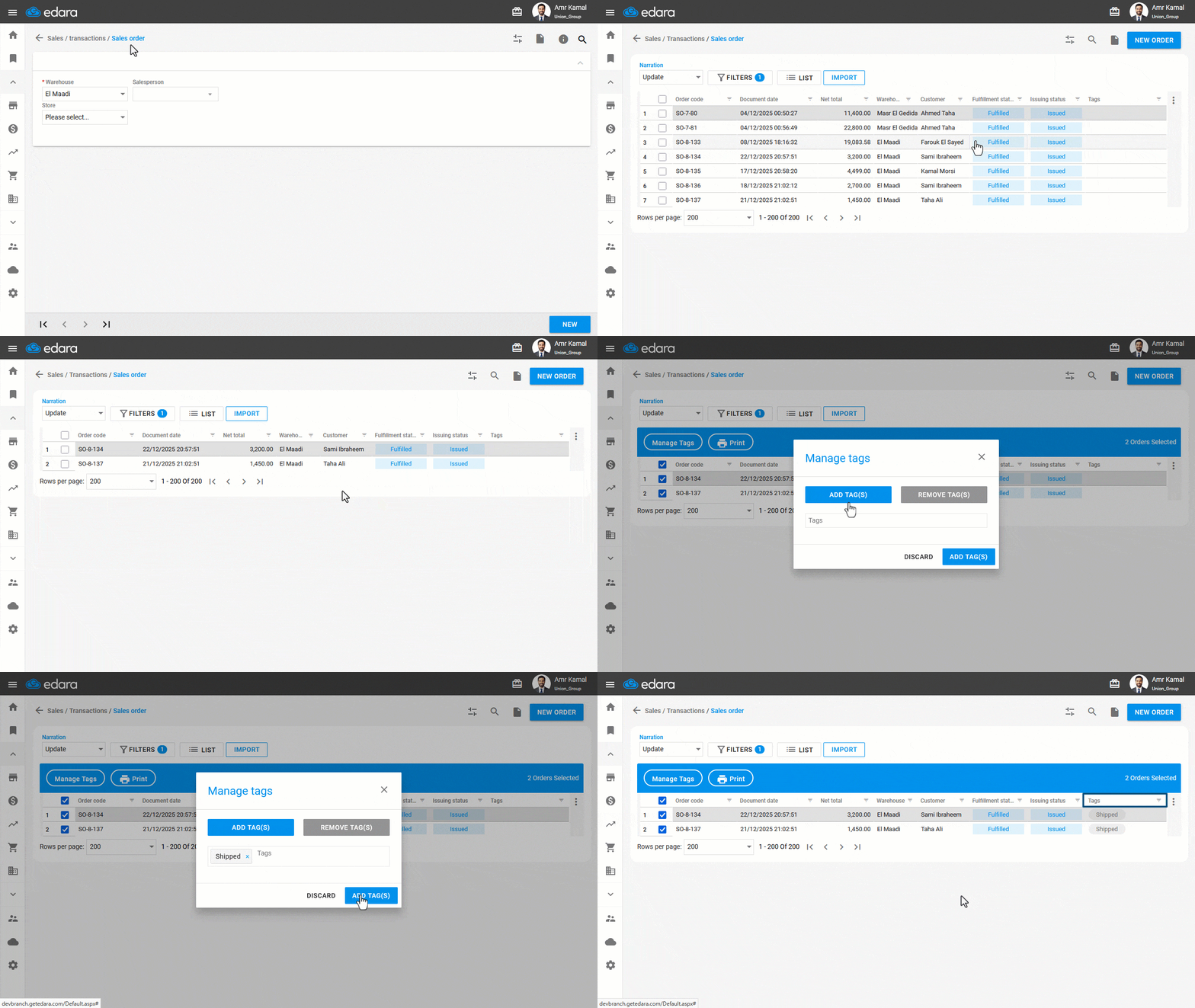
- Go to the “Sales” module.
- Open the “Sales Order” page.
- Click on the “
 ” icon to change the Sales Orders layout.
 - Select “Listing”.
- Click on “Filters”.
- Select the required date range.
- Click on “Apply”.
- Select the Sales Orders you want to update.
- Click on “Manage Tags”.
The default selection here is “Add Tag(s)”.
- Enter the tags you want to add.
- Click on “Add Tag(s)”.
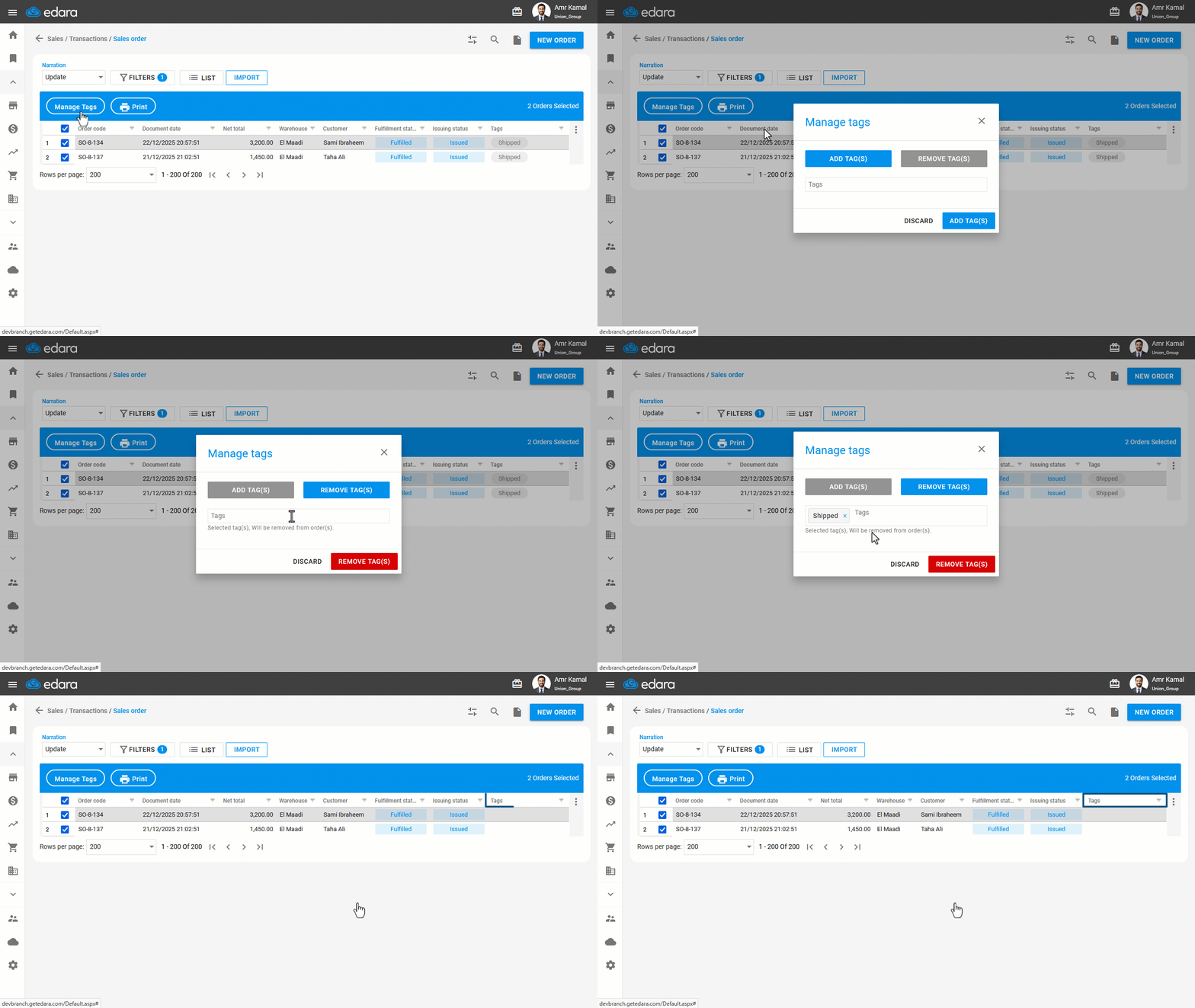
Note: You can remove tags by selecting “Remove Tags”, entering the tags you want to delete, and then clicking on “Remove Tag(s)”.
If you encounter any challenges or have questions during these processes, you can contact our technical support team, who are ready to assist you at any time.
Did this answer your question?