

Using Auto-Assign Batch Numbers for Bulk Issuing
Last updated:
In some cases (such as pharmacies), the warehouse manager arranges stock items with expiration dates in a way that ensures the first expired is issued first (FEFO). It’s essential to prevent warehouse spoilage by ensuring stock items are dispatched before their expiration date.
When issuing multiple sales orders at once, it's important for the system to follow the same issuance method automatically for convenience. The following steps guide you through this process.
Using Auto-Assign Batch Numbers for Bulk Issuing
Note: Using this feature requires enabling the "Use batch number" setting from the Warehouse module Settings.
Start the Bulk Issuing of Sales Orders process until you reach the "Opening the order issuance window" step, then:
- Enable “Auto-Assign Batch Numbers (FEFO - First-Expired, First-Out)”.
- Click on "Issue Orders".
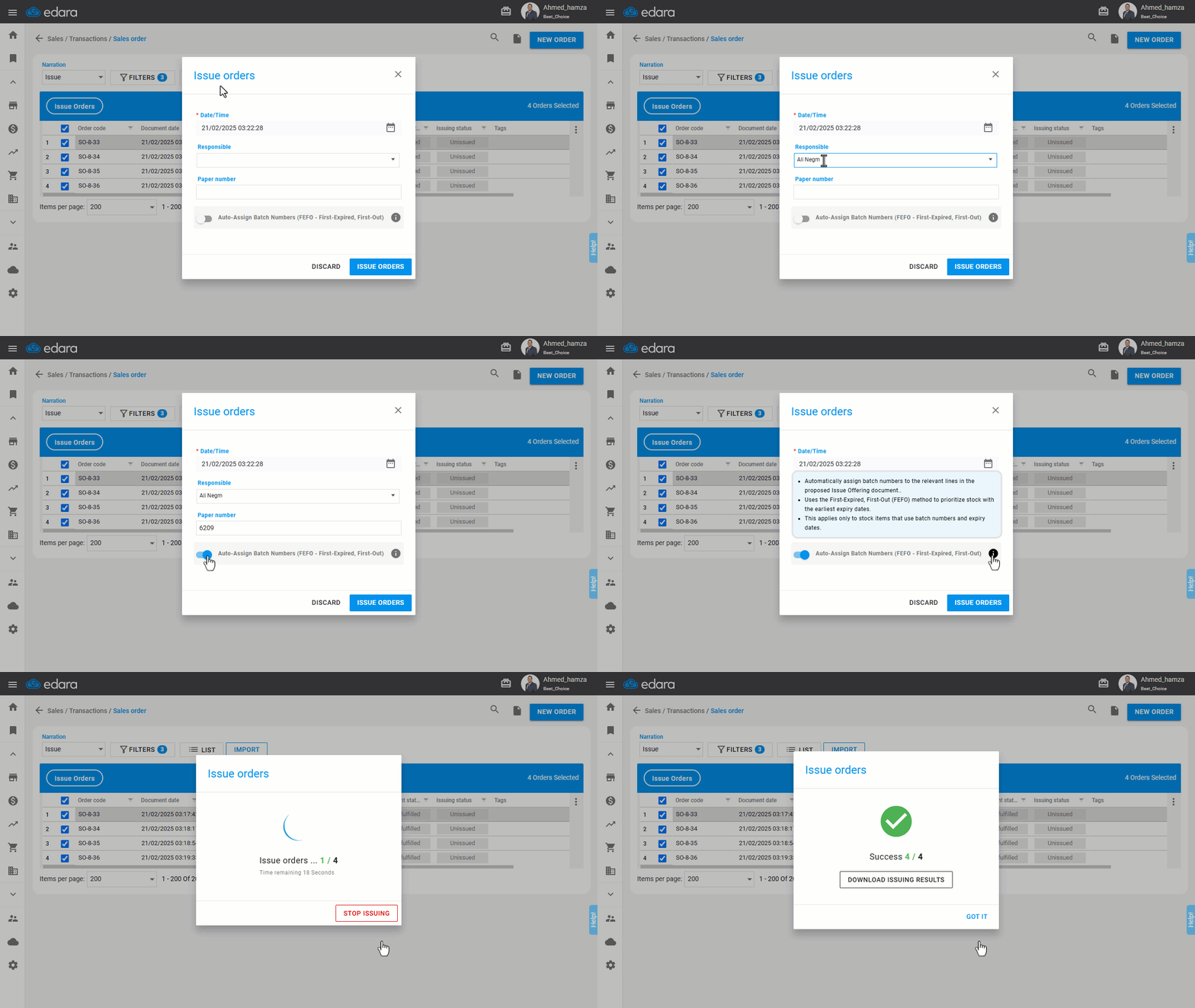
Important Notes:
- This feature automatically assigns batch numbers to the relevant lines in the proposed Issue Offering document using the FIFO (First Expired, First Out) method to prioritize stock with the earliest expiry dates.
- It only applies to stock items that use batch numbers and expiry dates.
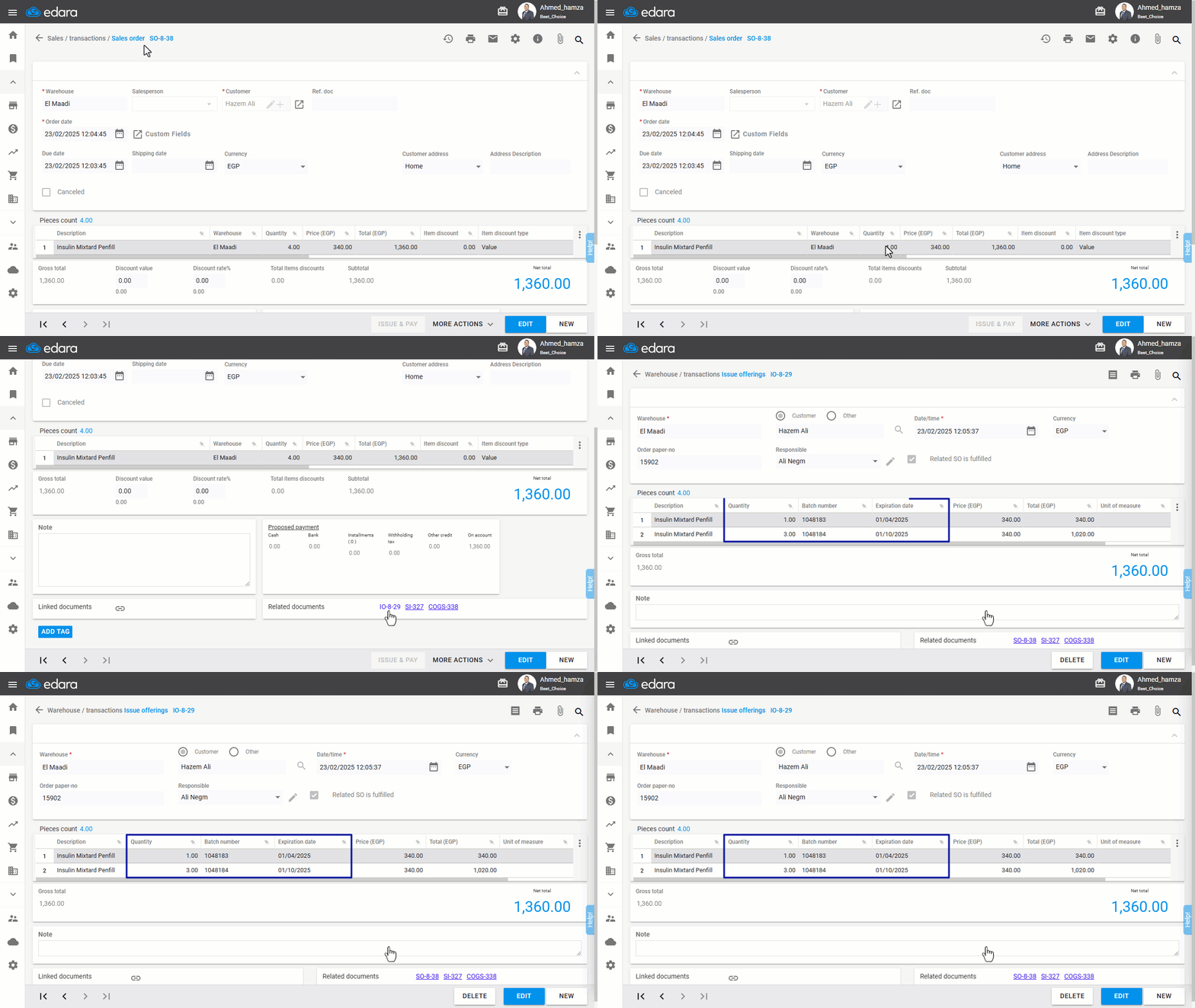
After completing these steps, batch numbers will be automatically assigned to the issue offering documents linked to the issued sales orders. The GIF below provides an example of one such document:
Frequently asked questions
Does auto-assign work for all stock items?
It only applies to stock items that use batch numbers and expiry dates.
If you encounter any challenges or have questions during these processes, you can contact our technical support team, who are ready to assist you at any time.