

Physical Count When Using the Batch Number
Last updated:
In businesses that rely on batch numbers—such as food industries, pharmaceuticals, tires, and expiry-based products—physical counts require a higher level of accuracy.
In these cases, the on-hand balance must be matched with the local balance for each stock item and batch number.
To support this level of detail, “Edara” allows performing Physical Counts with full batch-level tracking, along with automatic validation of entered data before saving or comparison.
Physical Count When Using the Batch Number
The Physical Count process in Edara consists of four main stages:
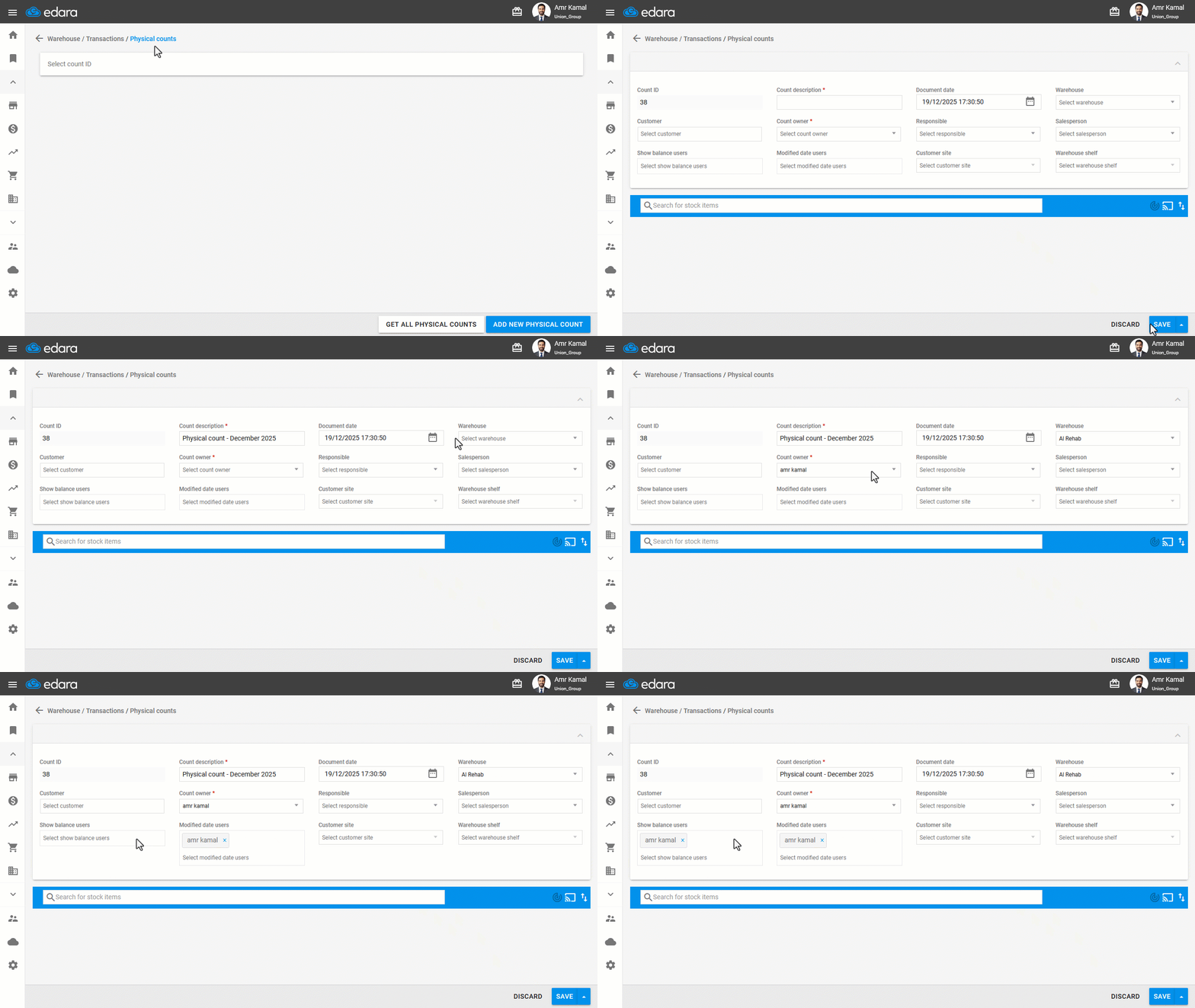
First: Creating the Physical Count Document
- Go to “Warehouse”.
- Open the “Physical Counts” page.
- Click on “Add New Physical Count”.
- Enter the main count details:
- Count description.
- Warehouse to be counted (only one warehouse per document).
- Count owner: the user who has permission to close the document.
- Modified date users who have permission to edit the count date.
- Show balance users who have permission to view the count results after closing.
Note: You can count the entire warehouse in one document or count a specific group of items (such as a classification or a selected group), especially when dealing with a large number of stock items.
Second: Entering the Actual Quantities
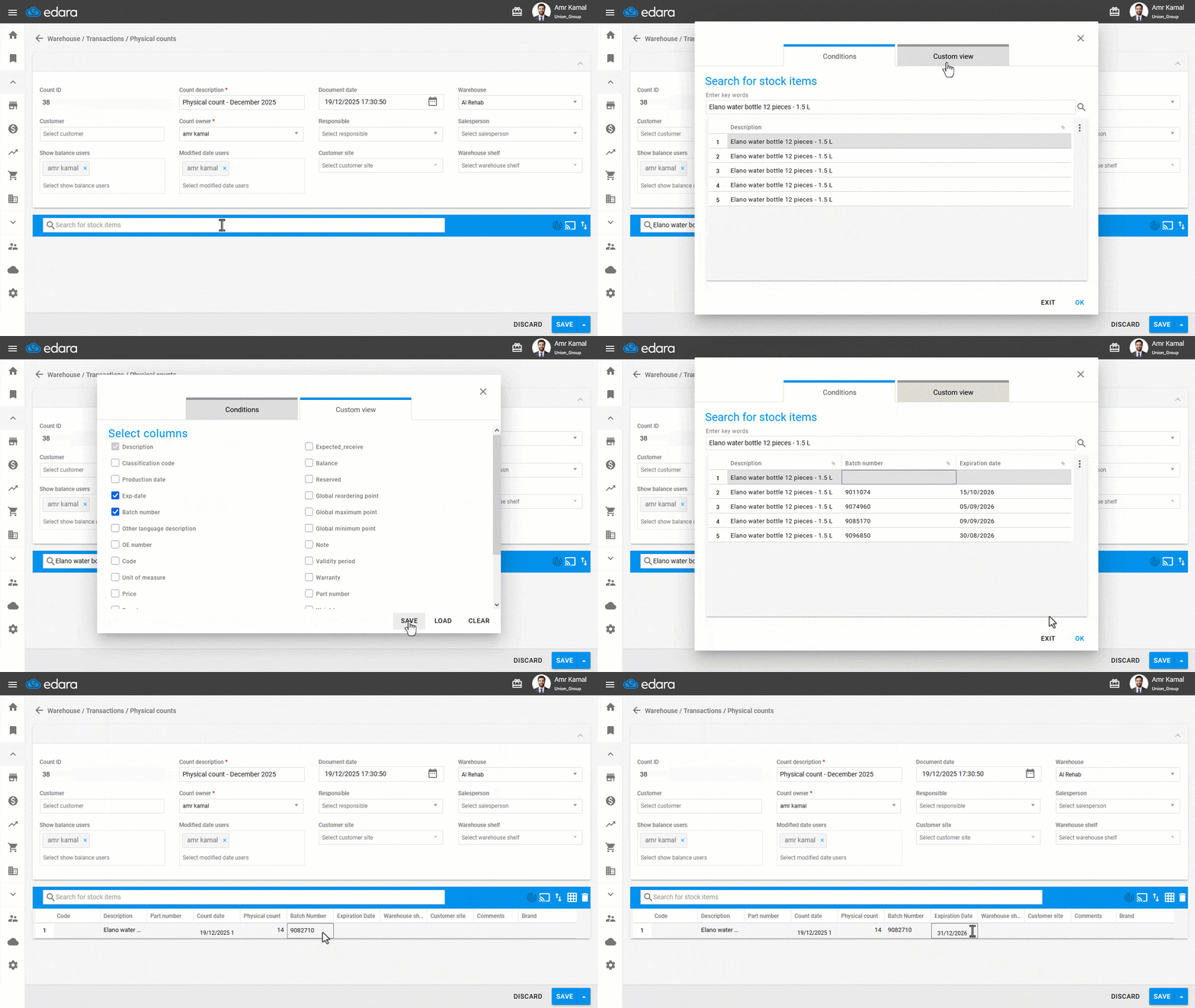
When batch number tracking is enabled, additional columns for “Batch Number” and “Expiration Date” appear in the Physical Count screen.
- Search for the stock item or stock items you want to count.
- Click on “OK”.
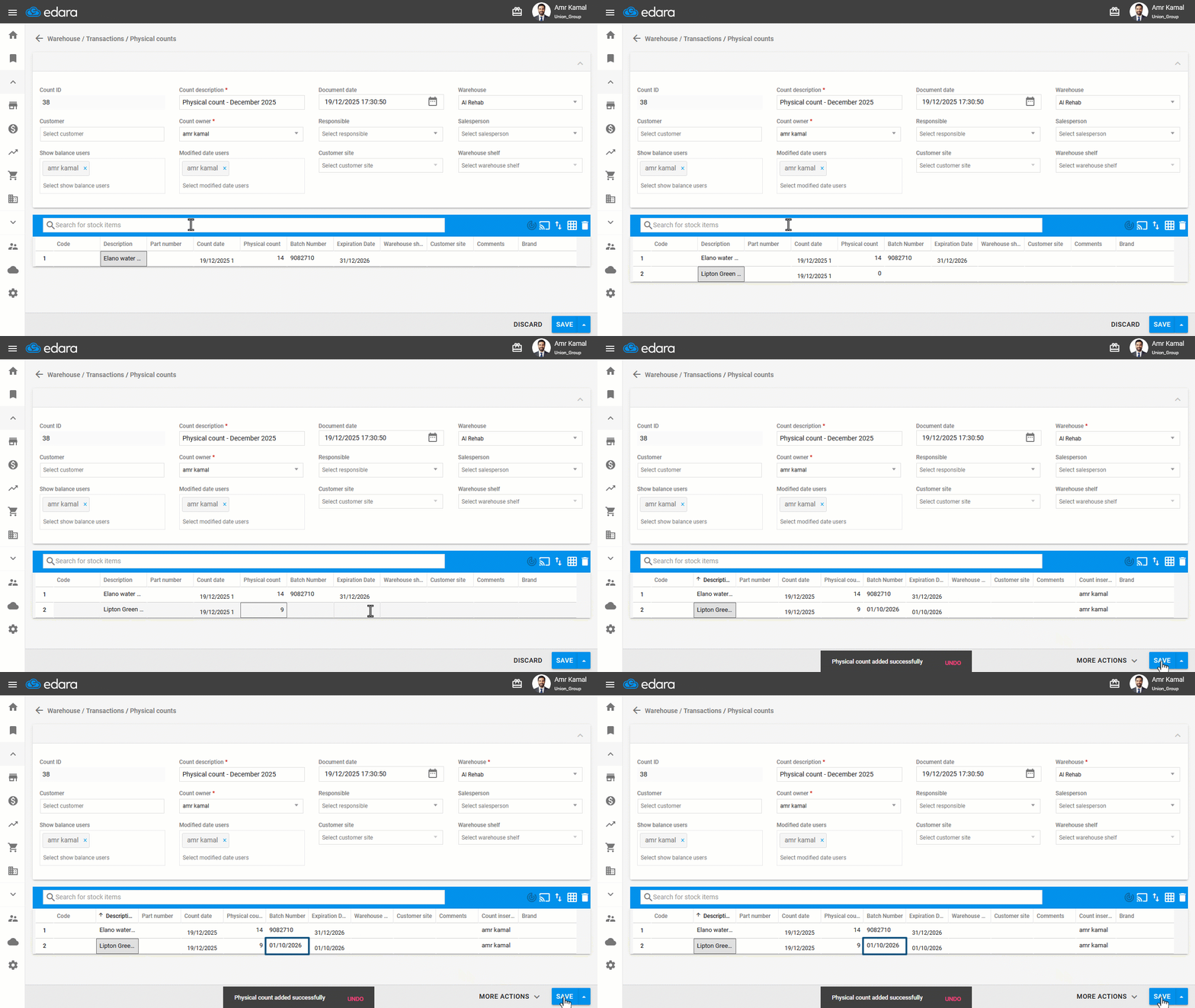
- Enter the actual balance of stick items, specifying the batch number and expiration date according to the characteristics of each stock item.
- Click on “Save”.
Note: When searching for stock items, you can either select an existing batch number or choose an empty batch line to enter the batch number directly within the system. This option is useful if the batch number is not previously recorded in the system.
Notes:
- Barcode scanning cannot be used to search for stock items or increase quantities on the same line when batch numbers are enabled, as this does not match the batch-based workflow.
- You can enter the batch number and expiration date manually, or simply enter the expiration date and let the system generate the batch number automatically according to each item’s settings, as shown in the image below.
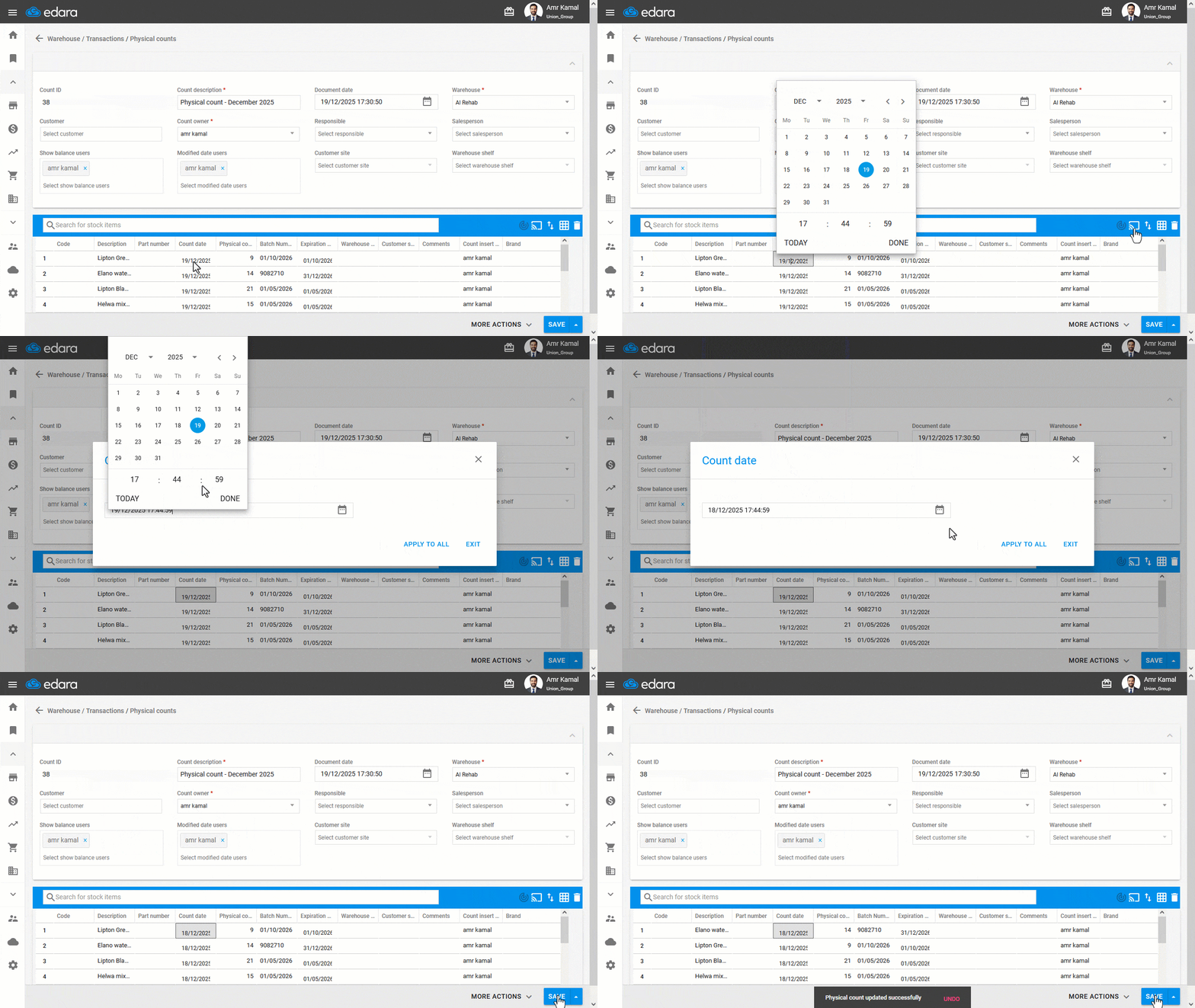
By default, the count date for each line is suggested based on the date it was recorded in the document. You can modify the count date for all lines in bulk as follows:
- Click on the date field of any item.
- Click on the “Bulk change” icon.
- Select date and time.
- Click on “Apply to All”.
Notes:
- The balance of stock items that use multiple units of measurement must be entered in the main unit.
- There are three save options available while working: “Save”, “Save & Exit”, and “Save & New”. It is recommended to save periodically to avoid data loss.
- The system will not allow saving the count if the entered data does not match the stock item configuration. Examples include:
- Entering a batch number for a stock item that does not use batch number.
- Entering a batch number without an expiration date for stock items configured with both “batch number” and “expiration date”.
- Entering an expiration date only for stock items that require both “batch number” and “expiration date”.
- For stock items where the expiration date is used as the batch number, entering the expiration date is sufficient; the system automatically fills in the batch number.
- “Edara” allows you to enter Physical Count using Excel.
Third: Closing the Count Document and Calculating Differences
Once the actual balances are entered, you can close the Physical Count document to compare the actual and Local balances.
Note: It is recommended to perform the count while sales and transfers are paused.
If you must work in parallel, start by counting the items that may be transferred or sold first.
In this case, a stock item may appear on multiple lines with different dates. When closing the document, the system compares the actual balance with the Local balance using the oldest count date recorded for this stock item to ensure accurate comparison and avoid the impact of later transactions.
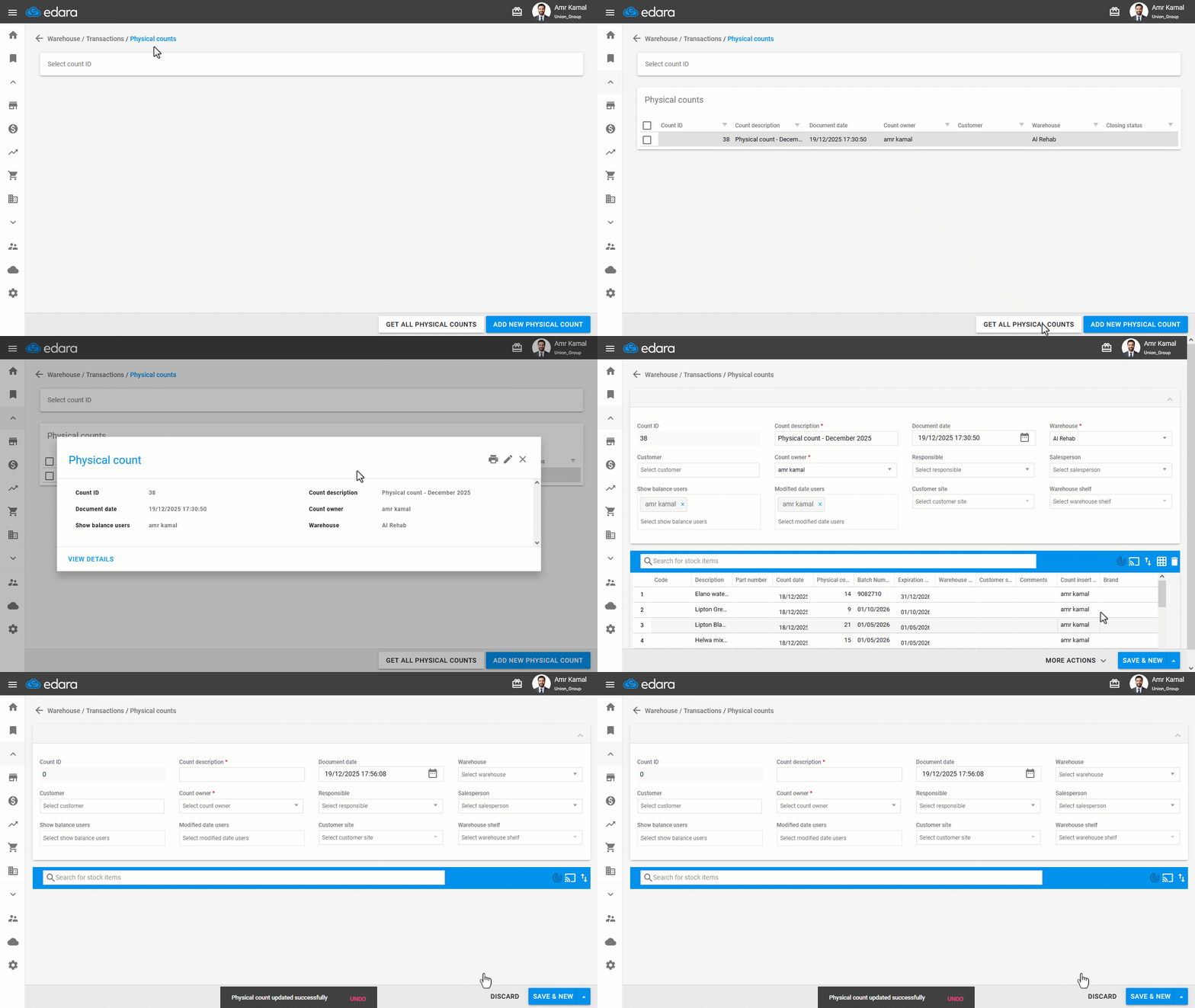
- Go to the “Warehouse” module.
- Open the “Physical Count” page.
- Click on “Get All Physical Counts” to display all count documents.
- Click on the document you want to close.
- Click on the edit icon “🖉”.
- Click on “More Actions”.
- Click on “Close Count”.
Notes:
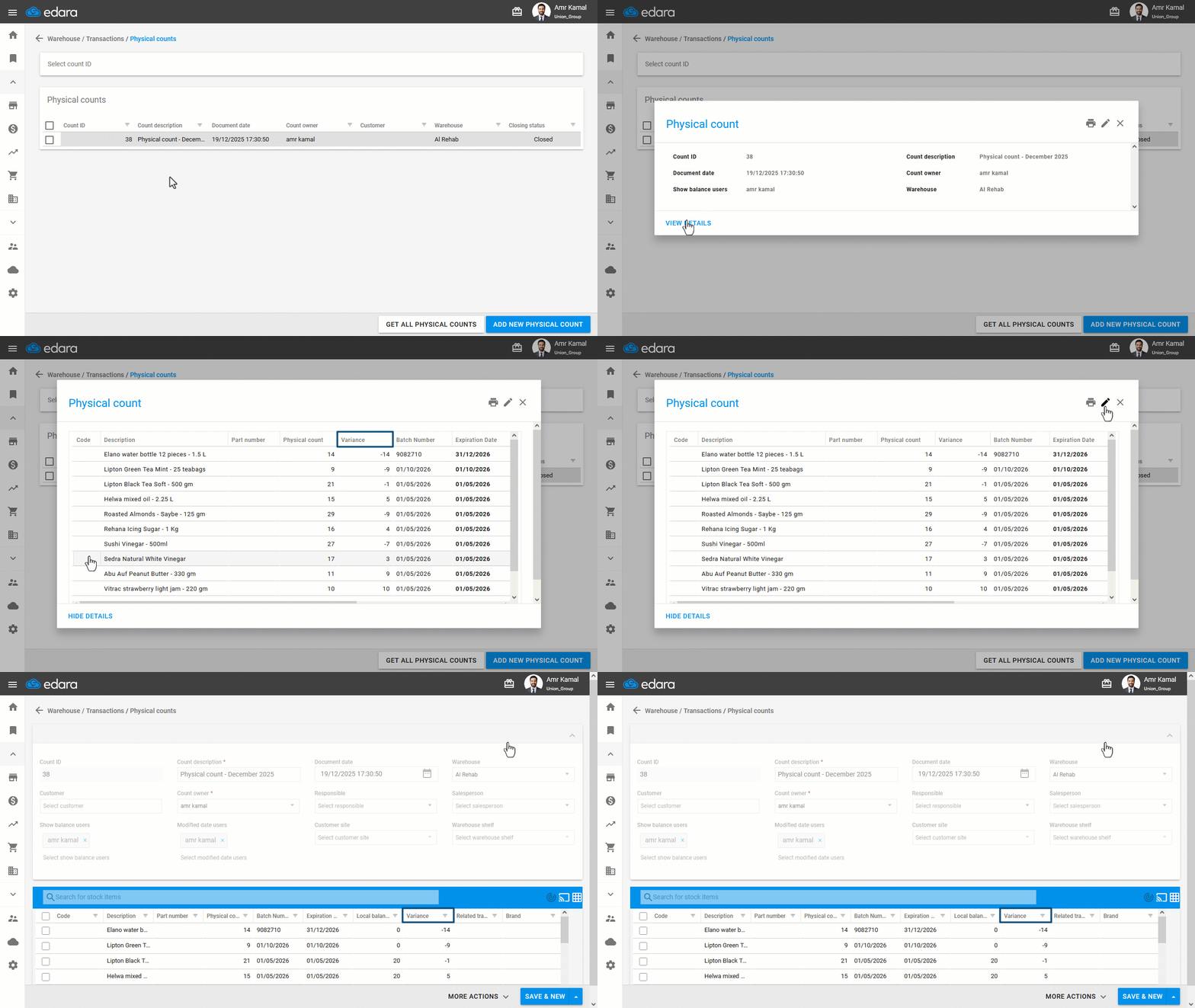
- After closing the count document, the system compiles each stock item in a single line to clearly show the variance and uses the oldest count date for comparison.
- Only the Count owner has permission to close or delete the document.
- The variance appears after closing the count document in two ways: either by clicking on the document and then clicking on “View Details,” or by clicking on the document and then clicking on the “Edit” icon.
Fourth: Settling Shortages or Surpluses
After closing the Physical Count document, you will encounter one of the following cases for each stock item with a batch number:
- Case 1: The actual balance equals the local balance. In this case, no action is required.
- Case 2: The actual balance is greater than the local balance (inventory surplus).
In this case, you need to record the increase by creating a receive supplies document (RS) or receive transfer (RT) matched with Issue Transfers (IT) to settle a shortage from another warehouse.
- Case 3: The actual balance is less than the local balance (inventory shortage).
In this case, you need to record the shortage by creating an Issue Offering document (IO), or an Issue Transfers (IT) if the shortage corresponds to a surplus of the same item in another warehouse.
Creating Adjustment Documents
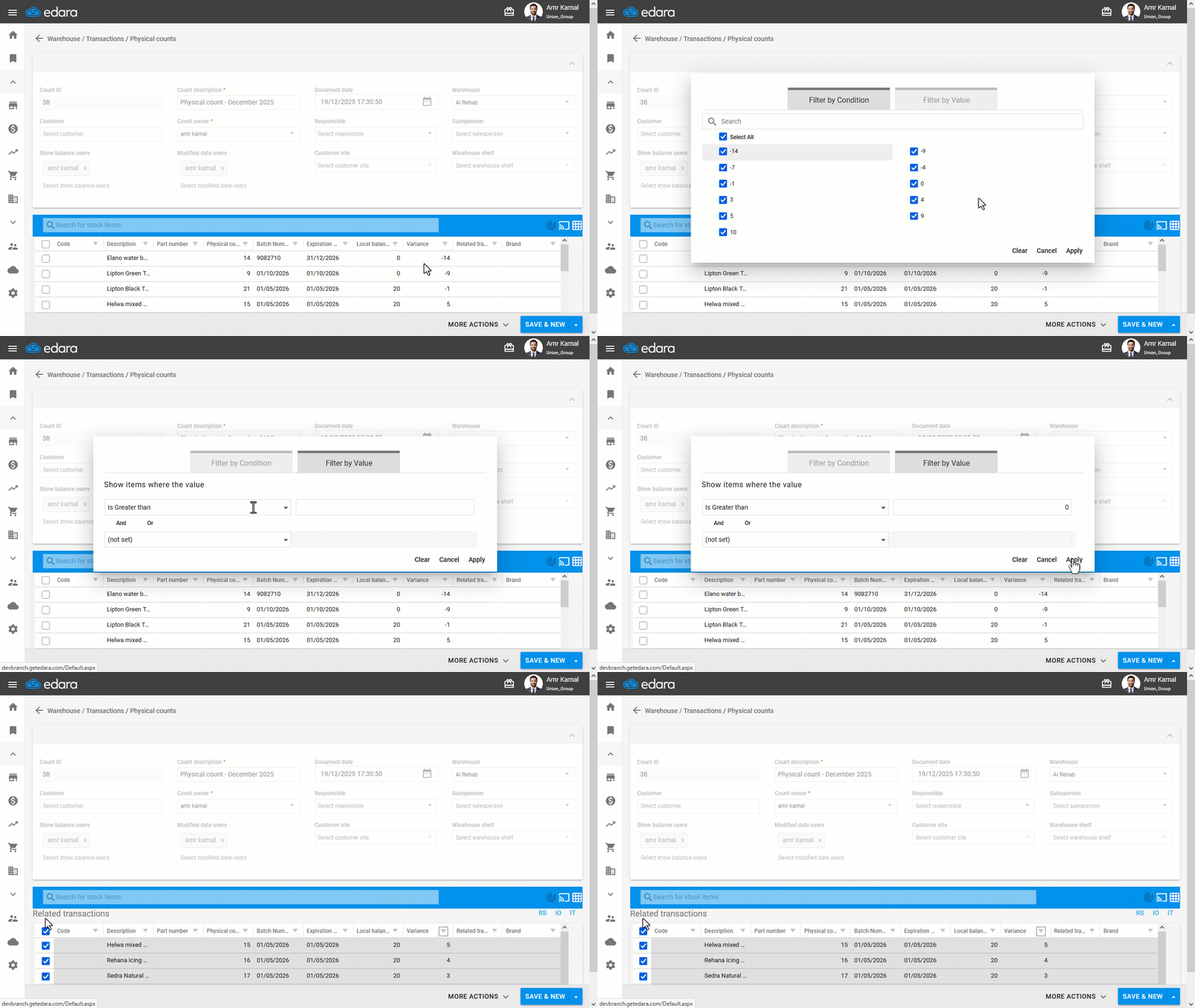
- Open the “Physical Counts” page.
- Click on “Get All Physical Counts” to display all Physical Count documents.
- Click on the required Physical Count document.
- Click on the Edit icon “🖉”.
- Select the stock item.
The suggested adjustment documents (RS / IO / IT) will appear.
Note: You can filter shortage or surplus stock items using the filter by condition to select them all at once and create a single document in bulk.
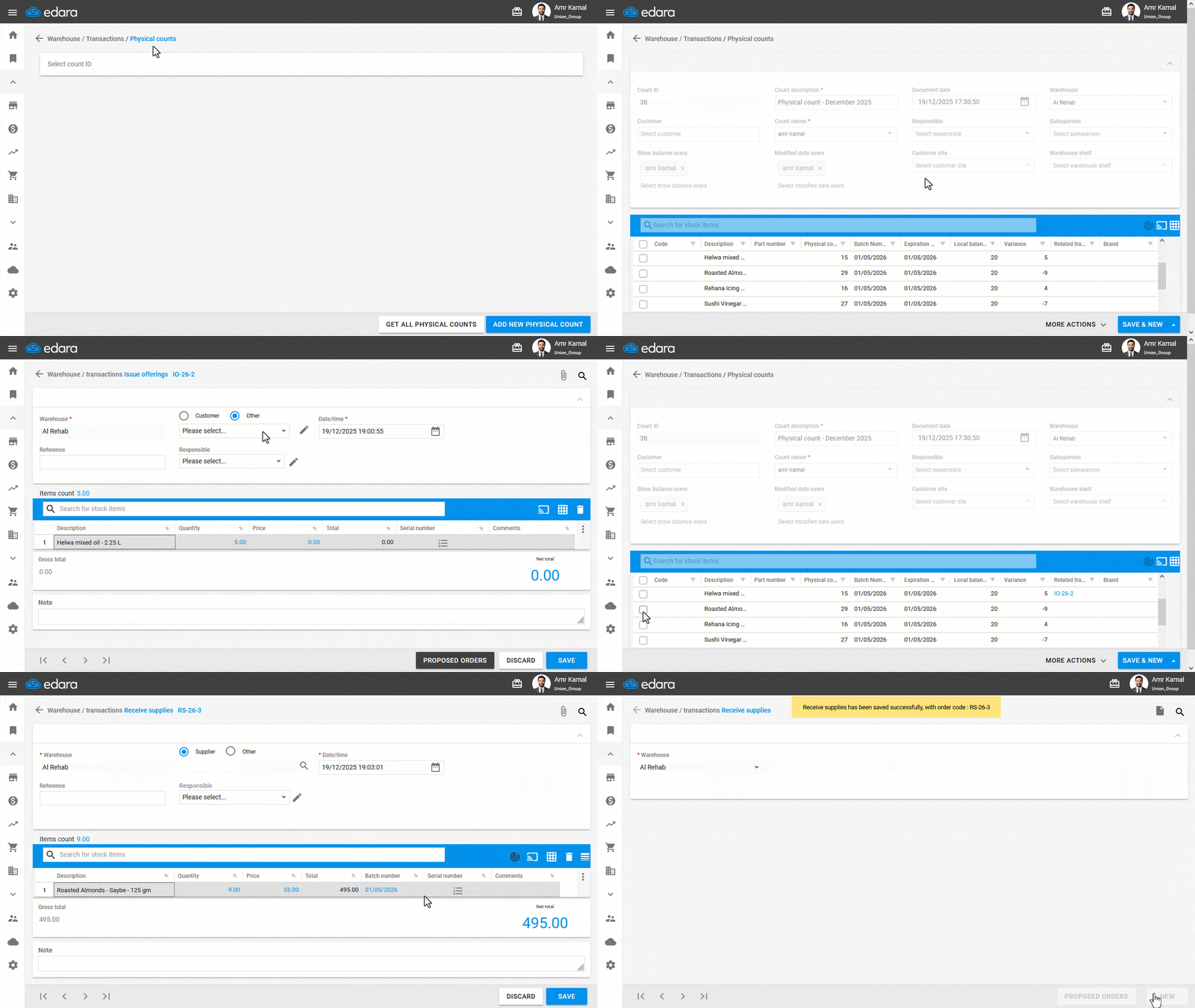
- Select the appropriate document type (RS / IO / IT) from the suggested options.
- Select the second party for the adjustment document.
Note: When creating a receive supplies (RS) document, a screen will appear to select the cost calculation method. Choose either “Average Cost” or “Last RS Price”, as appropriate, to ensure accurate adjustment.
- Click on “Save”.
Notes:
- The adjustment document type depends on the value of the following equation:
Variance = local Balance – Actual Balance
- If the result is positive (local balance is greater than actual balance), this indicates a shortage, and you can choose IO or IT as appropriate.
- If the result is negative (actual balance is greater than local balance), this indicates a surplus, and you should choose RS.
- If you select a document type that does not match the stock item status (shortage/surplus), the system will display a warning and prevent you from proceeding.
- The adjustment document linked to each stock item and batch number appears directly in the corresponding row on the Physical Count screen.
- A Physical Count document can only be deleted if all of the following conditions are met:
- The document is not closed.
- The document is not linked to any adjustment documents.
- Deletion can only be performed by the Count owner.
Frequently asked questions
Can I use the barcode in a physical count with batch numbers?
Barcode scanning cannot be used to search for stock items or increase quantities on the same line when batch numbers are enabled, as this does not match the batch-based workflow.
If you encounter any challenges or have questions during these processes, you can contact our technical support team, who are ready to assist you at any time.