

Adding Package Count for Stock Items in Documents
Last updated:
You can track the number of packages or units received and issued for items within documents, calculate the net Count, and link it to the actual balance in the warehouse stocks Report.
Adding Package Count for Stock Items in Documents
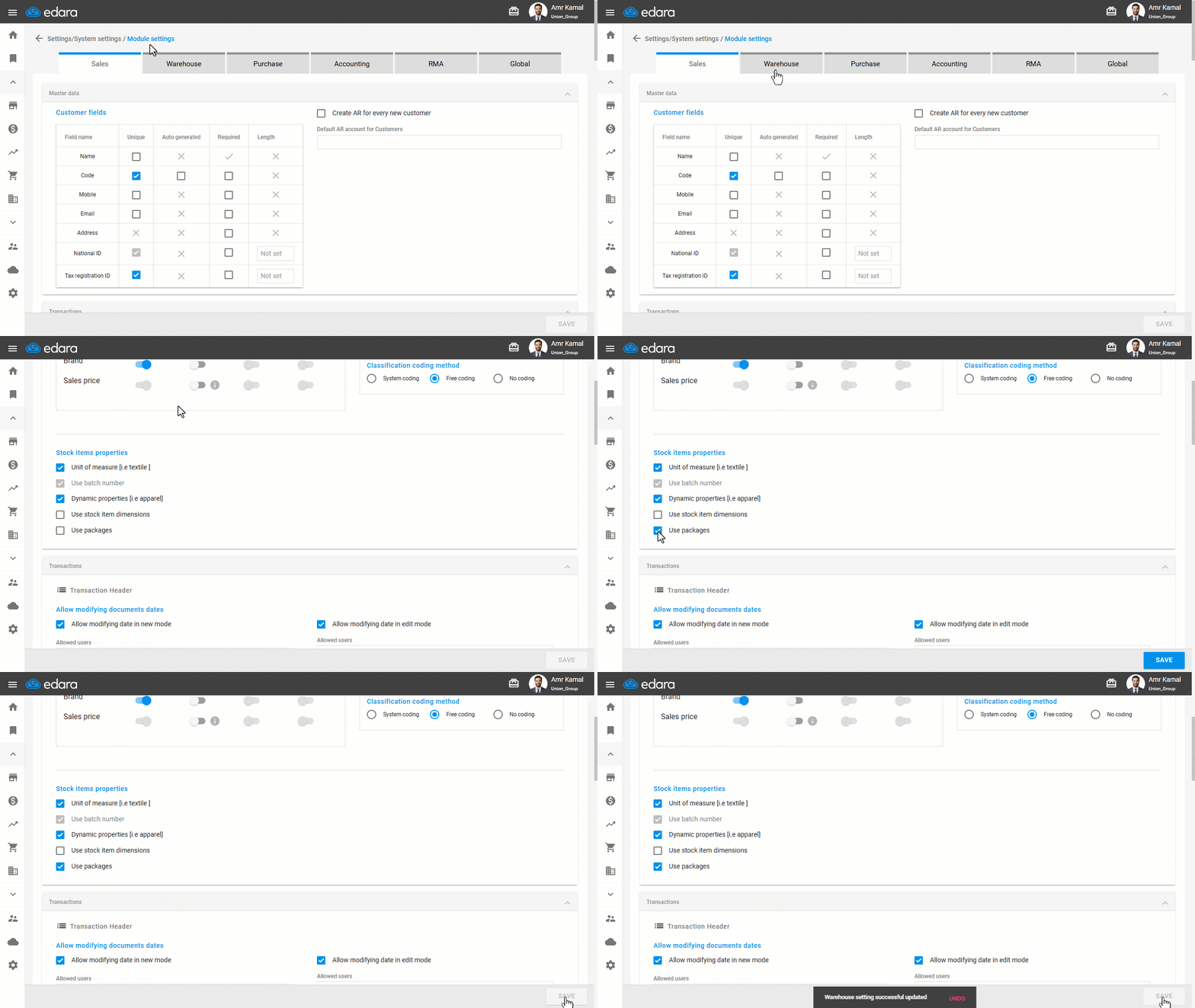
- Go to “Settings”.
- Open the “Module Settings” page.
- Go to the “Warehouse” tab.
- Enable the “Use packages” option.
- Click on “Save”.
Displaying the Package Count in Receipt and Issue Documents
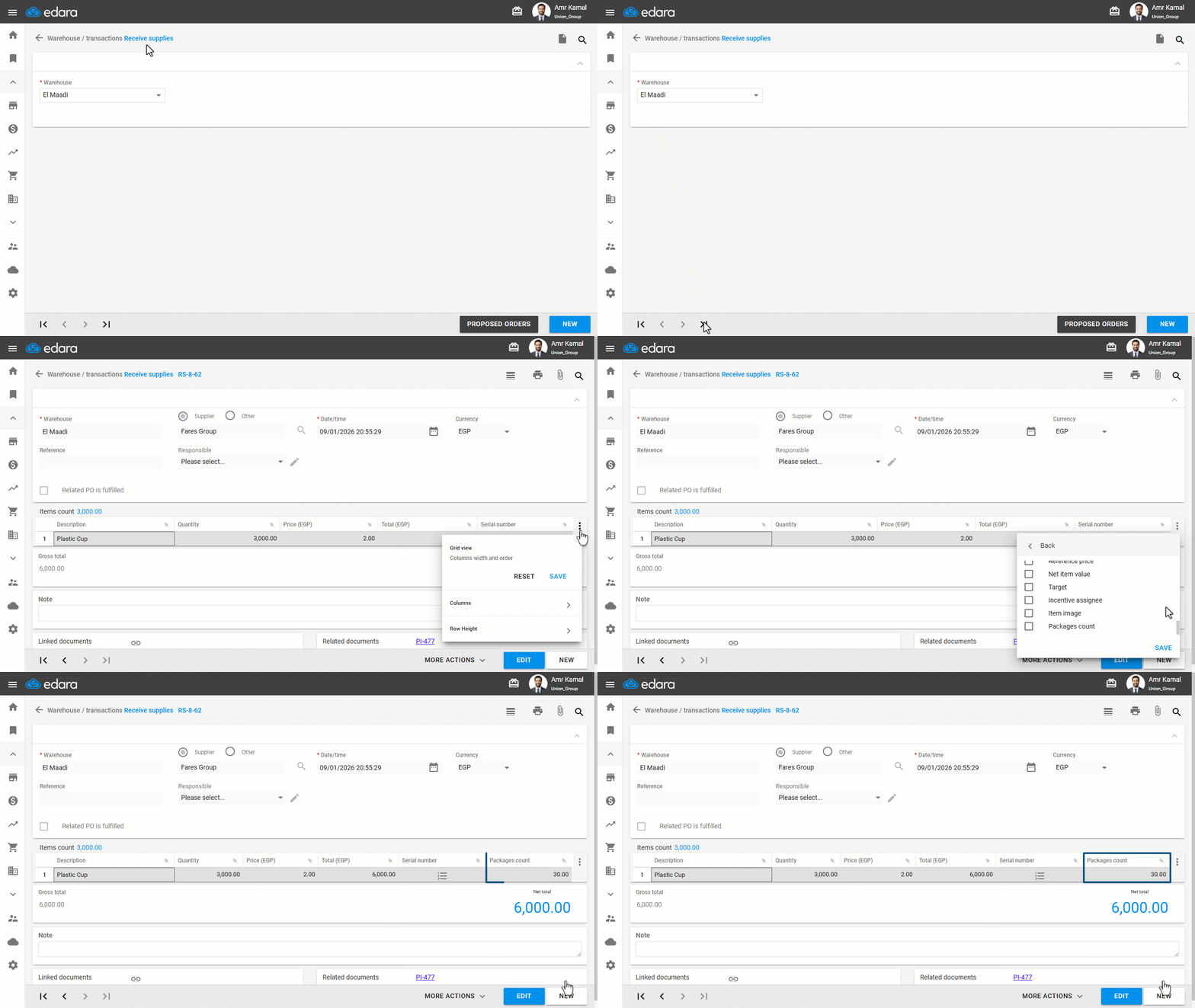
- Go to the “Warehouse” module.
- Open the “Receive supplies”.
- Select the warehouse.
- Search for the required stock item using the “🔍” icon or the arrows at the bottom of the page.
- Click in “︙”.
- Click on “›” next to Columns.
- Enable the “Packages count” option.
- Click on “Save”.
Repeat the same steps for all receipt and issue documents where you want the package count to appear.
Displaying the Package Count in the Warehouse Stocks Report
After creating the warehouse receipt and issue transactions:
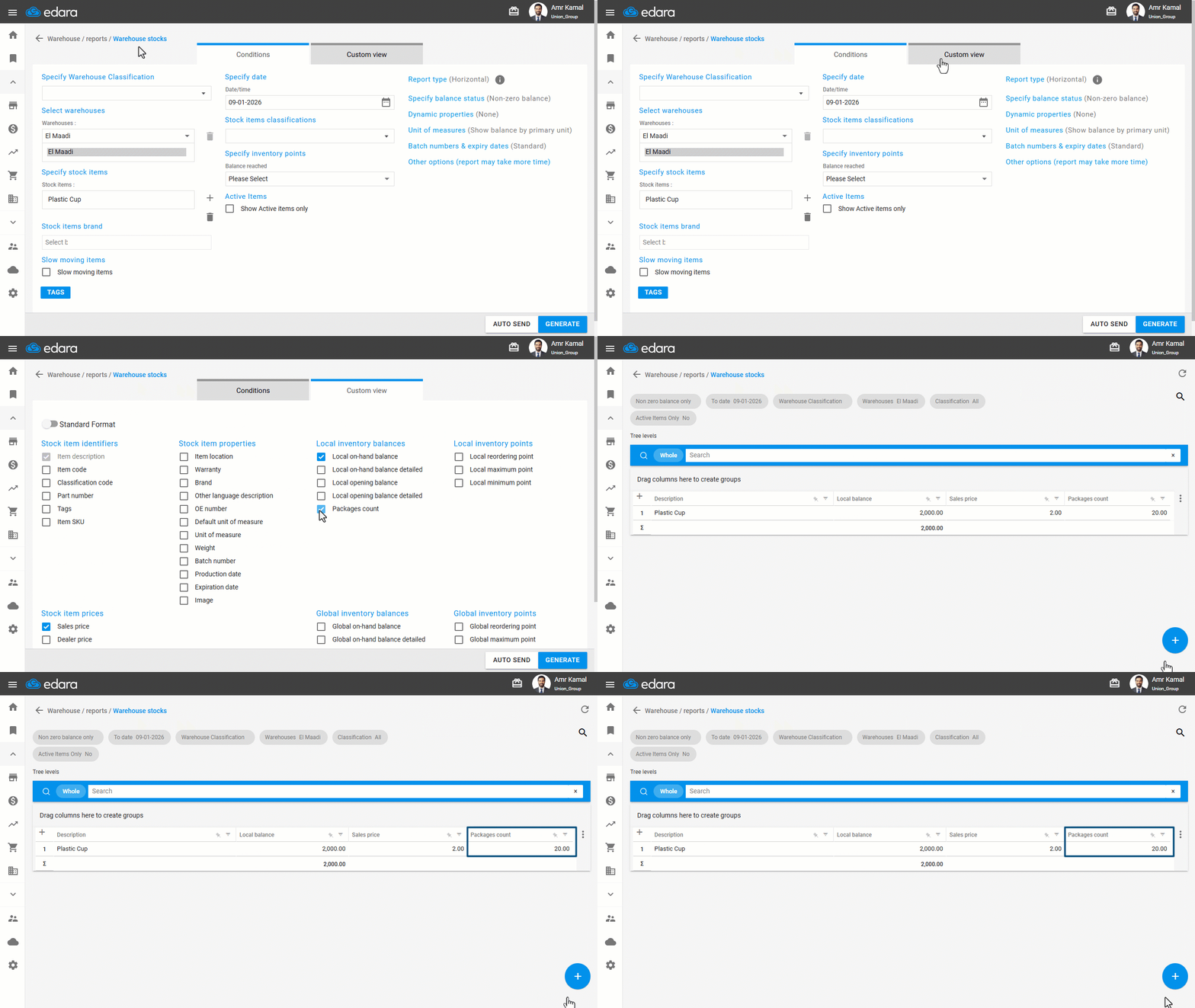
- Open the “Warehouse Stocks” page.
- Go to “Custom view”.
- Enable the “Packages count“ option.
- Click on “Generate” to display the package count for each stock item in the dedicated column.
If you encounter any challenges or have questions during these processes, you can contact our technical support team, who are ready to assist you at any time.
Did this answer your question?