

Printing Multiple Sales Orders
Last updated:
You may need to print multiple Sales Orders at once instead of printing each order individually, whether for internal review or to share them with an external party.
Printing Multiple Sales Orders

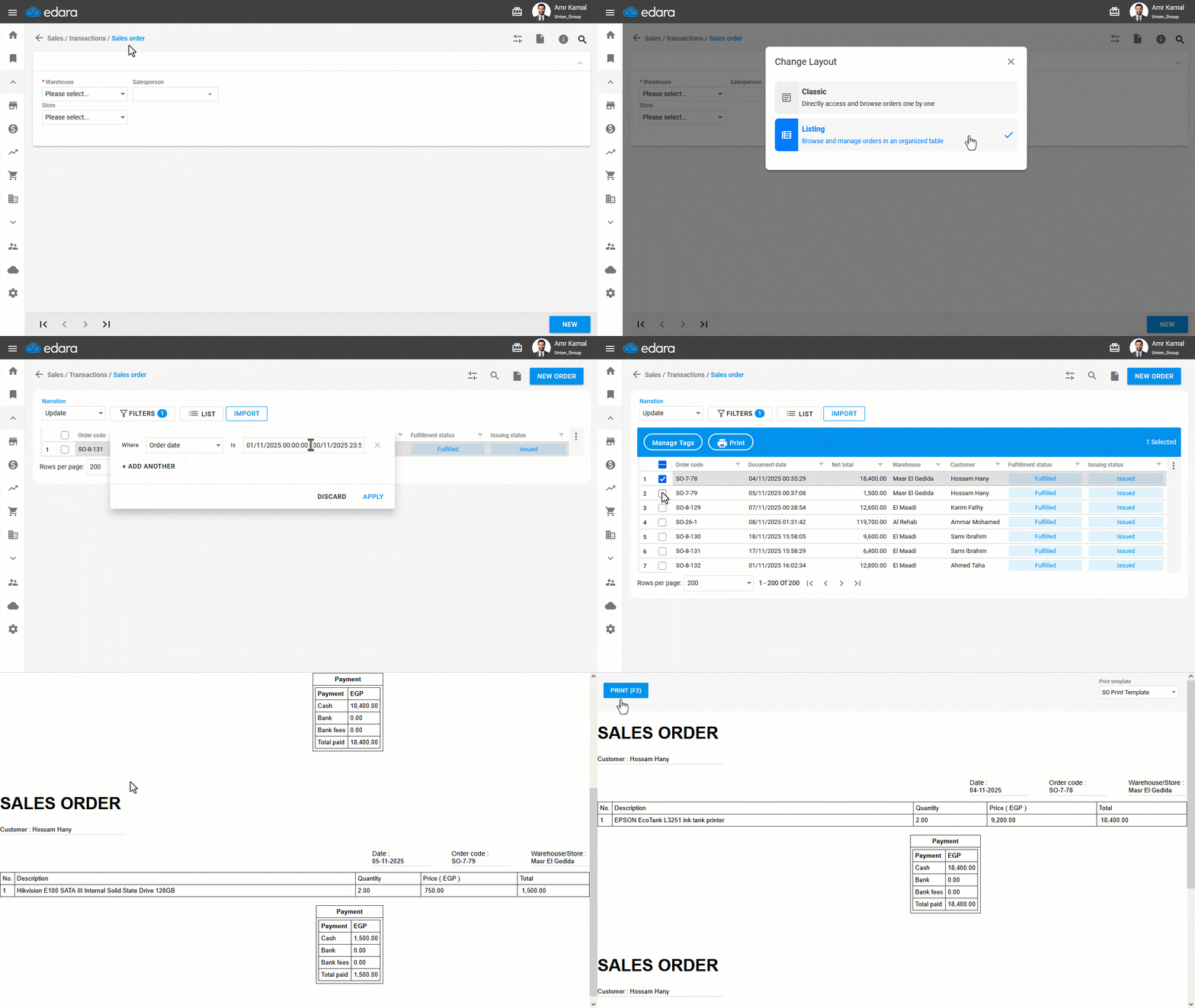
- Go to the “Sales” module.
- Open the “Sales Order” page.
If you are viewing the “Classic” layout, click the icon “ ” to change the layout, then select the “Listing” layout.
- Use the filters if you want to narrow the list by customer, date range, or any other criteria.
- Select the Sales Orders you want to print.
- Click on “Print”.
A window will appear displaying all selected Sales Orders.
- Choose the print template.
Note: The system automatically suggests the last print template you used, or the first template you have access to if you are printing for the first time.
- Click on “Print”.
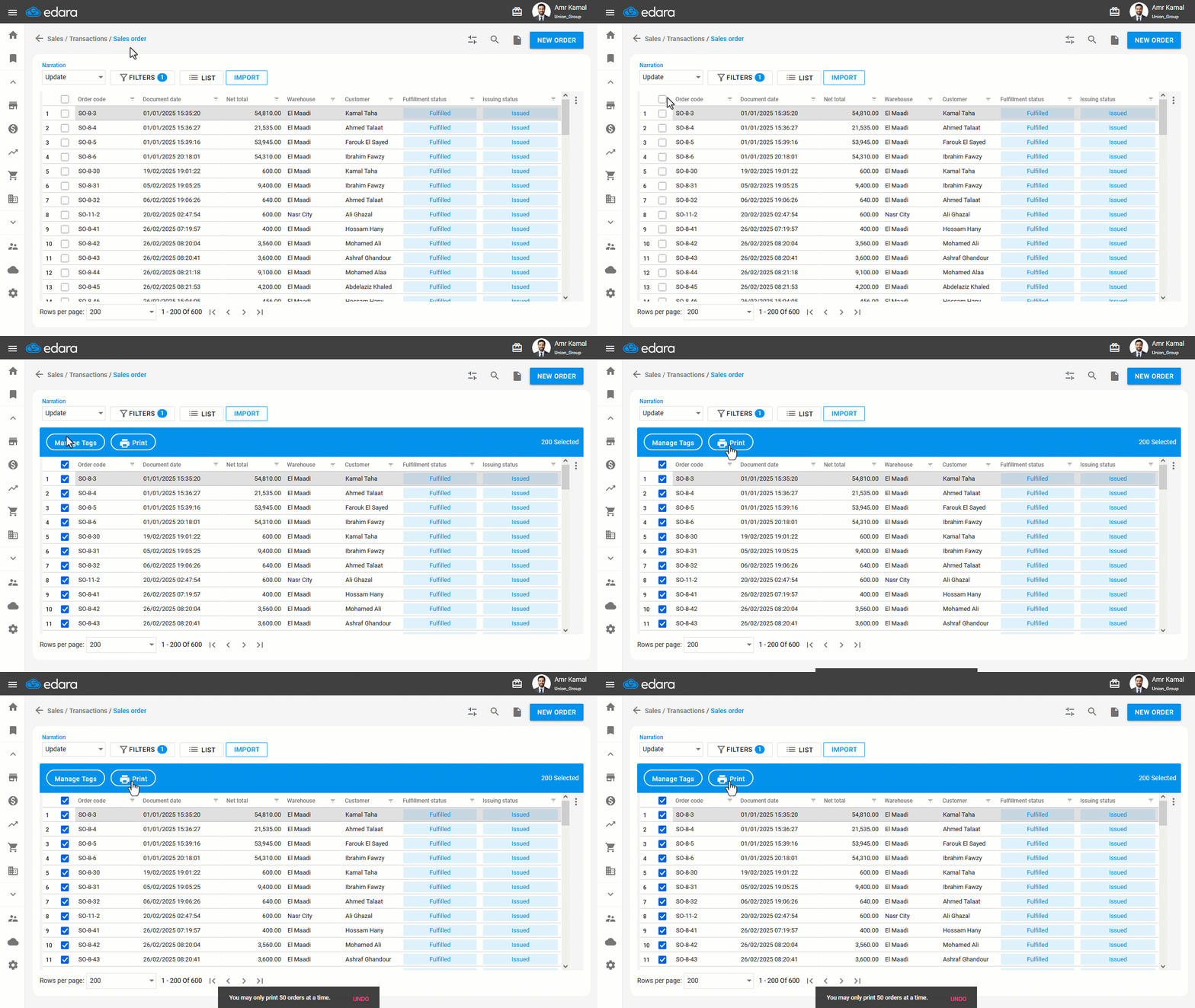
Note: The maximum number of Sales Orders that can be printed at once is 50 orders.
Frequently asked questions
What is the maximum number of orders in a bulk print?
The maximum number of Sales Orders that can be printed at once is 50 orders.
If you encounter any challenges or have questions during these processes, you can contact our technical support team, who are ready to assist you at any time.