

Bulk Importing of Sales Orders
Last updated:
If you have a store that sells multiple products to a large number of customers and need to input sales orders quickly and accurately, using the bulk import feature for sales orders can help you speed up the process and avoid errors that might occur with manual data entry.
This feature allows you to import multiple sales orders simultaneously, with the ability to specify all the details for each order through an import file. This saves time and improves operational efficiency.
Bulk Importing of Sales Orders
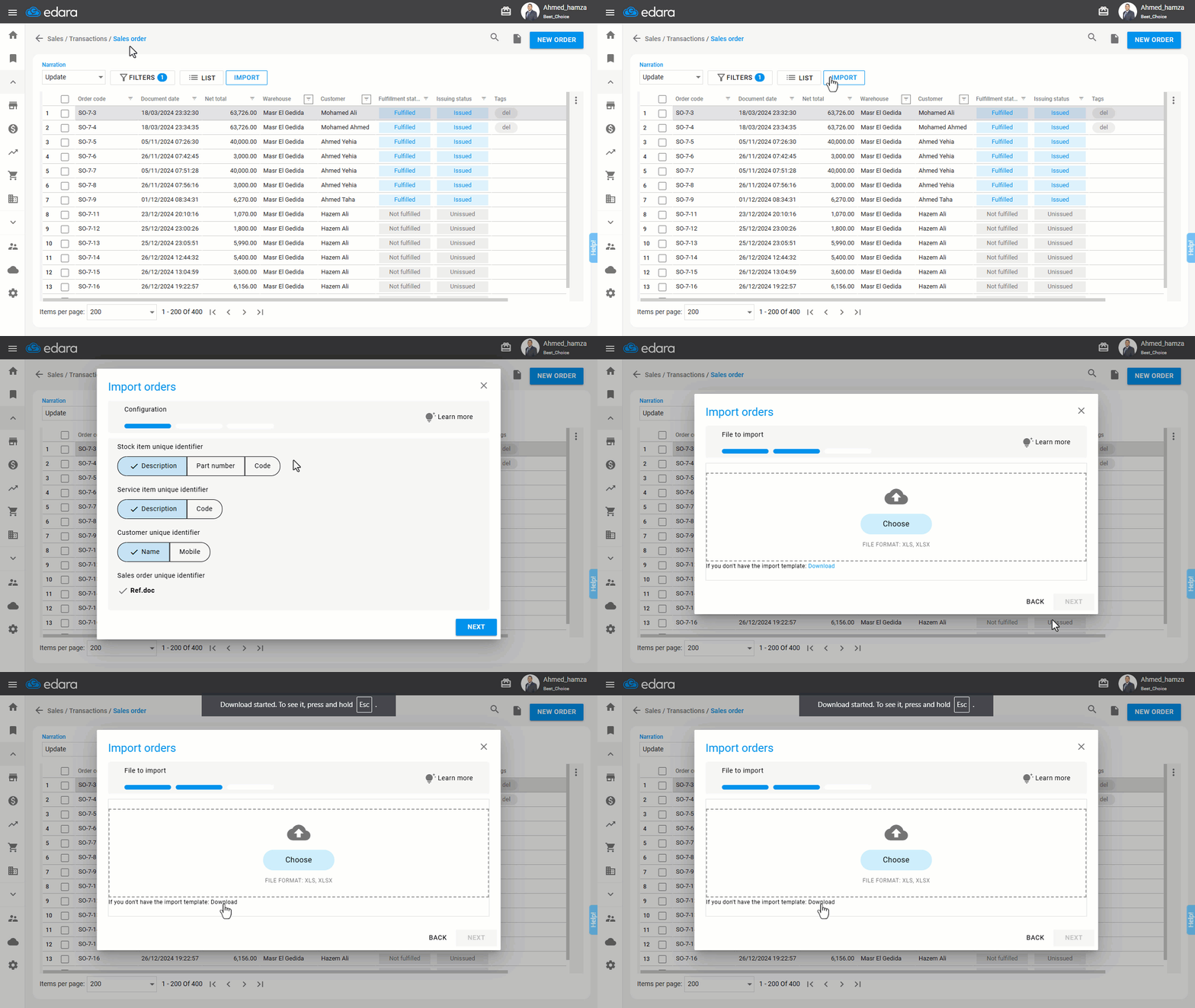
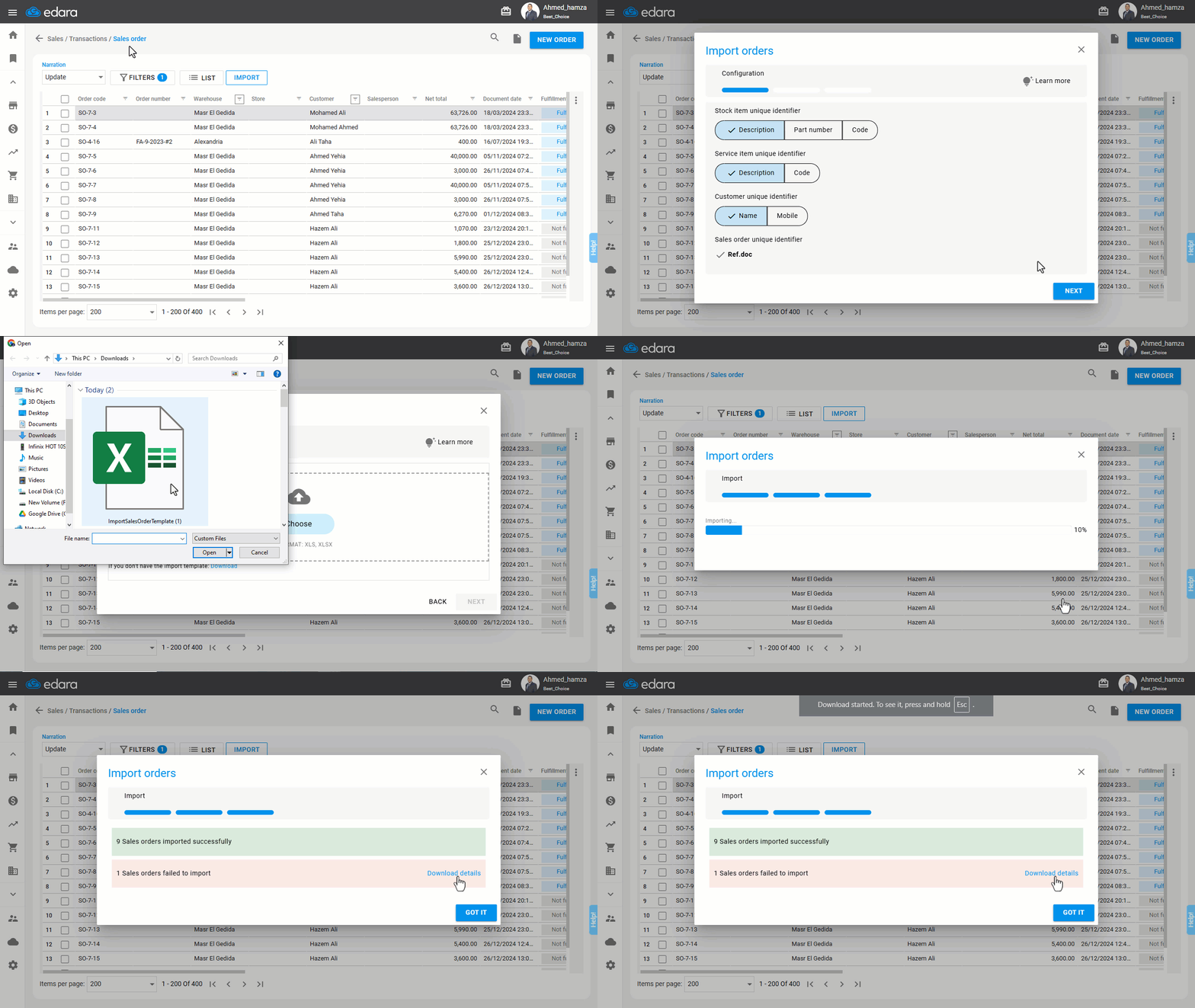
First, ensure you are displaying the Sales Order Listing Page, then:
- Click on "Import".
Note: In the first configuration window, specify the unique identifier for:
- Stock items: Description, Part number, or SKU.
- Service items: Description or Code.
- Customer: Name or Mobile number.
The unique identifier for the sales order is always the Ref. doc, with no other options available.
- Click "Next" to proceed to the import file page.
- Click on "Download” to save the template to your device.
- Open the import file.
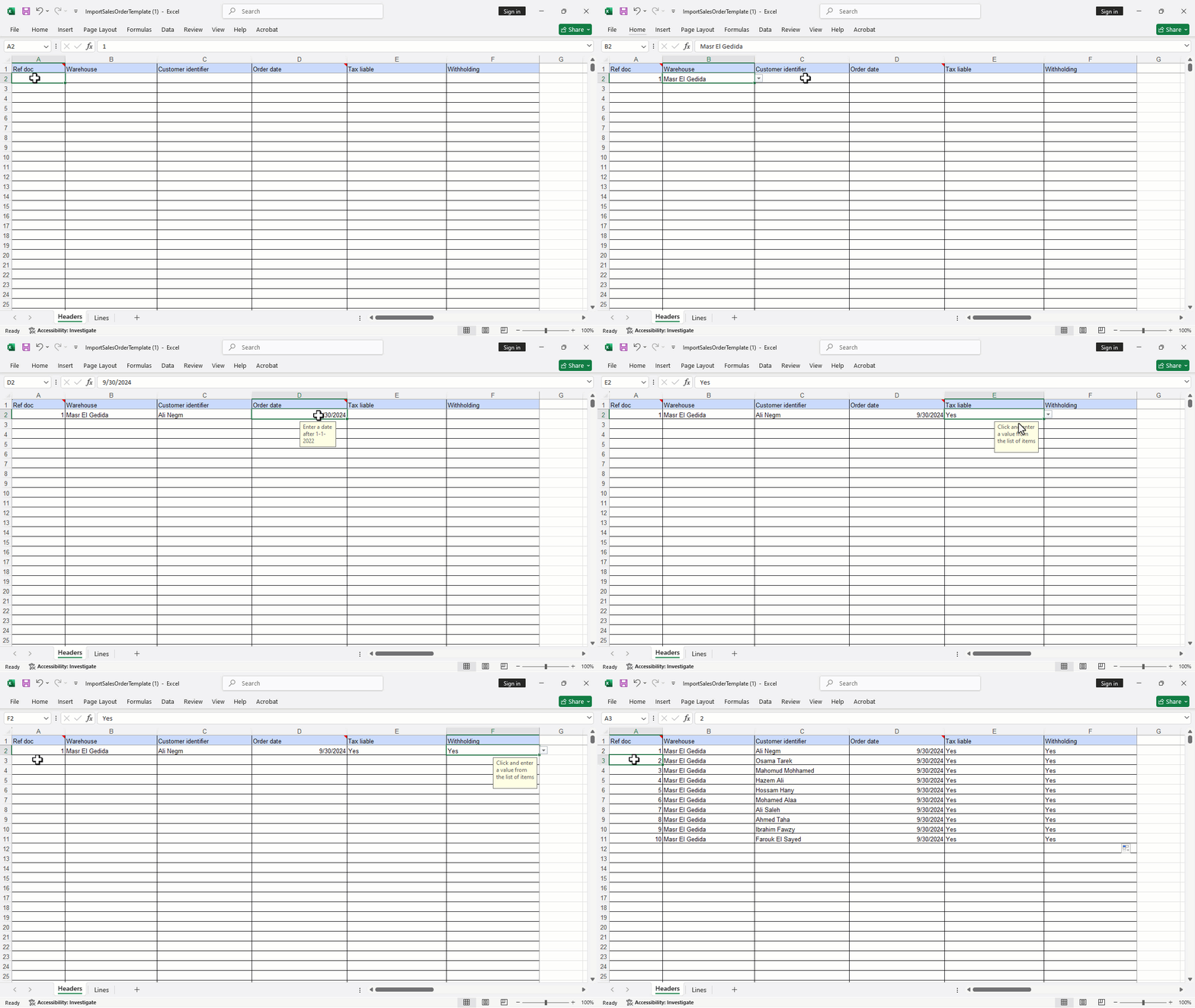
- Enter the primary data for each sales order on a separate row in the "Headers" sheet.
Note: Primary data fields are:
- Ref. Doc: non-repeatable, and if duplicated data is entered, it will appear in orange to alert.
- The warehouse: chosen from a dropdown list containing all the warehouses in the database.
- The customer: entered based on the unique identifier selected in the previous step.
- Sales order date: default format is mm-dd-yyyy (month-day-year). Time data can also be included (hh:mm:ss). Any incorrect date will trigger a warning message.
- Activating the use of VAT: If the sales order uses VAT, select “YES” from the dropdown list.
- Activating the withholding tax: If the sales order uses withholding tax, select “YES” from the dropdown list.
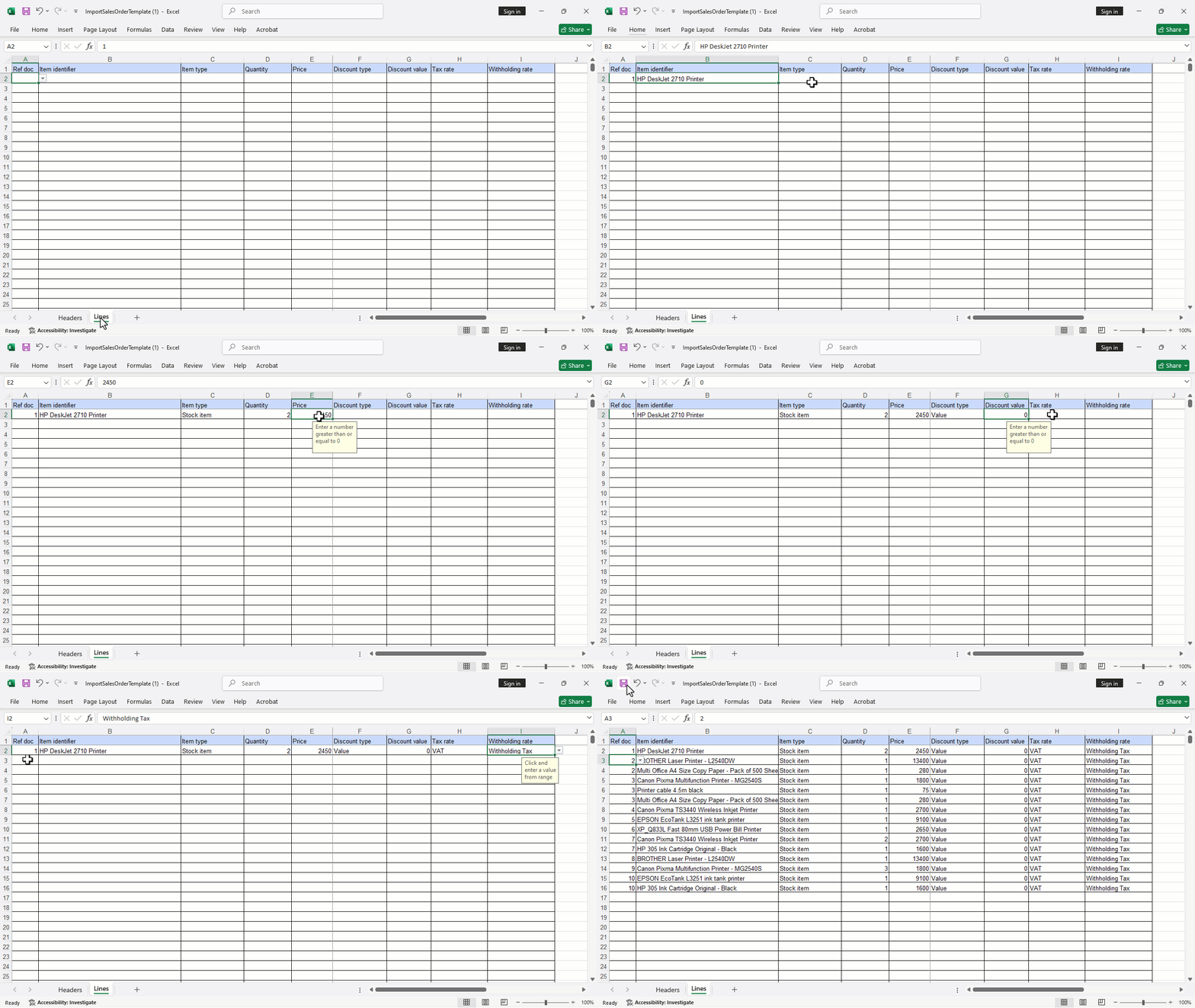
- Enter the detailed data for each sales order in the "Lines" sheet, linking it to the "Headers" through the dropdown menu in the ref.doc column.
Note: The detailed data includes:
- Item: whether service or stock, based on the unique identifier specified for each in the configuration steps.
- Item type: defaulting to stock item, and if it's a service item, select Service Item from the dropdown list.
- Quantity: must be greater than zero.
- Price: must be greater than or equal to zero.
- Discount type: defaulting to value discount.
- Discount value: if percentage discount is selected, the discount value must not exceed 100.
- VAT rate: if the order uses VAT, select the tax rate from the dropdown list in this column.
- Withholding tax rate: if the order uses this tax, select the tax rate from the dropdown list in this column.
- Save the file.
- Upload the file.
- Click "Next".
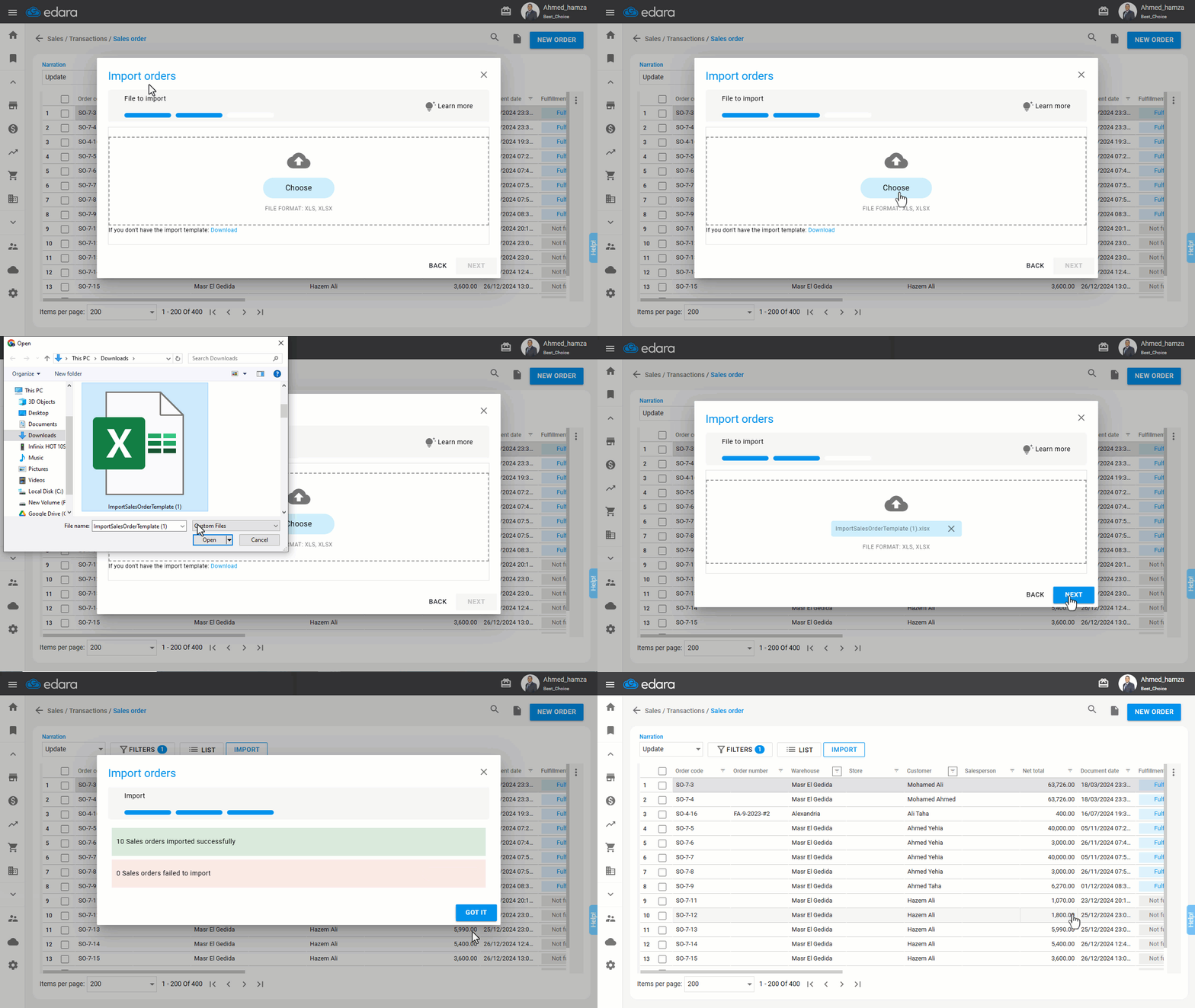
The system will validate the imported data and display results indicating the number of successful and failed records.
Note: If some orders fail to import, you can export their details to Excel by clicking on "Download Details".
- Click "GOT IT".
Important Notes:
- The maximum number of importable rows is 1000.
- When you start filling data for any row, the color of the remaining cells automatically changes to red to indicate incomplete data, and the color disappears once mandatory data is filled.
- All sales orders are saved in full cash on the first permitted cash account for the user.
Frequently asked questions
What is the maximum number of rows in an import file?
The maximum number of importable rows is 1000.
Which payment method are imported sales orders saved with?
All sales orders are saved in full cash on the first permitted cash account for the user.
If you encounter any challenges or have questions during these processes, you can contact our technical support team, who are ready to assist you at any time.