

Displaying the Sales Order Listing Page
Last updated:
If a customer encounters an issue or has an inquiry about a specific order on a certain date, you can review the sales order either in summary or detail using the page. This allows you to access the order details quickly and address the customer's needs efficiently.
Displaying the Sales Order Listing Page
Ensure you have permission to access the page, then:
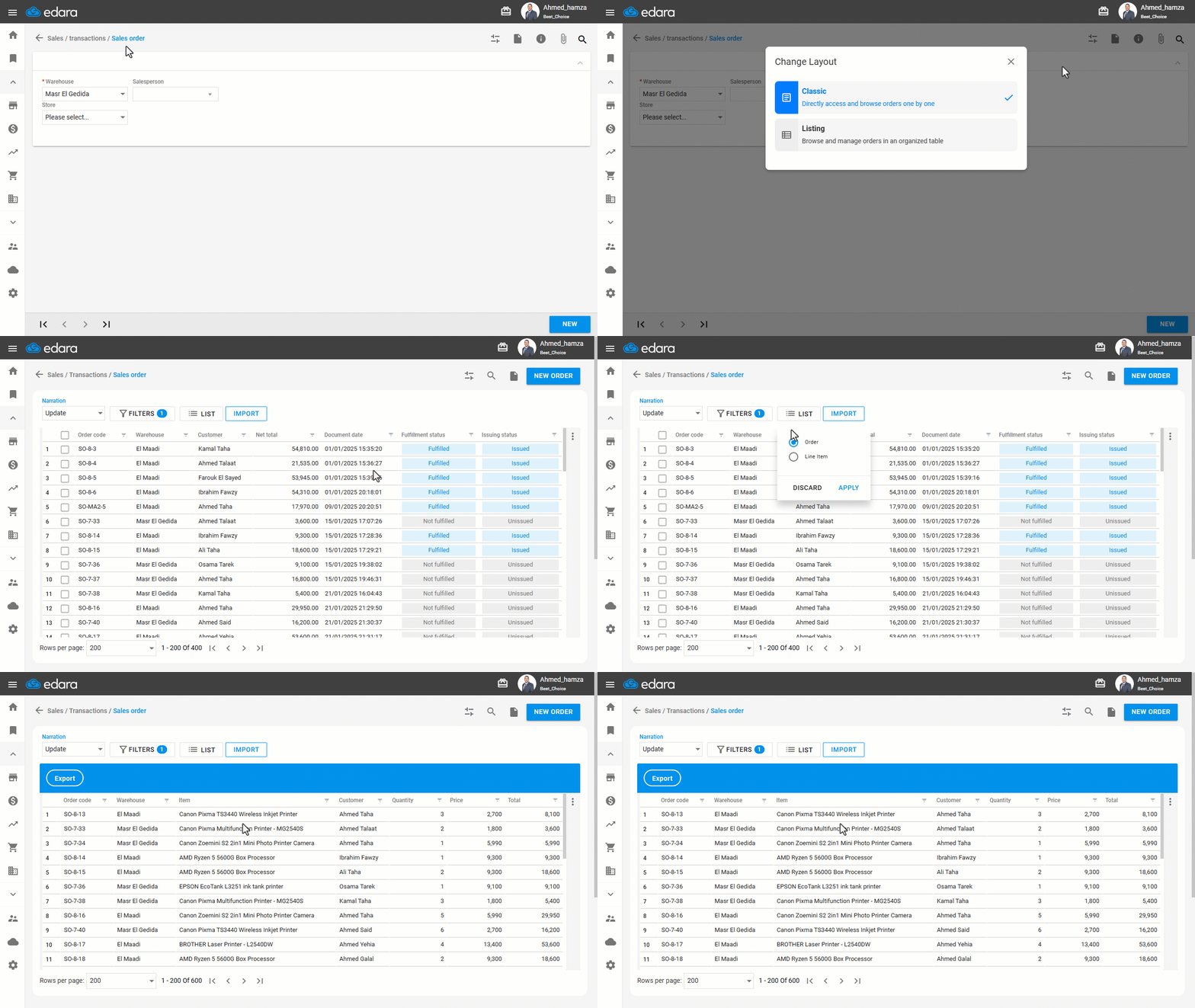
- Go to the Sales module.
- Open the Sales Order page.
- Click on "
 " to change the layout.
 - Select "Listing" to display orders in an organized table.
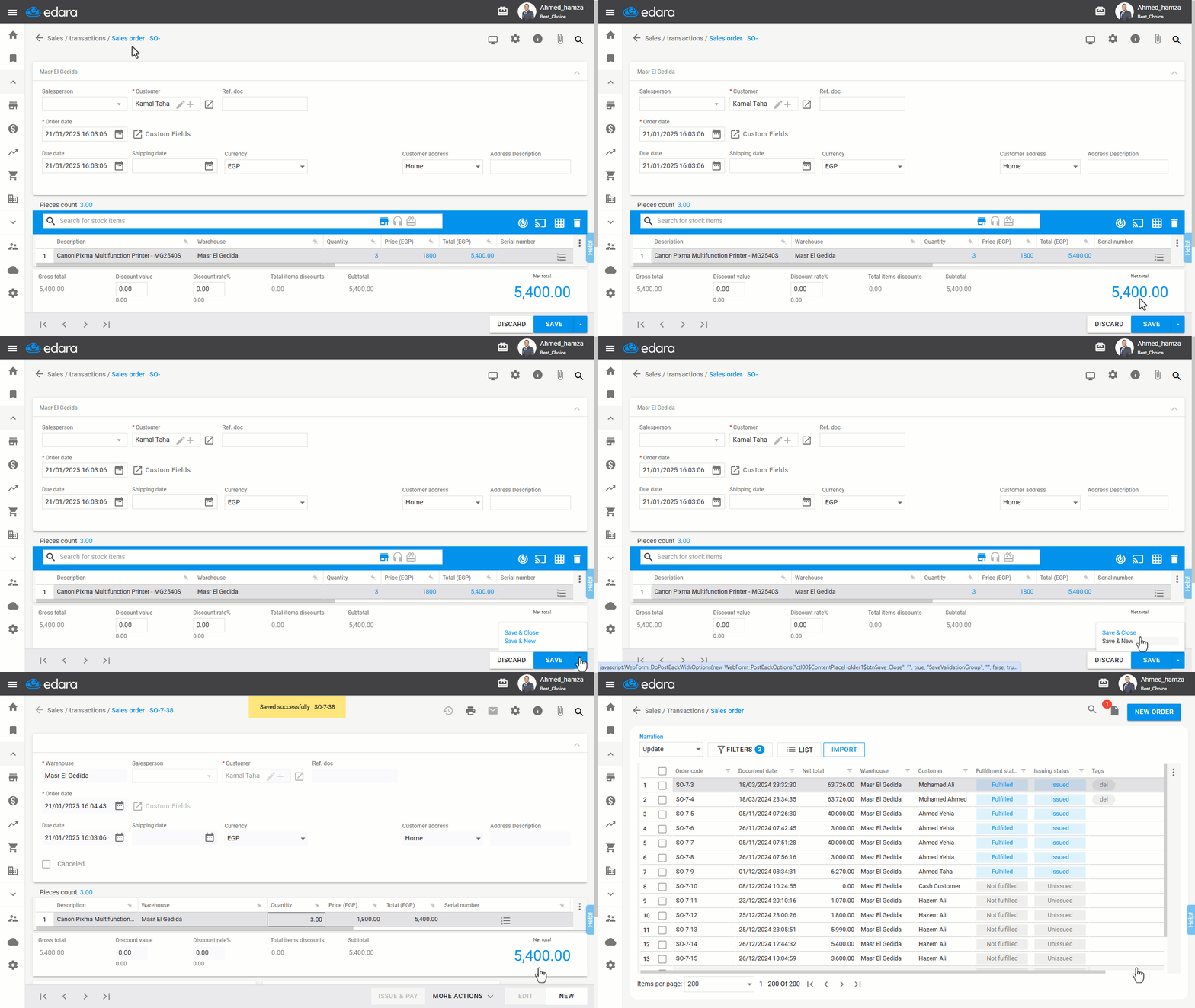
Note: For any new sales order created through this page, the system offers several save options:
- "Save": The order is saved, and the saved document is displayed immediately.
- "Save & New": The order is saved, and a new document opens directly.
- "Save & Close": The order is saved, and the view returns to the sales order list.
Frequently asked questions
What is the difference between the save options in the Sales Order Listing?
For any new sales order created through this page, the system offers several save options: "Save": The order is saved, and the saved document is displayed immediately, "Save & New": The order is saved, and a new document opens directly, "Save & Close": The order is saved, and the view returns to the sales order list.
If you encounter any challenges or have questions during these processes, you can contact our technical support team, who are ready to assist you at any time.