

Displaying Stock Item Serial Numbers
Last updated:
You may need to review the serial numbers of items available in your warehouses, either to view all serial numbers associated with each item or to display each serial number separately for easier searching and tracking.
Displaying Stock Item Serial Numbers
You can do this using either of the following methods:
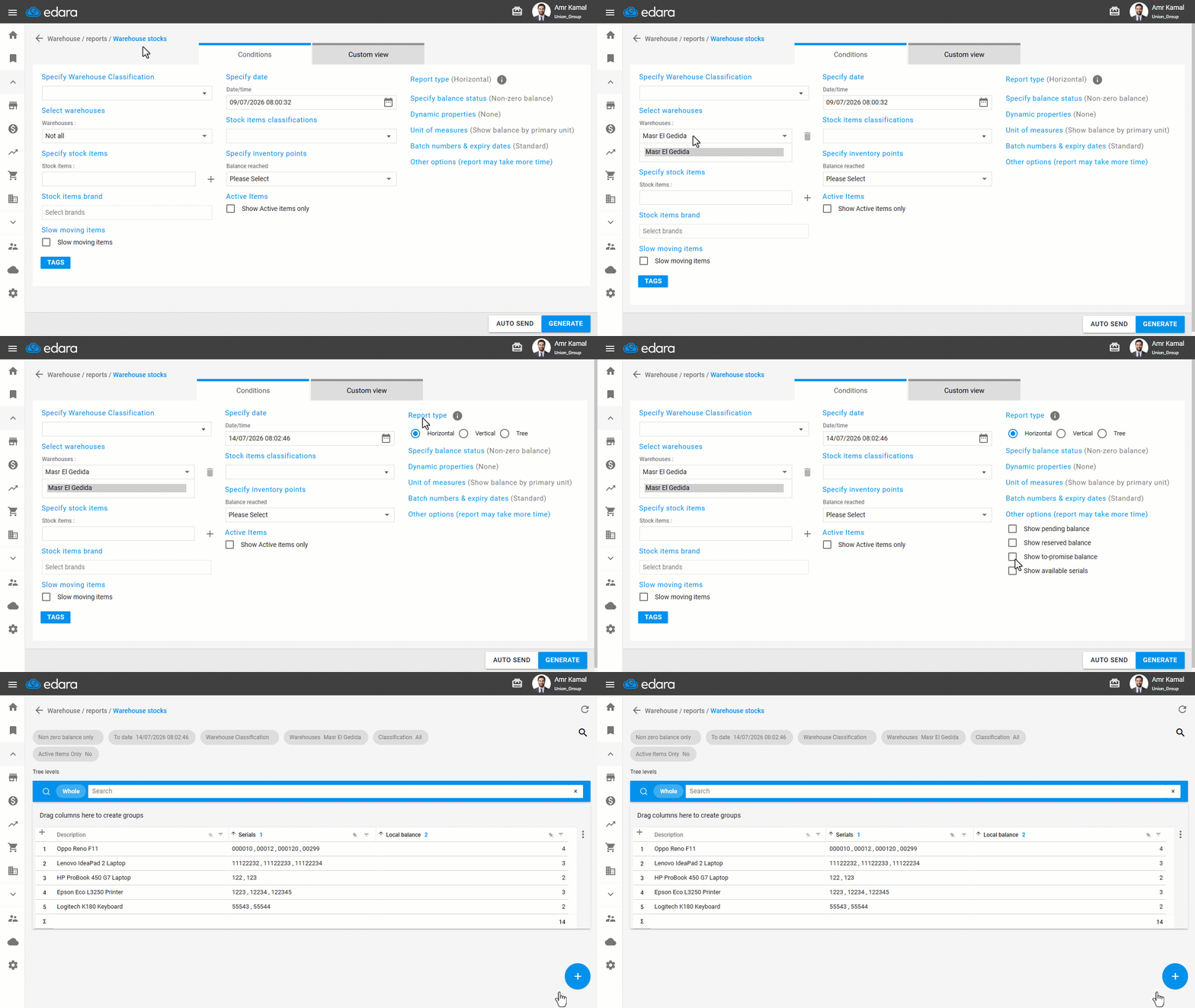
First: Displaying Serial Numbers from the Warehouse Stocks Report
- Go to the "Warehouse" module.
- Open the "Warehouse stocks" page.
- Select the warehouse.
- Specify the date.
The default Report Type is "Horizontal".
- Enable "Show available serials" from "Other options".
- Click on "Generate".
All available serial numbers for each item will be displayed on the same row.
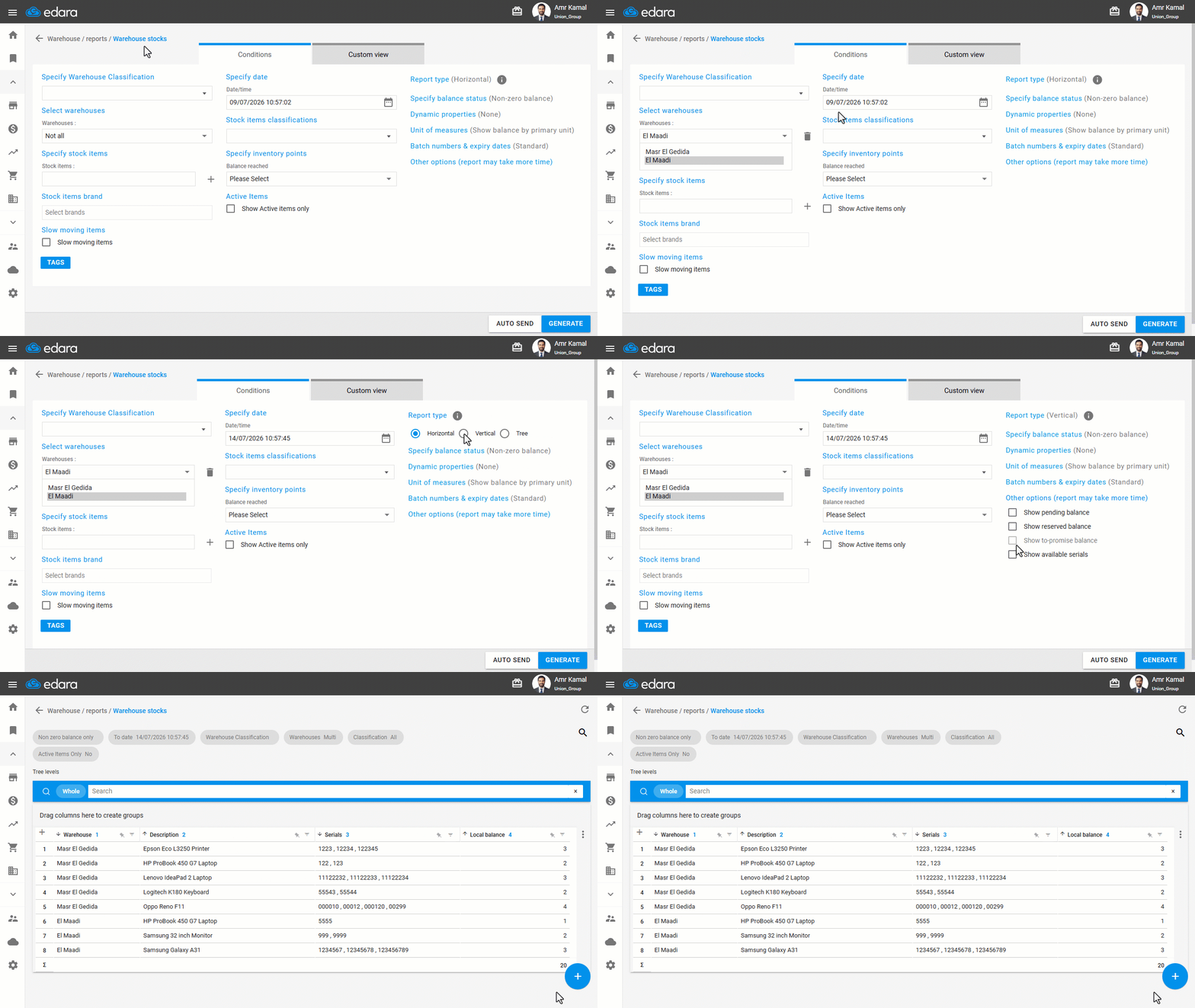
When selecting multiple warehouses, choose the "Vertical" report type to display the available serial numbers for stock items in each selected warehouse.
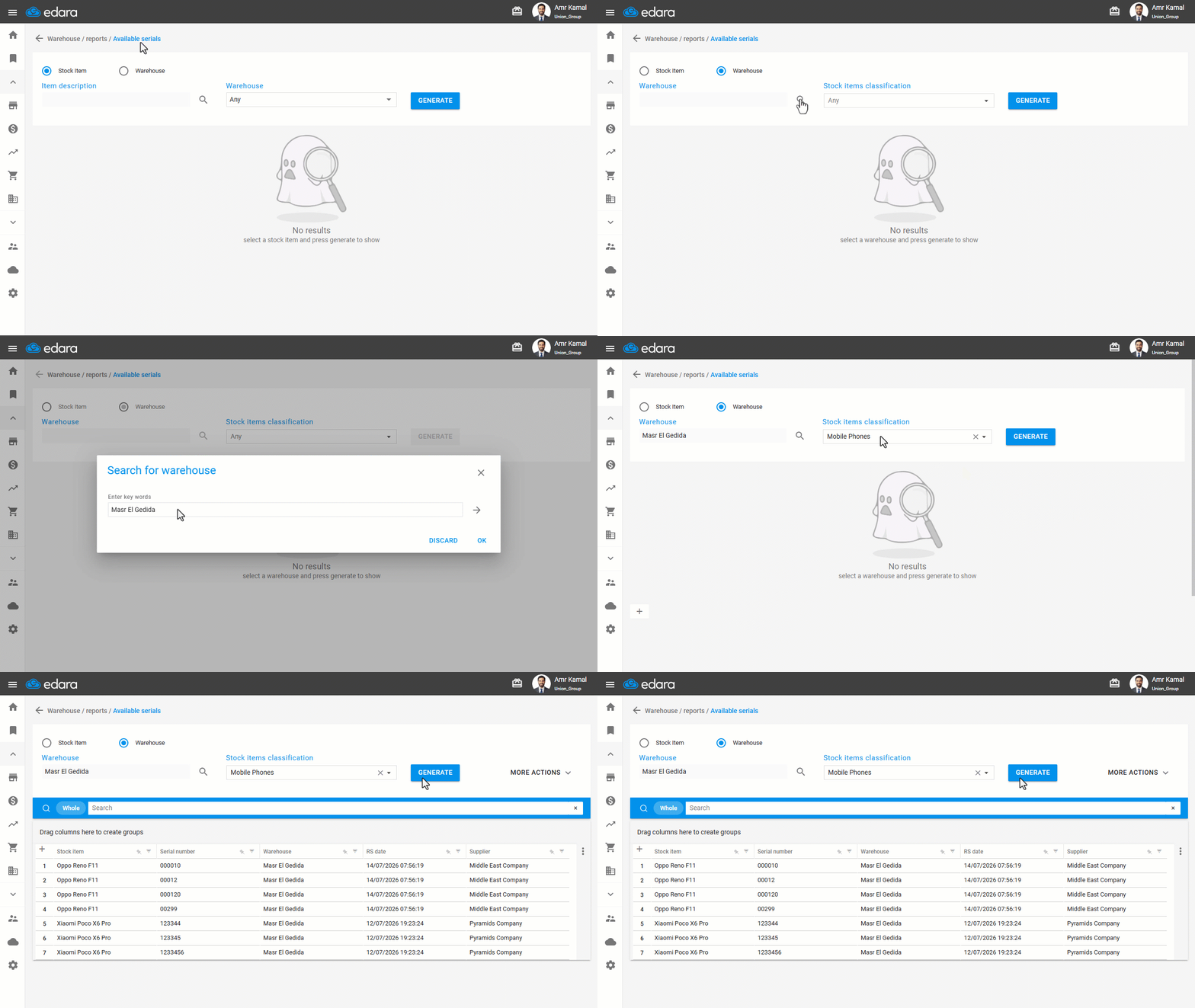
Second: Displaying Serial Numbers from the Available Serials Report
- Go to the "Warehouse" module.
- Open the "Available serials" page.
- Select " Warehouse ".
- Search for the required warehouse.
- Select the stock items classification.
- Click on "Generate".
The available serial numbers for each item will be displayed, with each serial number shown on a separate row.
If you encounter any challenges or have questions during these processes, you can contact our technical support team, who are ready to assist you at any time.