

Viewing the Available Serials Report
Last updated:
“Edara” provides the Available Serials Report to give you a comprehensive view of the serials available for each item or within each warehouse, enabling more accurate stock tracking.
Viewing the Available Serials Report
- Go to the Warehouse module.
- Open the “Available Serials” Report.
You can view the report in two ways:
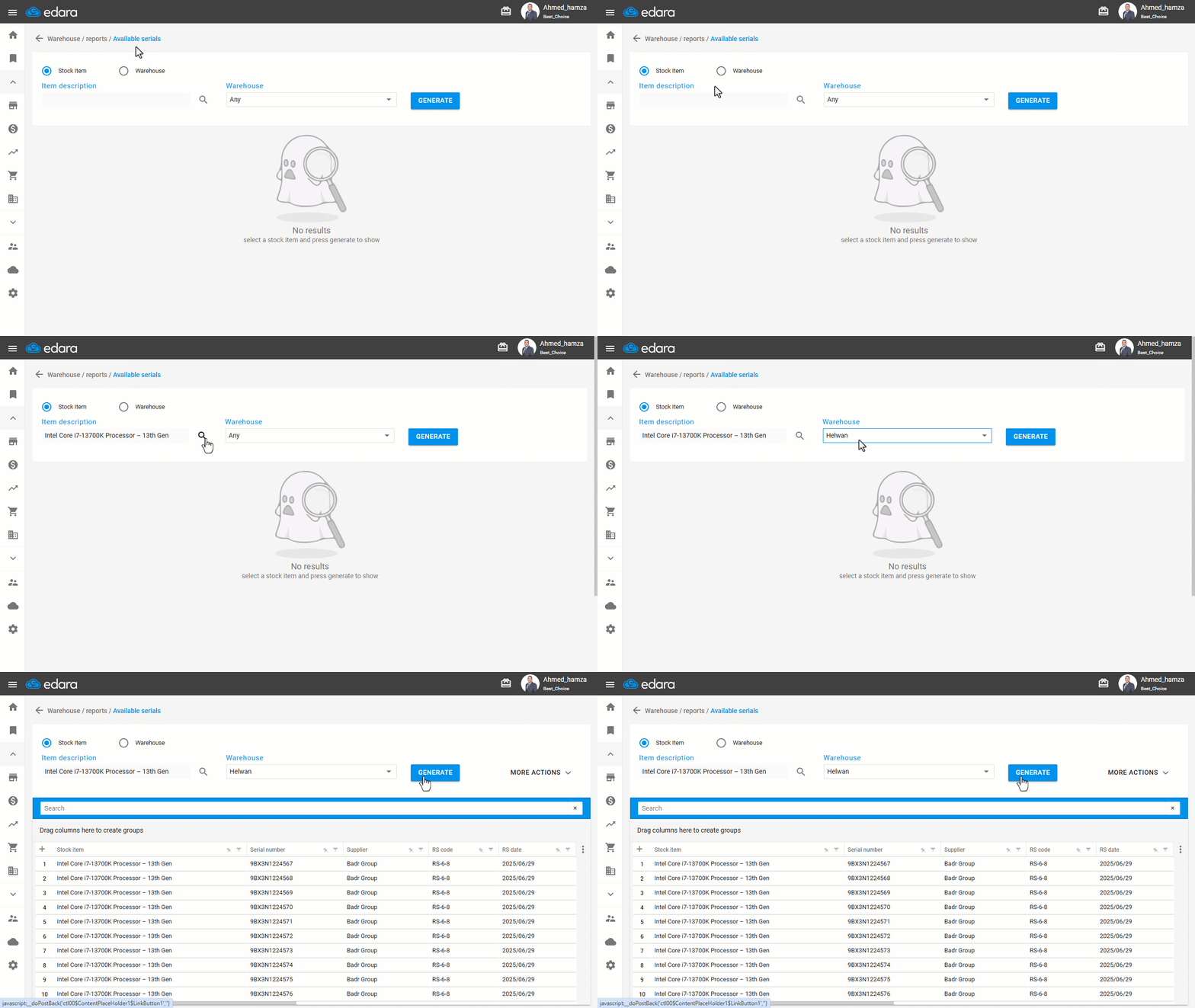
1. View Available Serials by Stock Item
- Select the stock item whose available serial numbers you want to review.
- Select the warehouse (to narrow down the results).
- Click on “Generate”.
2. View Available Serials by Warehouse
- Select the warehouse you want to review (Optionally, select an item classification to refine your results).
- Click on “Generate”.
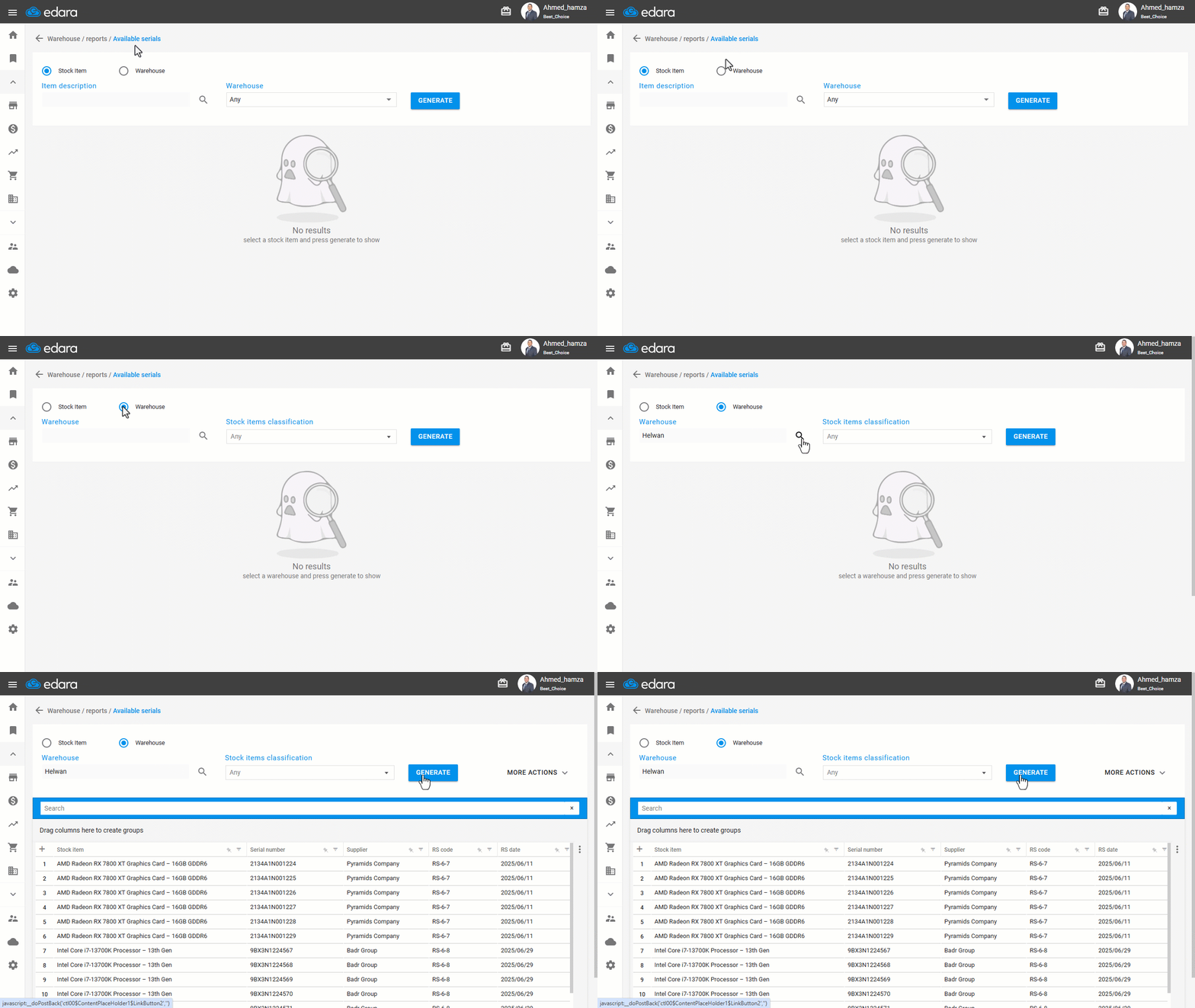
Note: You can export the report results by clicking “More Actions”, then choosing to export them to Excel or Google Sheets.
Restricting Users from Viewing Available Serials by Warehouse
By default, “Edara” allows all users to view available serials by stock item or warehouse. However, depending on the nature of certain roles, you may want to restrict some users' access to viewing serial numbers by warehouse, so they can only view them by item.
You can do this by following the steps below:
- Go to the Users module.
- Open the “Page Permissions” page.
- Select the user or group of users whose permissions you want to restrict.
- Click the “+” icon next to “Warehouses”, then go to “Reports”.
- Select “Available Serials Report”.
- Locate the permission labeled “Show availabe serials by warehouse”.
- Uncheck the “Visible” and “Enabled” boxes.
- Click on “Save”.
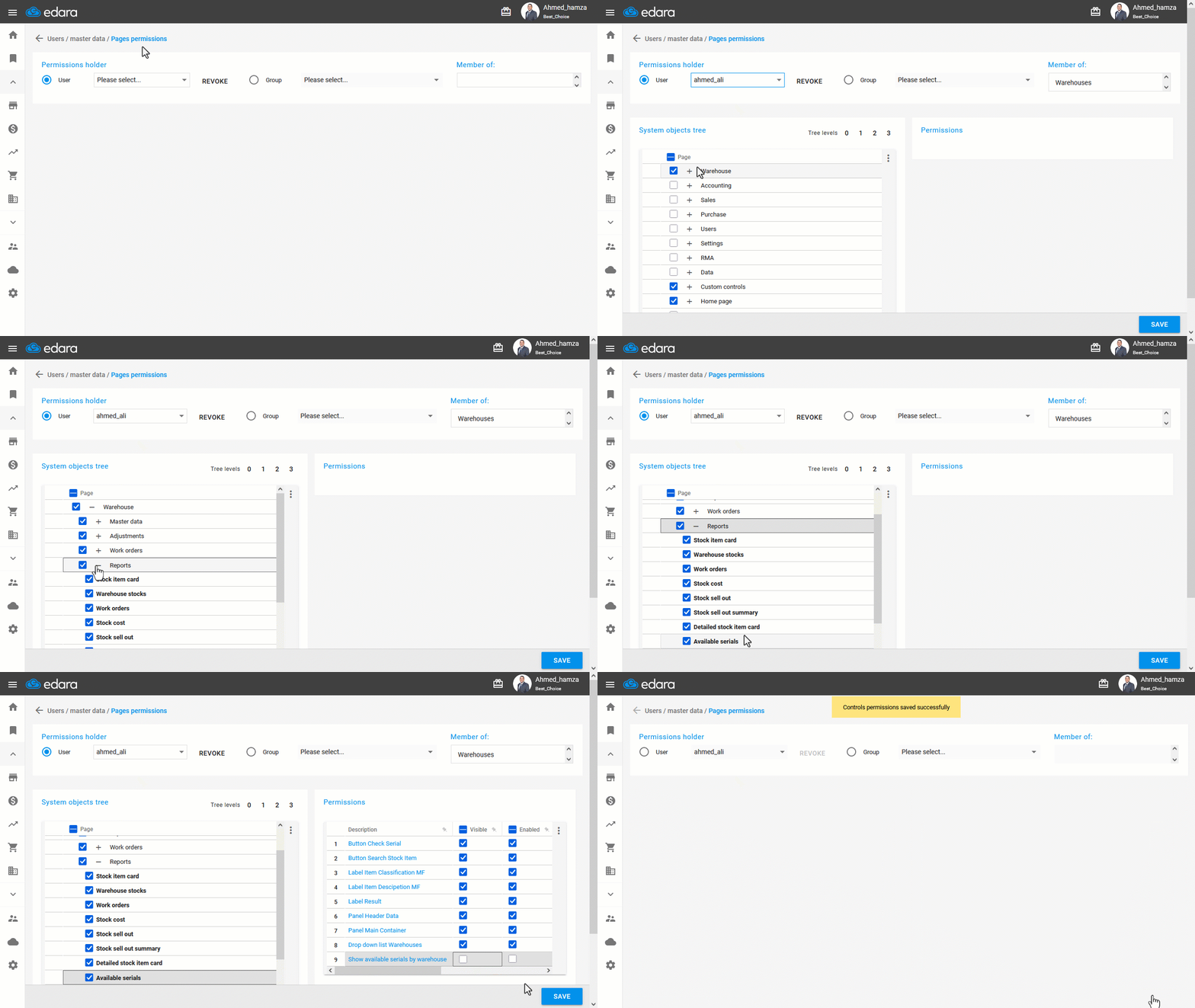
After completing these steps, the report page will appear to the restricted user as follows:
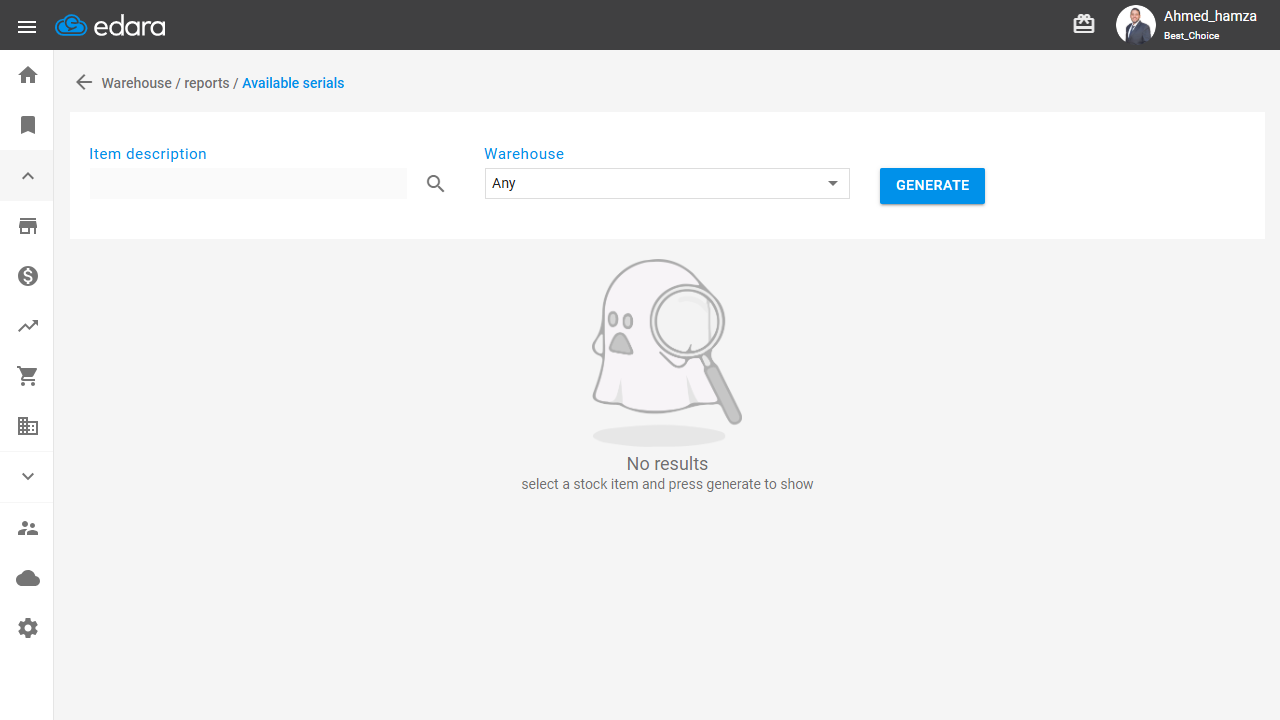
If you encounter any challenges or have questions during these processes, you can contact our technical support team, who are ready to assist you at any time.