

Displaying the Stock Sell-out Report
Last updated:
The Stock Sell-out Report is a vital tool for Sales Managers. It allows them to monitor each sales representative's performance by analyzing the sold items, quantities, prices, and discounts offered. This analysis aims to understand how each sales representative impacts revenue.
Additionally, the report helps track customer purchases, including details of previous discounts, to evaluate the offers presented. Furthermore, the report provides contact information for targeted customers, enhancing the effectiveness of marketing campaigns.
Here’s how to view it.
Displaying the Stock Sell-Out Report
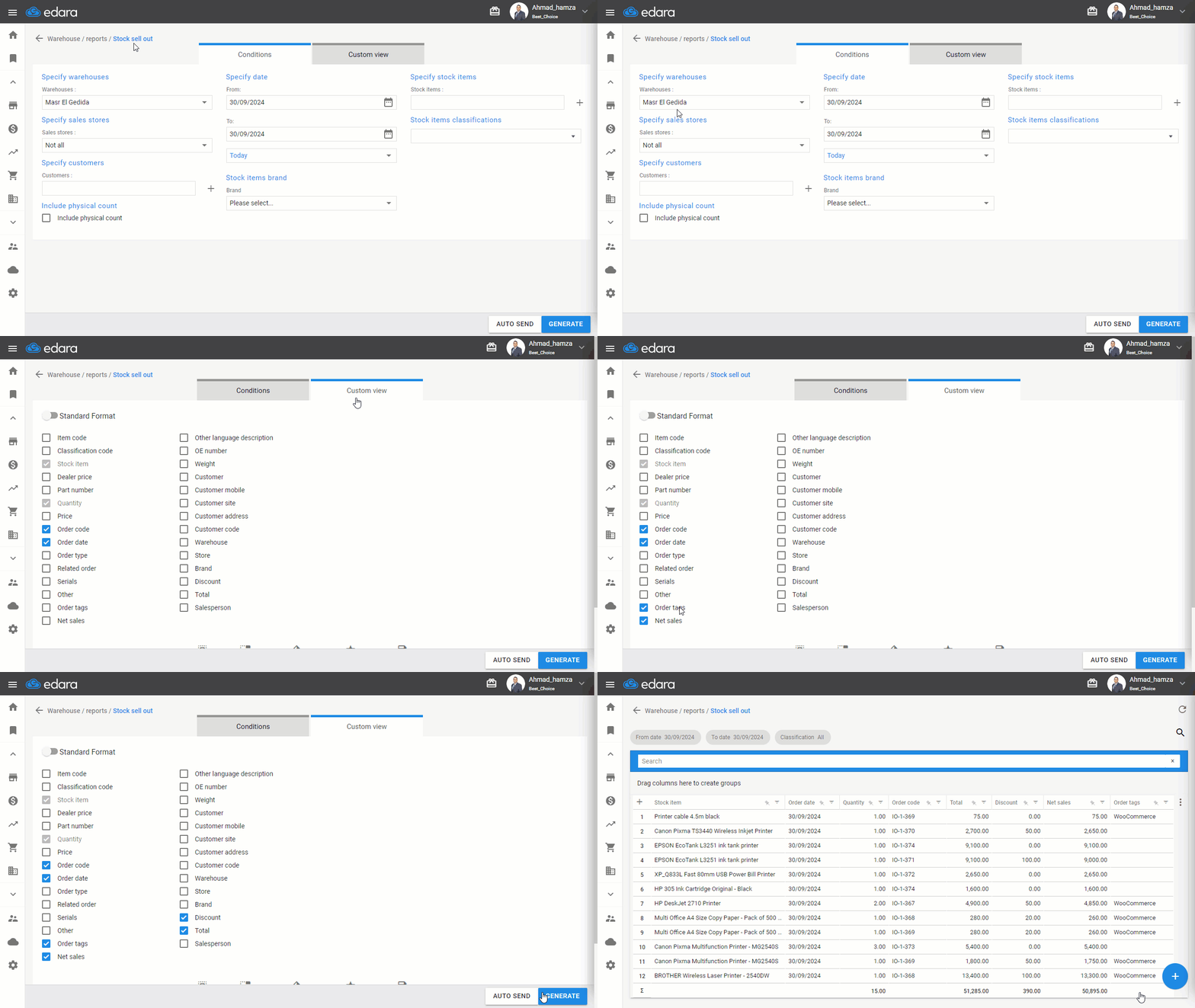
- Go to the Warehouse Module
- Open the Stock Sell-Out Report
- Select the Warehouse you want to display
Note: The default warehouse is the first one you can access, but you can change it or select all.
- Specify the “Date”
- Choose the columns you want to display in the report from “Custom view”
Note: "Edara" enables you to add some columns in the Stock Sell-out Report for better visibility and a more detailed sales review. These columns include:
- Other: Displays the other party in case of stock adjustments.
- Order Tags: Tags associated with the sales order linked to the Issue Offering Documents.
- Total: The result of multiplying the quantity by the price for each row.
- Discount: The line share of the discount if the work order is linked to a Sales Document (Sales or Return Order).
- Net Sales: Which equals (Total - Discount) for each row.
- Select any additional filters, such as (Sales stores, Customers, Brands, etc.)
- Click “Generate”
Note: You can export the report to Excel, or Google Sheets, or print it by clicking the "+" button.
Frequently asked questions
Which warehouse does the Stock Sell-out report show by default?
The default warehouse is the first one you can access, but you can change it or select all.
Which additional columns does the Stock Sell-out report offer?
"Edara" enables you to add some columns in the Stock Sell-out Report for better visibility and a more detailed sales review. These columns include: Other: Displays the other party in case of stock adjustments, Order Tags: Tags associated with the sales order linked to the Issue Offering Documents, Total: The result of multiplying the quantity by the price for each row, Discount: The line share of the discount if the work order is linked to a Sales Document (Sales or Return Order), Net Sales: Which equals (Total - Discount) for each row.
If you encounter any challenges or have questions during these processes, you can contact our technical support team, who are ready to assist you at any time.