

Displaying the sales report
Last updated:
The sales report helps you track total sales during a specific period, with the ability to control how the data is displayed according to your needs.
Displaying the sales report
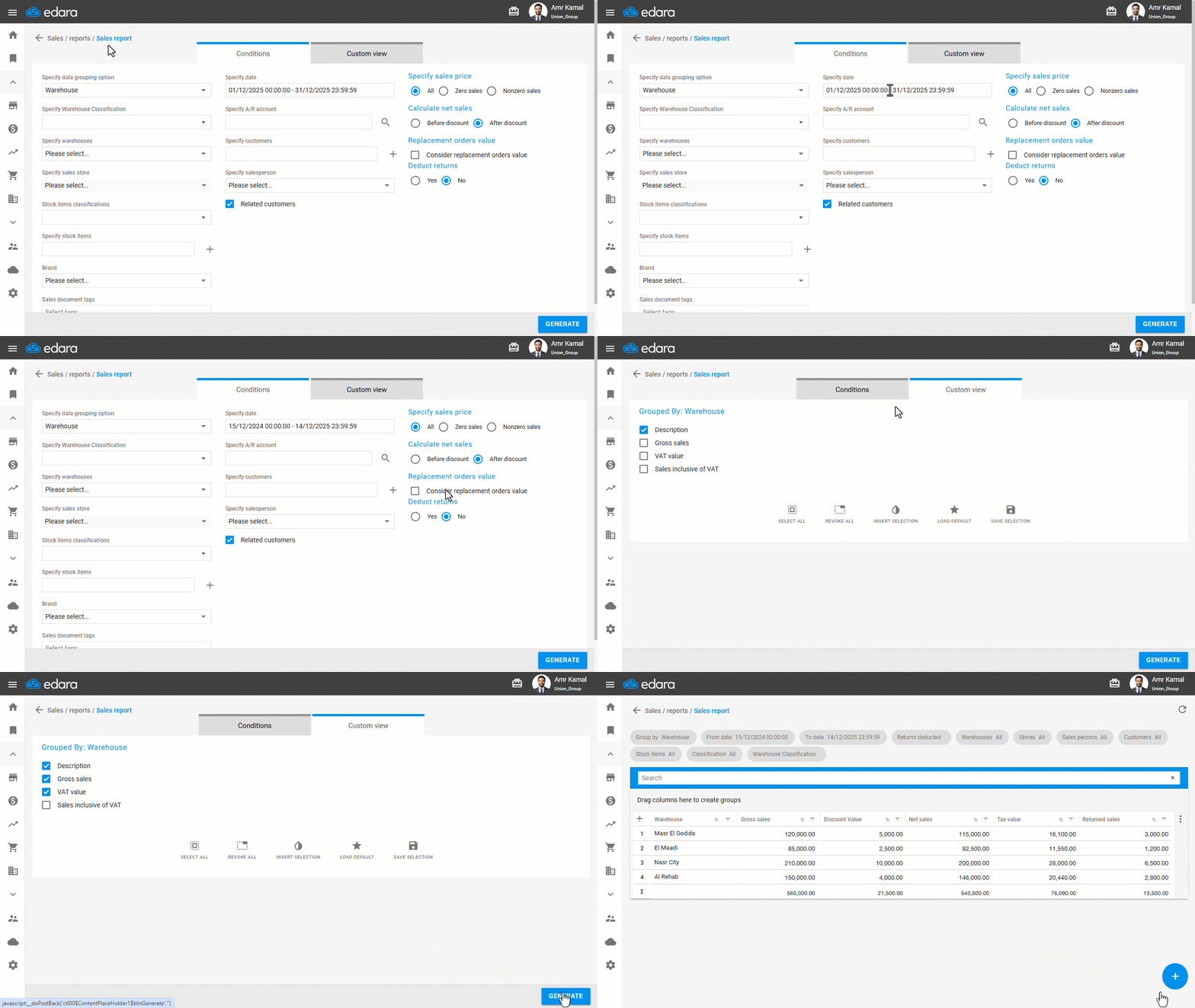
- Go to the “Sales” module.
- Open the “Sales Report” page.
The default selection in the “Specify data grouping option” field is “Warehouse”. You can choose any other grouping option from the list based on your needs, such as Stock Item, Customer, User, and more.
- Specify the desired date rate.
- Specify the sales price to be displayed in the report (Zero sales - Nonzero sales - All).
- Select whether to calculate net sales “Before discount” or “After discount”.
Note: If you want to deduct returns within the report, select “Yes” for “Deduct returns”.
- Go to “Custom View”.
- Enable the columns you want to display in the report.
- Click on “Generate”.
Note: When the “Related Customers” option is enabled, the report displays all sales orders for customers linked to the selected salesperson, even if another salesperson created these orders. This option is used when you need to track all transactions of customers associated with a specific salesperson. If it is not enabled, the report will display only the sales orders that contain the selected salesperson.
Frequently asked questions
How do I deduct returns in the report?
If you want to deduct returns within the report, select “Yes” for “Deduct returns”.
What does the report show when “Related Customers” is enabled?
When the “Related Customers” option is enabled, the report displays all sales orders for customers linked to the selected salesperson, even if another salesperson created these orders. This option is used when you need to track all transactions of customers associated with a specific salesperson. If it is not enabled, the report will display only the sales orders that contain the selected salesperson.
If you encounter any challenges or have questions during these processes, you can contact our technical support team, who are ready to assist you at any time.