

Tracking (Daily, Weekly, and Monthly) Sales Rate for Stock Items
Last updated:
This feature allows you to track the daily, weekly, and monthly sales rate for each item within the specified report period. You can compare the sales rate of any item with its current available stock across all warehouses, helping you identify items that may need to be restocked.
Note: You can use several columns in the sales report grouped by item, which are as follows:
- Days: The number of days the item was available for sale during the report period.
- Weeks: The number of days ÷ 7.
- Months: The number of days ÷ 30.
- Daily Sales Rate: Sales quantity ÷ number of days.
- Weekly Sales Rate: Sales quantity ÷ number of weeks.
- Monthly Sales Rate: Sales quantity ÷ number of months.
- Date of First Goods Receipt for Item.
- Balance: The current stock item balance in all warehouses regardless of the reporting period (This column can be hidden by selecting it from the page permissions, due to its importance).
Tracking (Daily, Weekly, and Monthly) Sales Rate for Stock Items
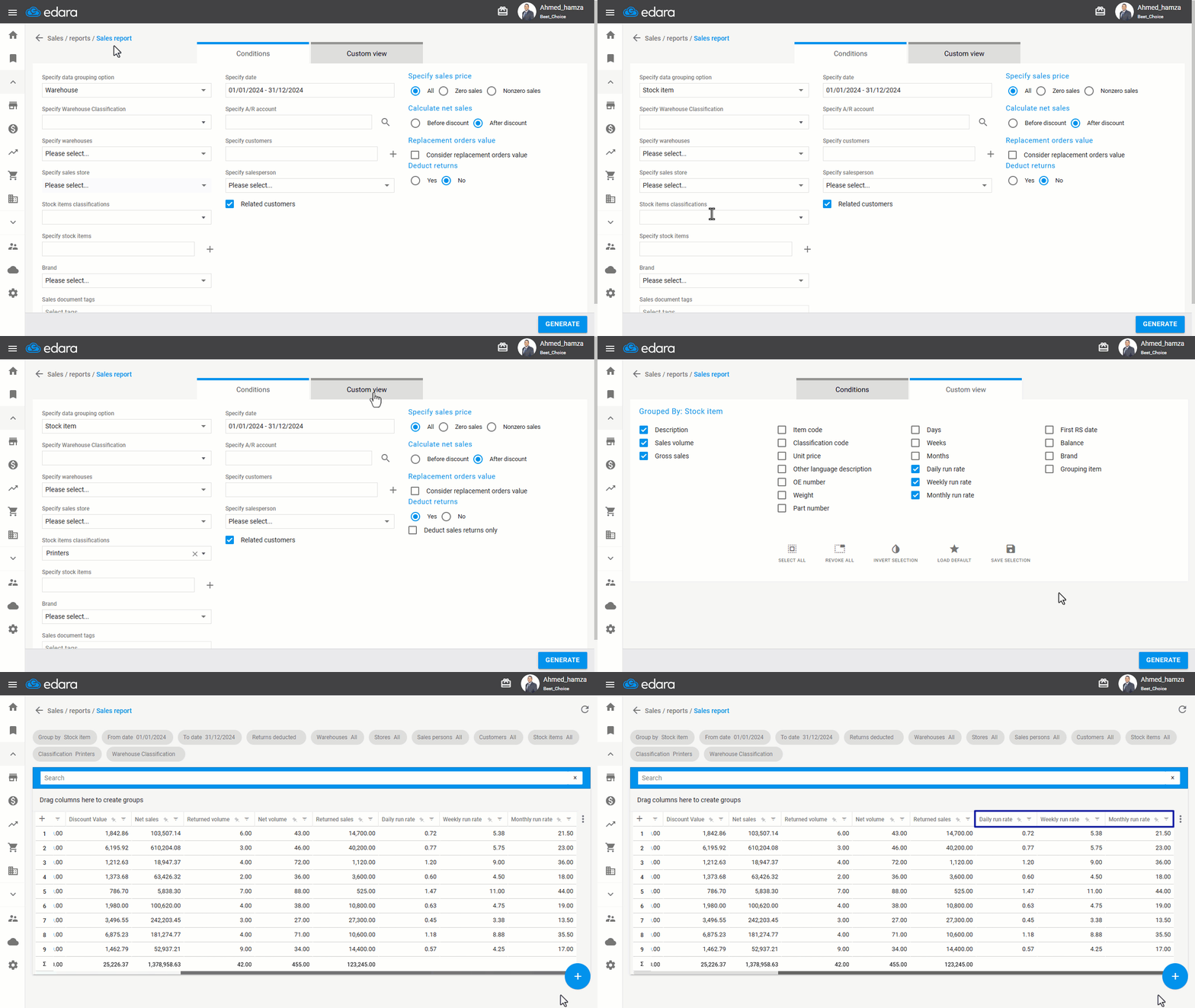
- Go to the Sales module.
- Select "Sales Report".
- Choose "Stock Item" as the data grouping option.
- Select the required period.
- Choose "Yes" to deduct returns.
- Select the columns you want to display from "Custom View".
- Click on "Save Selection".
- Click on "Generate", and the report will display as shown in the image below:
Note: If the date of the first receive supplies for the stock item falls within the specified period and there is no opening balance, the number of days the stock item was available for sale will be the period between the end of the report and the receive supplies date.
Note: The number of columns selected for display in this report may result in a longer wait time for generating the results.
Frequently asked questions
Why do the report results take longer to appear?
The number of columns selected for display in this report may result in a longer wait time for generating the results.
If you encounter any challenges or have questions during these processes, you can contact our technical support team, who are ready to assist you at any time.