

Displaying Stock and Service Item Quantities in the Sales Orders Report
Last updated:
When you need to identify the actual quantity of stock items to be shipped, you can display stock and service item quantities separately within the report.
Displaying Stock and Service Item Quantities in the Sales Orders Report
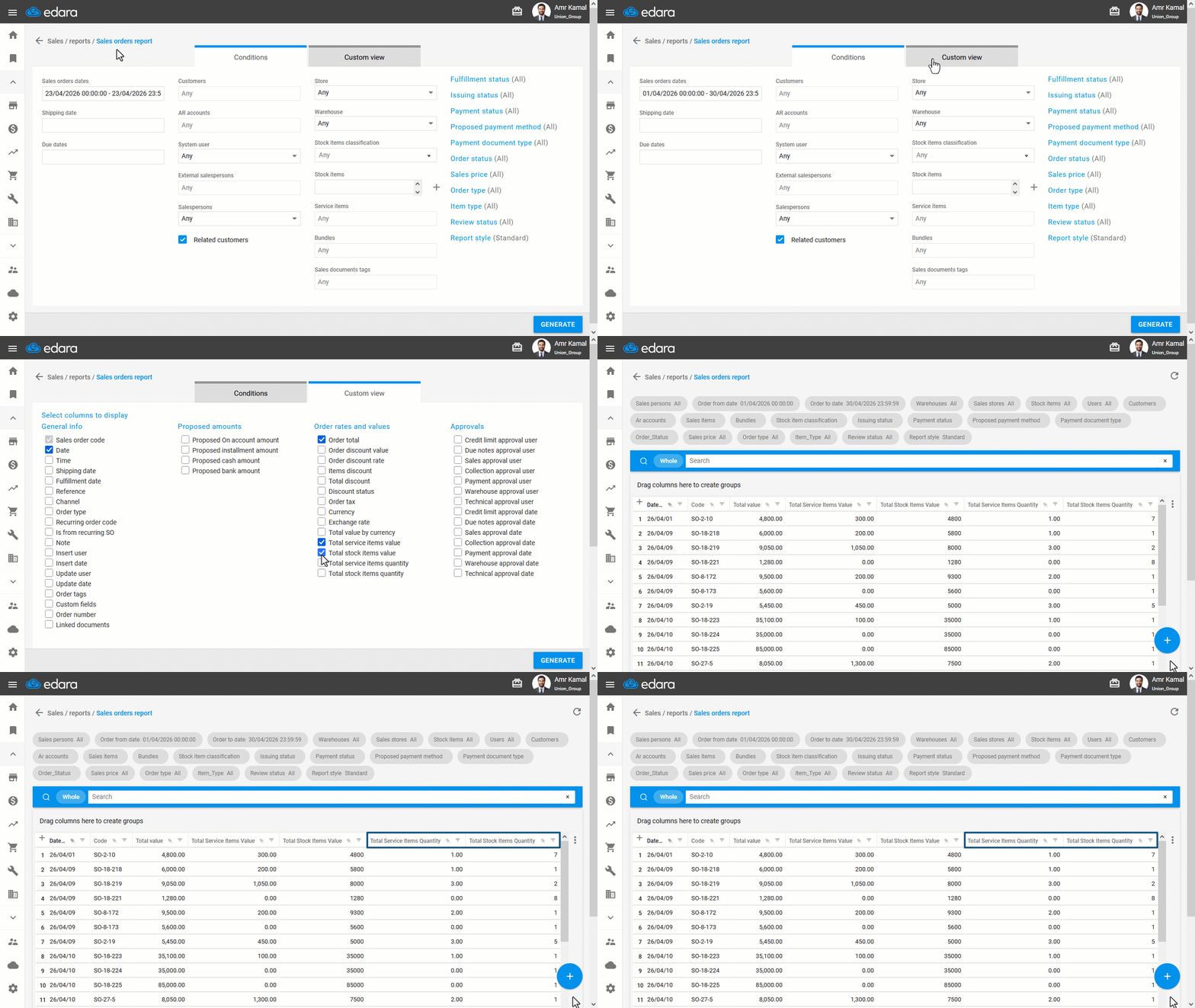
- Go to the “Sales” Module.
- Open the “Sales Orders Report” page.
- Select the required filters.
- Go to “Custom View”.
- Enable the “Total service items quantity” and “Total stock items quantity” columns.
You can also enable any other columns you want to display in the report.
- Click on “Generate”.
The quantities of stock items and service items will be displayed separately in the report.
If you encounter any challenges or have questions during these processes, you can contact our technical support team, who are ready to assist you at any time.
Did this answer your question?