

Viewing Returns for a Specific Customer and a Stock Item
Last updated:
"Edara" provides simple steps to help you easily review sales returns details by the customer within the specified period, which contributes to improving warehouse management and understanding customer needs more accurately.
Viewing Returns for a Specific Customer and a Stock Item
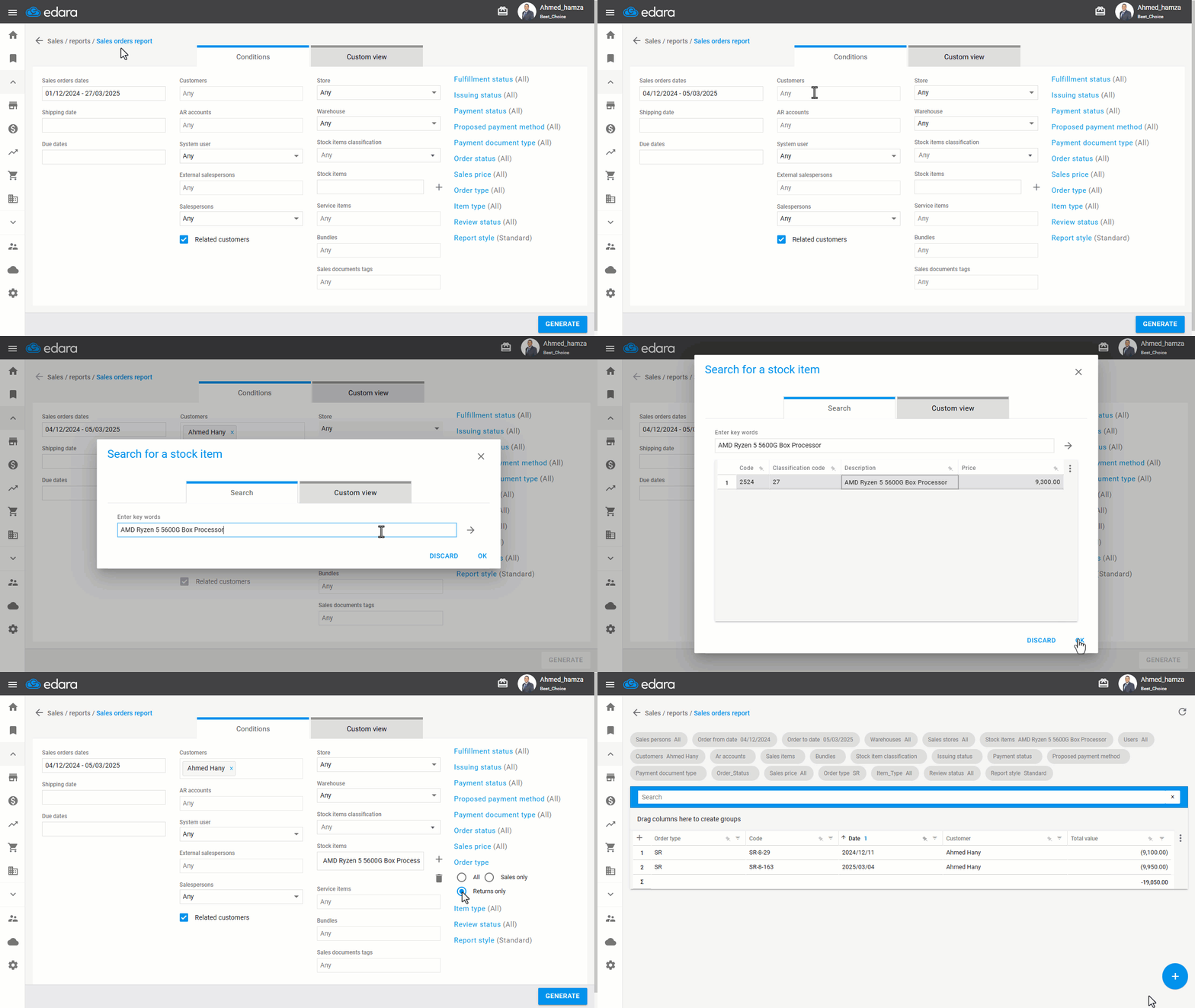
- Go to the Sales module.
- Open the "Sales Orders Report".
- Choose the period for which you want to view results under "Sales Orders Dates".
- Search for the “Customer”.
- Search for the “Stock Item”.
- Click on "→" to display the search results from the previous step, and select the stock item.
- Set the Order type to be: "Returns Only".
- Click on "Generate".
If you encounter any challenges or have questions during these processes, you can contact our technical support team, who are ready to assist you at any time.
Did this answer your question?