

Viewing Returned Items in the Sales Orders Report
Last updated:
You can easily track returned items — whether service or stock items — through the Sales Orders Report, enabling accurate, efficient review of data.
Viewing Returned Items in the Sales Orders Report
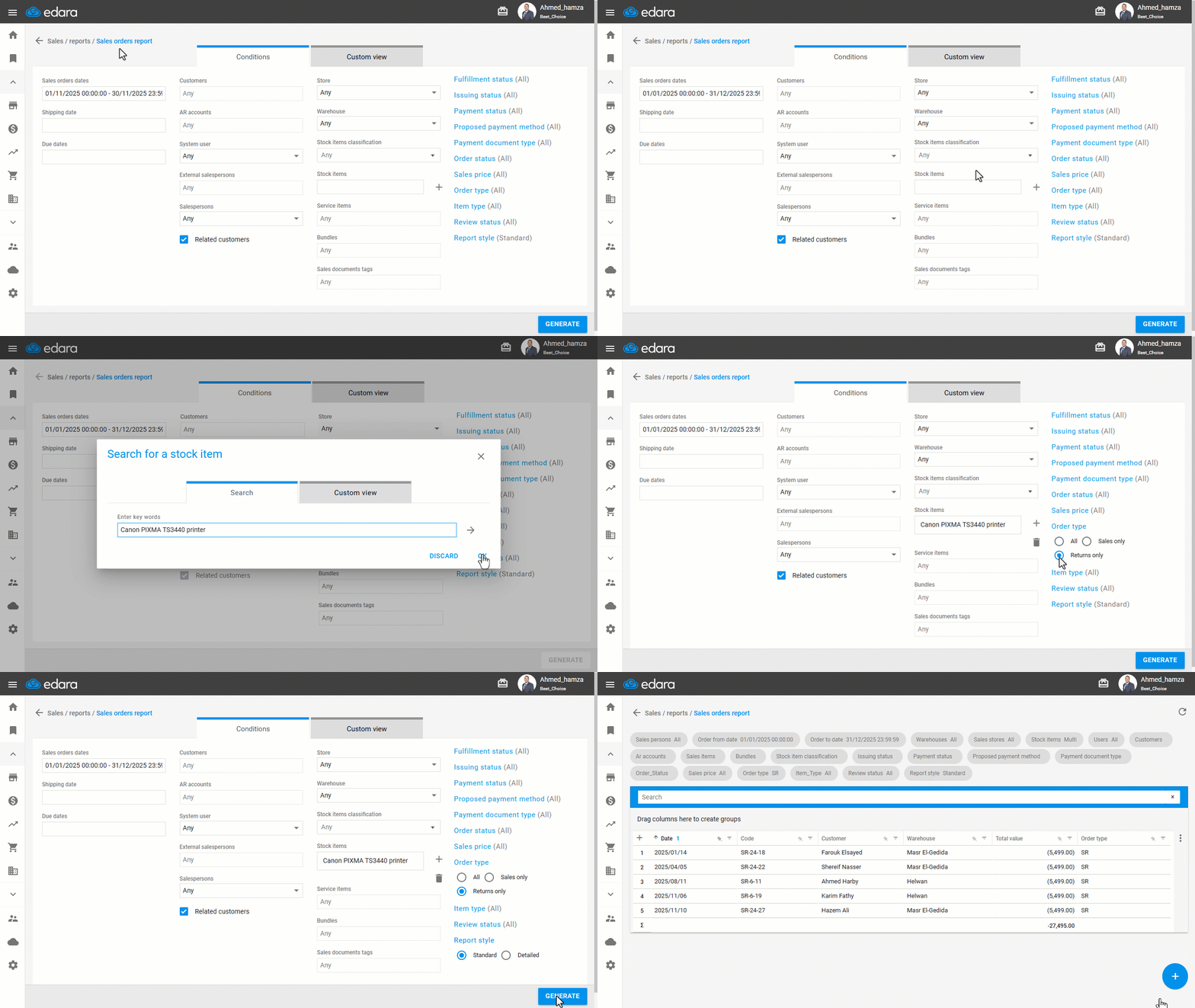
- Go to the “Sales” module.
- Open the “Sales orders report” page.
- Select the Sales Order date.
- Search for the item name through:
- Stock Items: if the item is a stock item.
- Service Items: if the item is a service item.
Note: To search for a service item, the sales order must include both a service item and a stock item. You can choose to display only the service item or only the stock item when viewing the report.
- Set the Order type to “Returns only”.
- Choose the “Report style”.
- Click on “Generate”
Frequently asked questions
When can I search for a service item in the report?
To search for a service item, the sales order must include both a service item and a stock item. You can choose to display only the service item or only the stock item when viewing the report.
If you encounter any challenges or have questions during these processes, you can contact our technical support team, who are ready to assist you at any time.
Did this answer your question?