

Displaying Sales Value Including Tax in the Sales Report
Last updated:
Displaying sales value, including tax, helps provide a clearer and more accurate view of total sales, especially when analyzing performance or reviewing financial data.
Displaying Sales Value Including Tax in the Sales Report
- Go to the “Sales” module.
- Open the “Sales Report” page.
Note: The default option in the “Specify data grouping option” is “Warehouse”.
- Open the “Custom view” tab.
- Enable the options “VAT value” and “Sales inclusive of VAT”.
- Click on “Generate”.
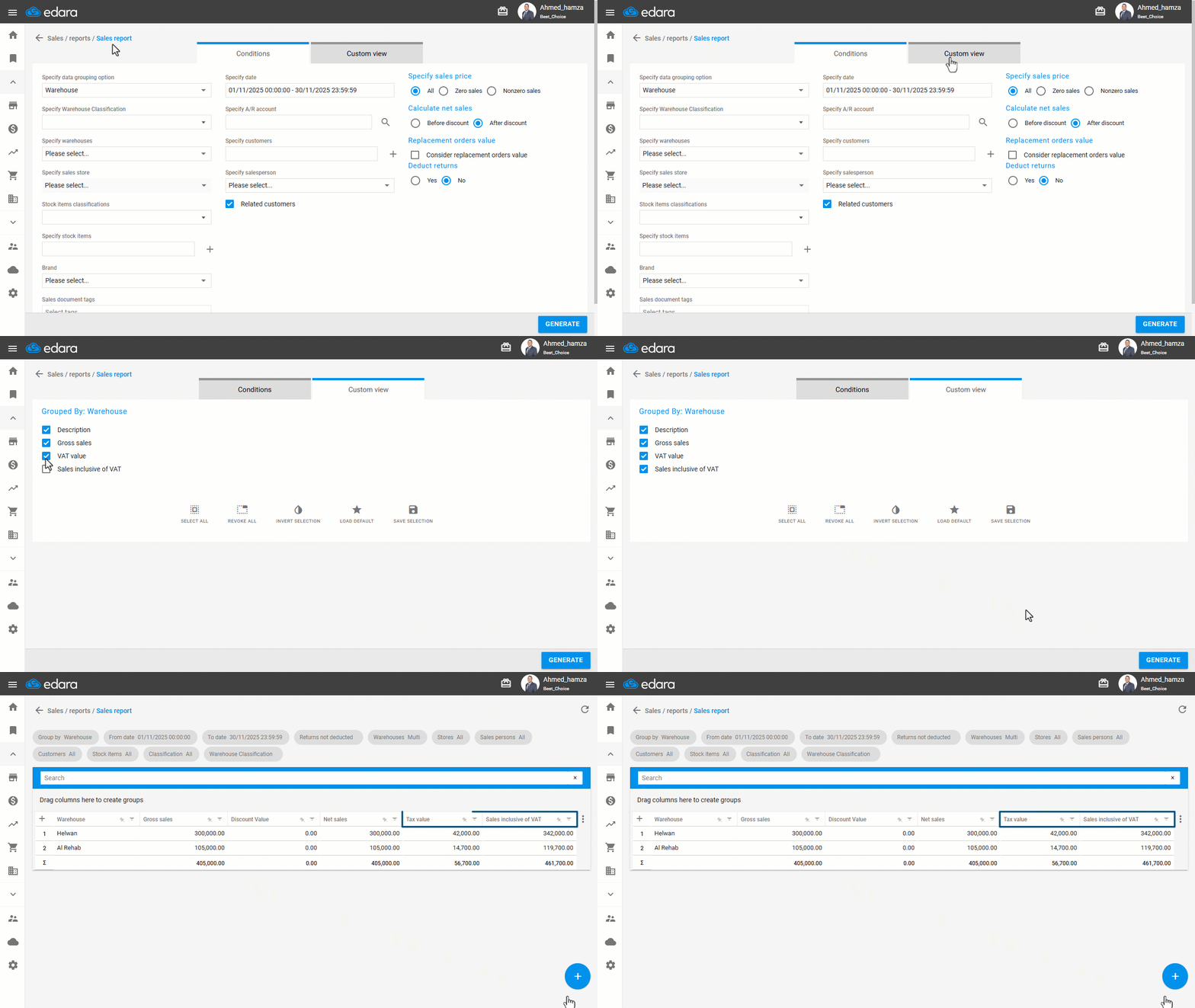
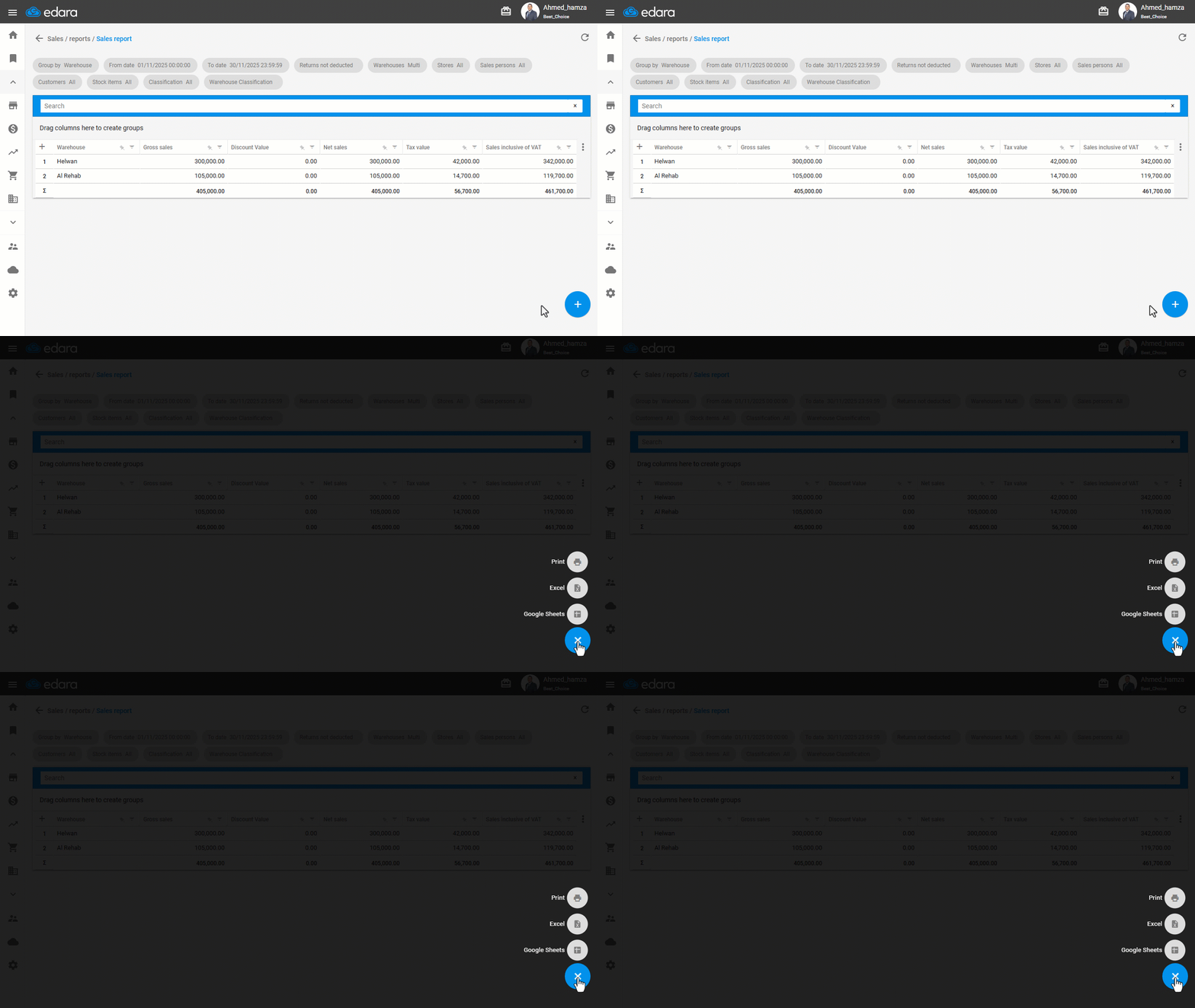
Note: You can export the report to Excel or Google Sheets, or print it by clicking the “+” icon to view available options.
If you encounter any challenges or have questions during these processes, you can contact our technical support team, who are ready to assist you at any time.
Did this answer your question?