

Viewing the Purchases Report
Last updated:
The Purchase Report indicates the total value of purchases. It displays only received purchase orders. The report reflects the results of approval-based purchase orders for which the receipt of items has been recorded.
Viewing the Purchases Report
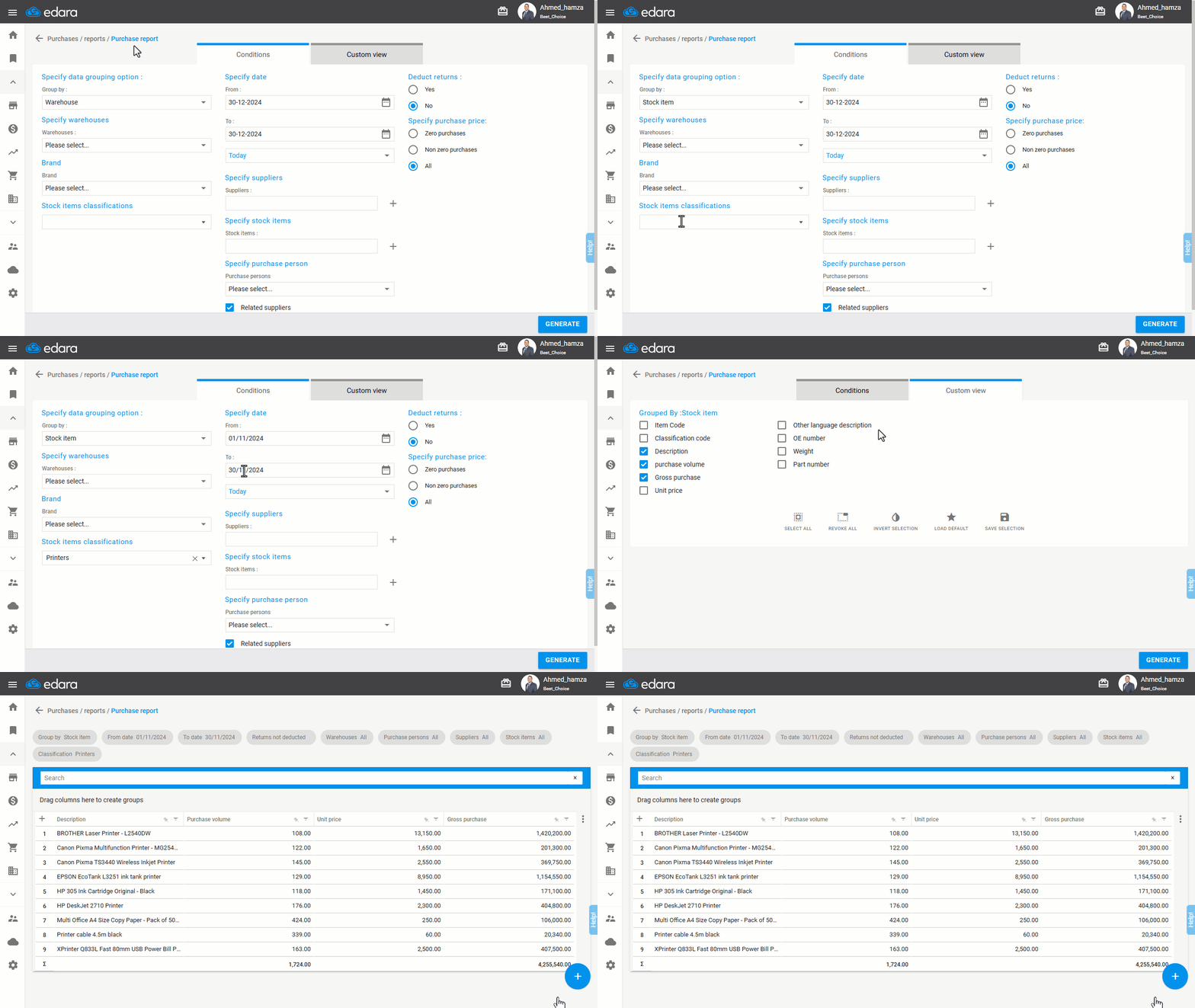
- Go to the Purchase module.
- Open the “Purchase Report”.
- Select a data grouping option.
Note: The report can be viewed using various data grouping options: (warehouse, stock item, category, work order, user, purchasing officer, supplier, day, month, year, or payment method).
- Specify a date for the report.
- Specify the Purchasing Person from the dropdown menu (if pre-coded and assigned in the purchase order).
- Click on the ▢ to change it to ☑ if the person is linked to specific suppliers.
Note: You can use search filters to get the desired results faster, such as selecting the brand, choosing the supplier, or specifying the Stock items classifications.
- Set the Deduct Returns option to "Yes" or "No".
- Choose the columns you want to display from the “Columns view”.
- Click on “Generate”.
Frequently asked questions
Which documents appear in the purchase report?
The Purchase Report indicates the total value of purchases. It displays only received purchase orders. The report reflects the results of approval-based purchase orders for which the receipt of items has been recorded.
If you encounter any challenges or have questions during these processes, you can contact our technical support team, who are ready to assist you at any time.