

Viewing the Purchase Report for Specific Items During a Period
Last updated:
The purchase report for specific items during a certain period helps analyze purchasing behavior for these items, such as purchase quantity, unit cost, purchase date, and so on.
This information can then be used to identify purchasing trends and achieve the best value for money when negotiating with suppliers.
Viewing the Purchase Report for Specific Items During a Period
- Go to the Purchases module.
- Open the "Purchase Report".
- Select "Stock Item" from the "Group By" option.
- Choose the desired period.
- Select the required columns from "Custom View".
Note: You can use search filters to get the desired results faster, for example: choose brand, supplier, or a specific category.
Note: You can deduct returns to get the net total by selecting "Yes" in "Deduct Returns" under the conditions section.
- Click "Generate".
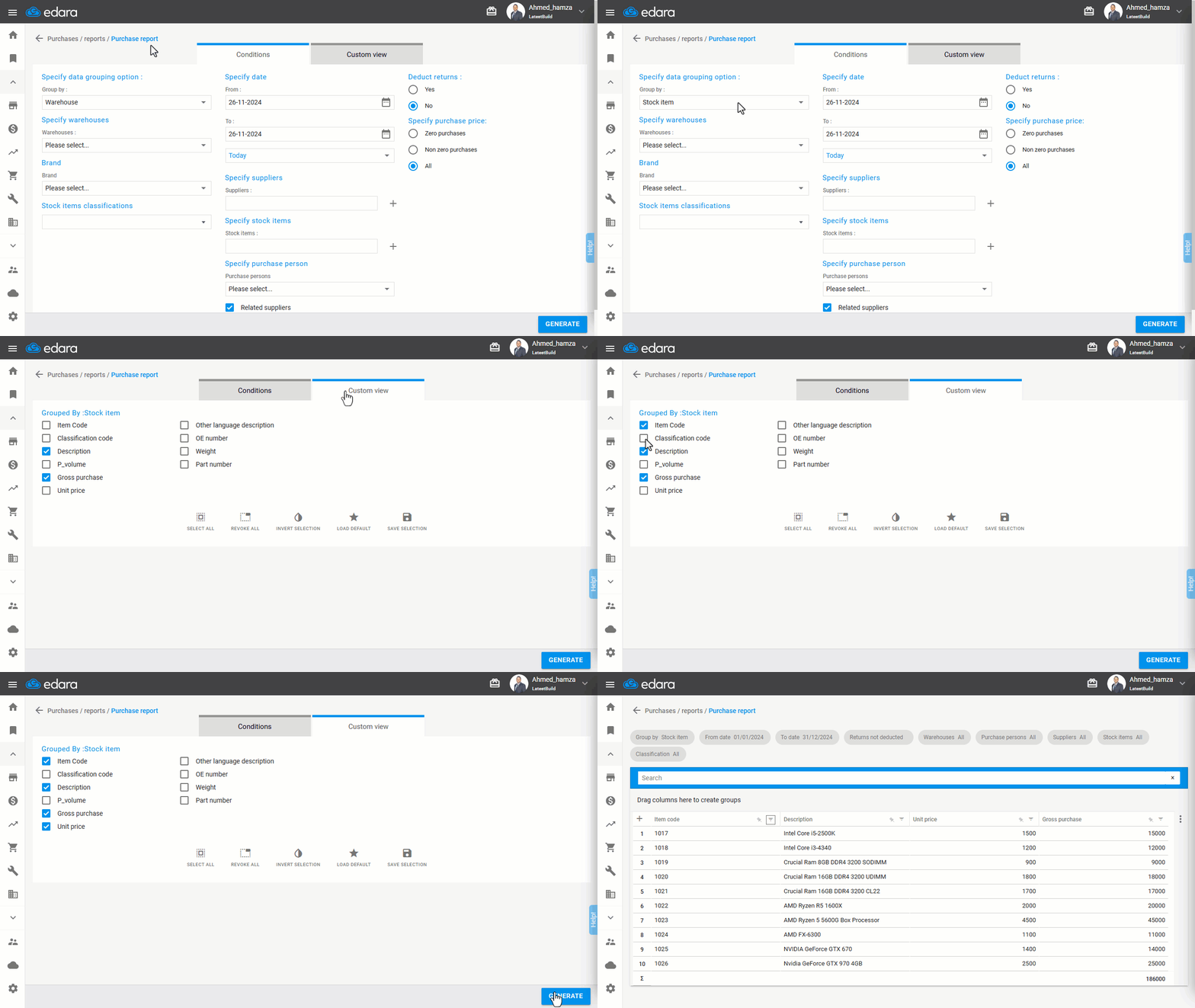
Note: After running the report, you can print it or export it to Excel or Google Sheets by clicking the ➕ icon at the bottom left of the screen.
Frequently asked questions
How do I print or export the report?
After running the report, you can print it or export it to Excel or Google Sheets by clicking the ➕ icon at the bottom left of the screen.
If you encounter any challenges or have questions during these processes, you can contact our technical support team, who are ready to assist you at any time.