

Displaying The Purchase Price in the Stock Item Search Window of a Purchase Order
Last updated:
"Edara" enables seamless comparison of current prices with those recorded in the item coding, making it easier to negotiate better deals with suppliers and secure the best possible prices.
This is achieved by displaying the purchase price in the stock item search window of a purchase order.
Displaying The Purchase Price in the Stock Item Search Window of a Purchase Order
- Go to the Purchase module.
- Open the “Purchase Order” page.
- Select the supplier.
- Search for the stock item.
- Click on "Custom View".
- Enable "Purchase Price" to display it.
- Search for stock items, and the purchase price will be visible.
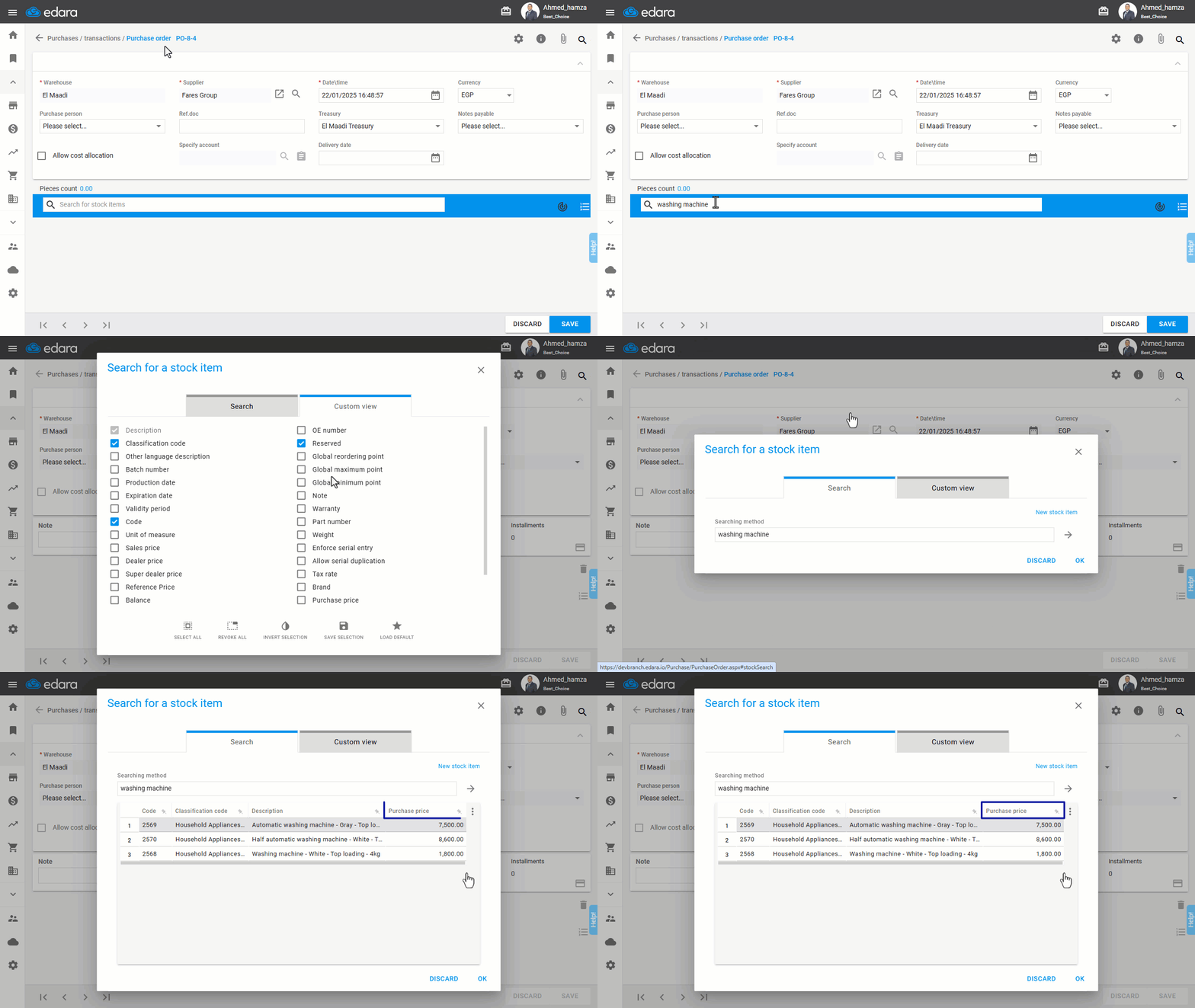
Note: The purchase price (as recorded in the stock item details) is only displayed in Purchase Order and Receive Supplies documents, as it is critical cost-related information.
If you encounter any challenges or have questions during these processes, you can contact our technical support team, who are ready to assist you at any time.
Did this answer your question?