

Applying Tax in the Purchase Order
Last updated:
When creating a new purchase order, you will need to establish the tax rate in the purchase document to ensure tax compliance.
Applying Tax in the Purchase Order
This is done through two main steps:
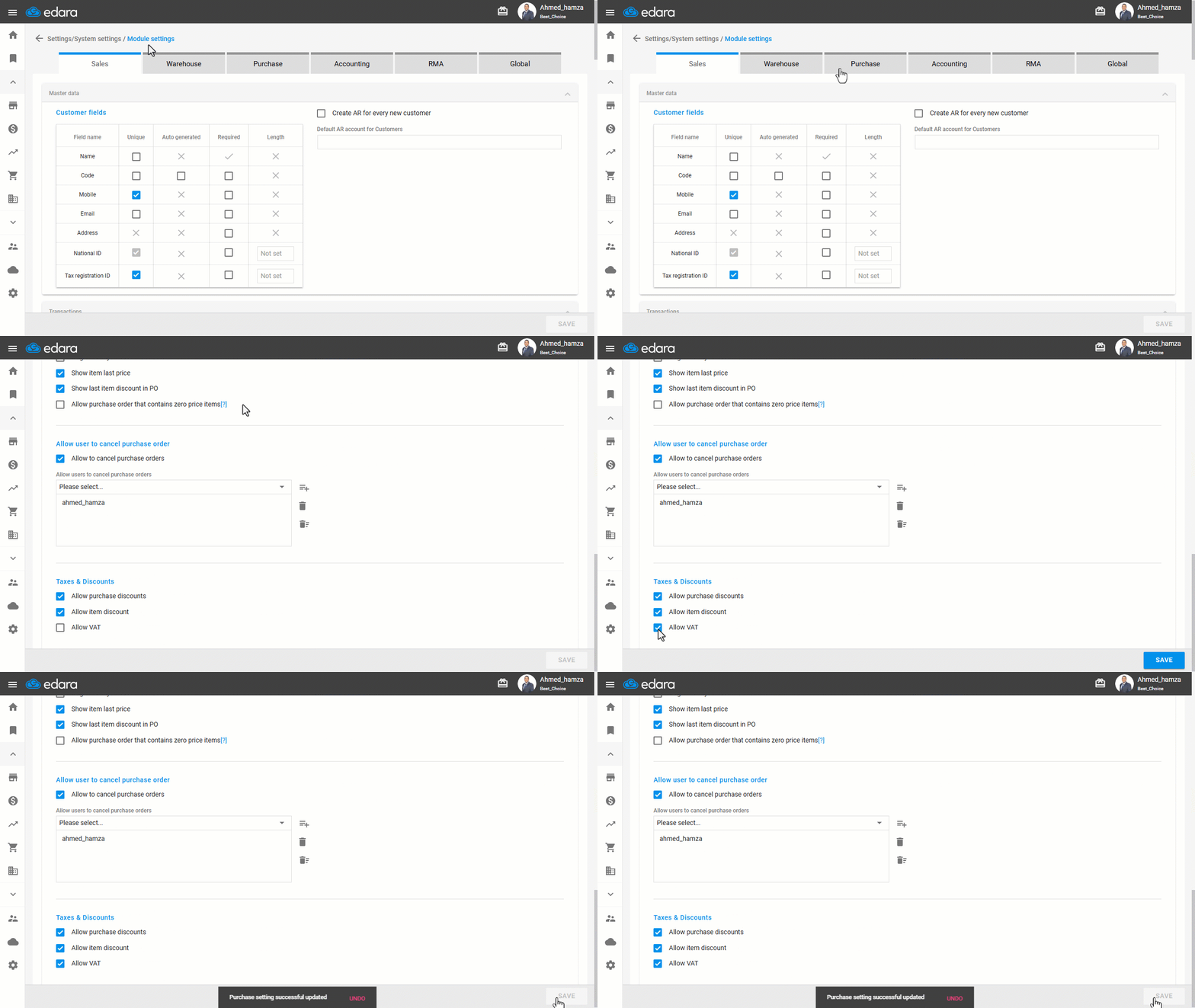
1- Activate the "Allow VAT” on Purchases setting
- Go to Settings.
- Open the "Modules Settings" page.
- Select the "Purchase" module.
- Activate the “Allow VAT” setting.
- Click on "Save".
2- Show the tax rate in the purchase order
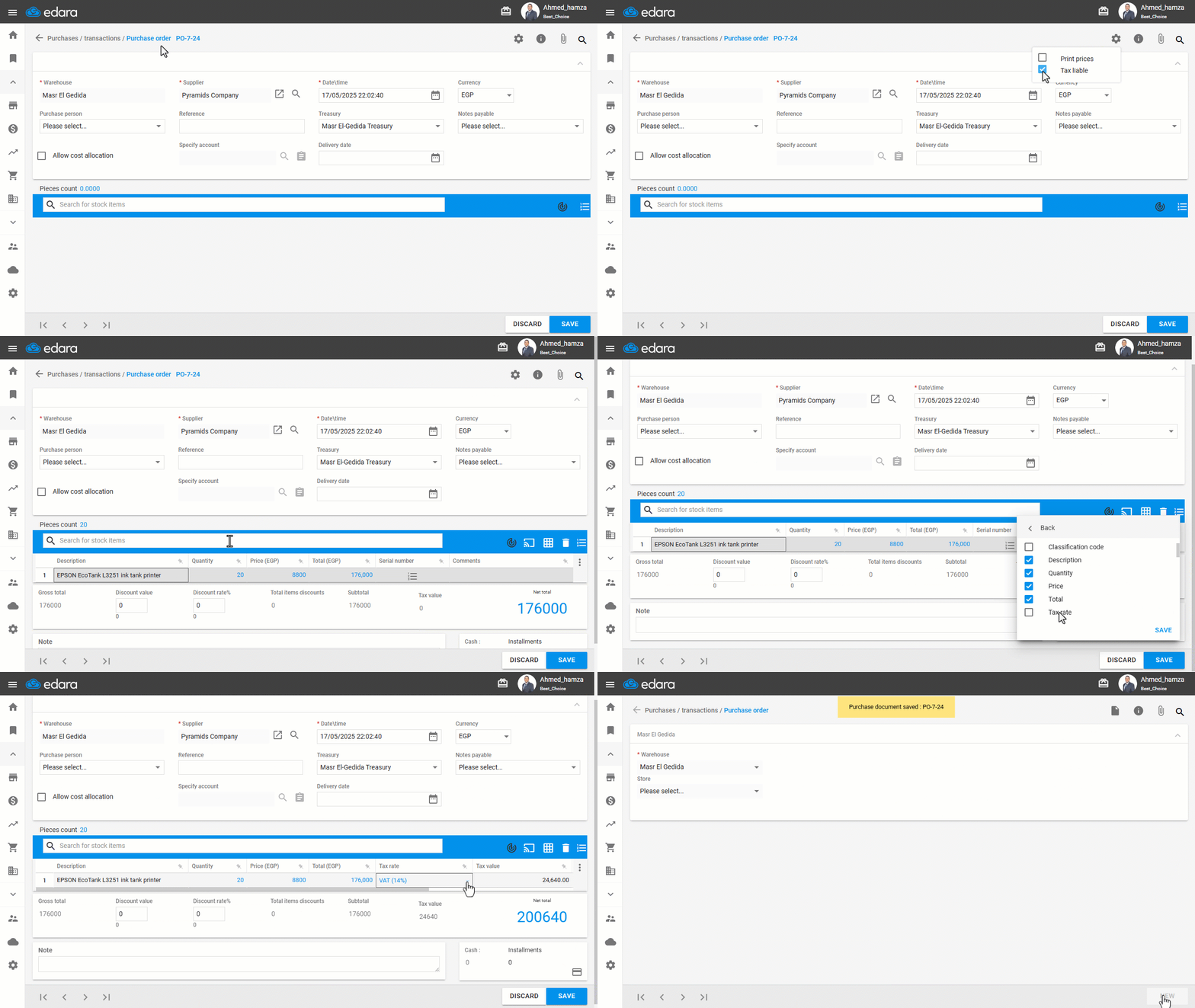
Follow the “Create a purchase order” steps mentioned in the article, then:
- Click on "
 ".
". - Activate the "Tax liable" option.
- Select the required stock items.
- Click on "⁞".
- Click on "Columns".
- Show the "Tax Rate" column.
- Click on "Save".
- Specify the tax rate.
- Save the document.
If you encounter any challenges or have questions during these processes, you can contact our technical support team, who are ready to assist you at any time.
Did this answer your question?